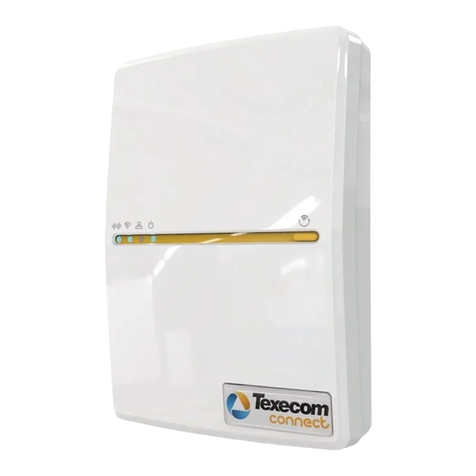
Texecom SmartCom 4G User manual

Texecom SmartCom
4G
INS884EN-4

11-03-2022
• Manual creation
• Corrected Typographical errors
• Updated the managed network port information in section 6.2

INS884EN-4 3/87
Content
1.0 Introduction 4 ............................................................................................................................

2.0 SmartCom 4G 4 ..........................................................................................................................
3.0 Future Support 5 .......................................................................................................................
4.0 Requirements - System 5 .........................................................................................................
4.1 Hardware requirements 6 .......................................................................................................
4.2 Firmware requirements 6 .......................................................................................................
4.3 Network requirements 7 .........................................................................................................
5.0 Texecom Connect 10 .................................................................................................................
6.0 Installation process 12 .............................................................................................................
6.1 SmartCom 4G Opening & Identification 12 .............................................................................
6.2 Removal from mounting tamper 15 ........................................................................................
6.3 Connecting to the Panel 17 ....................................................................................................
6.4 Substitution and Information Security 28 ...............................................................................
6.5 Availability Monitoring 29 ........................................................................................................
6.6 Panel configuration 31 ............................................................................................................
6.7 Generating an App Code 38 ...................................................................................................
7.0 Connecting to the Cloud 39 ......................................................................................................
8.0 Appendix 61 ................................................................................................................................
8.1 Connect V2 App setup 61 .......................................................................................................
9.0 Fault finding & trouble shooting 61 .......................................................................................
9.1 Enable Texecom Connect App - Error Messages 61 ...............................................................
9.2 Frequently Asked Questions 68 ..............................................................................................
10.0 Panel upgrade Local from V1 70 ...........................................................................................
11.0 Specifications 84 .....................................................................................................................

INS884EN-4 4/87
1.0 Introduction
The Texecom SmartCom 4G creates a new generation of simple connectivity for
customers. With the emergence of cloud technologies Texecom has introduced the
SmartCom to take the Premier Elite product line into the future and enable
customers to transition their systems. Texecom are now offering the SmartCom 4G
in addition to the existing SmartCom product.
The SmartCom 4G comes with an in-built world roaming eSIM and there is no
configuration required. Simply connect to the Texecom Cloud by generating an
App code and you can choose between either Single Path 4G or Dual Path with the
IP path as the primary and 4G as the back-up.
The SmartCom 4G supports the Texecom Cloud service and the Texecom Connect
app.
Texecom Monitor
Texecom Monitor enables communication to selected ARC's to provide alarm
signalling based on the requirements of EN50131-1, EN50136-2 and EN50131-10.
Care should be taken when installing systems using Texecom Monitor to ensure
the following requirements are met.
Wi-Fi is not permitted1.
Ethernet connections must use screened cable2.
The antenna lead must be less than 3mtrs long3.
CIE congfiguration should be left at factory settings for Grade 2 or Grade 3. 4.
2.0 SmartCom 4G
The SmartCom 4G is compatible with all Premier Elite panels including Premier
Elite 640, it does require V5.04 firmware or above. It is supplied as a separate
module that is connected to two COM Ports within the panel. For those familiar
with fitting the SmartCom product the SmartCom 4G follows exactly the same
process.

INS884EN-4 5/87
Key Features
Ethernet and WiFi
GSM - 4G connection (also connects to 2G and 3G networks, when no 4G is
available)
In built eSIM - for security
Private secure APN connection
Enables Texecom Connect (V2) and Texecom Cloud Service
Easy integration with Premier Elite V5.04 firmware
Compatible with future cloud systems management
Simple user web page for WiFi configuration
Secure - no need to open firewalls for port forwarding
3.0 Future Support
At launch SmartCom 4G will not provide alarm signalling services. SmartCom 4G
has been designed to enable it to be used to provide dual path EN50136 graded
communicators for secure alarm transmission. This will provide connection direct
to ARC’s as primary signalling services. This solution is branded Texecom Monitor
and will be released later this year. At that point your SmartCom 4G will be
firmware upgradeable to support this service.
4.0 Requirements - System
To setup a Texecom Cloud connection or Texecom Connect system you will need
the following as a bare minimum:
A Texecom Premier Elite security system with V5.04 or later firmware
installed
SSID & Password for the Network if you intend to connect by WiFi
A Texecom SmartCom 4G (also with Ethernet & WiFi)
A Texecom Cloud Installers account
Texecom Connect V2 App for iOS or Android (to use the Texecom Connect
service)
When attaching the system to the cloud you will be offered alternative

INS884EN-4 6/87
service plans for
Texecom Connect app visibility
System and Texecom Connect management
Note: Service plans include payment for 4G data plans
4.1 Hardware requirements
The following hardware is compatible with the Texecom Connect (V2) app.
Premier Elite Control Panel (live-front, polymer or metal)
Premier Elite 12, 12-W, 24-W & 48-W (discontinued, but may be flash
upgraded, see Section 8)
Premier Elite 24
Premier Elite 48
Premier Elite 64-W
Premier Elite 88
Premier Elite 168
Premier Elite 640
Communication Module
Texecom SmartCom (WiFi and Ethernet)
Texecom SmartCom 4G (also with Ethernet and WiFi)
Security & Other Devices
All wired and Ricochet enabled wireless devices
Texecom Connect SmartPlug
4.2 Firmware requirements
The following firmware and software versions are required to fully use Texecom
Connect V2 App and the Texecom Cloud Services
Premier Elite Control Panel Firmware* V5.04 and above
NOTE: The control panel firmware can be upgraded using the Premier Elite Flasher

INS884EN-4 7/87
Interface. See Appendix A.
4.3 Network requirements
Texecom Connect needs to be able to communicate with the outside world so that
push notifications can be sent to the users device; and so that commands from the
device can be sent to the system.
Wherever possible you should always use Ethernet as the primary connection, this
offers the most stable and reliable connection type. WiFi may be used as the
primary path and 4G should be used as secondary signal path in all dual path
configurations.
Note: Screened Ethernet cable should be used in all installations.
Where a physical connection is not possible then the SmartCom 4G offers the
facility to switch resiliently between available networks via the roaming eSIM.
Should a fault occur on one network it will switch to the next best available
network. During configuration you can use the "SmartCom 4G radio signal" screen
to check how many alternative networks are available. The page provides a
resilience checker that gives an indication as to whether there are enough
alternative network options available.
Complete connecting the panel to the Texecom Cloud service (Section 7) and then
use the 'SmartCom 4G radio signal' facility to improve antenna location.
The Refresh button can be used to test alternative locations for the antenna to
improve signal strength and the The Re-scan button is used to check additional
alternative networks (note a Re-scan will disconnect from the current connection).
Texecom also check the signal quality by measuring the response time of the
network regularly, this enables the SmartCom 4G to validate the current
connection regularly. If the response time of the network degrades substantially
then the SmartCom 4G will automatically compare the network options again and
re-select an alternative.
For WiFi you will need access to the end users site network SSID & password,

INS884EN-4 8/87
which must have a router or router/modem. Modem only systems are not
supported.
For Ethernet and WiFi connections SmartCom 4G functions best on networks with
DHCP enabled. If you need to set a static IP address details can be found in the
section Managed Networks which details Static IP.
SmartCom 4G operates at 2.4 GHz WiFi supporting 802.11b/802.11g & 802.11n
wireless technology. 5GHz networks are not supported.

INS884EN-4 9/87

INS884EN-4 10/87
5.0 Texecom Connect
The Texecom Connect app is reliant on an existing Texecom security system in
order for it to work. Below is an overview of the full Texecom Connect system so
you can understand the full ecosystem.
Note: The Texecom connect app is a supplementary feature and not considered
part of the graded ATS
Note: Screened Ethernet cable should be used for all installations.
Table of contents
Other Texecom Network Hardware manuals
Popular Network Hardware manuals by other brands

Matrix Switch Corporation
Matrix Switch Corporation MSC-HD161DEL product manual

B&B Electronics
B&B Electronics ZXT9-IO-222R2 product manual

Yudor
Yudor YDS-16 user manual

D-Link
D-Link ShareCenter DNS-320L datasheet

Samsung
Samsung ES1642dc Hardware user manual

Honeywell Home
Honeywell Home LTEM-PV Installation and setup guide