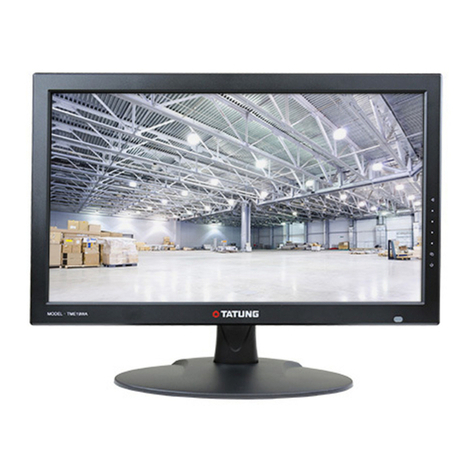
Tatung TME50 User manual

Please read this manual carefully for proper usage before installation and use.It is recommended
to keep this manual properly for future check.
LCD MONITOR
With FHD LED 1920 x 1080 pixel resolution panel
TME50

Contents
1. LCD panel with no glint and low radiation can ease eyes' fatigue and protect eyes.
2. High-quality LCD with LED backlight panel is adopted with high brightness, high contrast, wide viewing
angle, and super fast response time. Super fast response time can greatly eliminate the shadow of moving
images.
3. De-interlacing image disposal is adopted. Today's most advanced technique for movement compensation,
can completely improve the saw tooth and vague edges of the athletic picture.
4. There are four smart sound modes and four smart image modes.
5. Dynamic contrast technology can obviously improve the definition and contrast of the picture
6. With perfect timing function, you can set time to turn off. It will be turned off in state of no signals, too.
7. Auto Adjustment can help you to setup the image into the best performance in a few seconds instead of
complicated adjustment in PC mode.
8. Auto color balance adjustment technology can make the machine to reach the best color setting in PC
mode.
9. Support hi-definitionYPbPr and HDMI.
10. All functions can be realized with remote control, which is really a convenient operation.
11. Power is designed to save energy.
12. Input ports include VGA, YPbPr, HDMI, CVBS, USB and .
13. Output ports include .
14. Supports USB interface.
15. U .
Monitor
USB Support Full HD Streaming media.
ltra-thin and super narrow design
AV and Earphone
Thank you to choose the LCD with LED backlight made by our company, a valuable product with
excellent quality and multiple functions. This machine will bring you more audiovisual enjoyment. Its design can
insure user's safety. All machine are strictly tested before leaving factory. But incorrect use can lead to electric
shock or fire. In order to ensure safety and extend its life, please read carefully
before using it and comply with the following safety instructions. Please k
Monitor
the manual and marking label
eep the user manual for later use.
1
Features
Warning Attention
Indicate the behaviors that must be
prohibited
Indicate the operations that must be
performed
May result in casualties May result in personal injury or
property losses
Safety Warning and Notice
Features……………………………………………1
Safety Warning and Notice………………………1
Mounting and Connecting………………………3
Packing list………………………………………3
Mounting the set……… ……………3
Connecting peripheral equipment… ……5
Panel Control Keys……………… ………7
Remote Control……………………………………8
Monitor …
……
………
Basic Operations…………………………………9
Turning on/Standby……………………………9
Signal source selection………………………9
Menu operation description……………………9
Menu setting list………………………………10
USB multimedia function……………………11
Troubleshooting…………………………………13
Technical Specifications………………………14

● Power failure or unstable voltage.
● Abnormal sound or smell from the device.
● AC power cord is damaged.
● set is damaged due to falling off, knock or impact.
● Any liquid or foreign matters enter into the set.
Monitor
Monitor
Under Following Conditions
Turn off the set immediately,
unplug the power cord from the
power outlet, and contact
authorized maintenance
personnel.
Monitor
● If coal gas or other flammable gases leak, do not unplug the power cord of the set or other
electric appliances; instead, close the valve of the gas immediately and open the doors and windows.
Monitor
● 100- AC
● This must be connected to a three pin socket outlet for safety.
● All cables can be connected or pull out only after power supply is turned off.
● Do not fix the set on instable position, or else it may cause falling off, damage, or
even fire.
● Do not put the set in the environment:
1. With direct sunshine, moisture, overheating, undercooling or heavy dust;
2. With flammable or explosive substance;
3. With flammable or corrosive gas;
4. In bathroom, kitchen, etc.
● Do not use damaged or improper power socket, and ensure that the plug and socket are
connected properly.
● Keep the power plug and socket free of dust and metal pieces.
● Do not damage the power cord:
1. It is prohibited to refit the power cord;
2. Do not put heavy object on the power cord;
3. Keep the power cord away from heat source;
4. Do not drag the power cord when unplugging.
● Do not connect too many appliances to one power strip, or else it may cause fire due to high
power consumption.
● Do not let open flame (e.g. lit candle) approach the set, or else it may cause electric
shock or fire.
● Do not put the container filled with water on the set, to avoid electric shock or fire
caused by water drop of splashing.
● Do not penetrate any sharp object, metal or liquid into the signal connector or air vents, to
avoid short circuit and product damage as well as electric shock.
● The slots on the case is designed to release heat so as to assure that all inside components
will not reach an extra high temperature and can work normally for a long time. Please do not
cover the holes while place it.
Only use 240V 60/50Hz power supply.
Monitor
Monitor
Monitor
Monitor
Monitor
Warning
2
Do not disassemble the set by yourself, or else it may cause electric shock or fire.
Contact qualified personnel for maintenance.
Monitor
Do not turn on the set in thunderstorm weather.Monitor
Do not touch the plug with wet hands, or else it may cause electric shock.
Safety Warning and Notice

3
● Do not let children climb onto the set.
● Keep the small accessories away from children's reach to avoid swallowing.
● If the set won't be used for a long time, please turn off the device and unplug the power
cord.
● Before cleaning the set, unplug the power cord and wipe with soft cloth; do not use
chemical reagents and avoid foreign substances entering into the device. Improper cleaning may
damage the appearance or erase the printing information on the product.
● To adjust the position or angle of the set, please disconnect all wires and move slowly to
avoid falling off.
● Do not rub with hard object, knock at, bend or squeeze the screen.
● Do not use machine immediately after transfering machine to the places with high temperature
from low temperature, which will cause fogging inside machine and failures.
● If the screen is broken and the liquid splashes on skin, please wash with clean water immediately
for 15 minutes, and go to see your doctor.
● To carry the set with hands, please grasp the corners and hold the bottom; do not apply
force on the panel.
● Displaying the same image for a long time or active image with fixed words, icons will leave
"image persistence" on screen which will not disappear after powering off for a long time. This
undesirable phenomenon is not covered by warranty.
● Healthy watching:
1. Watch in appropriate light; poor light or long time watching may hurt your eyes.
2. If a headset is used, adjust the volume appropriate to avoid hurting your hearing.
● Unplug the power cord of the device to cut off the power supply.
● If a power plug or appliance coupler is used as disconnecting device, it should ensure easy
operation.
● Power plug shall be connected reliably. Loose power plugs may cause sparkle and fire.
● All the technical specifications in the user manual and on the packaging are subject to changes
without prior notice. If there is slight deviation between the user manual and actual operation,
the latter shall prevail.
Monitor
Monitor
Monitor
Monitor
Monitor
Monitor
Attention
Safety Warning and Notice
Mounting and Connecting
1. The set; 2. User Manual; 3: Remote control; 4: Power cord (or attached to set) Monitor Monitor
Packing list

Mounting and Connecting
4
Insert base supporting to supporting holes of base (Need to align the locating bulge on base supporting and
the locating slot in base supporting holes.). Align the screw holes on base supporting and base, then fasten
screws. Fasten base supporting assembly to back cover.
The base supporting
Remark: The actual base and appearance may be different from the picture; please refer to the device.
The base
Screws
Screws
●
●
●
●
●
●
●
●
The Monitor set should be mounted near the AC power socket for easy plugging and unplugging.
For your safety, please select appropriate wall mount bracket or base.
To avoid hurt, it is required to place the Monitor set on stable plane, or fix on firm wall.
Ask qualified personnel to mount the Monitor set on the wall. Improper mounting may result in instable
Monitor set.
Do not place the Monitor set at any place susceptible to mechanical vibration.
Do not place the Monitor set at any place that insects may enter.
Do not mount the Monitor set against air conditioner, or else the internal panel of the display may
condense moisture and cause failure.
Do not place the Monitor set at any place with strong magnetic field, or else it may be interfered with
and damaged by electromagnetic wave.
Tips on Installation
Base installation figure

5
Connecting peripheral equipment
You can connect various devices to the set and view high quality images. If the video device has HDMI,
YPbPr/YCbCr, AV, PC and other video output/input ports. You can select one of them and connect to
corresponding input or output ports of the set. After connected, press "SOURCE" key, then menu of
signal source will be displayed on the screen. Press the "▲/▼" key to select the input signal, and press "OK"
key to confirm. The connecting mode is shown in the figure.
Monitor
Monitor
Mounting and Connecting
VGA input connection
PC audio cable
VGA cable
Note: The peripheral equipment and cables described in this manual should be purchased separately.
30cm
10cm10cm
10cm
●
,
●
●
Please keep this space at least around
the Monitor as shown in the figure.
Do not cover the air vents or insert any
object into the enclosure.
Do not put the device in limited space,
e.g. bookcase or embedded closet,
unless the Monitor set is properly ventilated.
10cm
10cm 7cm
30cm
Mount on the wall Mount on the base
Obstruct the air circulation Ventilation
Wall
Obstruct the air circulation
Wall

6
Mounting and Connecting
GB R
WR
Connecting power supply
To power socket
(100-240VAC 60/50Hz)
Power cord
Earphone port
USB 2 interface
USB 1 interface
HDMI signal cable
HDMI signal cable
Audio cable
YPbPr cable
Connect t
output interface
o the device with
YPbPr/YCbCr
Component input connection
Connect to the AV device
with HDMI interface
HDMI2 input connection
G Green (Y signal cable)
B Blue (Pb/Cb signal cable)
W White(AUDIO-L signal cable)
R Red (AUDIO-R and Pr/Cr signal cables)
Remark:
1. The VIDEO-2 and component Y signal of the device share same input interface. AV2 and component audio
share same input interface.
2. If an earphone is inserted, the speaker of the set turns off automatically.Monitor
Connect to the AV device
with HDMI interface
HDMI1 input connection

7
Mounting and Connecting
Y Yellow (VIDEO signal cable)
W White(AUDIO-L signal cable)
R Red (AUDIO-R signal cable)
Video cable
Audio cable
Video cable
Audio cable
Video cable
Audio cable
Connect to the devices with AV output
interface (e.g. DVD, VCR, game console)
AV1 input connection
Connect to the devices with AV output
interface (e.g. DVD, VCR, game console)
AV2 input connection
Connect to the devices with AV
input interface (e.g. Monitor)
AV output connection
WRYWR
Y
WR
Y
Panel Control Keys
1) Power LED indicator and
remote receiving window.
2) SOURCE: Press this key
to enter the menu of signal
source and choose signal
source.
3) UP/DOWN: In OSD menu,
press the two keys to adjust
the items, which have the same
functions as ▲/▼ key on the remote control.
4) VOL+/VOL-: Press these two keys to add or reduce volume.
In OSD menu, press the two keys to adjust the analog value
of selected item, which have the same functions as / key on the remote control.
5) MENU: Press this key to enter main menu.
6) .
7) Power switch (press '' I '' end to turn power on, and press ''O'' end to turn power off)
Note: Different models may have different appearances; please refer to the actual device.
Standby: To switch the Monitor on or back to standby
2
3
4
5
6
1
7
UP DOWN

8
PLAY
PAUSE
STOP ROTATE
PREV. NEXT REV. F WD.
INFO 16:9
COLOR
P N
AUDIO
Power
Numerical key
Smart sound
Volume
Info
Time
Color Color system
Return
Zoom
Source
UP/DOWN
Menu
Cursor Key
OK
Smart image
Mute
Key
POWER( )
MUTE( )
Numerical key
F1
SMART S
SMART P
▲▼/
VOL+/VOL-
MENU
SOURCE
UP/DOWN
INFO
Time ( )
Return ( )
16:9
Color
P/N
AUDIO(optional)
OK
/ /
PLAY ( )
PAUSE ( )
STOP ( )
ROTATE ( )
PREV. ( )
NEXT ( )
REV. ( )
F WD. ( )
Function
Switch between normal working and standby
Turn off the sound
Numerical input button
Freeze picture
Switch the audio mode among Standard, Music, Movie, User
Switch the image mode among Standard, Soft, User, Bright
▲/▼: select functions; /: adjust the analog value
Turn up/down the volume
Press this key to call out the main menu
Press this key to display signal source selection menu
In OSD menu, press the two keys to adjust the items
System information display switch
Time setting key; press this key to set the power off time
Press this key to return
Switch the display mode
Switch color temperature
Select color system
Select NICAM mode
Confirm the operation
Used for operations in USB mode
Invalid
Invalid
Remote Control Key Instruction
NICAM(optional)
Remark: The picture may be different from the remote control; please refer to the actual product.
Remote Control
Installing battery
Remove the battery cover, and insert two AAA (1.5V) batteries; make sure that the polarity of the battery is
consistent with the marks "+/-" in the battery slot.
Precautions of remote control usage
Point the remote control to the receiver window. The objects between remote control and the receiver
window may disturb the normal operation.
Keep the remote control away from strong vibration. In addition, do not set or put the remote control in
direct sunshine, which may result in deformation of the remote control.
The remote control may be invalid if the receiver window is in direct sunshine or strong light; in this case,
please adjust the angle of the light or the device, or approach the remote control to the receiver window.
The effective range of the remote control may be affected if the battery voltage is low; in this case, please
replace with a new battery; if the remote control won't be used or battery voltage is too low, please take out
the battery to avoid corrosion due to battery liquid leakage.
Do not mix different types of batteries, or used and new batteries.
Do not throw the batteries into fire, charge or break up, or charge, short circuit, disassemble, heat or burn
the used batteries. Please follow the environmental protection regulations to disposal of the batteries.
●
●
●
●
●
●
UP
DOWN

9
Turning on/Standby
Insert the power plug into the outlet. Press " " button on the set, and press " " key on the remote
control or on the control panel to turn on the set. Press " " key again to switch the set to
standby state.
★ Special note
This device adopts energy saving technology:
1. If there is no signal input in power on state, the set enters standby state automatically after five
minutes.
2. When the schedule power off time is reached, the set enters standby state automatically.
Signal source selection
Press ''SOURCE'' key either on the remote control or on the control panel. The menu of
''Input Source'' will be displayed on the screen. Then press "▲/▼" key on remote control
or "UP/DOWN" key on the control panel to choose the signal source. Press ''OK'' key on
the remote control or ''MENU" key on the control panel and will switch the current
signal source to the signal source you choose.
Menu operation description
Press ''MENU'' key on the remote control or on the control panel,
then the Monitor will display the main menu.
1. Press "/" key on the remote control or ''VOL+/VOL-'' key on
the control panel to select the adjustment sort menu, which
includes: PICTURE, SOUND, OSD.
2. Press "▼" key on the remote control or ''DOWN'' key on the
control panel to enter the adjustment sort menu.
3. Press "▲/▼" key on the remote control or ''UP/DOWN'' key on
the control panel to select what is needed to adjust in sort menu.
"/"
5. When the main menu appears on the screen, press "MENU" key to exit; when submenu appears on the
screen, press "MENU" key to return to previous menu; press "SOURCE" key to show the signal source
selection menu, and press it again to exit from the menu.
6. In the process of menu operation, the unavailable options in current state will be in gray.
7. The menu operation in this manual uses the example in state; the operations in other state are same
as the Monitor state.
"", " ", " " " "key
Monitor
Monitor Monitor
Monitor
Monitor
Monitor
4. Press key on the remote control or ''VOL+/ VOL-'' key on
The control panel to adjust the value or setting.
Monitor
Note: ▲ and ▼ in this Manual stand for the direction cursor keys on the remote control
unless specifically defined. The operating instructions in the text below are all based on keys on the remote
control. Please understand the keys on the panel by yourself.
Input Source
AV1
AV2
YPbPr
PC
HDMI1
HDMI2
USB1
USB2
Adjust Select Menu:Exit
Full
Standard
48
48
50
55
50
Picture Mode
Contrast
Brightness
Saturation
Sharpness
Aspect Ratio
Color Temp.
Noise Reduction
Hue
Soft
Off
Basic Operations
Table of contents
Other Tatung Monitor manuals

Tatung
Tatung Vibrant VM78F User manual

Tatung
Tatung Vibrant VM77S User manual

Tatung
Tatung 5005L13 User manual

Tatung
Tatung TCM-2102s User manual

Tatung
Tatung Vibrant L2ES-TP6731 User manual

Tatung
Tatung Vibrant L2ES-TP6720 User manual

Tatung
Tatung TME17A User manual

Tatung
Tatung VM9AF User manual

Tatung
Tatung TME32 User manual

Tatung
Tatung F Series User manual

Tatung
Tatung TLM-1503 User manual

Tatung
Tatung Triview T5DVI User manual

Tatung
Tatung TLM1905 User manual

Tatung
Tatung TME42 User manual

Tatung
Tatung v42emgi User manual

Tatung
Tatung VL5A9DA User manual

Tatung
Tatung Vibrant VM99S User manual

Tatung
Tatung VM-14AF User manual

Tatung
Tatung VM9K9DA P990S User manual

Tatung
Tatung TME32A User manual