
SWEEX LW310V2 User manual

ENglISH VErSIoN
2
LW310V2 Sweex Wireless 300N Router
Please notice! On the included CD-ROM you will find the Setup Wizard. This easy install procedure will show you how
to setup the router step-by-step.
• DonotexposetheSweexWireless300NRoutertoextremetemperatures.Donotplacethedeviceindirectsunlightorinthedirectvicinityof
heatingelements.
• DonotusetheSweexWireless300NRouterinextremelymoistordustysurroundings.
• Protectthedeviceagainstpowerfulshocksandfalls–theymaydamagetheinternalelectronics.
• Neverattempttoopenthedeviceyourself,therearenoserviceablepartsinside.Openingthedevicewillcausethewarrantytolapse.
Package contents
In this package you will find:
• Wireless300Nrouter
• Poweradapter
• Networkcable
• CD-ROMwithdriver,softwareandthismanual
Ifyoufindthatanyofthepackagecontentsaremissing,pleasereturnthepackagetothesalespointwhereitwasbought.
Terminology list
This manual will contain a number of technical terms. It is important to know what they mean before you begin
installing and configuring the router.
• Router:Thisistheproductyouhavejustbought.Arouteractsasaboundarybetweentwonetworks,WANandLAN.
• Networkcable.Anetworkcableisusedforconnectingnetworkdevicessuchascomputers,modemsandrouters.Youmayalreadyhavesucha
cable,thecableinthepackagecontentsisintendedtoconnecttheroutertoyourmodem.
• ISP:InternetServiceProvider,thisisthecompanythatsuppliesyouyourInternetconnection.
• Broadbandmodem:Fromhereon:modem.YourmodemisthedeviceyoualreadyhaveorthathasbeensuppliedtoyoubyyourISPthat
currentlyprovidesyourinternetconnection.ThetwomostcommonmodemtypesarecablemodemsandADSLmodems,butotherkindsof
modemsalsoexist.
• LAN:LANstandsfor“LocalAreaNetwork”,inthecaseofthisrouter,theLANconsistsofthefouryellowportsandthewirelessnetwork.Withthe
router,allyourcomputerswillformasingleLAN.
• WAN:WANstandsfor“WideAreaNetwork”,inmostcasesthismeanstheInternet.
• Wirelesssecurity:Bydefault,therouter’swirelessnetworkisnotsecured.Thismeansthatanyoneinrange(includingyourneighbours)can
connecttothenetworkanduseyourinternetconnection.Wirelesssecurityprotectsyournetworksothatonlyauthoriseddevicescangainaccess.
SweexrecommendsalluserstosecuretheirwirelessnetworkafterinstallationusingeithertheWPAorWPSmethodsexplainedfurtheroninthe
“securingyourwirelessnetwork”chapterofthismanual.
LW310V2_Manual_01.indd 2 03-11-09 13:32

ENglISH VErSIoN
3
Product description
Front
1. PowerLED: Thislightindicatesthattherouterreceivespower.
2. SYSLED: AconstantlyblinkingSYSlightindicatescorrectfunctioningoftherouter.
3. WPSLED: Whenthislightblinks,itispossibletoconnecttotherouterwithaWPSenableddevice.Formoreinformation,see
thechapter:“Securingyourwirelessnetwork”.
4. WLANLED: Thislightindicatesthatthewirelessnetworkisactive.Aflickeringlightindicateswirelessactivity.
5. LANPort1-4LED: ThislightindicatesanactiveconnectiononthecorrespondingLANport.Aflickeringlightindicatesnetworkactivity.
6. WANPortLED: ThislightindicatesanactiveconnectionontheWANport.AflickeringlightindicatesWANactivity.
Back
1. ACpowerinput: Connectthesuppliedpoweradaptertothisinput.Iftheadapterislostitcanbereplacedbyasimilarmodelwith9V
ACoutputand1.2Acurrentrating
2. WANport: ConnectthenetworkcablecomingfromyourISPmodemtothisport.UponasuccessfulWANconnection,theWAN
lightatthefrontoftherouterwilllightup.Thisisaprerequisiteforinternetaccess.
3. LANport1-4: Youcanconnectanetworkcablecomingfromacomputertothisport.Whenthecomputeristurnedonthe
correspondinglightatthefrontoftherouterwilllightup.
4. WPSbutton: ThisbuttonactivatesWPSwirelesssecurity.FormoreinformationonWPS,seethechapter“Securingyourwireless
network”.Thisbuttonalsofunctionsastheresetbutton,formoreinformationontheresetprocedurerefertothe
troubleshootingsectionofthismanual.
Installing the router
There are three ways of installing the router:
• TheInstallationWizardprogramincludedontheCD
• TheSimplesetupdescribedinthismanual
• TheAdvancedsetupalsodescribedinthismanual.
Thewizardandsimplesetupassumedefaultsettingsandwillworkformostusers.Ifyouareanadvanceduserorifyouknowwhichsetupmethod
yourISPrequires,youmayproceedtotheadvancedsetupimmediately.
LW310V2_Manual_01.indd 3 03-11-09 13:32

ENglISH VErSIoN
4
Simple setup
Simple setup is done in 7 steps:
1. Disconnectthepowertoyourmodem.Ifoneormorecomputerswereconnectedtoyourmodemusinganetworkcable,disconnectthem.
2. UsetheincludednetworkcabletoconnectyourmodemtotheblueWANportoftherouter.Donotconnectanycomputersyet!
3. Connectthepowertoyourmodemandwaituntilitslightsindicatenormaloperation
4. Connectthepowertotherouter,andwait1minutetogivetheroutertimetostartupandconfigureitself.Thisisimportant!
5. Ifyouhaveanycomputersorotherdevicesthatwerealreadyconnectedbyanetworkcable,youcannowconnectthesecablestotheyellow
LANportsoftherouter.
6. Waitanotherminute.Yourrouterisnowinstalled!Wiredcomputersnowhaveinternetaccess,forwirelesscomputersoneadditionalstepis
required,followtheinstructionsbelowfortheWindowsversionyouhave.
Connecting to a wireless network
• WindowsXP:Rightclickonyourwirelessadapter’siconatthebottomrightofyourscreenandclick“ViewAvailableWirelessNetworks”:
LW310V2_Manual_01.indd 4 03-11-09 13:32

ENglISH VErSIoN
5
Awindowtitled“Chooseawirelessnetwork”willappear.Inthiswindow,selectthe“SweexLW310V2”entry,clickthe“Connect”buttonand
followtheinstructionsonscreen:
• WindowsVista:RightclickontheNetwork&SharingCentericoninthebottomrightofyourscreen,andclick“Connecttoanetwork”:
Awindowtitled“Connecttoanetwork”willappear.Inthiswindow,selectthe“SweexLW310V2”entry,clickthe“Connect”buttonandfollow
theinstructionsonscreen:
Note:Ifyouseearedcrossnearthenetworkandthetext:“Thesettingssavedonthiscomputerforthenetworkdonotmatchtherequirements
ofthenetwork”,pleaserefertothetroubleshootingsectionofthismanual.
LW310V2_Manual_01.indd 5 03-11-09 13:32

ENglISH VErSIoN
6
IfyouhaveWindowsVistawithServicePack2orFeaturePackforWirelessinstalledandyouareconnectingtherouterforthefirsttime,Vista
willallowyoutoeasilysetupandsecureyourwirelessnetworkthroughtheWPSmethod.Afterconnectingyouwillseethefollowingscreen.
EnterthePINcodeonthelabelonthebottomofyourrouterandclick“Next”:
Thefollowingscreenwillappear,enterthedesirednameforyourwirelessnetwork,enterasecuritykeyandclick“Next”tobeginconfiguringthe
router:
Note:Itisveryimportantthatyouwritedownthesecuritykeyandkeepitinasecureplace,itisrequiredtoaddolder,non-WPSenableddevices
(suchasaWindowsXPcomputer)toyournetwork.Becauseyournetworkisnowalreadysetupandsecured,youcanskipthe“Wirelessnetwork
configuration”and“Securingyourwirelessnetwork”chaptersofthismanual.
LW310V2_Manual_01.indd 6 03-11-09 13:32

ENglISH VErSIoN
7
• Windows7:Windows7willindicatewhenwirelessnetworksareavailable.Youcanrecognisethisbythefollowingiconinthebottom-rightof
yourscreen:
Note:Ifyouseeasmallredcrossthroughtheicon,nonetworksareinrangeofyourcomputer.Pleaseconsultthetroubleshootingsectionofthis
manualifthisisthecase.
Clicktheiconandalistofwirelessnetworkswillappear,selectthe“SweexLW310V2network,checkthe“ConnectAutomatically”checkbox,
click“Connect”andfollowtheinstructionson-screen:
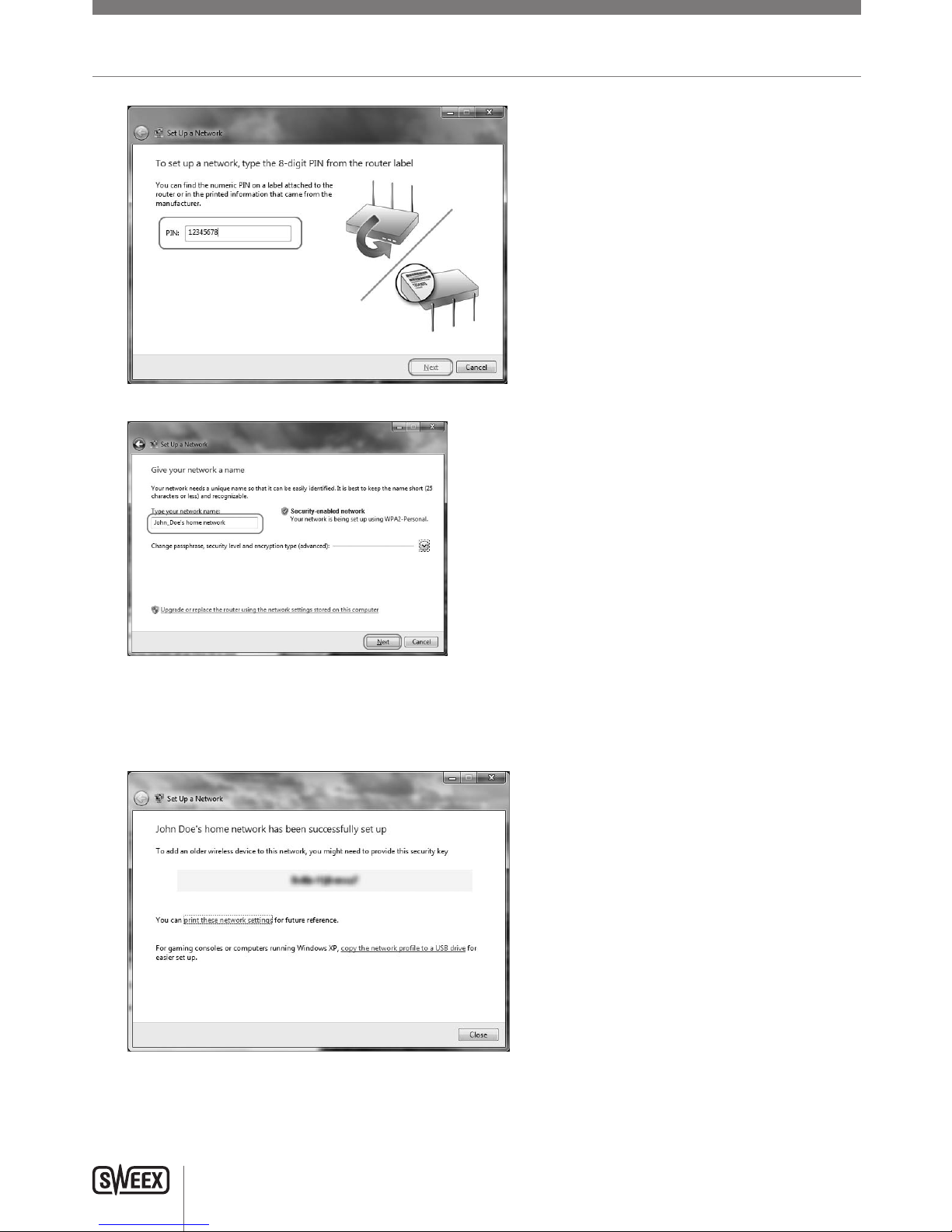
Whenyouconnectforthefirsttime,Windows7willallowyoutoeasilysetupandsecureyourwirelessnetworkthroughtheWPSmethod.After
connectingyouwillseethefollowingscreen:
Afterclicking“OK”youwillbeaskedforthePINcodeofyourrouter.Youcanfindthiscodeprintedonthelabelonthebottomoftherouter.Fill
inthecodeandclick“Next”:
LW310V2_Manual_01.indd 7 03-11-09 13:32
ENglISH VErSIoN
8
Thefollowingscreenwillappear,enterthedesirednameforyourwirelessnetworkandclicknexttobeginconfiguringtherouter:
Note:ThedefaultsecuritymethodwiththissetupprocedureisWPA2.IfadeviceinyournetworkdoesnotsupportWPA2,youcanchangethe
securitymethodbyclickingthe“Advanced”button.
Whentherouterisconfigured,youwillseethefollowingscreen:
Note:Itisveryimportantthatyouwritedownthesecuritykeyandkeepitinasecureplace,itisrequiredtoaddolder,non-WPSenableddevices
(suchasaWindowsXPcomputer)toyournetwork.Becauseyournetworkisnowalreadysetupandsecured,youcanskipthe“Wirelessnetwork
configuration”and“Securingyourwirelessnetwork”chaptersofthismanual.
LW310V2_Manual_01.indd 8 03-11-09 13:32

ENglISH VErSIoN
9
Advanced setup
AdvancedsetupcanbedonewhenyouknowexactlywhichsettingsyourISPrequiresorwhenthesimplesetupfails.
Thereare6possibleconfigurations.Wehavelistedthemwithinstructionsonhowtoconfigurethem.Toknowwhichsettingmatchesthesettings
requiredbyyourISP,lookatthelistofprovidersfurtheroninthismanual.ThelistismadeoutofISP’sandtheircorrespondingservices.Behindeach
serviceislistedtherequiredsetting.
Note:Ifanyofthesettingsbelowdonotworkimmediately,itisrecommendedtopowerdownyourmodem,waitafewminutesandthenconnect
thepowertoyourmodemagain.
Logging in to the router:
Foradvancedsetup,itisrequiredthatyoulogintotheroutertomanuallyconfigureitcorrectlyforyourinternetconnection.Tologintotherouter,
startInternetExplorer,emptytheaddressbarandenter:http://192.168.31.1/,thenpressEnter.Thefollowingwindowshouldappear:
Enter“sweex”asusernameand“mysweex”aspassword,thenclickOK.Ifyouareunabletologin,pleaserefertothetroubleshootingsectionof
thismanual.Thefollowingscreenshouldappear.Clicknexttostarttheadvancedsetup.Ifyouseeadifferentscreen,click“InternetConfiguration”
inthemenuontheleft:
YoushouldseetheInternetConfigurationWizardscreen:
LW310V2_Manual_01.indd 9 03-11-09 13:32

ENglISH VErSIoN
10
Youcannowproceedwiththeadvancedsetupusingoneoftheconfigurationsdescribedfurtheron.
Checking if the router is successfully connected to the internet
Forconfigurations1–4,itispossibletocheckintherouterifyouhaveaworkinginternetconnection.Afterapplyingtheconfiguration,therouter
willprocessthechangesandtakeyoutothe“SystemStatus”page.Ifthisdoesnothappen,youcanclick“SystemStatus”inthemenuontheleft.
Thestatuspagelooksasfollows:
Whentherouterhassuccessfullyconnectedtotheinternet,itwilldisplay“InternetConnection:Connected”
Configuration 1: DHCP with MAC address clone
CertainISP’srequireaspecificMACaddresstobeconnectedtotheirmodem.IfthisisthecaseforyourISP,itispossibletoclonetheMACaddress
fromyourcomputertotherouter’sWANport,sothatyourISPwillaccepttherouterontheirnetwork.
Note:CloningyourMACaddressmustbedonefromthecomputerthatwasoriginallyconnectedtoyourmodem,andthiscomputermustbe
connectedtoyourrouterbynetworkcable.MACaddresscloningnormallydoesnotworkoverwirelessconnections.
LW310V2_Manual_01.indd 10 03-11-09 13:32

ENglISH VErSIoN
11
Clickthe“DynamicIP/DHCP”button,youwillseethefollowingscreen:
Clickthe“CloneMACAddress”button.YoushouldseetheMACAddresschange.Thenclickthe“Next”buttonandthen“Apply”
Configuration 2: PPPoE
IfyourISPrequiresthePPPoEconnectiontype,clickthe“PPPoE”button.Youwillseethefollowingscreen:
Enteryouraccountname(username)thathasbeenprovidedtoyoubyyourISPinthe“Account”fieldandthecorrespondingpasswordinthe
“Password”field.CloneyourMACaddressonlyifthisisrequiredbyyourISP.
Note:CloningyourMACaddressmustbedonefromthecomputerthatwasoriginallyconnectedtoyourmodem,andthiscomputermustbe
connectedtoyourrouterbynetworkcable.MACaddresscloningnormallydoesnotworkoverwirelessconnections.
Whenfinished,clickthe“Next”buttonandthen“Apply”.
LW310V2_Manual_01.indd 11 03-11-09 13:32
Table of contents
Other SWEEX Wireless Router manuals

SWEEX
SWEEX IEEE 802.11g User manual

SWEEX
SWEEX LC000070 User manual

SWEEX
SWEEX LB200010 User manual

SWEEX
SWEEX LW300 User manual

SWEEX
SWEEX LW050V2 User manual

SWEEX
SWEEX LW150 User manual

SWEEX
SWEEX LW055 User manual

SWEEX
SWEEX LW140 User manual

SWEEX
SWEEX MO251V2 - QUICK_START_GUIDE User manual

SWEEX
SWEEX LW053 User manual


