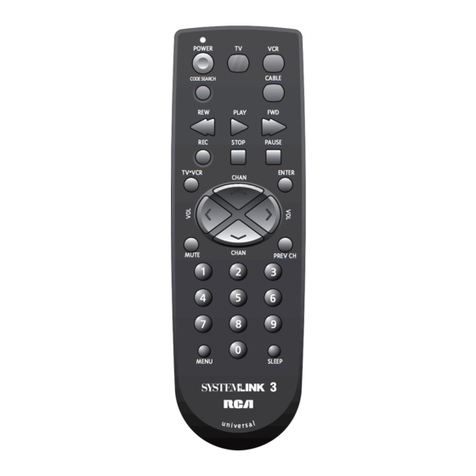
SMK-Link VP3720 User manual

Page 1
Cover
VP3720
SMK-Link™ Electronics
Universal Projector
Remote Control

Table of Contents
Regulatory Information ...................................................................1
Getting Started ...............................................................................3
Setting your Projector .....................................................................4
Entering Library Codes.................................................................4
Learning From Another Remote...................................................5
Searching For A Code..................................................................6
Show Current Code......................................................................7
Factory Reset................................................................................8
Remote Control Layout...................................................................9
Appendix: Library Codes List........................................................11

Page 1
Regulatory Information
Regulatory Compliance
This device complies with Part 15 of the FCC Rules. Operation is subject to the following
two conditions:
(1) This device may not cause harmful interference, and (2) This device must accept any
interference received, including interference that may cause undesired operation.
FCC Certication
This equipment has been tested and found to comply with the limits for a Class B
digital device, pursuant to Part 15 of the FCC rules.These limits are designed to provide
reasonable protection against harmful interference when the equipment is operated
in a residential installation.This equipment generates uses and can radiate radio
frequency energy and, if not installed and used in accordance with the instructions, may
cause harmful interference to radio communications. However, there is no guarantee
that interference will not occur in a particular installation. If this equipment does cause
harmful interference to radio or television reception, which can be determined by
turning the equipment off and on, the user is encouraged to try to correct the interfer-
ence by one or more of the following measures:
• Reorient or relocate the receiving antenna.
• Increase the separation between the equipment and receiver.

Page 2
• Consult the dealer or an experienced radio/TV technician for help.
Notice: Any changes or modications not expressly approved by the party responsible
for compliance could void the user’s authority to operate the equipment. Extension
cables are not recommended, if used, they must be shielded in order to comply with the
emission limits.
IC Certication
The term “IC” before the certication/registration number only signies that the
Industry Canada technical specications were met.
Declaration of conformity
Hereby, SMK-Link Electronics Corporation declares that this product is in compliance
with the essential requirements and other relevant provisions of Directive 1999/5/EC.
All trademarks and registered trademarks mentioned in this document are the property
of their respective owners. Features and specications are subject to change without
notice.
© 2013 SMK-Link Electronics, Inc.

Page 3
Getting Started
The Universal Projector Remote control uses two AA batteries.
• Remove the battery cover by pressing down on the battery door
and sliding in the direction of the arrow.
• Remove any wrapping from two AA batteries and insert them
into the back of the remote control. The orientation of the
batteries is indicated in the battery compartment.
• Replace the battery cover before using the remote control.
john pics
WEIGHT:
A1
SHEET 1 OF 1
SCALE:2:1
DWG NO.
TITLE:
REVISION
DO NOT SCALE DRAWING
MATERIAL:
DATE
SIGNATURE
NAME
DEBUR AND
BREAK SHARP
EDGES
FINISH:
UNLESS OTHERWISE SPECIFIED:
DIMENSIONS ARE IN MILLIMETERS
SURFACE FINISH:
TOLERANCES:
LINEAR:
ANGULAR:
Q.A
MFG
APPV'D
CHK'D
DRAWN

Page 4
Setting your Projector
Entering Library Codes
To test a four-digit code to see if it controls your projector, please
complete the following steps. Available codes are listed in the
Appendix. Some brands have multiple codes which work for
different models.
• Press and hold both the Up and Down arrows
simultaneously for 3 seconds.
• The status LED will turn off while both keys are
pressed but will turn solid red after three seconds.
• As you enter each digit of the code, the status light
will briey turn off. Do not enter the next digit until
the status light is on.
After entering the code, the status light will go off. Taking longer
than 30 seconds, pressing any other key or entering an invalid code
will cause the status light to blink quickly three times.
Test your library choice to make sure it is working. If it is not working,
try the next code. Not all keys will be supported for all models.
Unused keys can be customized or ignored.

Page 5
Learning From Another Remote
If you have access to the original remote control for your projector
or wish to learn from other remote controls, place the two remote
controls end pointing towards one another approximately two to
three inches apart.
• To enter learning mode, press and hold both the Left and Right
arrows simultaneously for 3 seconds. The status LED will turn
off while both keys are pressed but will turn solid red after three
seconds.
• Repeat the following steps until you are done customizing.
– Tap the key you wish to customize on your Universal Projector
Remote. The status LED will ash.
Off
Power
Input
Input
Status
43
21

Page 6
– On the other remote control, press and hold the key you wish
the Universal Projector Remote to learn.
– If learning was successful, the status LED will ash once.
If learning was unsuccessful, the status LED will ash three
times.
• Once you are done customizing, wait 30 seconds to exit learning
mode.
Searching For A Code
If you have tried all of the codes for your projector and are unable
to nd a match, you can also search the entire database quickly for a
compatible code.
• Turn the projector on and wait for it to warm up.
• Press and hold both the Up and Down arrows simultaneously for
3 seconds.
• The status LED will turn off while both keys are pressed but will
turn solid red after three seconds.
• Press the Menu key to enter Automatic Code Search
mode. The LED will blink off one second and turn on
again.
Menu

Page 7
• Press the Zoom + key to search through codes from
the beginning of the Library in ascending order.
• Press the Zoom - key to search through codes from
the beginning of the Library in descending order.
• Every time the Zoom + or Zoom - key is pressed, the IR code
corresponding to the Menu key will be transmitted for one
second.
• If the projector brings up the menu screen, press the Select key
to store, the current code.
• If no key is pressed for 30 seconds or a key other than Zoom + or
Zoom - is pressed, the LED will ash 8 times and searching will
be cancelled.
Show Current Code
Complete the following steps to display the currently library code.
• Press and hold both the Up and Down arrows simultaneously for
3 seconds.
• The status LED will turn off while both keys are pressed but will
turn solid red after three seconds.
+
_
Zoom

Page 8
• Press Select, wait one second then press Select a second time.
The LED will then ash the code digit by digit with a one second
delay between each digit. The library code 1 2 1 3 would blink the
status LED.
Flash [Delay] Flash Flash [Delay] Flash [Delay] Flash Flash Flash
Factory Reset
The Universal Projector Remote Control can be reset to factory
default. All user programmed codes and learned codes will be
erased.
• Press and hold both the Up and Down arrows simultaneously for
3 seconds.
• The status LED will turn off while both keys are pressed but will
turn solid red after three seconds.
• Press the Off key
• Wait one second then press the Reset key.
Factory default settings will be set and LED will go OFF to indicate a
successful factory reset.
Other manuals for VP3720
1
Table of contents
Other SMK-Link Remote Control manuals

SMK-Link
SMK-Link Presentation Pilot Pro VP6450 User manual

SMK-Link
SMK-Link X-Link VP3701 User manual

SMK-Link
SMK-Link Global Presenter VP4350 User manual

SMK-Link
SMK-Link VP6620 User manual

SMK-Link
SMK-Link VP3700 Blu-Link User manual

SMK-Link
SMK-Link X-Link VP3701 User manual

SMK-Link
SMK-Link VP4590 User manual

SMK-Link
SMK-Link VP4150 User manual

SMK-Link
SMK-Link VP4750 User manual

SMK-Link
SMK-Link VP3720 User manual