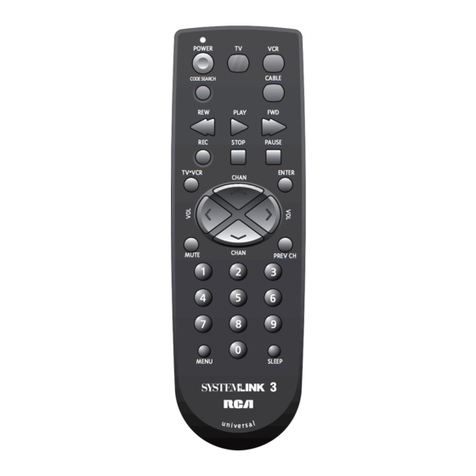
SMK-Link VP3700 Blu-Link User manual

Page 1

Page 2

Page 3
Contents
Agency Certifications........................................................................ 5
Getting Started - Overview ............................................................... 7
Before you begin, please insert two AA batteries as labeled on
the remote control......................................................................... 7
Control 6 different Devices...................................................... 7
Setting up the perfect system ................................................... 7
Setting up the Remote for PlayStation©3................................ 8
Setting up the Remote for other devices................................ 10
Four-Digit Code Set-Up Method .................................. 10
Learning and Teaching Set-Up Method........................ 12
Forgetting Learned Keys .............................................. 15
Forgetting a Device....................................................... 16
Forgetting all Devices................................................... 16
Controlling Volume (Punch Through)................................... 17
Setting Sound Master.................................................... 18
Advanced Configuration............................................... 19
Turning off Punch Through for a Device ..................... 19
Turning on Punch Through for a Device...................... 20

Page 4
Remote Control Layout................................................................... 22
Functions by Device Type ..................................................... 22
Television / Set Top Boxes........................................... 22
Cable / Satellite / DVR ................................................. 23
PS3™ Blu-Ray / DVD.................................................. 25
PlayStation©3 ............................................................... 26
Setup Codes by Device ................................................................... 27
TV .......................................................................................... 27
DVD....................................................................................... 31
VCR ....................................................................................... 32
Cable ...................................................................................... 33
Satellite .................................................................................. 34
DVR ....................................................................................... 36
Audio ..................................................................................... 36
TV/DVD/VCR ...................................................................... 38
Home Theatre in a Box .......................................................... 38
Combo TV/VCR .................................................................... 38
Combo TV/DVD.................................................................... 39
Combo DVD/VCR................................................................. 39

Page 5
Agency Certifications
USA - FCC CFR 47 Part 15, Subpart B and C
This device complies with Part 15 of the FCC Rules.
Operation is subject to the following two conditions: (1) This device may not cause
harmful interference, and (2) This device must accept any interference received,
including interference that may cause undesired operation.
This equipment has been tested and found to comply with the limits for a class
B digital device, pursuant to part 15 of the FCC Rules. These limits are designed
to provide reasonable protection against harmful interference in a residential in-
stallation. This equipment generates, uses and can radiate radio frequency en-
ergy and if not installed and used in accordance with the instructions, may cause
harmful interference to radio communications. However, there is no guarantee
that interference will not occur in a particular installation. If this equipment does
cause harmful interference to radio or television reception, which can be deter-
mined by turning the equipment off and on, the user is encouraged to try to cor-
rect the interference by one or more of the following measures:
* Reorient or relocate the receiving antenna.
* Increase the separation between the equipment and receiver.
* Connect the equipment into an outlet on a circuit different from that to which the
receiver is connected.
* Consult the dealer or an experienced radio/TV technician for help.
Operation with non-approved equipment is likely to result in interference to radio
and TV reception. The user is cautioned that changes and modications made to
the equipment without the approval of manufacturer could void the user’s author-
ity to operate this equipment.

Page 6
Canada - IC RSS-210, ICES-003
This Class B digital apparatus complies with Canadian ICES-003. Operation is
subject to the following two conditions: (1) this device may not cause interfer-
ence, and (2) this device must accept any interference, including interference that
may cause undesired operation of the device.
Europe - Declaration of Conformity
We, SMK-Link Electronics declare under our sole responsibility that the product,
VP3700 Blu-Link Universal Remote Control, to which this declaration relates is in
conformity with the following standards or other normative documents:
Art.3.1(a): EN 60950-1:2001
Art.3.1(b): EN 301 489-17 v1.3.2, EN 301 489-1 v1.8.1
Art.3.2: EN 300 328:2006(V1.7.1)
Following the provisions of 1999/5/EC,R&TTE directive.
European RoHS DIR 2002/95/EC
Legal Information
Blu-Link, SMK-Link and the SMK-Link Logo are trademarks of
SMK-Link Electronics corporation. Sony, PlayStation and PS3
are trademarks or registered trademarks of Sony Computer
Entertainment Inc.. Bluetooth is a trademark or registered trade-
mark of Bluetooth SIG Inc. All other trademarks are trademarks
or registered trademarks of their respective holders.

Page 7
Getting Started - Overview
Before you begin, please insert two AA batteries as labeled on
the remote control.
Control 6 different Devices
Blu-Link™ Universal Remote Control controls up to six
different devices. One of the device buttons is reserved for the
PlayStation©3, the other buttons can be programmed to control
a TV, VCR, DVD, Cable Box, DVR, Satellite Box or Surround
Sound system.
Setting up the perfect system
Many universal remote controls don’t offer all of the features of
the stand alone remote controls that come with your equipment.
People often keep 3 or 4 remote controls on their coffee table
because of some obscure functions that they just couldn’t live
without. Blu-Link™ avoids the problem of redundant remotes by
having 50 programmable buttons that can be set by entering a
4-digit device code, by “learning” from the original remote control
or both.

Page 8
Setting up the Remote for PlayStation©3
Your remote has a dedicated Bluetooth radio that is used to
communicate with the PlayStation©3. In order to control your
PS3, the remote must rst be registered with your console.
Registering Blu-Link™ remote with PS3
Step 1: On Blu-Link, press the PS3™ device button
PS3
on the
top row of the remote.
Step 2: Make sure there is no game or movie in the PS3™.
Using your game controller, press the PlayStation©button
to turn on your PS3™. The PS3™ will boot to the
control panel.
Step 3: Navigate over to Settings on the horizontal menu
using the game controller.
Step 4: Navigate down to Accessory Settings on the verti-
cal menu. Press to select.
Step 5: Navigate down to Register BD Remote Control.
Press to select.

Page 9
Step 6: On Blu-Link, press and hold the
Start and Enter buttons at the same
time. The PS3™ device button on the
remote should light while holding these
buttons. If it does not light, press the
PS3™ device button
PS3
and try again.
After a few seconds the PS3™ should
recognize the remote and complete
registration.
Step 7: After the PS3™ is done registering
your remote, press the button on Blu-
Link™ to go back to the control panel.
Verify that the remote control is working.
You can now play movies and control your
PlayStation©3 with Blu-Link™.

Page 10
Setting up the Remote for other devices
It is recommended that you set up your TV first. Blu-Link™
can control ve components in addition to the PlayStation©3.
Blu-Link™ has buttons labeled for TV, DVR, DVD/VCR, Cable/
Satellite, and Audio. While the buttons are labeled for these
functions, that is for clarity only. For example, you could program a
VCR into any device button other than the PS3™ button.
Four-Digit Code Set-Up Method
Step 1: Turn on the device you wish to program into your Blu-
Link™ remote using the remote that came with that device.
Step 2: Find the four-digit code numbers assigned to your
brand of device from the list in the back of this manual. The
codes are listed by device type and then by brand name. If
you do not see the brand of your device, please look online
at www.Blu-Link™.com for the complete list of four-digit
codes.
Step 3: Enter setup mode by holding the device button down for
approximately 3 seconds. After 3 seconds all of the device
buttons will blink to conrm that you are in setup mode.
Table of contents
Other SMK-Link Remote Control manuals

SMK-Link
SMK-Link VP3720 User manual

SMK-Link
SMK-Link Presentation Pilot Pro VP6450 User manual

SMK-Link
SMK-Link VP4150 User manual

SMK-Link
SMK-Link VP6620 User manual

SMK-Link
SMK-Link Global Presenter VP4350 User manual

SMK-Link
SMK-Link VP3720 User manual

SMK-Link
SMK-Link VP4750 User manual

SMK-Link
SMK-Link VP4590 User manual

SMK-Link
SMK-Link X-Link VP3701 User manual

SMK-Link
SMK-Link X-Link VP3701 User manual