Sena SPH10H-FM-01 User manual


SPH10
© 1998-2015 Sena Technologies, Inc. All rights reserved.
Sena Technologies, Inc. reserves the right to make any changes and improvements to its product without
providing prior notice.
Sena™is a trademark of Sena Technologies, Inc. or its subsidiaries in the USA and other countries. PRISM™,
20S™, 3S™, SMH10™, SMH10R™, SMH5™, SMH5-FM™, SPH10™, SPH10H™, EXPAND™, SPH10H-FM™, SPH10S™,
SR10™, SR10i™, SM10™, Bluetooth Pack for GoPro®are trademarks of Sena Technologies, Inc. or its subsidiaries.
These trademarks may not be used without the express permission of Sena.
The Bluetooth®word mark and logos are owned by the Bluetooth SIG, Inc. and any use of such marks by Sena
is under license. iPhone, iPod touch are the registered trademark of Apple Inc. Zumo™is a trademark of Garmin
Ltd. or its subsidiaries. TomTom™is the trademark or registered trademark owned by TomTom International B.V.
Other trademarks and tradenames are those of their respective owners.

SPH10
English
CONTENTS
1. INTRODUCTION.................................................................5
2. PACKAGE CONTENTS ......................................................6
3. WEARING THE SPH10.......................................................7
3.1 Microphone Installation ..............................................................7
3.2 Placing the Headset on Your Ear ...............................................8
4. POWERING ON/OFF AND CHARGING.............................8
4.1 Powering On...............................................................................8
4.2 Powering Off...............................................................................8
4.3 Charging ....................................................................................8
4.4 Low Battery Warning ..................................................................9
4.5 Checking the Battery Level ........................................................9
5. VOLUME ADJUSTMENT ....................................................9
6. PAIRING THE SPH10 WITH BLUETOOTH DEVICES .....10
6.1 Mobile Phone Pairing ...............................................................10
6.2 Multipoint Pairing......................................................................10
6.3 Bluetooth Stereo Device Pairing...............................................11
6.4 Bluetooth GPS Navigation Pairing............................................11
6.5 Pairing with the Sena SR10, Bluetooth Two-way Radio
Adapter ....................................................................................14
7. PAIRING WITH SELECTIVE PROFILE: A2DP STEREO
OR HANDSFREE..............................................................15
7.1 A2DP Stereo Music Only..........................................................15
7.2 HFP for Phone Call Only...........................................................16
8. INTERCOM PAIRING .......................................................16
8.1 Pairing with Other SPH10 Headsets for Intercom
Conversation ............................................................................16
8.2 Pairing with Other Sena Headset Models for Intercom
Conversation ............................................................................17
9. SPH10 CONFIGURATION SETTING ...............................18
9.1 Assigning Speed Dial ..............................................................18
9.2 Enabling/Disabling Voice Activated Phone Answering ...........19
9.3 Enabling/Disabling Voice Activated Intercom .........................19
9.4 Enabling/Disabling Voice Prompts...........................................20
9.5 Enabling/Disabling Sidetone....................................................20
9.6 Enabling/Disabling Advanced Noise Control™ .......................21
9.7 Delete all Bluetooth Pairing Information ..................................21
9.8 Exit Voice Configuration Menu ................................................21
10. FUNCTION PRIORITY......................................................22
11. STEREO MUSIC ...............................................................23
11.1 By Stereo Audio Cable.............................................................23
11.2 By Bluetooth Wireless Stereo ..................................................23
12. MOBILE PHONE CALL MAKING AND ANSWERING ......24
12.1 Mobile Phone Call Making and Answering ..............................24
12.2 Speed Dialing...........................................................................25
13. TWO-WAY INTERCOM ....................................................26
13.1 Start and End Two-way Intercom .............................................26
13.2 Intercom and Mobile Phone Call..............................................27
13.3 Intercom and GPS ...................................................................27
13.4 Intercom and Two-way Radio...................................................28
14. THREE-WAY CONFERENCE INTERCOM ......................29
14.1 Start Three-way Intercom .........................................................29
14.2 End Three-way Intercom ..........................................................30
15. FOUR-WAY CONFERENCE INTERCOM ........................31
15.1 Start Four-way Intercom ...........................................................31
15.2 End Four-way Intercom ............................................................31

SPH10
4
16. UNIVERSAL INTERCOM..................................................32
16.1 Universal Intercom Pairing .......................................................32
16.2 Two-way Universal Intercom ....................................................32
16.3 Three-way Universal Intercom..................................................33
16.4 Four-way Universal Intercom....................................................34
17. MUSIC SHARING .............................................................36
18. THREE-WAY CONFERENCE PHONE CALL WITH
INTERCOM PARTICIPANT ..............................................36
19. INTERCOM FAILURE .......................................................37
20. INTERCOM RECONNECTION .........................................38
21. RESET TO FACTORY DEFAULT SETTINGS..................38
22. FAULT RESET ..................................................................39
23. FIRMWARE UPGRADE ....................................................39
24. SENA BLUETOOTH CONNECTION CASE STUDIES .....40
25. OPERATION QUICK REFERENCE..................................47
CERTIFICATION AND SAFETY APPROVALS.......................48
• FCC Compliance Statement ........................................................48
• FCC RF Exposure Statement.......................................................48
• FCC Caution ................................................................................48
• CE Declaration of Conformity .....................................................48
• Industry Canada Statement ........................................................49
• Bluetooth License .......................................................................49
• WEEE (Waste Electrical and Electronic Equipment )...................49
SAFETY INFORMATION ........................................................50
• Product Storage and Management .............................................50
• Product Use .................................................................................50
• Battery .........................................................................................51
PRODUCT WARRANTY AND DISCLAIMER..........................52
• Limited Warranty..........................................................................52
• Warranty Exclusions ....................................................................53
• Warranty Service..........................................................................55
• Return for Full Refund..................................................................55

5
SPH10
English
1. INTRODUCTION
Thank you for choosing the Sena SPH10, Bluetooth
Stereo Headset and Intercom for outdoor sports and
activities. With the SPH10, you can call handsfree on
your Bluetooth mobile phone, listen to stereo music or
voice instructions of GPS navigations by Bluetooth
wirelessly, and have intercom conversations in full duplex
with other SPH10 users.
The SPH10 is compliant with the Bluetooth 3.0 supporting
the following profiles: Headset Profile, Hands-Free Profile
(HFP), Advanced Audio Distribution Profile (A2DP), and
Audio Video Remote Control Profile (AVRCP). Please
check with the manufacturers of other devices to
determine their compatibility with this headset.
Please read this user’s guide carefully before using the
headset. Also check www.sena.com for the latest
version of the user’s guide and additional information
related to Sena Bluetooth products.
The SPH10 features:
•
Bluetooth handsfree for Bluetooth mobile phones
•
Bluetooth stereo headset for Bluetooth audio devices
such as MP3 players
•
Bluetooth stereo headset for Bluetooth GPS navigations
•
Bluetooth intercom up to 900 meters (980 yards)*
•
Four-way conference intercom
•
Three-way conference phone call with intercom
participant
•
Multipoint Bluetooth pairing with GPS navigation or
Sena SR10 Two-way Radio Adapter
•
Multipoint Bluetooth for dual mobile phone
•
Universal Intercom™
•
Speed Dialing
•
Sidetone
•
Advanced Noise Control™
•
Stereo music by 2.5mm audio cable
•
Firmware upgradeable
Key Specifications:
•
Bluetooth 3.0
•
Supporting profiles: Headset Profile, Hands-Free Profile
(HFP), Advanced Audio Distribution Profile (A2DP),
Audio Video Remote Control Profile (AVRCP)
* in open terrain
SPH10
6
2. PACKAGE CONTENTS
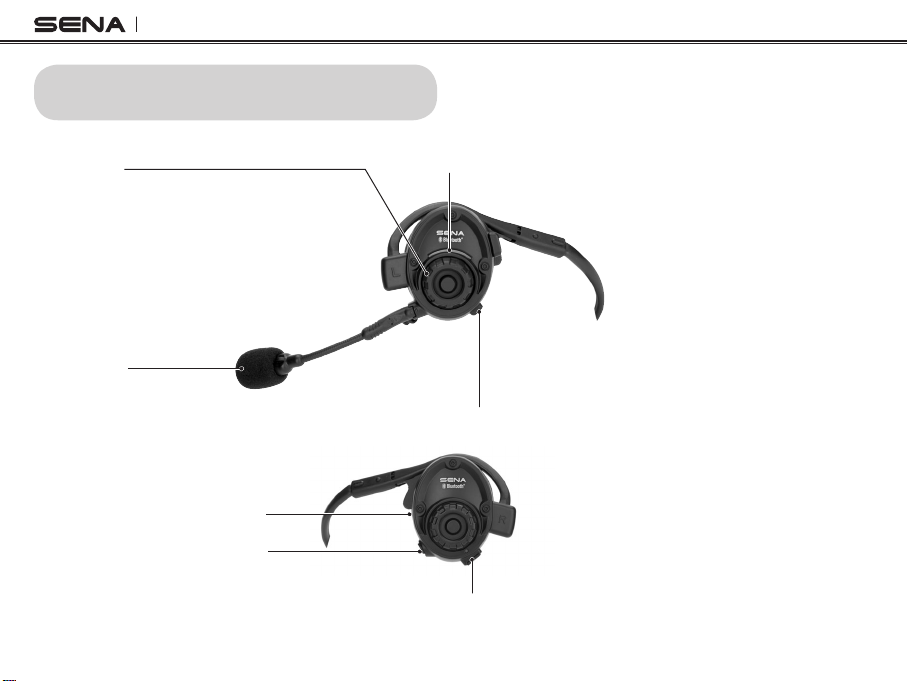
• SPH10 Headset
MP3 Jack
Speaker
DC Power Charging & Firmware Upgrade Port
<Right side>
Phone Button
• Answer and end a mobile phone call
• Speed dial
• Call transfer between mobile phone and headset
• Enter into mobile phone pairing mode
• Enter into Bluetooth stereo device paring mode
• Enter into factory reset mode
Status LED
Microphone
<Left side>
Jog Dial
• Answer and end a mobile phone call
• Reject an incoming mobile phone call
• Start and end intercom conversation
• Volume adjustment by rotating
• Play and pause Bluetooth stereo device
•
Track-forward and track-back by rotating
while pressing the button
• Enter into intercom pairing mode
• Enter into voice configuration setting
• Navigate through configuration menu

7
SPH10
English
3. WEARING THE SPH10
3.1 Microphone Installation
Two microphones are included in the package: a
long-boom microphone for high noise environment
and a short microphone for indoor use.
Plug the microphone into the microphone port to fit triangle
marks as described in the below picture. Adjust the
direction of the long-boom microphone so that the
“II” mark on the microphone is pointing towards your
mouth.
• Boom Microphone
• Mini Microphone
• USB Power & Data Cable
• Stereo Audio Cable
• Boom Microphone Sponges
• Mini Microphone Sponges
• Rubber Earpads

SPH10
8
Since SPH10 is mostly exposed on external environment
where noise prevails, microphone can be selected
according to the noise level. For the highly noisy
environment, boom-microphone is recommended allowing
microphone to stay near user’s mouth. For the less-noisy
environment, mini microphone is recommended allowing
users to move freely.
3.2 Placing the Headset on Your Ear
The speaker with microphone should be placed on
the left ear. Then you can place earhooks over ears
as shown:
4. POWERING ON/OFF AND CHARGING
To power on and off the headset, you don’t need
to press and hold any button for several seconds.
Just short press the Jog Dial and the Phone Button
simultaneously, and you will get quick on-and-off
convenience.
4.1 Powering On
Press the Jog Dial and the Phone Button at the same
time for about 1 second to power on. The blue LED
turns on and you will hear ascending beeps.
4.2 Powering Off
Just short press the Jog Dial and the Phone Button
simultaneously, you don’t need to press and hold for
a few seconds. The red LED turns on for a while until
it turns off completely and you will hear descending
beeps.
4.3 Charging
The LED turns on red while charging, and turns to
blue when the headset is fully charged. It takes about
2.5 hours to be completely charged.

9
SPH10
English
4.4 Low Battery Warning
When the battery is low, the blinking blue LED in
stand-by mode turns to red and you will hear mid-
tone triple beeps and a voice prompt saying “Low
battery”.
4.5 Checking the Battery Level
You can check the battery level in two different ways
when the headset is powering on.
4.5.1 LED Indicator
When the headset is powering on, the red LED flashes
rapidly indicating the battery level.
4 flashes = High, 70~100%
3 flashes = Medium, 30~70%
2 flashes = Low, 0~30%
4.5.2 Voice Prompt Indicator
When you power on the headset, keep pressing the
Jog Dial and Phone Button simultaneously for about
3 seconds until you hear high tone triple beeps. Then
you will hear voice prompt indicating the battery
level. However, if you release the buttons as soon
as the headset turns on, you will not hear the voice
prompt of battery level indication.
5. VOLUME ADJUSTMENT
You can easily adjust the volume by rotating the Jog
Dial. You will hear a beep when the volume reaches
maximum or minimum level. The volume is set and
maintained independently at different levels for each
audio source even when you turn off and on the
headset. For example, once you set the volume for
mobile phone handsfree, it will not change even if
you adjust the volume when you hear Bluetooth MP3
music. So you can always maintain the preferred
optimum volume level for each audio source.
This manual suits for next models
1
Table of contents
Other Sena Headset manuals