
Sagem F@st 3102 User manual
ANGLOPACK
Quick Setup Guide
Required configuration
- A standard line: non-shared analog (excluding “Numeris” and switchboard)
- A subscription to the ADSL service AngloPack from Teleconnect
- A standard telephone (optional)
- A computer with the following characteristics:
• P running Windows 98SE, 2000, Me, XP, Vista, Seven
• Memory: 512 MB minimum, 1 GB recommended
• An Ethernet port (preferred)
• Wi-Fi (optional)
Apple computers running Mac/OS or computers running Linux are not supported.
Replace the dashes with your France Telecom telephone number
ADSL Username
_ _ _ _ _ _ _ _ _ _
@budget.btadsl
ADSL Password
_ _ _ _ _ _ _ _ _ _
It works though but our technical support is not guarantee in this case
1
Sagem F@st 3102 modem

In your package you will find:
Telephone cable RJ11 X 1
Connector RJ11 male/male, Grey
Female telephone adaptor X 1
Telephone socket adaptor / RJ11 female, Beige
Ethernet cable RJ45 X 1
Connector RJ45 male/male, Yello
External ADSL filter X 1
Adaptor Male/femelle / RJ11 female
Your i-Fi box X 1
Sagem F@st 3102 modem/router
Electrical power supply and cable X 1
Transformer 220V
Telephone cable RJ11 X 1
Connector RJ11 male/male
2
1
4
6
3
2
7
5

Installation
1/ Configure your PC network
•
T e Internet Protocol properties must be set to t e following :
- obtain an IP address automatically
- obtain a DNS address automatically
•
To configure t e network on your PC, please c eck your computer
users’ guide.
/ Connect your equipment
•
As described in t e « wiring diagram » enclosed on page 4
•
W en t e cabling is complete, t e auto-configuration will launc
automatically. Please be patient and do not touc anyt ing before
t e lig t @ is green and steady and t e lig t is on (t is s ould
take about 5 min)
3/ Login procedure
•
The login information will normally be auto-configured in
your box, and you will be connected to the Internet
automatically.
•
However, in a few cases, your ADSL login details may be
requested (particularly after a box RESET). In t is case, please
enter t em, as stated on page 1 of t is guide and follow t e
instructions :
Access the box configuration interface
•
To do so, please open Internet Explorer (or anot er Web browser)
- in the address bar, please type in :
http://19 .168.1.1
- a login dialogue window will appear.
- please enter the following information :
Login User Profile:
user
(no pass ord)
Then select: Point-to-Point Protocol over Et ernet (PPPoE)
Enter then your login details as stated in page 1, in the
corresponding fields (User Name & Password):
Note
: VPI must have a value of 8 and VCI must have a value of 35.
Validate by clicking on
3
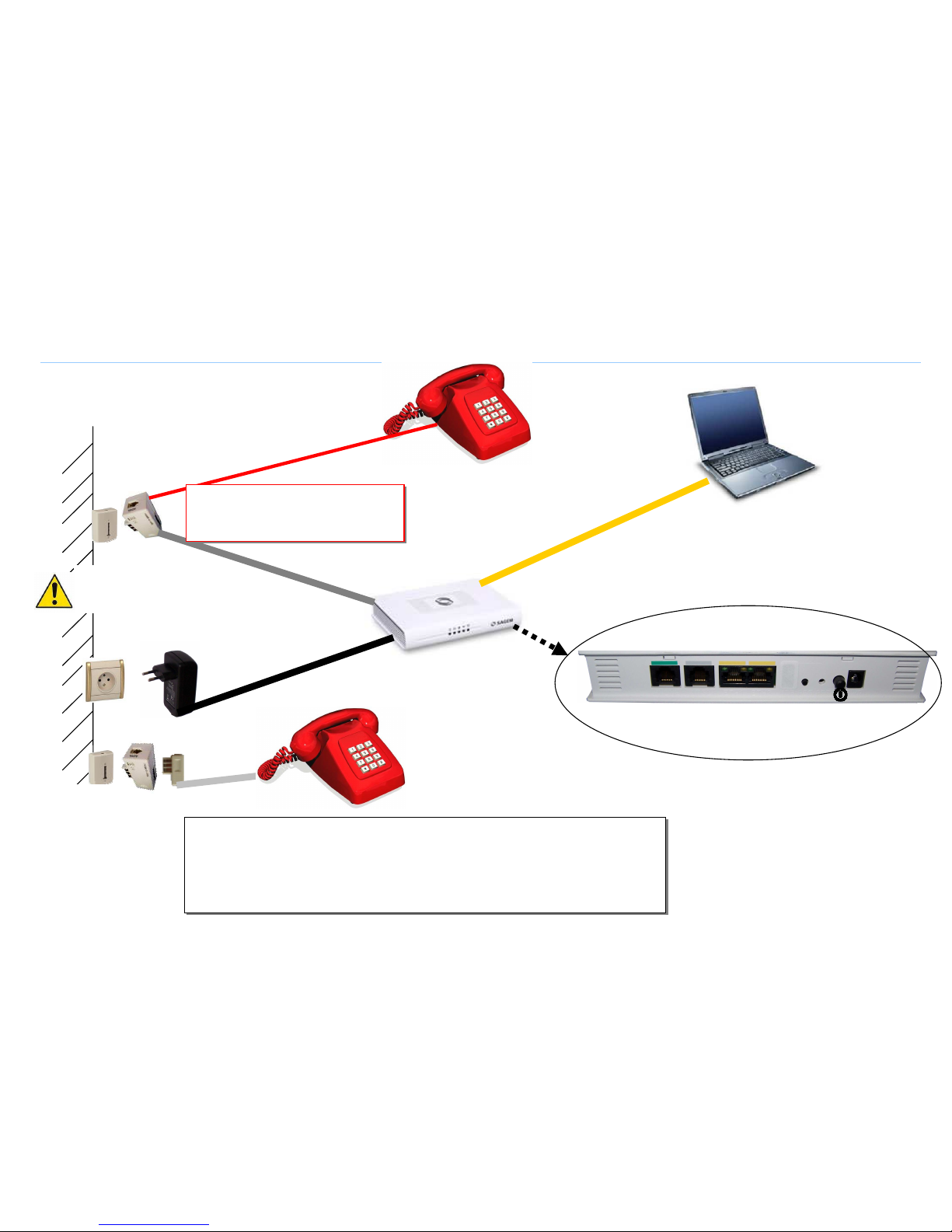
iring Diagram
4
BOX
Main
Telephone
socket
P
P
O
O
W
W
E
E
R
R
BOX
(REAR FACE)
Ma
le RJ11
cable
ON/
OFF
PWR
REG
ETH1 ETH2
ADSL
RST
During an electrical storm
disconnect the box from the
mains and telephone socket
Electric
Socket
A
DSL
ETH1
Male RJ45
Ethernet
Cable
Please ensure you have connected
the ADSL filter provided to your
telephone socket. or Wi-Fi (no cable) if enabled
on both the modem & your
computer
S ould you wis to connect a second p one, you will need to do so on a
second wall socket, using anot er ADSL filter (not provided).
Please do not esitate to ask our tec nical support and/or customer service
for elp & connection validation.
A SL
filter
Second
telephone
socket

i-Fi configuration (optional)
For your convenience, the Wi-Fi interface of your
box is enabled by default. However, you may
choose to enable/disable it. To enable/disable
Wi-Fi, please follow the instructions here below:
1/ Access the box configuration interface:
•
To do so, please open Internet Explorer (or any similar Web
browser)
- in the address bar, please type in :
http://19 .168.1.1
- a login dialogue box will appear.
- please enter the following information :
Login User Profile:
user
(no pass ord)
/ Enable/disable Wi-Fi
•
In t e interface, please click on “wireless network”, in t e left and
side menu. T en click on ” SSID1”, select t e status “Enabled” or
“Disabled” on t e drop down menu.
•
Validate by clicking on
3/ Follow the Wi-Fi instructions of your PC
•
You will also need to configure t e Wi-Fi device of your computer.
As t ese devices are different on eac computer, we advise you
to refer to your computer user guide or to contact t e tec nical
assistance of its manufacturer s ould you ave any doubt.
•
Please connect to t e wireless network named "FAST3102 -
xxxxxx"
(where xxxxxx is an alphanumerical reference particular to each box)
•
During t is process, you will be asked for a WPA encryption key.
T is key is printed underneat your router. Please type in t is key
carefully in uppercase wit out any dots or spaces.
5

hat to do if a problem arises?
Event Test procedure or possible cause
The Power light is off
Please check that the power supply block is properly plugged in.
Check that the power supply cable is properly connected to your router.
Check that the electrical socket is in working order by plugging a different device into.
Check your fuse box and your central electricity supply.
I can t connect to the Internet in Ethernet mode Please check that the Ethernet cable is properly connected to your computer and to your box.
Check that your computer is properly configured to enable Internet access (network configuration menu).
I can t configure my Modem in Wi-Fi mode By default the Wi-Fi is active. However, it may have been deactivated for some reason. In this case, you need to activate it again
through the box interface.
I can t connect in Wi-Fi mode Please check that the encryption WPA key has been entered as it is written underneath the box respecting uppercase and without
any spaces.
Wi-Fi is configured properly but I still can t connect in
Wi-Fi mode
Please check that the box is in working order (lights on), that your computer s Wi-Fi adaptor is set to WPA encoding and TKIP/AES
encryption and that you have properly entered the WPA key as stated underneath your box. You can also try to move your
computer closer to the box. If Wi-Fi does not work in your house, please check our powerline solution on www.budget-boutique.com
I can t connect several computers to the box Please check that each new computer is connected properly to the box (by Ethernet or Wi-Fi) and that the method used is correctly
configured on each computer.
I can t surf on the Internet Please reboot the box using the ON/Off switch at the back of the box.
My internet pages “freeze” Reboot the box using the ON/Off switch at the back of the box.
When I pick up the telephone, I hear a loud buzz You probably have not placed an ADSL filter on your main or secondary telephone wall socket.
F R E E T E C H N I C A L A S S I S T A N C E
Open Monday to Thursday from 9:30am to 6:00pm and Friday from 9:30am to 5:00pm
by phone: 0805 111 555 (free from your landline) or 0811 43 72 14 (local cost call)
or by e-mail: [email protected]
For non-technical assistance: 0805 02 4000 (free from your landline)
6
Table of contents
Other Sagem Modem manuals

Sagem
Sagem Fast 800 User manual

Sagem
Sagem F@st 1000 N56815740110 User manual

Sagem
Sagem 1201 User manual

Sagem
Sagem F@st 800 (RFC 1483) User manual

Sagem
Sagem 908 User manual

Sagem
Sagem 908 User manual

Sagem
Sagem 1201 User manual

Sagem
Sagem Fast 1201 User manual

Sagem
Sagem F@ST 1200 User manual

Sagem
Sagem Dr. Neuhaus Tainy GMOD-T1 User manual


