Rosen Z8 User manual
DVD Entertainment
System
Owner's Manual
R.mp3
NEW Z10 LOGO


NOTICE OF INTENDED USE
Rosen Entertainment Systems are designed to enable
viewing of video ONLY for rear-seat occupants, and are
not intended for viewing by the driver when the vehicle is
in motion. Such use might distract the driver or interfere
with the driver’s safe operation of the vehicle, and thus re-
sult in serious injury or death. Such use might also violate
state or local laws.
Rosen Entertainment Systems disclaims any liability for
any bodily injury or property damage that might result
from any improper or unintended use.
About the Registered Marks
This product incorporates copyright protection technology that is protected by
method claims of certain U.S. patents and other intellectual property rights owned
by Macrovision Corporation and other rights owners. Use of this copyright protec-
tion technology must be authorized by Macrovision Corporation, and is intended for
home and other limited viewing uses only unless otherwise authorized by Macrovi-
sion Corporation. Reverse engineering or disassembly is prohibited.
Manufactured under license from Dolby Laboratories.“Dolby” and the double-D
symbol are trademarks of Dolby Laboratories.
NOTE: Features and specifications listed in this manual are subject to change
without notice
NOTICES


Table of Contents
Getting Started…………………………………………………………………………………………………………………………………............…………………...6
Introduction ……………………..........……………………………………………………………………………………………………………………………………..8
Discs Played………………………………………………………………………………………………………………..........………………………………………….9
Changing and Adjusting Display Settngs…………………………………………………………………………………………………………..........……….……..10
Using the Remote Control…………………………………………………………………………………………………………………………..........……….………11
Basic Remote Control Buttons……………………………………………………………………………………………………………………..........……….………12
Using Menu and Navigation Buttons, Using Audio Buttons……………………………………………………………………………………..........………………13
Using DVD Disc Features…………………………………………………………………………………………………………………………….........…….……….14
Replacing the Remote Battery……………………………………………………………………………………………………………………….........…….……….14
CD Audio and MP3 Playback………………………………………………………………………………………………………………………………...........……..15
Listening Over the Car Speakers...………………………………………………………………………………………………………………….............……..……15
Using the Included Wireless Headphones………………………………………………………………………………………………...........…………..................16
Replacing the Headphone Batteries ………………………………………………………………………………………………....................................………….16
Using External Sources…………………………………………………………………………………………………………………………………..........……...….16
DVD Setup and Configuration.……………………………………………………………………………………………………………………………..........…..…..17
Frequently Asked Questions……………………………………………………………………………………………..…………………………..........……………..18
6
Rosen Z8 Owner’s Manual
Use the system with the vehicle running or with the ignition switch in
the “accessory” position.
Make certain that the remote, the headphones, and the game controller
have fresh batteries and are properly installed.
To lower the screen, slide the OPEN LATCH and adjust the screen into
a viewing position. The system will power on automatically.
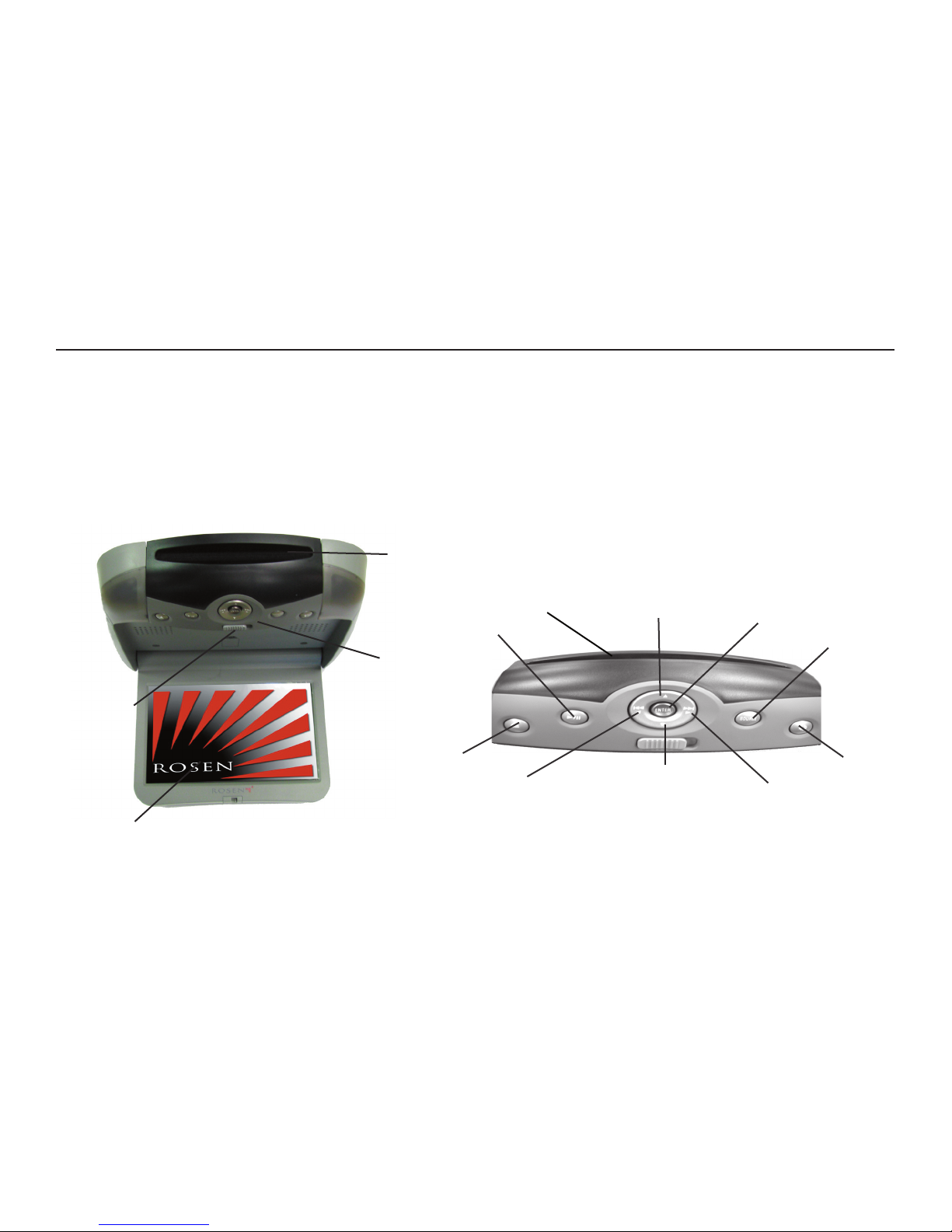
The Front Panel Controls
GETTING STARTED To Watch a DVD:
1 Power the system on, unit will default to DVD player and resume play, if
a disc is present.
2 Press EJECT to remove any loaded disc.
3 Insert a DVD with the label facing up.
4 Most DVD discs begin playback automatically. If a menu appears,
press PLAY or ENTER as instructed on the screen.
Disc Slot
Control Panel
LCD Screen
Play/Pause
Eject Button
Enter
Navigation Up/Fast Forward
Previous Chapter or
Track/Navigation Left
Navigation Down/Forward
Next Chapter or Track/
Navigation Right
Source Button
Speaker Sound
Open Latch
Disc Slot
7
Rosen Entertainment Systems
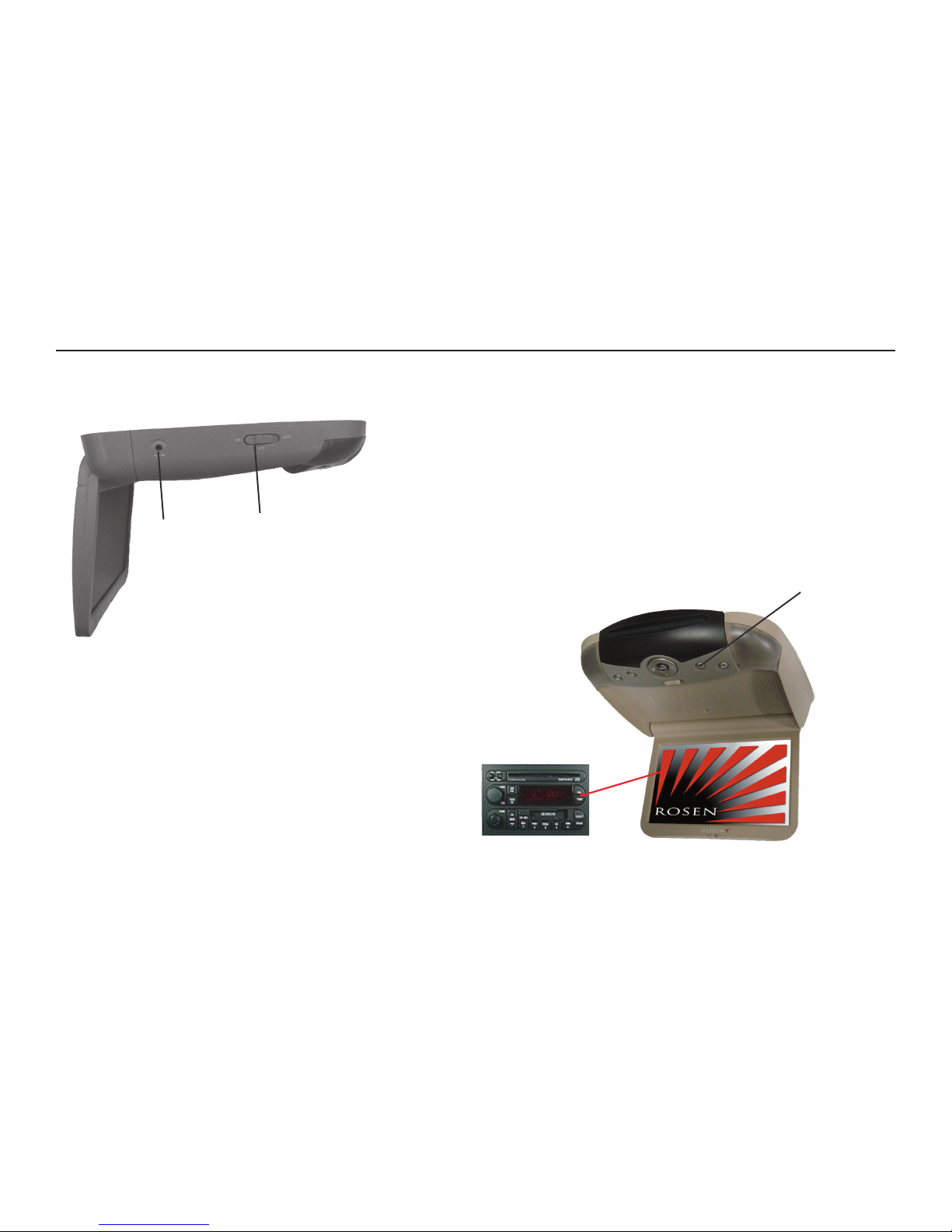
To Use An External Video Source
1 Connect the RCA audio and video outputs of the device to the Rosen
RCA adapter cable. Plug into AUX input port on the side of the monitor.
2 Press SOURCE until “AUX” appears on the screen.
Listening Over the Vehicle Speakers
1 Make sure MUTE is off. Press SPEAKER button on the front panel of the
system or the remote control each time the system is used.
2 “SPEAKER SOUND ON FM _ _ _ . _ PRESS R/L KEY TO ADJUST” will
appear.
3 Turn on the car radio. Tune to the FM frequency displayed on the
screen. If radio interference is heard, try another frequency. (see pages
13 and 15 for more information)
Side view with External Source
AUX Input Dome/Maplight Control
FM 89.7
FM 89.7
Speaker Button

8
Rosen Z8 Owner’s Manual
INTRODUCTION
Congratulations on owning a Rosen Entertainment System! Here’s a
list of some things you can do with your system:
· Play DVD movies, music CDs, or discs with MP3 audio files.
· Play audio through the vehicle speakers or the wireless headphones
· Use external audio/video inputs from video game consoles,
camcorders, or optional units like a TV tuner or a DVD changer.
· View JPEG photo files or playback compatible MPEG videos.
Precautions
In order to operate the system, the
vehicle ignition key switch must be
in the ACC or engine ON position.
• Use this system only if properly installed by a qualified installer.
• If the unit shows any sign of malfunction, turn it off and consult your
dealer immediately. Do not open the unit - there are no serviceable
parts inside.
• Do not press directly on the display surface - you may damage
it.
• Clean the display surface with a slightly damp, soft cloth using
household glass cleaner. Do not use solvents such as benzene,
thinner, or commercial cleaners.
• When using portable radios and telephones near the system, pic-
ture or sound interference may occur.
• If your car was parked in a very cold or very hot place, you may see
a blank screen, distorted picture or the unit may not be able to load
a disc. The system will return to normal after the unit temperature
returns to a normal operating range. This may take more than an
hour depending on the temperature and/or require resetting the
unit.
• If your car battery charge is low or the vehicle battery is old, you
may see a blank screen, distorted picture or the unit may not be
able to load a disc. The system will return to normal after the unit
voltage returns to a normal operating range and/or require resetting
the unit.
Note: The system’s operating voltage range is
11-16VDC operating voltage. The system oper-
ating temperature is 32o to 140o F ( 0o to 60o C).
Use of the system beyond the safe operating
ranges listed, can cause temporary or perma-
nent damage to the unit, and such damage
may not be covered by the manufacturer’s
warranty.
ACC or engine
ON position
ACC or engine
ON position
ACC or engine
ON position

9
Rosen Entertainment Systems
DISC COMPATIBILITY
Compatible Discs
Note: Not all discs are supported by this system. You may find
a disc that will not play on this system, but works fine on other
players. Various manufacturers of discs change technology from
time to time which may create compatibility issues. This is not a
problem with the unit and is not covered by warranty.
Most DVD and CD-Audio discs are compatible with the Z8 system.
The unit can also play most CD-Recordable discs containing CD-Au-
dio, MP3 files, and JPEG images - but not all such discs. Since these
discs are usually made on home computers, there is no certifica-
tion process ensuring that all such discs play on all players.
DVD Regions
When a DVD disc is created, it is encoded with a “Region number.”
The disc will only play on DVD players with the same Region number.
For instance, a Region 3 disc won’t play on a Region 1 player.
Region 1: U.S. and U.S. Territories, Canada
Region 2: Japan, Western Europe, Middle East, South Africa
Region 3: South Korea, Hong Kong, Taiwan, Southeast and East Asia
Region 4: New Zealand, Australia, Pacific Islands, Mexico, Central/
South America
Region 5: Russia and the former Soviet Union, Africa, Indian
subcontinent, North Korea
Region 6: China
Incompatible Discs
The following disc types are known to be incompatible with the
system:
· All DVD-ROM/DVD-RAM/DVD+RAM discs.
· Some DVD-R/DVD-RW/DVD+R/DVD+RW discs.
· All Blue Ray and HD DVD discs
· Some Photo CDs.
· All CD-ROM data discs.
· CD-Audio discs made with certain copy protection methods.
· Any DVD with a different Region number than the unit.
· Any disc that does not meet DVD Forum standards.
Why the system doesn’t respond the same way to all discs
When a DVD disc is created, the creator has to define how the disc
will operate when loaded into a DVD player. For instance, some discs
begin playing immediately, while other discs only display a menu and
require a menu selection to be made before playback will start.
The DVD standard also allows the maker of a DVD disc to disable
functions at certain times, such as Fast-Forward and Stop (which is
why you can’t skip past the copyright warning screen). If some DVD
feature temporarily isn’t working for you, usually the disc is preventing
the player from performing that function.
Discs that don’t properly load and play
Some CD and DVD discs, especially homemade discs which do not
have all the data needed to properly initialize all DVD players, may not
load and play properly. They may even create a state where the DVD
player will not eject the disc at all. In these cases, use a paper clip to
press the Reset button (this button’s location is shown on page 6), fol-
lowed by rapidly pressing eject on the unit.
10
Rosen Z8 Owner’s Manual
To exit the menu: Press the DISPLAY button to save settings and exit.
Set the brightness level in daytime conditions with plenty of ambient
light. You can use the Day/Night mode button to switch between Day
and Night modes.
Note: The internal DVD player can be configured for either a
16:9 “Wide” image output or a 4:3 “Standard” image output.
Since the unit has a wide screen display, the DVD player should
be configured for “Wide.” For more information, see page 19.
Note: The internal DVD player also has a set of video adjust-
ments, which are separate from the main adjustments.
CHANGING AND ADJUSTING THE DISPLAY
Selecting a display mode: The system’s “widescreen” display has
a 16:9 aspect ratio - wider than a standard television. While many
DVDs provide widescreen video images that fit the screen, standard
broadcast TV and many video games do not.
• To view a widescreen DVD, press the DISPLAY button on the
remote until “WIDE” is displayed on the screen.
• To watch a fullscreen DVD, the internal game system, or
broadcast television, select “STANDARD.”
Change the Display Adjustments Remote Control Only: The
display has adjustable video settings. To change these settings, press
and hold the DISPLAY button on the remote control to bring up the
following menu:
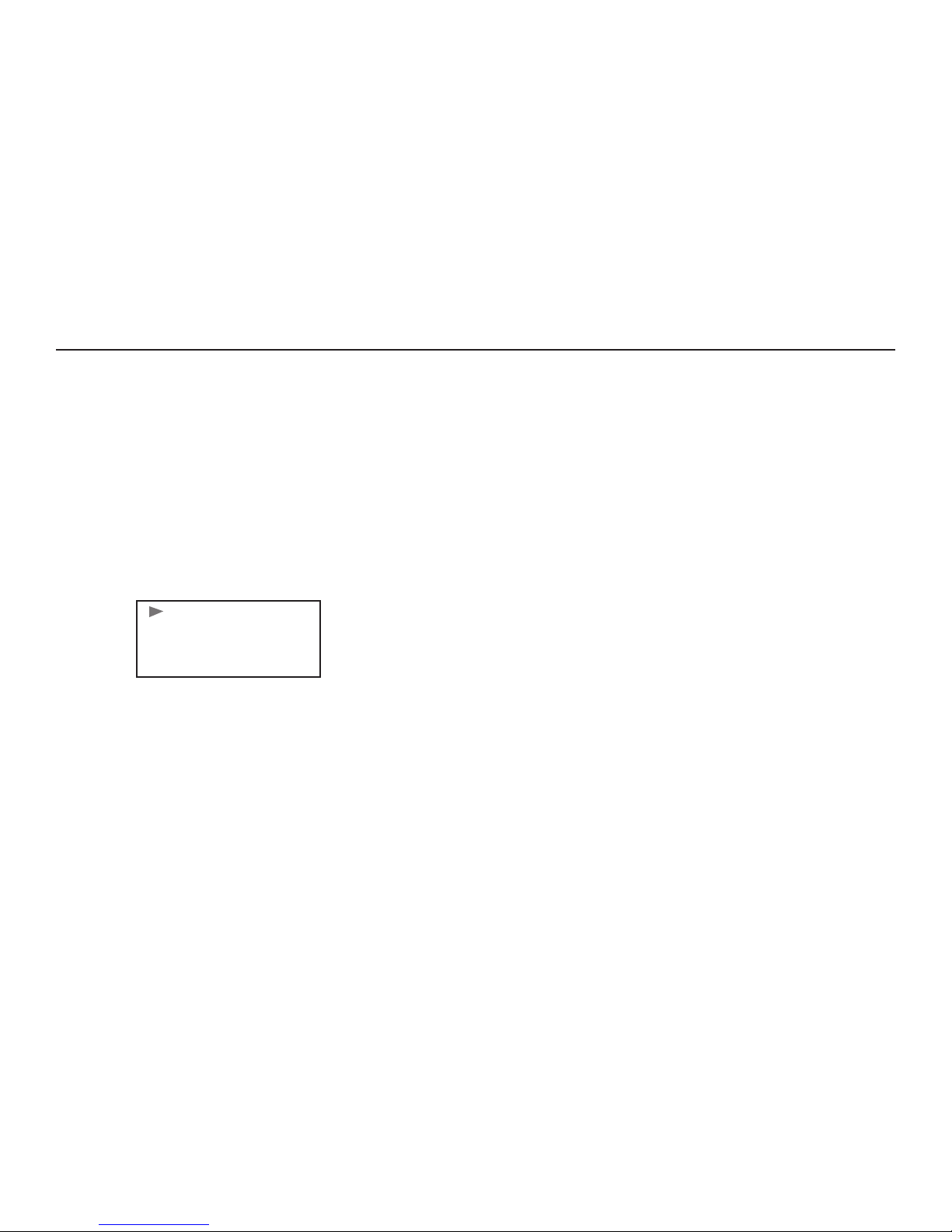
BRIGHTNESS 32
CONTRAST 32
COLOR 32
TINT 32
To select a setting to be changed: Press the DOWN arrow button to
move the cursor down the menu list. Once you have selected the item
to change, use the LEFT and RIGHT arrows on the remote or the
front panel to adjust the settings. After you have finished making your
desired changes, press the DISPLAY button on the remote to exit and
save the changes you have made.
To change the value of a setting: Use the LEFT and RIGHT arrow but-
tons. The range is from 0 to 63.
Table of contents
Other Rosen Car Video System manuals

Rosen
Rosen 10.2 User manual

Rosen
Rosen Rosen inVUE II User manual

Rosen
Rosen ClearVue CV6825 User manual

Rosen
Rosen DS-HD0710-H11 Owner's manual

Rosen
Rosen AV7700 Reference guide

Rosen
Rosen AV7550 Reference guide

Rosen
Rosen T10 User manual

Rosen
Rosen DS-TY0820-H11 User manual

Rosen
Rosen A8 User manual

Rosen
Rosen AV7950H User manual

Rosen
Rosen CAR SHOW 7 User manual

Rosen
Rosen EM-1 User manual

Rosen
Rosen ClearVue Overhead Monitor User manual

Rosen
Rosen AV-CY0801-G42 Owner's manual

Rosen
Rosen AV7700B User guide

Rosen
Rosen AC3003 User manual

Rosen
Rosen AV7950H User manual

Rosen
Rosen ClearVue CV6821 User manual

Rosen
Rosen GM1CAMHD User manual

Rosen
Rosen DVA-3210 User manual