Remotec BW0392 User manual

Model BW0392
Universal Remote Control
SUOMINORSKSVENSKAENGLISH
No. 38-2072

2
1
4
2
5
3
ENGLISH
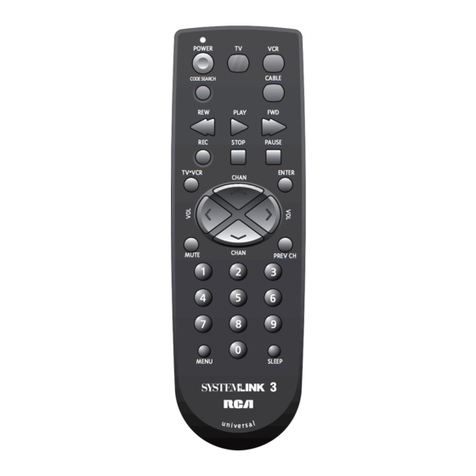
Features
1. IR-emitter
2. On/off switch
3. Status indicator (red LED)
4. Device selector
5. Function buttons
Universal Remote Control
Article number 38-2072, model BW0392
Please read the entire instruction manual before using and
save it for future use. We apologise for any text or photo errors
and any changes of technical data. If you have any questions
concerning technical problems please contact our Customer
Service Department (see address on reverse.)

3
ENGLISH
Product description
Universal remote control (URC)
This remote control is manufactured pre-programmed and
replaces up to 6 separate remote controldevices for controlling,
for example, TVs, VCRs, satellite receivers, cable TV receivers,
and DVD players. Enter the correct device code and your URC
will be ready for use. A list of device codes is found at the very
end of this instruction manual. The URC can also be taught
(programmed) by existing remote controls.
■Pre-programmed for most existing brands.
■Replaces damaged or lost remote controls.
■Replaces up to 6 remote controls, for example for TVs,
VCRs, satellite and digital TV receivers, DVD players, and
cable TV receivers.
■Function for Teletext.
■Operates on 3x R03/AAA batteries (not included)
To consider…
■The remote control is compatibel with most brands on
the market but there is no guarantee that it is compatibel
with your specic model of the device. Even if the brand is
included in the code list.
■It is not possible to see in the code list if the remote control
is compatibel with your specic device model, you have to
try it out.
■The remote control may work with more codes than one.
One has to try it out until nding the code that works with
the most functions.
To remember
Installation of batteries
The remote control is operates with 3x R03/AAA batteries.
1. Remove the battery lid on the back.
2. Put in the batteries according to the marking in the battery
compartment. Remember to align the batteries correctly
with plus (+) and minus (-) according to the marking.
3. Put the battery lid back.
Low batteries
If the indicator blinks slowly 2 times after that you have pressed
a button the batteries are starting to go low. You then have to
replace the batteries with new ones.

4
ENGLISH
Programming the remote control
Entering device code
Enter the code in the following manner:
1. Open the included code list and look under the headline for
the type of device that corresponds to your equipment.
TV Brands Codes for TVs
VCR Brands Codes for VCRs
SAT Brands Codes for satellite receivers as well as codes
for digital receivers for cable TV and terrestrial
television broadcasting network.
CTV Brands Codes for analogue cable TV receivers.
DVD Brands Codes for DVD players.
Under this headline you then look for the code
that corresponds to the brand of your device,
for example Philips. Every code contains 4
digits. If there is more than one device code for
your brand, you begin with the rst one.
2. Turn on, for example, the TV manually or with the original
remote control. Choose channel 1.
3. Press the button for desired device, for example [ TV ]
By rst pressing the [ SHIFT ] button and then button
for desired device access is granted for controlling an
additional 4 devices.
4. Press the buttons [ CH + ] and [ VOL- ] simultaneously for
2 seconds until the LED light is lit.
5. Enter your four digit device code with the buttons [0]– [ 9 ].
The LED light is directly turned off.
Test the function of the remote control with the device that you
have just programmed. If the device responds correctly to the
buttons you press, you have entered the right device code.
Otherwise, you will have to repeat the procedure above with the
other device codes available for your brand until your device
reacts in the right way when you press the buttons and until
most buttons work correctly.
In the same manner, you set the device codes for other devices
as well. Just remember to press the button for device type in
step 3 above.

5
ENGLISH
Note
If the LED light ashes 6 times after entering the four digit
device code the programming has been interrupted for one of
the following reasons:
1. No digit has been pressed during an 8 second period.
2. An invalid device code has been entered.
3. The device code has not been entered correctly. The device
code may only contain the numbers 0-9.
Programming a new device code for a chosen device type
automatically replaces the old code.
[ TV ] – the button can only save TV codes.
[ VCR ] – the button can only save VCR codes.
[ DVD ] and [ SAT ] – the buttons can save all device codes
(incl. TV and VCR codes)
Tip!
When you have found the correct device code we recommend
that you write down the code on the label on the backside of the
remote control.
If no device code works with your device
If you cannot nd the correct device code for your device
you can search through all the remote control’s codes for the
respective device type.
TV - TVs
VCR - VCRs
SAT - Satellite and digital TV receivers
DVD - DVD players
Searching through the remote control’s codes
If you cannot nd the right device code in the list, you can
search in the following manner:
1. Turn on, for example, the TV manually or with the original
remote control.
2. Press the button for the desired device, for example [ TV ]
By rst pressing the [ SHIFT ] button and then button
for desired device access is granted for controlling an
additional 4 devices.
3. Press the buttons [ CH + ] and [ VOL- ] simultaneously for
2 seconds until the LED light is lit.
4. Enter the corresponding search code from the following
table.
The LED light is turned off directly after the search
code is entered.

6
ENGLISH
Device type Search code
TV 0001
VCR 0002
SAT 0003
CTV 0004
DVD 0005
(In this example, you press the code for TV: 0001)
5. Press the same button as in step 2 for desired device type.
(In this example the [ TV ] button).
6. Press the buttons [ CH + ] and [ VOL- ] simultaneously for
2 seconds until the LED light is lit. Now the remote control
is ready to search.
7. Point the remote control towards desired device (in this
example, the TV) and press the button ON/OFF several
times slowly and with patience until the device is turned off.
When the device has turned off, you immediately press [CH
+]and [ VOL - ] to store the search code. The LED light is
turned off.
In the same manner as above, search for the device code for
other devices. Remember to press the correct button for the
desired device type in steps 2 and 5 above.
Important!
If the on/off function on your device is not controlled by infrared
lights, you follow steps 2 through 6 above and start the search.
Then, follow the instructions below.
■Press alternately on the button and another important
function button until your device reacts with the desired
function. Press the button for the device you have chosen
in the steps above (in this example the [ TV ] button) to
store the search code. For example, you press alternately
on and [ 1 ] or on and ►.
■Every time that you press the button ON/OFF the remote
control skips to the next code and sends out a signal
for turning off the device. If you do not manage to stop
pressing in time before the device is turned off, you turn
on the device again as fast as you can. Before the indicator
(the LED light) is turned off you press to skip backwards.
Repeat step 7 above and store the code.
■ If the LED light ashes 6 times after that you have pressed
, you have reached the library’s last code. Press on [ CH
+]and [ VOL - ] to restore the remote control and repeat
the above procedure to search again.
Note:
■DVD, SAT and other device codes may be stored on all
function buttons except TV and VCR.

7
ENGLISH
Usage
Normal usage
Point the remote control towards the device and press desired
button for desired function. The LED light ashes when sending
to conrm that the button is pressed.
Programme control
With this function you can control the TV’s sound level with the
volume and the mute buttons without having to switch between
the different device buttons, even when the remote control is set
on a different device. This is only valid in modes
[ SAT ] and [ VCR ].
Activation – Channel switch:
1. Press the button for the device you wish to use, e.g. [TV].
2. Press and hold [CH +] while pressing the button for the
device on which you wish to change channels for, e.g.
[SAT].
3. Release [CH+]. The LED blinks once when the function has
been activated.
Deactivation – Channel switch:
1. Press the button for the device you are using, e.g. [TV].
2. Press and hold [CH–] while pressing the button you are
switching channels on, e.g. [SAT].
3. Release [CH –]. The LED blinks twice when the function
has been activated.
Activation – Volume:
1. Press the button for the device you wish to use, e.g. [TV].
2. Press and hold [VOL +] while pressing the button for the
device which you want to change volume for, e.g. [SAT].
3. Release [VOL +]. The LED blinks twice when the function
has been activated.
Deactivation – Volume:
1. Press the button for the device you wish to use, e.g. [TV].
2. Press and hold [VOL –] while pressing the button for the
device which you want to change volume for, e.g. [SAT].
3. Release [VOL –]. The LED blinks twice when the function
has been deactivated.

8
ENGLISH
Double connection - and disconnection function
Allows you to turn a second device on or off at the same time as
the device the remote control is currently activated on.
Programme double connect-/disconnection function:
1. Press the button for the device that will be used with the
remote control, e.g. [TV].
2. Press and hold at the same time as you press the
button for the second device that shall turn on/off right after
the rst device (the one that was chosen in step 1), e.g.
[SAT].
3. Release . The LED blinks once when the function has
been activated.
Deactivate double connect-/disconnection function:
1. Press the button for the device which the remote control is
being used with, e.g. [TV].
2. Press and hold at the same time as you press the button
for the second device which was programmed to turn on/off
at the same time, e.g. [SAT].
3. Release . The LED ashes twice when the function has
been deactivated.
Secondary function
The buttons that have a secondary function are marked with
a grey symbol above respective button. To use a secondary
function, you press the [ SHIFT ] button and then on
corresponding function button.
Care and maintenance
■Do not expose the remote control for dust, strong sunlight,
humidity, shocks or high temperatures.
■Never mix new and old batteries. The old ones may start to
leak and destroy the device.
■Never use corroding or polishing solvents on the remote
control.
■Do not take apart the remote control. It does not contain
any components that can be adjusted by the user.

9
ENGLISH
Troubleshooting
Problem My remote control is not working at all!
Action 1 Check your device. If the main on/off switch is
on OFF nothing will work.
Action 2 Check that the batteries are turned right with
the plus and minus the right way.
Action 3 Make sure that you have pressed the button
for the correct device.
Action 4 Change the batteries if they are low.
Action 5 It does not work with your device model, the
remote control does not work with all models
on the market so even if your brand (for
example Philips) is included in the code list
there is no guarantee that it works with your
exact model of the device.
Problem If there are several device codes for my
device, then what should I do?
Action 1 Test the device codes one at a time until you
nd the one that works with the most buttons.
Problem My equipment only reacts to some
commands.
Action 1 You have set a code that only works for some
commands but not for others. Try different
codes until most of the buttons work.
Disposal
Follow local ordinances when disposing of this product. If you
are unsure about how to dispose of this product contact your
municipality.
Specifications
System: Pre-programmed infrared remote control
Power supply 3x R03/AAA-batteries (not included)
Measurements in mm: 220 x 45 x 17

10
10
1
4
2
5
3
SVENSKA
Universal Fjärrkontroll
Art.nr. 38-2072, modell BW0392
Läs igenom hela bruksanvisningen före användning och spara
den sedan för framtida bruk. Vi reserverar oss för ev. text- och
bildfel samt ändringar av tekniska data. Vid tekniska problem
eller andra frågor, kontakta vår kundtjänst (se adressuppgifter
på baksidan).
Huvuddelar
1. IR-sändare
2. Strömbrytare
3. Statusindikator (röd lysdiod)
4. Knappar för val av apparat
5. Funktionsknappar
Table of contents
Languages:
Other Remotec Remote Control manuals

Remotec
Remotec Remodo X User manual

Remotec
Remotec Remote Master 980 Pre-programmed User manual

Remotec
Remotec REM ZRC100 User manual

Remotec
Remotec ZXT-600 User manual

Remotec
Remotec Z-URC 550US User manual

Remotec
Remotec BW0372 User manual

Remotec
Remotec Remote Master 560 User manual

Remotec
Remotec Z-URC 550EU User manual

Remotec
Remotec Z-URC 550EU User manual