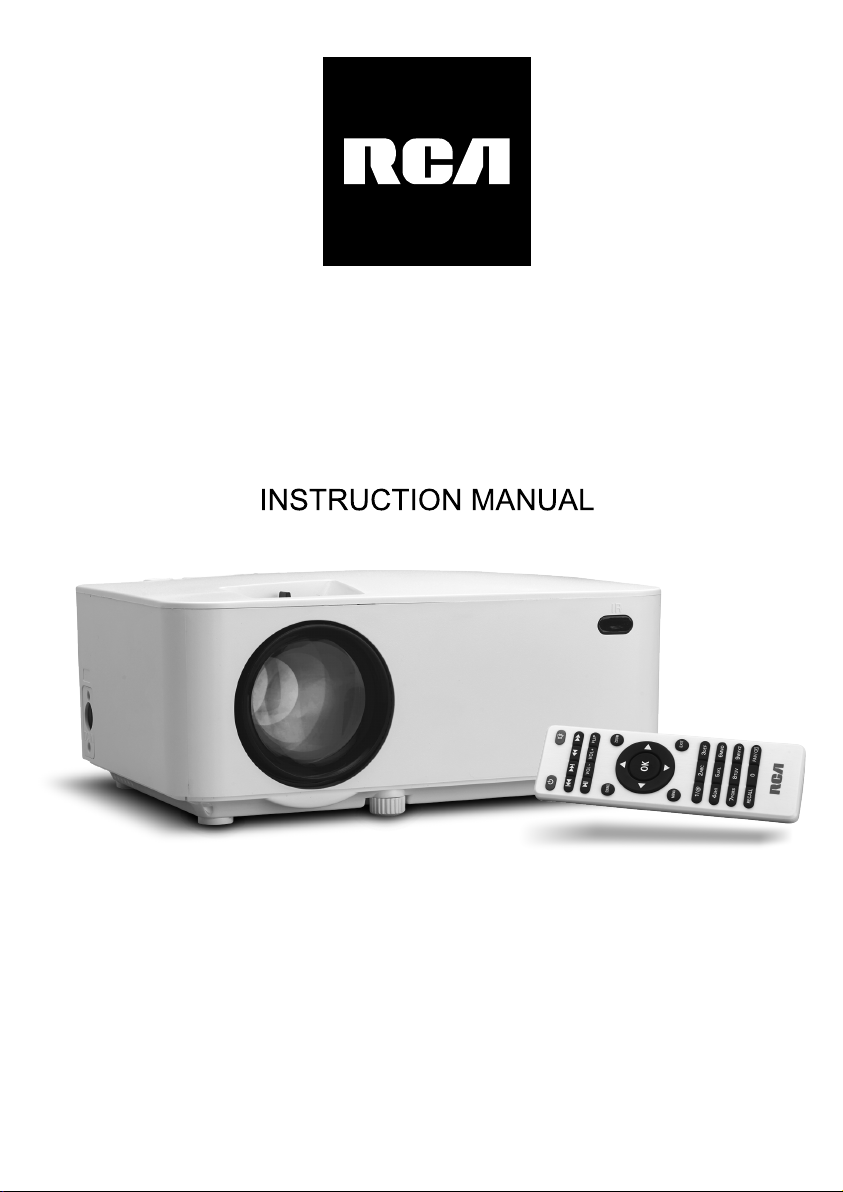
RCA RPJ104 User manual

MODEL NO. RPJ104
MULTIMEDIA PROJECTOR
PLEASE READ BEFORE OPERATING THIS EQUIPMENT
This product is manufactured and sold by Curtis International Ltd.
RCA, the RCA logo, the two dogs (Nipper and Chipper) logo, are registered
trademarks or trademarks of RCA TrademarkManagement and are used
under license by Curtis International Ltd. Any other product, service,
company, trade or product name and logo referenced herein are neither
endorsed nor sponsored by RCA Trademark Management or its affiliates.

Table of Contents
Important Safety Instructions - - - - - - - - - - - - - - - - - - - - - - - - - - - - P1
Additional Warnings and Precautions - - - - - - - - - - - - - - - - - - - - - - P2
FCC Warning - - - - - - - - - - - - - - - - - - - - - - - - - - - - - - - - - - - - - - - - - P3
In The Box - - - - - - - - - - - - - - - - - - - - - - - - - - - - - - - - - - - - - - - - - P3
Table of Contents - - - - - - - - - - - - - - - - - - - - - - - - - - - - - - - - - - - - P4
Remove & Close the Lens Cover - - - - - - - - - - - - - - - - - - - - - - - - - P5
Placing Your Projector - - - - - - - - - - - - - - - - - - - - - - - - - - - - - - - - P5
To Reduce Image Distortion - - - - - - - - - - - - - - - - - - - - - - - - - - - - P6
Distance Between The Projector And Screen - - - - - - - - - - - - - - - - P6
Placing Your Projector On Ceiling - - - - - - - - - - - - - - - - - - - - - - - - P6
Adjust the Vertical Location - - - - - - - - - - - - - - - - - - - - - - - - - - - - P7
Adjust the Focus and Keystone - - - - - - - - - - - - - - - - - - - - - - - P7
Controls of Remote - - - - - - - - - - - - - - - - - - - - - - - - - - - - - - - - - - - P8
Install / Remove Battery Of Remote - - - - - - - - - - - - - - - - - - - - - - - P8
Controls of Projector - - - - - - - - - - - - - - - - - - - - - - - - - - - - - - - - - P9
Install Power Adapter - - - - - - - - - - - - - - - - - - - - - - - - - - - - - - - - - P10
Main Operation - - - - - - - - - - - - - - - - - - - - - -- - - - - - - - - - - - - - - - - - P10
Connect HDMI show the Image On Projector Screen - - - - - - - - - P11
Connect AV Show The Image On Projector Screen - - - - - - - - - - - - P11
Connect VGA Show The Image On Projector Screen - - - - - - - - - - - P12
Connect Audio Output (Aux Out / Line Out / Earphones) - - - - - - - - P13
Install USB Device And Micro Sd Card “TF” - - - - - - - - - - - - - - - - - P13
Using TF Card and USB Playback - - - - - - - - - - - - - - - - - - - - - - - - P14
Using Bluetooth Playback - - - - - - - - - - - - - - - - - - - - - - - - P15
Using Projector Menu 1.0 - - - - - - - - - - - - - - - - - - - - - - - - - - - - - - - P16
Using Projector Menu 2.0 - - - - - - - - - - - - - - - - - - - - - - - - - - - - - - - P17
Using Projector Menu 3.0 - - - - - - - - - - - - - - - - - - - - - - - - - - - - - - - P18
Using Projector Menu 4.0 - - - - - - - - - - - - - - - - - - - - - - - - - - - - - - - P19
Using Projector Menu 5.0 - - - - - - - - - - - - - - - - - - - - - - - - - - - - - - - P19
Specifications - - - - - - - - - - - - - - - - - - - - - - - - - - - - - - - - - - - - - - - - P20
4

Remove & Close The Lens Cover
Placing Your Projector
Your projector can be installed in four different configurations ( see picture
below):
Front Table:
Select this location with the projector placed
near the floor in front of the screen. This is the
most common way to position the projector
for quick setup and portability.
Front Ceiling:
Select this location with the projector
suspended upside-down from the ceiling in
front of the screen.
NOTE: A projector mount is required to install
the projector in a ceiling.
Rear Table:
Select this location with the projector placed
near the floor behind the screen.
NOTE: That a special rear projection screen
is required.
Rear Ceiling:
Select this location with the projector
suspended upside-down from the ceiling
behind the screen.
NOTE:
A projector mount is required to install the
projector in a ceiling.
A special rear projection screen is required.
5
REMOVE
OK
M
S
LENS COVER
CLOSE
OK
M
S
LENS COVER
RemoveGtheGlensGcoverGbeforeGusing CloseGtheGlensGcoverGwhen unit not using
Front Ceiling
Rear Ceiling
Rear Tablet
Front Table

To Reduce Image Distoron
It is recommended to move the projector as close to
center of screen.
Distance Between The Projector And Screen
Measure the distance between the projector and where you want to
position the screen. This is the projection distance.
Placing Your Projector On Ceiling
When installing the projector in the ceiling, please purchase a projector mount
recommended by an installation professional and follow the instructions that
come with the mount.
Before installing the projector in the ceiling, please check to make sure the
ceiling structure can support the weight of the projector and the mount. If in
doubt, please ask the advice from an installation professorial.
NOTE: Projector mount and screw(s) not included
6
CEILING HANGER
FIXED HANGER HOLE
SCREENSIZE
DISTANCE
OK
M
S
Distance
1.16m
1.35m
1.51m
1.81m
2.15m
Screen Size
37 inch
45 inch
50 inch
60 inch
72 inch

Adjust The Vercal Locaon
Follow below picture to adjust the vertical location.
Adjust The Focus And Keystone
Follow below picture to adjust the focus and trapezoidal screen.
Adjust the focus by turning the knob while
observing the image pixels
near the center of the screen. Optimal focus is obtained when the
pixels are clearly visible. Depending on the
projected screen size, the
focus near the screen edges may be less sharp than the screen center.
Keystone image is created when the projector beam is projected to
the screen in an angle.
Keystone correction will restore the distorted
image to a rectangular or square shape.
7
SCREEN
PROJECTOR VERTICAL
DIMENSION
VERTICAL
DIMENSION
SCREEN
PROJECTOR
VERTICAL
DIMENSION
SCREEN
PROJECTOR
AV HDMI USB VG A
TF
AVHDMIUSBVGA
TF
Adjust this knob ( ANGLE ADJ. knob)
to fine- tune the display angle to higher.
AVHDMI
TF
HDMI
VGA
USB
HDMI
HDMI
OK
M
S
TRAPEZOIDAL ADJ. KNOB
FOCUS ADJ. KNOB
Then sharpen the image
by rotating focus knob.

Controls Of Remote
Install / Remove Baery Of Remote
NOTES:
8
NETVIGATOR
M
S
POWER ON / OFF
SKIP NEXT / PREVIOUS FILE
PLAY / PAUSE
SOURCE SELECTOR
MUTE AUDIO SOUND
SEARCH FORWARD OR
PRESS ROTATE SCREEN
SELECT VOLUME SOUND
ENTER TO MENU
OPTIONAL
ZOOM
MENU
SOURCE
EXIT THE MENU
ZOOM SCREEN SIZE
REWIND
OK
OK
AAA/ UM4
AAA / UM4
BATTERYDOOR
Remove the battery compartment cover on the back of your remote by carefully
sliding to open. The battery cover can then be lifted away. Fit the correct
batteries (not included), referring to the polarity markings. Finally, replace the
cover.
•Batteries shall not be exposed to
excessive heat such as sunshine, fire
•Be sure that the batteries are installed
polarity correctly.
•Do not mix old and new batteries.
•Only same or equivalent type batteries
as recommend are to be used.
•Do not dispose of batteries in fire,
battery may explode or leak. Do not try
to recharge a battery

Controls Of Projector
1. NETVIGATOR Buons
2. LENS
3. FOCUS ADJ. Knob
4. TRAPEZOIDAL ADJ. Knob
5. POWER on Indicator
6. DC IN jack
7. POWER Buon
8. SOURCE Buon
9. RETURN Buon
10. MENU Buon
11. STANDY indicator
12. IR Window ( Rear Side)
13. IR Window ( Front Side)
14. ANGEL ADJ. Knob
15. EAR PHONE Jack
16. AV OUT Jack
17. TF Card Slot ( Micro SD Card )
18. HDMI Port
19. USB Port
20. VGA Port
9
M
S
OK
18 1913 14 15 16 17 20
HDMI
VGA
USB
HDMI
HDMI
OK
M
S
12 34 56789 10 11 12

Install Power Adapter
Follow below picture to connect power adapter
Connect small end of adapter FIRST. Plug the adapter body to power outlet.
Main Operaon
- Press the button to turn on unit, press again to turn off.
/ SOURCE - Press the button to select input source.
/ MENU - Press the button to enter projector menu.
- Press the buttons to select screen item of projector menu.
/ EXIT - Press the button to exit the projector menu.
- Press the buttons to fast search forward and rewind on USB / TF.
- Press the buttons to search next or previous file on USB / TF.
VOL+ / VOL - Press the buttons to select correct sound.
- Press the button to play/pause the connect USB / TF card.
FLIP – Press the button to rotate / mirror projector screen
ZOOM - Press the button to select image scale.
- Press to muting the audio sound of your projector.Press again to resume.
10
M
S
OK
OK

Connect HDMI Show The Image On Projector Screen
Follow below picture to connect HDMI cable and device.
1. Turn off the unit before connect HDMI cable.
2. Aer connect, press the buon to turn on unit and power indicator will
light GREEN
3. Press the / SOURCE buon to HDMI mode and the video of HDMI
device will show on projector screen.
4. Press the button to turn off unit power.
Connect AV Show The Image On Projector Screen
Follow below picture to connect AV cable and device.
1. Turn off the unit before connect AV cable.
2. Use AV cable to connect follow below figure
3. After connect, press the button to turn on unit and power indicator will
light GREEN
4. Press the / SOURCE button to AV mode and the video of AV device
will show on projector screen
5. Press the button to turn off unit power.
11
HDMI CABLE
AV HDMI USB VGA
TF
CABLE NOT INCLUDE
LEFT CHANNEL
RIGHT CHANNEL
VIDEO CABLE
VIDEO PLAYER
VIDEO CABLE : YELLOW
AUDIO LEFT CHANNEL : WHITE
AUDIO RIGHT CHANNEL : RED
AV HDMI USB VGA
TF
CABLE NOT INCLUDE
S
S

Connect VGA Show The Image On Projector Screen
Follow below picture to connect HDMI cable and device.
1. Turn off the unit before connect VGA cable.
2. Press the button to turn off power of your projector before connection.
3. Aer connect, press the buon to turn on unit and power indicator will
light GREEN
4. Press the / SOURCE buon to VGA mode and the video of VGA device
will show on projector screen.
5. Press the button to turn off unit power.
Please refer to the following table to adjust the output signal from computer
Type Resoluon Frequency Field Frequency
PC
VGA 640x480
31.5 60
34.7 70
37.9 72
37.5 75
SVGA 800x600
31.4 50
35.1 56
37.9 60
46.6 70
48.1 72
46.9 75
XGA 1024x768
40.3 50
48.4 60
56.5 70
12
To VGA PORT
NOTE BOOK DECK TOP
OR
COMPUTER CABLECOMPUTER CABLE
AV HDMI USB VGA
TF
CABLE NOT INCLUDE
S
Other manuals for RPJ104
1
Table of contents
Other RCA Projector manuals

RCA
RCA RPJ116 User manual

RCA
RCA RPJ116-PLUS User manual

RCA
RCA RPJ116-B-PLUS User manual

RCA
RCA RPJ402 User manual

RCA
RCA RPJ143-50DISP User manual

RCA
RCA RPJ241-COMBO-BLACK-V User manual

RCA
RCA RPJ240-COMBO-VOUCHER User manual

RCA
RCA PJ28BT User manual

RCA
RCA RPJ133-B User manual

RCA
RCA RPJ133_24DISP User manual