Proxi EU Plug User manual

User manual

English

English

EN
4
Technical specification:
3000 W (for 230 V)
up to 13 A for cos =1
Schuko F CEE 7/4
Type E CEE 7/5
Bluetooth Smart 4.0
2,4 GHz
up to10 dBm
-98 dBm
bidirectional
AES
up to 80 m
0,1–1 W
0–35 °C
yes
13 A +/-5%
42 x 42 x 50 mm
power rating
maximum power of the connected receiver
maximum load
socket type
radiobroadcast
frequency
signal power
receiver sensitivity
transmission type
encryption
range
power consumption
working temperature
thermal protection
surge protector
dimmensions
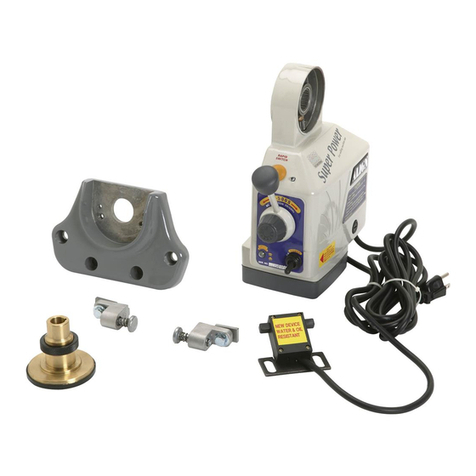
Proxi EU Plug is a BLE Bluetooth remotely controlled plug. Proxi EU Plug is a switch.
Switch: When paired to another BLE device, it can be remotely switched on and off.
In/Out AC 110–230 V/ 50 Hz

EN
5
Device Set Up:
1. Connect the Plug to the power outlet comlying with the given technical specifications.
2. Once the Plug is connected, the LED diode on the device will will turn red, green and
then blue. Next, it will switch to the light mode compatible with the actual level of power
consumption when the relay is enabled.
3. For safety reasons the Plug in its „factory” state turns off automatically after 5 minutes
and its range is reduced to about 10m.
Available working modes:
Factory:
The initial sale mode does not have a password. Upon activation of the device, the
user is required to set a password. Once this is completed, the user is given admini-
strative privileges. For safety reasons, the Plug has reduced range in this mode.
WARNING: The device is meant to be used inside only. Do not use in humid or dusty
spaces.
Certificates:

EN
6
Private
Set by the administrator. It grants access to the device to invited users only, while
remaining invisible to other people using the Seed Control app. After securing the
Plug with a password, the administrator can share access to the device with other
user groups and grant administrator privileges. Each group is protected by a different
access password.
Public
Set by the administrator. Grants access to the Plug to all Seed Control app users within
its range.
Remotely controlling the Plug with the Seed Control app:
1. Download and install the Seed Control app.
Android: http://seedlabs.io/android
iOS: http://seedlabs.io/ios
The Seed Control app requires a mobile device with Android operating system version
4.3 or higher, or iOS 7.0 or higher, supporting Bluetooth Smart technology.
2. Start the Seed Control app. Once running, it starts searching for devices within ran-
ge. The screen will display a new item - Plug in factory mode. It is shown as a small
icon in the shape of a gear on the right side of the screen.
3. Click the gear icon in order to configure the device. For security reasons, to
perform the process properly, a small distance between Plug and the mobile device
is required.

EN
7
Sharing the Plug with other users:
1. Start the Seed Control app.
2. Choose the the device you want to share with another user.
3. Choose ”Settings”.
4. If private mode is set, select ”Device Access”, then ”Share”. If public mode is set,
click the silhouette with a plus sign icon in the upper right corner of the screen.
5. Choose the group of users to share access with.
6. For groups like: ”Family” and ”Guest” set a new group password, consisting of at
least 8 characters.
7. Choose the method of granting the access to the device: Dropbox, Bluetooth,
Google Drive, Email, Gmail, Skype, Wi-Fi Direct. Inform the group about the access
password.
4. Click the ”Set password” button and choose a password of at least 8 characters,
which will also be the administrator password.
Restoring the factory setting:
Press and hold the button on the casing for 5 seconds until the LED starts flashing in
red. Hold for another 5 seconds until the LED stops flashing and lights up in sequence
of solid red, green and blue. All settings will now be deleted.

EN
8
Power consumption indicators can be edited by the user via the Seed Control app
and replaced with any colour from the RGB palette.
LED settings and indicators:
The Plug is equipped with a LED which signals its current power consumption with
its colour.
Signal mode:
Minimum (A)
disabled
0
0.40
0.86
1.70
3.39
6.64
>13 (relay switch off)
Maximum (A)
disabled
0.39
0.85
1.69
3.38
6.63
13
—
Colour
none
white
cyan
green
yellow
orange
magenta
red (flashing every 0.5 s)

EN
9
Safety:
Plug software update:
The module has a built-in temperature sensor. When the temperature exceeds 75°C,
the module turns off the load control until the temperature drops below 70°C. Overhe-
ating of the module is indicated by the LED flashing every 0.5sec.
To check whether the Plug has the latest software, use the Seed Control app, tap the
name of the device, select „Settings”, and then „Check for updates”. The user will be
informed about available updates. When you select „Update Software”, its latest ver-
sion will be downloaded and installed on the Plug.
Technical support:
support_uk@getproxi.com

Polski
Table of contents
Languages: