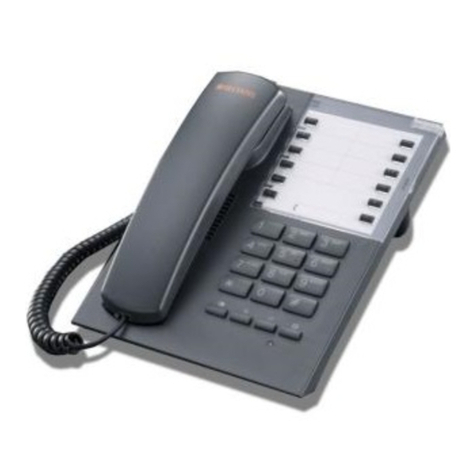
Poly CCX Series User manual

USER GUIDE 6.2.21 | September 2020 | 3725-49795-004A
Poly CCX Business Media Phones with Microsoft
Teams
Getting Help
For more information about installing, configuring, and
administering Poly/Polycom products or services, go to
Polycom Support.
Plantronics, Inc. (Poly — formerly Plantronics and Polycom)
345 Encinal Street
Santa Cruz, California
95060
© 2020 Plantronics, Inc. All rights reserved. Poly, the propeller
design, and the Poly logo are trademarks of Plantronics, Inc.
All other trademarks are the property of their respective
owners.

Contents
Before You Begin................................................................................................3
Audience, Purpose, and Required Skills.............................................................................3
Related Poly and Partner Resources..................................................................................3
Getting Started with Poly CCX with Teams......................................................4
Product Overview of Poly CCX Business Media Phones....................................................4
CCX Phone Hardware Overview.........................................................................................5
Poly CCX 400 Business Media Phones Hardware...................................................5
Poly CCX 500 Business Media Phone Hardware.................................................... 7
Poly CCX 600 Business Media Phone Hardware.................................................... 8
LED Indicators on CCX Phones............................................................................. 10
Teams Screens................................................................................................................. 10
Wake the Phone................................................................................................................10
Signing In to and Locking Your Phone...........................................................12
Signing In to Your Phone...................................................................................................12
Sign In Using the Phone’s Local Interface............................................................. 12
Sign In Using a Web Browser.................................................................................12
Sign Out of Your Phone..........................................................................................13
Sign In as a Hot Desk User.................................................................................... 13
Locking Your Phone.......................................................................................................... 13
Set a Phone Lock PIN............................................................................................ 13
Change your Phone Lock PIN................................................................................14
Unlocking Your Phone with a Lock PIN.................................................................. 14
Calling and Conferencing................................................................................15
Place a Call....................................................................................................................... 15
Call a Favorite Contact......................................................................................................15
Place an Emergency Call..................................................................................................16
Join a Meeting...................................................................................................................16
Add a Contact to Your Favorites Tab.................................................................................16
Assign a Delegate............................................................................................................. 16
Poly CCX with Teams Settings........................................................................18
Change the Phone Display Language.............................................................................. 18
Date & Time...................................................................................................................... 18
1

Change the Time Format........................................................................................18
Adjust the Display Backlight..............................................................................................19
Set the Phone Theme to Dark...........................................................................................19
Enable the Screen Saver.................................................................................................. 19
Adjust the Backlight & Screen Saver Timeout...................................................................19
Headset Settings...............................................................................................................20
Configure Hookswitch Mode.................................................................................. 20
Enable Echo Cancellation...................................................................................... 20
Enable Bluetooth.................................................................................................... 20
Connect a Bluetooth Headset................................................................................ 21
Connecting to a Wireless Network.................................................................................... 21
Enable Wi-Fi...........................................................................................................21
Connect to a Wireless Network.............................................................................. 21
Disconnect from a Wireless Network..................................................................... 22
Remove a Wireless Network.................................................................................. 22
Connecting Your Phone to Your Computer with Better Together...................................... 22
Connect Your CCX Phone to Your Computer with Better Together........................22
Enable Accessibility Options............................................................................................. 23
Accessibility Features..................................................................................... 24
Users Who Are Deaf or Hard of Hearing...........................................................................24
Users with Limited Mobility................................................................................................25
Users Who Are Blind, Have Low Vision, or Have Limited Vision...................................... 25
Troubleshooting............................................................................................... 26
View Device Information....................................................................................................26
Testing Phone Hardware...................................................................................................26
Access Microsoft Teams Help........................................................................................... 27
Enable Logging................................................................................................................. 27
Enable Screen Capture.....................................................................................................27
Reboot the Phone............................................................................................................. 28
Contents
2

Before You Begin
Topics:
▪Audience, Purpose, and Required Skills
▪Related Poly and Partner Resources
This user guide helps you configure Poly settings available on the CCX when running Microsoft Teams.
You must have a Teams–enabled Microsoft Office 365 account to access all of the features of your CCX
with Teams.
This user guide supports the following Poly phones with Teams enabled:
▪ CCX 400 business media phones
▪ CCX 500 business media phones
▪ CCX 600 business media phones
Audience, Purpose, and Required Skills
This guide provides information for Poly CCX Business Media Phones running the Microsoft Teams
application. Administrators and users can use this guide to configure Poly settings available on the
phone’s local interface.
Related Poly and Partner Resources
See the following sites for information related to this product.
▪ The Poly Online Support Center is the entry point to online product, service, and solution support
information including Video Tutorials, Documents & Software, Knowledge Base, Community
Discussions, Poly University, and additional services.
▪ The Polycom Document Library provides support documentation for active products, services, and
solutions. The documentation displays in responsive HTML5 format so that you can easily access
and view installation, configuration, or administration content from any online device.
▪ The Polycom Community provides access to the latest developer and support information. Create
an account to access Poly support personnel and participate in developer and support forums. You
can find the latest information on hardware, software, and partner solutions topics, share ideas, and
solve problems with your colleagues.
▪ The Polycom Partner Network are industry leaders who natively integrate the Poly standards-based
RealPresence Platform with their customers’ current UC infrastructures, making it easy for you to
communicate face-to-face with the applications and devices you use every day.
▪ The Polycom Collaboration Services help your business succeed and get the most out of your
investment through the benefits of collaboration.
3

Getting Started with Poly CCX with
Teams
Topics:
▪Product Overview of Poly CCX Business Media Phones
▪CCX Phone Hardware Overview
▪Teams Screens
▪Wake the Phone
Before you use your Poly CCX with Teams, take a few moments to familiarize yourself with its features
and user interface.
Note: As you read this guide, keep in mind that your system administrator configures certain features or
your network environment may determine them. As a result, some features may not be enabled or
may operate differently on your device. Additionally, the examples and graphics in this guide may
not directly reflect available options or what your device screen displays.
For additional information on using your Poly CCX phone with Teams, see Microsoft Phones for Teams.
Product Overview of Poly CCX Business Media
Phones
Poly CCX business media phones support audio-only conference calls with Microsoft Teams voice
platforms along with point-to-point and bridge calls.
Poly CCX business media phones with Teams features
▪ Placing, answering, and managing audio calls
▪ Adjusting call and phone settings
▪ Viewing, joining, and scheduling meetings
▪ Checking voicemail messages
▪ Pairing Bluetooth headsets (CCX 500 and CCX 600 only)
▪ Connecting to a wireless network (CCX 600 only)
4

CCX Phone Hardware Overview
The following topics describe the hardware features for Poly CCX business media phones.
Poly CCX 400 Business Media Phones Hardware
The following figure displays the hardware features on Poly CCX 400 business media phones. The table
lists each feature numbered in the figure.
Figure 1: Poly CCX 400 phone hardware features
Poly CCX 400 Phone Hardware Feature Descriptions
Reference Number Feature Feature Description
1 Reversible tab Secures the handset in the cradle when you position
your phone stand at a high angle. To secure the
handset, remove the tab, reverse it so the protrusion
points up, and reinsert it. Position the handset so the
protrusion on the tab fits into the slot on the handset.
2 Message waiting indicator Flashes red to indicate you have an incoming call or a
new message.
Getting Started with Poly CCX with Teams
5

Reference Number Feature Feature Description
3 Touchscreen Enables you to select items and navigate menus on the
touch-sensitive screen.
4,5 Volume keys Adjusts the volume of the handset, headset, speaker,
and ringer.
6 USB port(s) CCX 400 phones contain one USB-A port.
Enables you to attach a USB flash drive or USB
headset.
7 Headset indicator Displays when the phone is powered on. The icon
glows green or blue when a headset is connected and
activated.
8 Speakerphone indicator Displays when the phone is powered on. The icon
glows green when activated.
9 Speaker Provides ringer and speakerphone audio output.
10 Mute key Mute or unmute the microphone during an active call.
Getting Started with Poly CCX with Teams
6

Poly CCX 500 Business Media Phone Hardware
The following figure displays the hardware features on Poly CCX 500 business media phones. The table
lists each feature numbered in the figure.
Figure 2: Poly CCX 500 phone hardware features
Poly CCX 500 Phone Hardware Feature Descriptions
Reference Number Feature Feature Description
1 Reversible tab Secures the handset in the cradle when you position
your phone stand at a high angle. To secure the
handset, remove the tab, reverse it so the protrusion
points up, and reinsert it. Position the handset so the
protrusion on the tab fits into the slot on the handset.
2 Message waiting indicator Flashes red to indicate you have an incoming call or
new messages.
3 Teams button Glows and is active when the phone is set to the Teams
base profile.
Navigates to the Home screen. If the Home screen is
disabled, the button navigates to the Calls screen.
4 Touchscreen Enables you to select items and navigate menus on the
touch-sensitive screen.
Getting Started with Poly CCX with Teams
7

Reference Number Feature Feature Description
5,6 Volume keys Adjusts the volume of the handset, headset, speaker,
and ringer.
7 USB port(s) Poly CCX 500 phones include one USB-A port and one
USB-C port.
8 Headset indicator Displays when the phone is powered on. The icon
glows green or blue when a headset is connected and
activated.
9 Speakerphone indicator Displays when the phone is powered on. The icon
glows green when activated.
10 Speaker Provides ringer and speakerphone audio output.
11 Mute key Mute or unmute the microphone during an active call.
Poly CCX 600 Business Media Phone Hardware
The following figure displays the hardware features on Poly CCX 600 business media phones. The table
lists each feature numbered in the figure.
Figure 3: Poly CCX 600 Phone Hardware Features
Getting Started with Poly CCX with Teams
8

Poly CCX 600 Phone Hardware Feature Descriptions
Reference Number Feature Feature Description
1 Reversible tab Secures the handset in the cradle when you position
your phone stand at a high angle. To secure the
handset, remove the tab, reverse it so the protrusion
points up, and reinsert it. Position the handset so the
protrusion on the tab fits into the slot on the handset.
2 Touchscreen Enables you to select items and navigate menus on the
touch-sensitive screen. Tap the screen to select and
highlight screen items. To scroll, touch the screen, and
swipe your finger up, down, right, or left.
3 Message waiting indicator Flashes red to indicate you have an incoming call or
new messages.
4 Teams button Glows and is active when the phone is set to the Teams
base profile.
Navigates to the Home screen. If the Home screen is
disabled, the button navigates to the Calls screen.
5.6 Volume keys Adjusts the volume of the handset, headset, speaker,
and ringer.
7 USB port(s) One USB-A port and one USB-C port.
You can connect a USB flash drive to the USB-C port
and a headset or EagleEye Mini USB camera to the
USB-A port.
8 Headset indicator Displays when the phone is powered on. The icon
glows green or blue when a headset is connected and
activated.
9 Speakerphone indicator Displays when the phone is powered on. The icon
glows green when activated.
10 Speaker Provides ringer and speakerphone audio output.
11 Mute key Mute or unmute the microphone during an active call.
Getting Started with Poly CCX with Teams
9
Other manuals for CCX Series
7
This manual suits for next models
3
Table of contents
Other Poly Telephone manuals

Poly
Poly CCX 600 Manual

Poly
Poly VVX 600+ Series User manual

Poly
Poly CCX Series User manual

Poly
Poly VVX 200 Series User manual

Poly
Poly VVX 300 Series User manual

Poly
Poly SYNC 20 Series User manual

Poly
Poly CCX Series User manual

Poly
Poly Calisto 3200 User manual

Poly
Poly Trio 8300 Instruction manual

Poly
Poly CCX Series User manual

Poly
Poly VVX 101 User manual

Poly
Poly CCX 500 Manual

Poly
Poly Edge E220 User manual

Poly
Poly SYNC 20 Series User manual

Poly
Poly Sync 40 Series User manual

Poly
Poly VVX 310 Quick guide

Poly
Poly CCX Series User manual

Poly
Poly VVX Series User manual

Poly
Poly SYNC 60 Series User manual

Poly
Poly SYNC 20 Series User manual