Pogo MediaGate T1 User manual


1
Contents
Introduction........................................................................................3
Specifications .........................................................................................................................3
Precautions.............................................................................................................................4
System Requirements...........................................................................................................4
Package Content ...................................................................................................................5
Product Overview...................................................................................................................5
1. Using MEDIAGATE T1 as a Multimedia Player...............................7
1.1 Connect to External AV Device....................................................................7
1.1.1 Connect Video Cable...................................................................................................7
1.1.2 Connect Audio Cable...................................................................................................8
1.2 Basic Setup.......................................................................................................9
1.2.1 Video Setup..................................................................................................................9
1.2.2 Audio Setup................................................................................................................11
1.2.3 Network Setup............................................................................................................12
1.2.4 Screen Setup..............................................................................................................14
1.2.5 Preview Setup ............................................................................................................14
1.2.6 LED Setup...................................................................................................................15
1.2.7 Time Setup..................................................................................................................15
1.3 Basic Screen Menu.......................................................................................16
1.3.1 Mode Selection, Media Type Selection...................................................................16
1.3.2 File Selection..............................................................................................................18
1.4 Play Video Files .............................................................................................19
1.5 Play DVD Files................................................................................................22
1.6 Play Music Files.............................................................................................24
1.7 Play Photo Files.............................................................................................26
1.8 Make a Play-List.............................................................................................28
1.9 Remote Controls............................................................................................29
1.10 Others.............................................................................................................30
1.10.1 Music Slide Show.....................................................................................................30

2
1.10.2 MP3 Quick Play.......................................................................................................30
1.10.3 Change Background Image...................................................................................30
2. Playing your TiVo® files.................................................................31
2.1 Connect to External AV Device..................................................................31
2.1.1 Connect Video Cable................................................................................................31
2.1.2 Connect Audio Cable................................................................................................32
2.2 Connecting to your TiVo®...........................................................................33
2.2.1 Setting up the Network Connection.........................................................................33
2.2.2 Connection via DHCP Server or Router.................................................................34
2.2.3 Direct connection via Cross-Over............................................................................ 35
2.2.4 TiVo® file selection....................................................................................................37
2.2.5 Playing your TiVo® files............................................................................................38
3. Use as External USB HDD........................................................39
3.1 Insert Hard Disk (for drive-less MEDIAGATE T1 version)...................39
3.2 Copy Data via USB ........................................................................................40
3.2.1 Windows 98SE...........................................................................................................40
3.2.2 Windows ME...............................................................................................................41
3.2.3 Windows 2000, XP....................................................................................................42
3.2.4 Mac..............................................................................................................................43
4. Accessing PC via Network.......................................................44
4.1 Connect LAN Cable.......................................................................................44
4.2 Setting Network Configurations.................................................................44
4.2.1 Windows 98SE, ME................................................................................................... 45
4.2.2 Windows 2000............................................................................................................ 47
4.2.3 Windows XP...............................................................................................................50
4.2.4 Firmware Upgrade..................................................................................................... 54
Technical Support ..........................................................................54

3
Introduction
The MEDIAGATE T1 digital multimedia player, supports dual data access mode via the internal 3.5” HDD and a
10/100Mbps network. Easily enjoy Digital Movie, Digital Music, and Digital Photo data on your TV. Network the
MEDIAGATE T1 with your personal computer, home entertainment center, TV, and even your TiVo®, for the ultimate
media center!
ØDual Data Access Mode via 10/100Mbps LAN and 3.5” HDD inside
ØDigital Multimedia Player via Home TV or Car TV
ØUSB 2.0 External Storage via PC (FAT32)
ØAudio - Stereo, Digital Coaxial & Optical 5.1ch. Sound
ØVideo - Composite, S-Video, HD Component 480p, 720p, 1080i
ØDVD Manager - Playback of DVD File same as Original DVD Title
ØFirmware Upgradeable
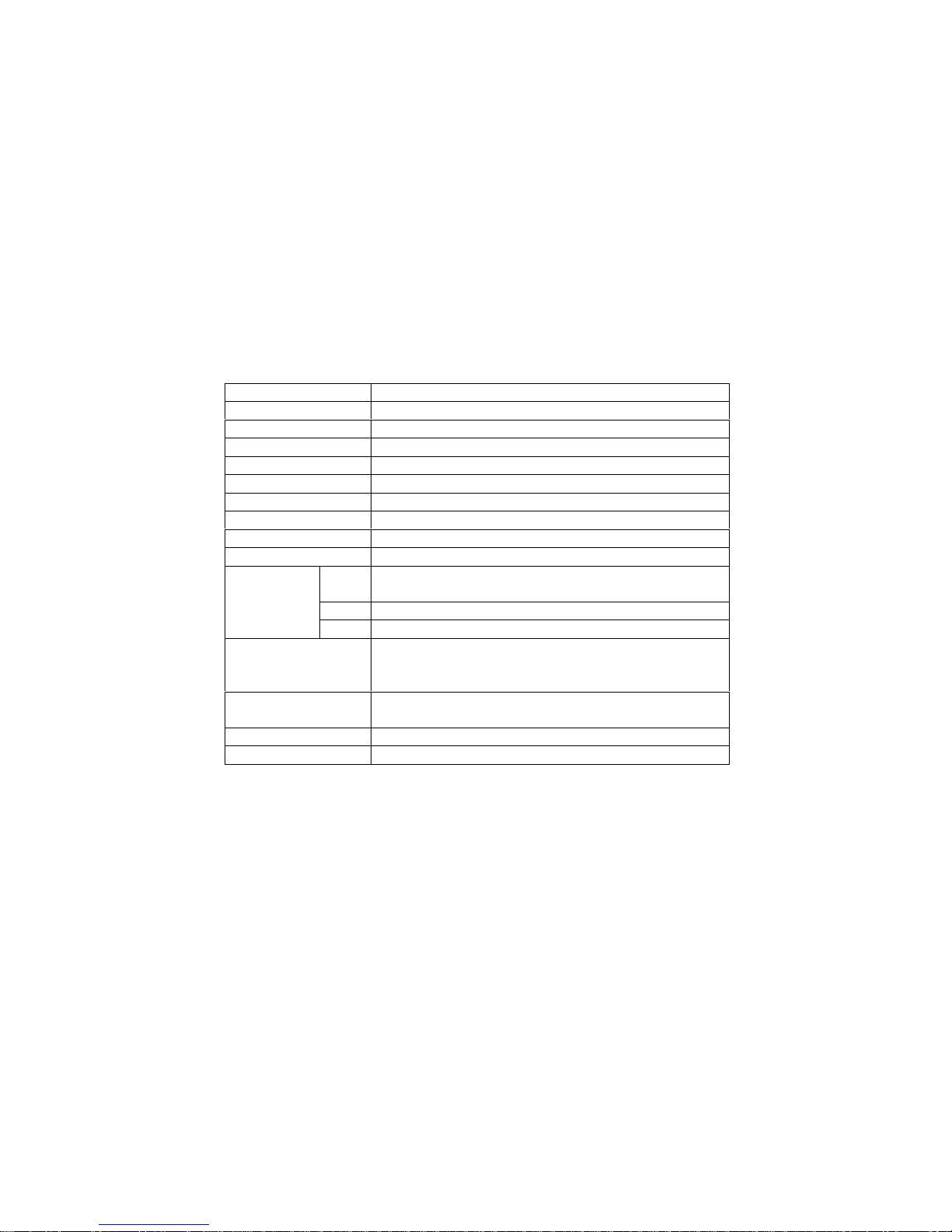
Specifications
Product Name MEDIAGATE T1
Power 5V 1.5A /12V 1.5A
Weight 2.3lbs with HDD
Dimension 57 x 150 x 185 mm
Available OS Windows 98SE/ME/2000/XP, Mac OS10 or higher
USB Interface 480Mbps USB 2.0 (USB 1.1 Compatible) / Slave
Network Interface 10/100 Mbps LAN (RJ-45)
HDD Type 3.5”IDE HDD
HDD File System FAT32
TV Type NTSC / PAL
Movie MPEG 1, 2, 4 (MPG, MPEG, AVI, M2V, DAT, VOB, IFO etc.)
XviD (except GMC, Qpel option applied) TiVo series 2 compatible
Music MP3, OGG Vorbis, WAV, WMA (except WMA9 pro.lossless)
Supported Format
Photo JPG (JPEG)
Video Output COMPOSITE
S-VIDEO
COMPONENT Y, Pb, Pr (480p, 720p, 1080i Progressive Scan)
Audio Output STEREO L-R
DIGITAL COAXIAL, OPTICAL (DTS Pass-Through Only)
Working Temperature 0°æC ~ 60°æC
Working Humidity 10% ~ 50%

4
Precautions
?áWe strongly recommend you back up your data stored in your MEDIAGATE T1. We are not responsible for data
damage or loss due to failure of the HDD.
?ËIt is strongly recommended the user unplug the power adaptor when MEDIAGATE T1 is not in use for extended
periods of time.
?MEDIAGATE T1 does not support the XviD codec of video files that has GMC, Qpel option.
?«MEDIAGATE T1 only supports “Pass-Through” for DTS Audio codec.
?KDo not power off while a file isplaying.
?ëIf the length of the USB cable is too long (recommend: up to 3 meters), MEDIAGATE T1 may not operate properly.
?‹If you have a USB 1.1 Host Adapter, MEDIAGATE T1 will only work at USB1.1 speed.
?+Data damage or loss may be caused if lessthan 6GB of storage is available on internal HDD.
?áVery Important! If an unformatted HDD is inserted into MEDIAGATE T1, a computer will not be able to detect the
HDD. Make sure that the HDD is formatted.
?Dropping MEDIAGATE T1 can cause damage. Be careful of drops, sharp impact, or shock. If MEDIAGATE T1 is
damaged by dropping, impacting, or shocking, contact the manufacturer or your place of purchase.
?KWe recommend you use only the supplied cables and/or accessories. This will insure the best performance of your
MEDIAGATE T1. Using other cables or accessories may not support the best performance.
?‹Very Important! Keep MEDIAGATE T1 away from water and heavy moisture. If MEDIAGATE T1 is exposed to
moisture of any kind, unplug from the PC, network, and/or power right away. If you use the MEDIAGATE T1 under
these conditions, the HDD may be damaged or you may receive an electric shock.
?kDo not touch the MEDIAGATE T1 with wet hands. It may cause electric shock.
?Keep away from heat and direct light.
?WKeep away from devices that transmitstrong magnetic signals. Itmay cause data damage or loss on HDD.
?—Do not disassemble. Doing so may cause damage or loss of data. (May void warranty)
http://www.pogoproducts.com/warranty.html
System Requirements
?áUSB Requirements
- Windows 98SE, ME, 2000, XP / MAC OS 10 or higher
- Available USB 2.0, 1.1 Port (Recommend USB 2.0)
?7Network Requirements
- Windows 98SE, ME, 2000, XP
- Available 10/100 Ethernet LAN Port, RJ-45 (Recommend 100Mbps)

5
Package Content
?áMEDIAGATE T1, Cradle, Remote Control, Battery, Composite + Stereo L-R Cable, USB Cable, Power Adapter,
User Manual
** Optional Package: External Remote Control IR Receiver, Carrying Bag
Product Overview
- Front View -
1. ENTER Select or play a file
2. NAV. KEYS Navigation Key, Up, Down, Left, Right
3. POWER Power On, Off
4. PLAY / PAUSE Play all files from selected file / Pause
5. STOP / INIT Stop / Return to Mode Selection Screen
6. IR IR receiving area for remote signals
7. PWR Power LED
8. NET Network LED
Front
View
9. HDD HDD LED
2. NAVIGATION KEYS
5. STOP/INIT
6. IR
1. ENTER
3. POWER
4. PLAY/PAUSE
7. PWR
8. NET
9. HDD

6
- Back View -
1. IR-EXT Connect external remote control IR receiver
2. USB Connect USB cable
3. OPTICAL Connect Optical cable for 5.1 ch. digital audio output
4. S-VIDEO Connect s-video for video output
5. COAXIAL Connect coaxial cable for 5.1 ch. digital audio output
6. Y, PB, PR Connect component Y, Pb, Pr cable for video output
7. LAN Connect LAN cable for networking
8. PWR Connect power adapter
9. CVBS Connect composite cable for video output
Back
View
10. STEREO L-R Connect stereo cable for audio output
1. IR-EXT
9. CVBS
2. USB
3. OPTICAL
4. S-VIDEO
5. COAXIAL
6. Y, PB, PR
7. LAN
8. PWR
10. STEREO L-R

7
1. Using MEDIAGATE T1 as a Multimedia Player
1.1 Connect to External AV Device
1.1.1 Connect Video Cable
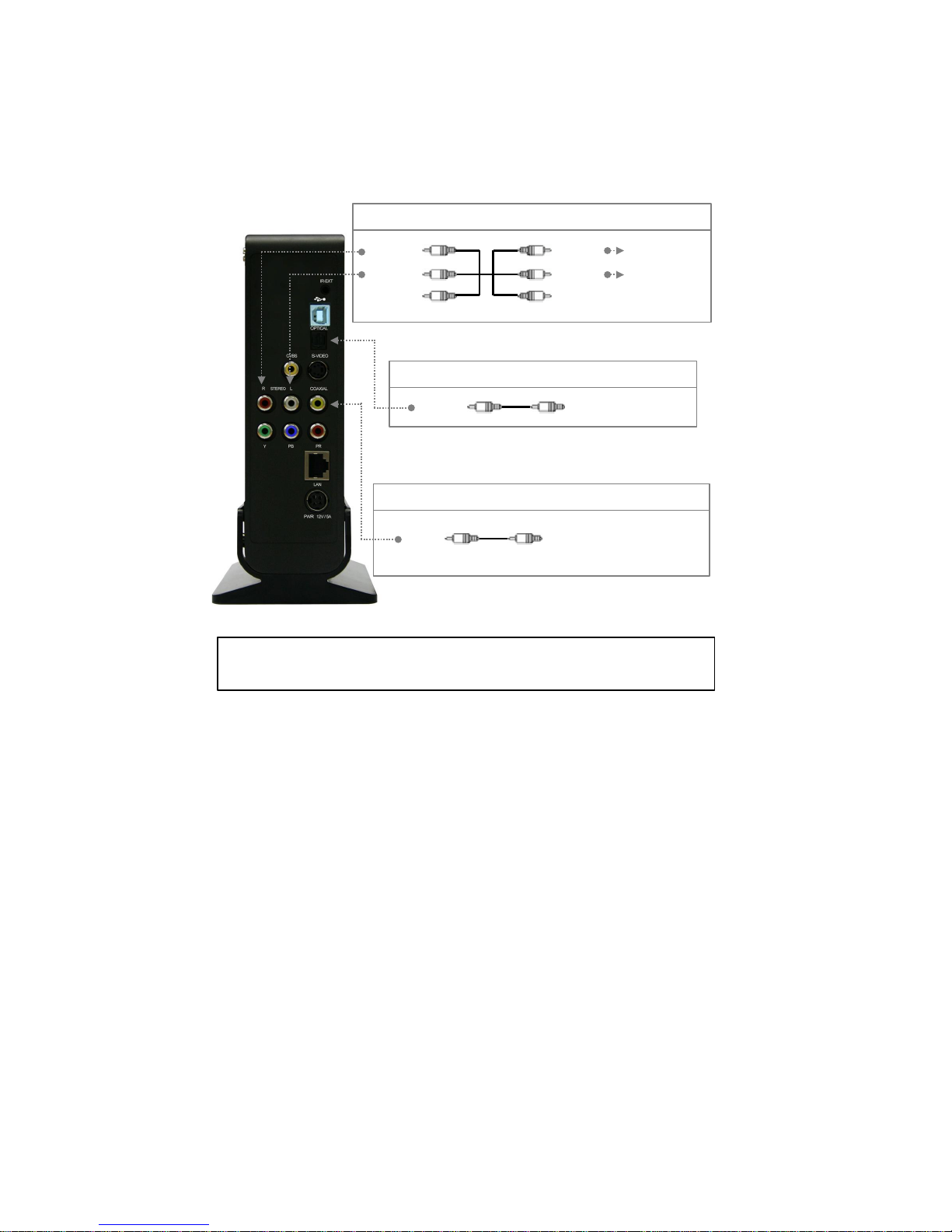
MEDIAGATE T1 supports 3 types of video output; “Composite, S-video, and Component”. Use the video connection
that your TV supports. Normally, your TV will support a composite video connection; a composite video cable is
included in this package.
Red
(Pr)
Blue
(Pb)
Green
(Y)
Red
(Pr)
Blue
(Pb)
Green
(Y)
Connect Pr Jack of TV
Connect Pb Jack of TV
Connect Y Jack of TV
Yellow
(CVBS) Yellow
(CVBS)
S-VIDEO
Connect to Composite
(CVBS) Jack of TV
Connect S-Video
Jack of TV
?áComposite:YellowRCAcable.(Supplied)
?áS-Video: Blackroundedcable(notsupplied)
?áComponent:Y,Pb,Prcomponentcable(notsupplied)
üIf a normal screen is not visible after connecting video cable, please check the following:
1. “TV “– Switch to Video Input Mode: Turn on TV and switch to video input mode, same as video connection. See TV users
manual for more info.
2. “MEDIAGATE T1” – Switch to Video Output Mode: Press [VIDEO] button repeatedly. Whenever [VIDEO] is pressed, the
video output signal is changed.
3. After you see a normal screen, you must save video configurations of MEDIAGATE T1 .See “1.2.1 Video Setup”.

8
1.1.2 Connect Audio Cable
MEDIAGATE T1 supports 3 types ofaudio output;Stereo, Coaxial,and Optical. Use the audio connection that your TV
or Audio set supports. Normally, your TV will support a stereo audio connection. This package contains a stereo audio
cable.
Red
(STEREO-R)
(STEREO-L)
White
Red
(STEREO-R)
(STEREO-L)
White
Connect Stereo-R
Jack of TV.
Connect Stereo-L
Jack of TV.
OPTICAL (¨)Connect Optical Jack of
Amplifier or Receiver
Connect Coaxial jack of
Amplifier or Receiver.
?áStereo:Red&WhiteRCACable(supplied)
?áOptical (¨):OpticalCableforDigital5.1ch.(not supplied)
?áCoaxial: Coaxial cableforDigital5.1ch.(not supplied)
COAXIAL
üDon’t connect optical and coaxial cable together at the same time.
üIf you cannot hear sound after connecting the Optical or Coaxial Cable, you will have to change audio setup of MEDIAGATE
T1 to Encoded Digital. See “1.2.2 Audio Setup”

9
1.2 Basic Setup
1.2.1 Video Setup
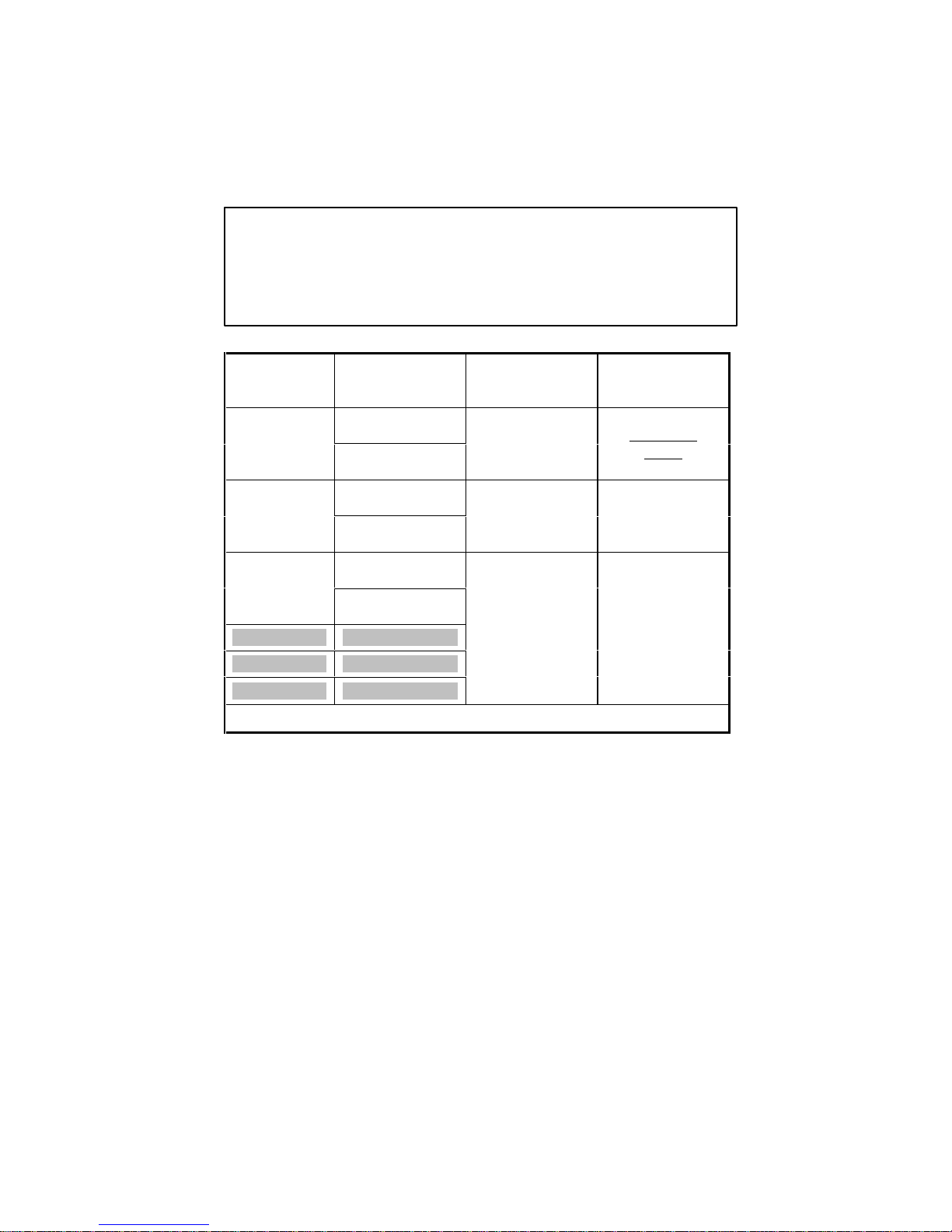
IMPORTANT! The MEDIAGATE T1 video output mode and TV set input mode must be on the same setting.
üIf you cannot see a normal screen after connecting the video cable, please check the following:
1. “TV “– Switch to Video Input Mode: Turn on TV and switch to video input mode, same as video connection. See TV users manual
for more info.
2. “MEDIAGATE T1” – Switch to Video Output Mode: Press [VIDEO] button repeatedly. Whenever [VIDEO] is pressed, the video
output signal is changed.
3. After you see a normal screen, you must save the video configurations of MEDIAGATE T1.
TV Video
Input Mode
MEDIAGATE T1
Video
Output Mode
Connection Jack
of TV, MEDIAGATE
T1 Video Cable Type
TV Out: NTSC C/S-Video
(HD Component OFF)
Normal Video TV Out: PAL C/S-Video
(HD Component OFF)
CVBS or Composite Jack
(Generally Yellow Jack)
Yellow RCA Cable
(Supplied)
TV Out: NTSC C/S-Video
(HD Component OFF)
S-Video TV Out: PAL C/S-Video
(HD Component OFF)
S-Video Jack S-Video Cable
* Black rounded
TV Out: NTSC C/YPbPr
(HD Component OFF)
Component 480i TV Out: PAL C/YPbPr
(HD Component OFF)
Component 480p HD Component Out On 480p
Component 720p HD Component Out On 720p
Component 1080i HD Component Out On 1080i
Component 3 Jack
* Y (Green), Pb(Blue), Pr(Red)
Component Cable
* Y (Green), Pb(Blue), Pr(Red)
üNTSC, PAL: Standard of TV Output. Select the proper setting for using in your country.
Other manuals for MediaGate T1
1
Table of contents
Other Pogo Media Player manuals