Phason MDM-GSM User manual

Phason GSM modem installation guide
17040800 1
GSM modem installation guide
The MDM-GSM is a USB modem that uses wireless (cellular)
service on a 3G network. You can use a GSM modem
anywhere there is cellular service.
Main uses of the GSM modem
Just like your cellular phone, the GSM modem uses a SIM card and requires a cellular plan. How
you can use the GSM modem depends on your cellular plan.
Using the GSM modem as an Internet connection
To use the modem as an Internet connection, the plan you have registered to the SIM card must be
a data plan. This will allow you to use the modem just like any other Internet connection.
The GSM modem is ideal as a backup to an existing Internet connection if that
connection is unreliable. This can be especially important for OMNI Select systems
using Select Alert.
Using the GSM modem for text messaging,
without
an Internet connection
To use the GSM modem for SMS text messaging only and prevent it from accessing the Internet,
the plan registered to the SIM card must support text messaging, but not have a data option.
The GSM modem is ideal for OMNI Select customers who would like to use Select Alert, but do
not want an Internet connection in their facility. The GSM modem allows Select Alert to send text
message notifications.
How much data (information) you can transfer, or how many text messages you
can send each month depends on your cellular plan. For more information, speak
with your cellular provider.

GSM modem installation guide Phason
2 2012-12-20
Features
Unlocked – can be used with any cellular provider
External antenna with nine-foot cable – for enhanced reception
Easy setup and installation
MicroSD card slot – for backup or additional storage
Drivers for Windows XP, Vista (32 and 64-bit), and Windows 7 (32 and 64-bit)
Limited warranty (90 days)
Specifications
Network type 2G, 3G, 3G+ support
Frequency bands HSPA/UMTS 850/1900/2100 MHz
GSM/GPRS/EDGE 850/900/1800/1900 MHz
Transfer rate HSDPA download up to 7.2 Mbit/s (900 KB per second)
HSUPA upload up to 2.0 Mbit/s (250 KB per second)
Preparing the modem for installation
Just like your cellular phone, the GSM modem uses a SIM card and requires a cellular plan. You can
get a SIM card and plan from any place that sells wireless and cellular products. For example, Best
Buy, AT&T, Rogers Wireless, and many others. For more information, speak with your cellular
provider.
If you are purchasing a SIM card and plan to use the GSM modem with Select
Alert, register the SIM card name as the location of the facility. When Select Alert
sends text messages, it uses the SIM card name to identify who the text is from; it
does not use the contact name in Select Alert.

Phason GSM modem installation guide
17040800 3
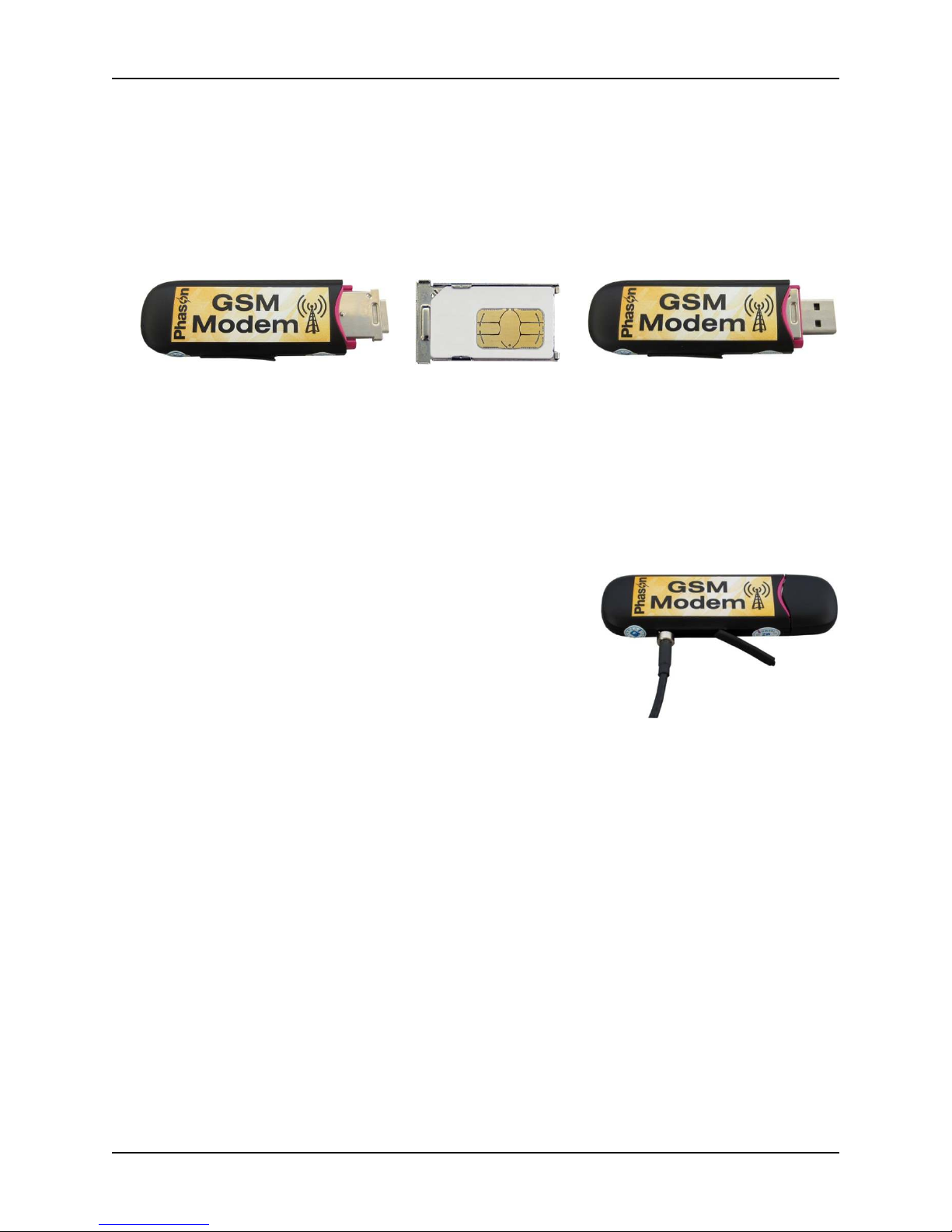
To install a SIM card
1. Remove the cover from the end of the GSM modem.
2. Remove the SIM card holder.
3. Insert the SIM card into the holder. Make sure the SIM card is aligned properly.
4. Insert the card and holder into the modem.
Connecting the optional antenna
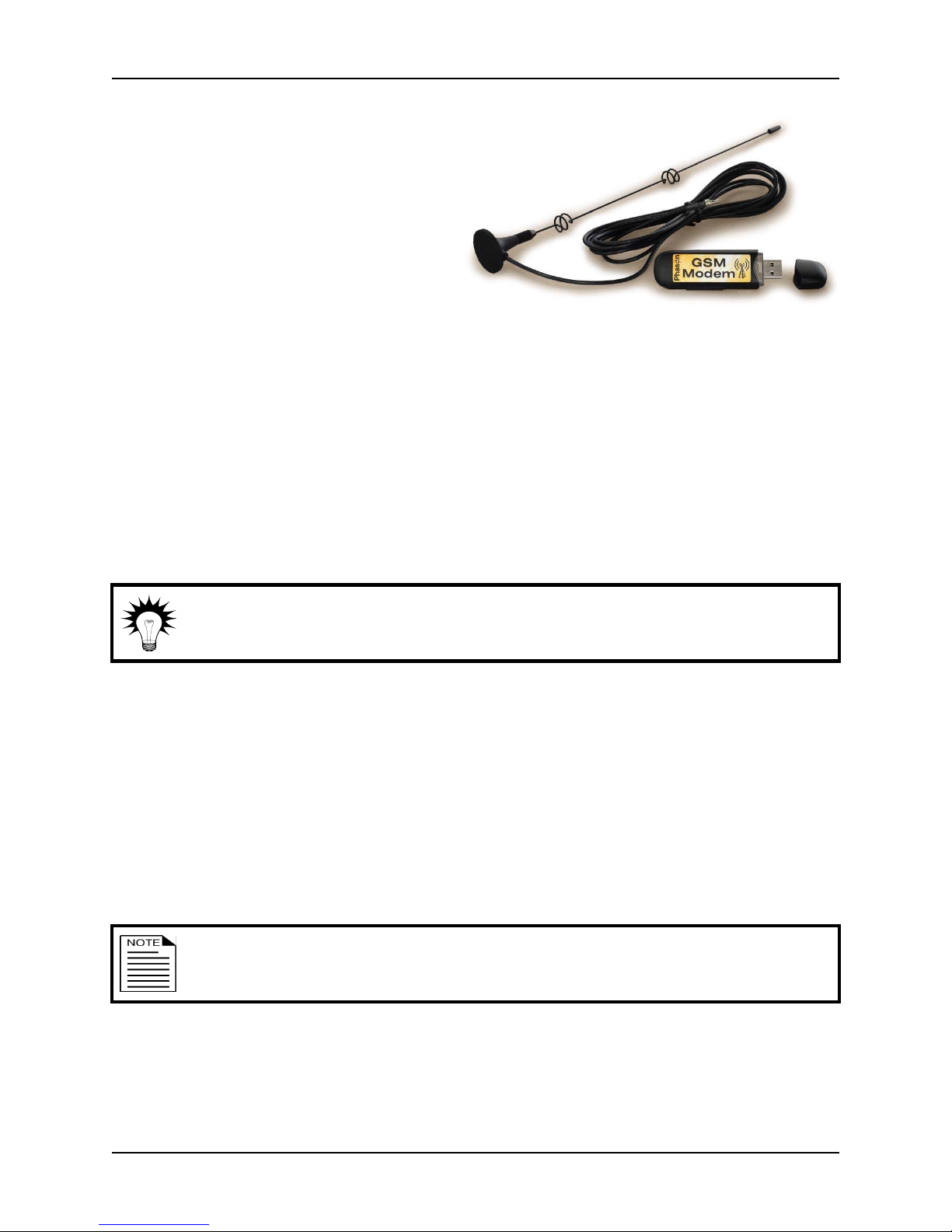
Connecting the optional antenna can help improve reception. For best reception, place the antenna
in an area away from electrical wiring.
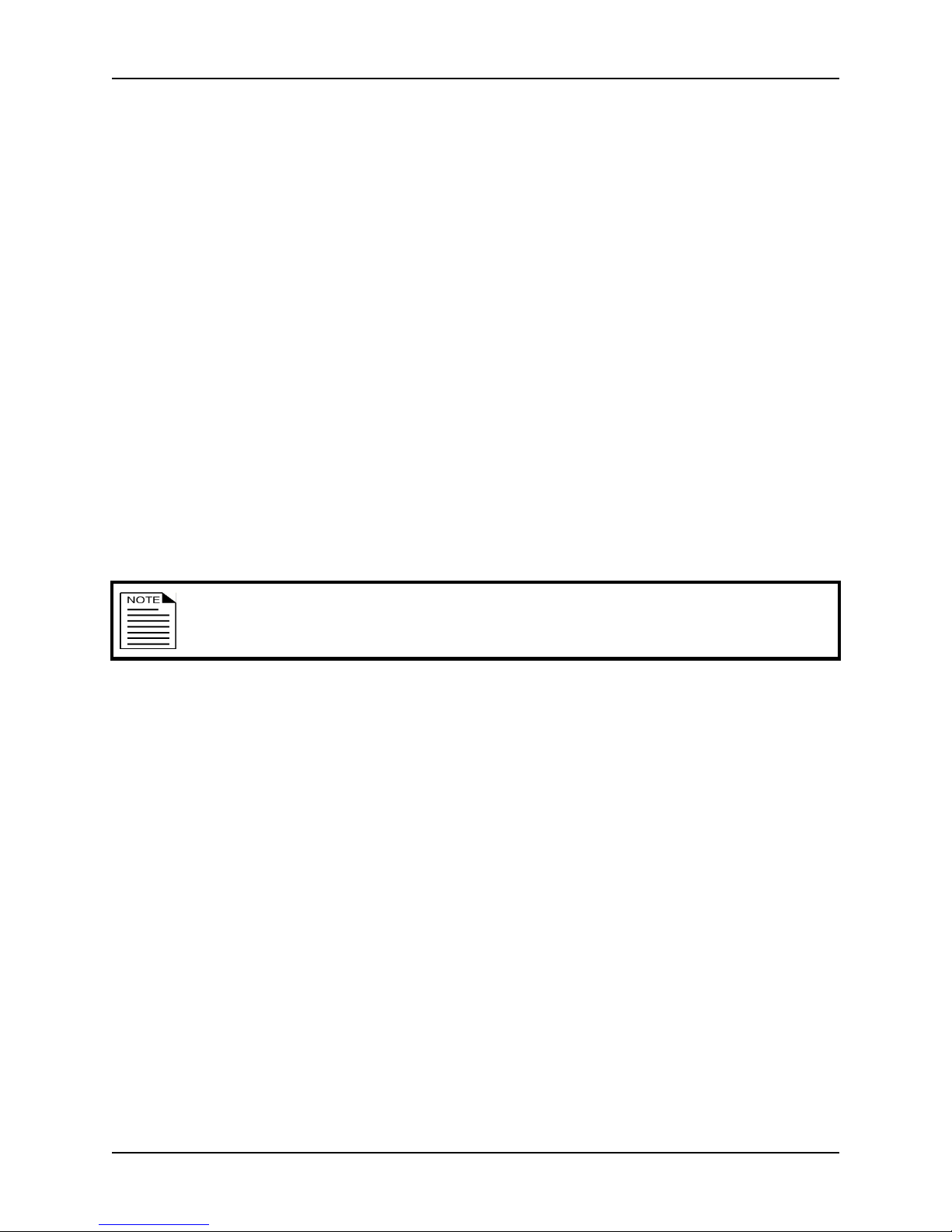
To connect the antenna
1. Open the cover on the side of the GSM modem.
2. Plug the end of the antenna to the connector on the modem.
3. Place the antenna in the location that gives you the best
results.
Connecting the modem to the computer
The GSM modem has drivers preinstalled on it. The driver installation program will start when you
connect the modem to your computer for the first time.
To connect the modem
1. Connect the modem to an open USB port on your computer.
2. Follow the installation instructions on the screen. If there are any security prompts during
installation, allow/acknowledge them.
3. When complete, the Mobile Partner window displays. Close the window.

GSM modem installation guide Phason
4 2012-12-20
4. Verify the connection using the indicator light.
If the light shows any of these states, Select Alert can send text messages and there is an
Internet connection.
Green, solid: the modem is connected to a 2G network.
Blue, solid: the modem is connected to a 3G network.
Cyan, solid: the modem is connected to a 3G+ network.
If the light shows either of these states, Select Alert can send text messages, but there is no
Internet connection.
Green, blinking once every three seconds: the modem is registering with a 2G network.
Blue, blinking once every three seconds: the modem is registering with a 3G/3G+
network.
If the light shows either of these states, Select Alert cannot send text messages, and there is
no Internet connection.
Green, blinking twice every three seconds: the modem is powered on. Make sure the SIM
card is activated (by your cellular provider) and installed properly.
Off: the modem is removed or not connected properly.
If you will be using Select Alert, follow the instructions in the Select Alert user
manual to configure Select Alert to use the GSM modem.
Phone: 204-233-1400
Fax: 204-233-3252
Phason Inc.
2 Terracon Place
Winnipeg, Manitoba, Canada
R2J 4G7
E-mail: suppo[email protected]
Web site: www.phason.ca
Table of contents