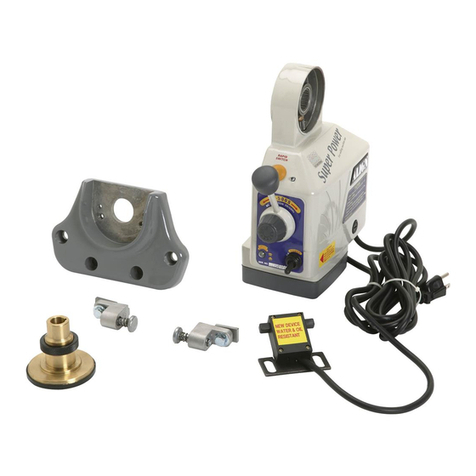
PASCO PS-3220 User manual

Reference Guide
013-15949A
Wireless Rotary Motion Sensor
PS-3220
*See the PASCO catalog or the PASCO web site for more information.
www.pasco.com
For downloadable experiments, go to www.pasco.com and enter PS-3220 in the Search window. Check under Resources.
Equipment Included Equipment Included
Wireless Rotary Motion Sensor Three-step Pulley
O-ring Small Thumbscrew
Micro USB Cable (1 meter) Thumbscrew
Required Item* Part Number
PASCO Data Collection Software: Capstone or SPARKvue see www.pasco.com
ON/OFF Button
Micro USB Port
O-Ring for
Three-step Pulley
Three-step Pulley
Battery LED
Small Thumbscrew
Thumbscrew
Micro USB Cable
Support Rod Hole
Support Rod Hole

PS-3220 Introduction
2
013-15949A
Introduction
The PASCO Wireless Rotary Motion Sensor is a versatile position and motion measuring
device. It measures angles to a resolution of 0.18°, and detects the direction of motion.
Markings on the outside of the case indicate which is the default positive direction. The
maximum speed is between 20 and 80 revolutions per second.
The sensor comes with a removable three-step pulley (10 millimeter (mm), 29 mm, and
48 mm diameters), and a rubber “O”-ring that fits into the largest diameter step. The
three-step pulley can be placed large-diameter down or large-diameter up on the shaft. A
tab on the inside of the pulley matches a notch on the outside of the shaft. The pulley has
a notch and a small hole in the outer edge of the largest and second largest steps for
attaching a string. One side of the sensor has a platform for mounting a Super Pulley with
Table Clamp (optional).
Using the Sensor
The sensor is designed to work with PASCO data collection software to measure position, velocity, and
acceleration. Use it to study optics, dynamics, centripetal force, or motion of a pendulum.
Data Collection Software
See the PASCO web site at
www.pasco.com/software
for help in selecting the right PASCO software and to check for the latest versions.
Equipment used with the sensor Equipment used with the sensor
Rotational Inertia Accessory Kit (ME-3420) (includes Ring and Disk Set (ME-3419), Pendulum
Accessory (ME-8969), and Super Pulley with Clamp (ME-9444B))
Physical Pendulum Set (ME-9633) Track String Adapter (ME-6569)
Rotating Platform (ME-8951) Centripetal Force Pendulum (ME-9821)
Gyroscope Mounting Bracket (ME-8963) Polarization Analyzer (OS-8533A)
Dynamics Track Mount Accessory (CI-6692) Three-Axis Gyroscope (ME-8960)
Three-Step Pulley Accessory (CI-6693)
PASCO Capstone SPARKvue
•Mac OS X •Mac OS X
•Windows •Windows
•iOS
•Android
•Chromebook
Platform

PS-3220 Introduction
3
013-15949A
Software Help
See the SPARKvue Help or PASCO Capstone Help for information about collecting, displaying, and analyzing data.
•In SPARKvue, select the HELP button ( ) in any screen including the Home Screen.
•In PASCO Capstone, select PASCO Capstone Help from the Help menu, or press F1.
Compatibility
For more information about wireless compatibility, see the PASCO website at:
www.pasco.com/compatibility
See Appendix B for more information about the PS-3500 Adapter and Mac OS X models.
Initial Step: Charge the Battery
• Connect the Cable: Use the Micro USB Cable to
connect the micro USB port on the side of the sensor
to a USB port or USB charger such as the PASCO
PS-2575 USB Single Port Charger. Charging begins
automatically. The charger circuit inside the sensor
turns itself off when the unit is fully charged. The
battery status LED will shine yellow as the battery is
charging, and will shine green when the battery is
charged. The battery is partially charged at the
factory. Initial charging time may be three hours or
longer depending on the power source and the
condition of the battery.
ON/OFF Information
To turn the sensor on, press the ON button. The status
LEDs will blink. To turn the sensor off, press and hold the ON button for a moment until the status LEDs stop
blinking. The sensor puts itself to sleep after one hour of inactivity if connected, and after several minutes if not
connected.
Platform Bluetooth SMART Compatibility
iOS iPad 3 and later
iPhone 4S and later
iPod touch 5 and later
SPARK LX / LXi All models
Android Android 4.4 and later
Chromebook Chrome OS (requires PS-3500 Adapter*)
Mac OS X Models introduced July 2011 or later*
Windows Windows 7 and later (requires PS-3500 Adapter*)
[]
To Micro USB port
Micro USB cable
To USB port
Micro USB
Port
ON/OFF
Button
Platform

Wireless Rotary Motion Sensor Set Up the Software
4013-15949A
LED Information
The Bluetooth and the Battery Status LEDs operate as follows:
For a wireless Bluetooth connection:
For a micro USB cable connection to a USB port:
For a micro USB cable connection to a USB charger:
*Logging: PASCO wireless sensors can either stream live data to a compatible device or log data (save it to the
sensor’s memory). The data can then be uploaded to the device for display and analysis at a later time. Logging
capability supports long-term or remote data collection while not connected to the device.
Note: The latest versions of SPARKvue and PASCO Capstone support logging. Check the PASCO Web page at:
www.pasco.com/software
for the latest software version.
Set Up the Software
SPARKvue
Connecting the Sensor to a Tablet or a Computer via Bluetooth
•For SPARKvue, select the Bluetooth icon. In the Wireless Devices list. The sensors are ordered by proximity
to the device. Select the correct address that matches the Device ID XXX-XXX number found on the sensor.
Select Done.
Connecting the Sensor to a Computer with the Micro USB Cable
•Connect the micro end of the included Micro USB Cable into the micro USB port on the side of the sensor.
Connect the other end of the Micro USB Cable to a USB port on the computer, or into a powered USB hub
connected to the computer.
•In the SPARKvue Home Screen, select a measurement from the list under the sensor’s name. A graph of the
measurement versus time opens.
Bluetooth LED Status Battery LED Status
Red blink Ready to pair Red blink Low power
Green blink Connected
Yellow blink Logging*
Bluetooth LED Status Battery LED Status
OFF -- Yellow ON Charging
OFF -- Green ON Charged
Yellow blink Logging*
Bluetooth LED Status Battery LED Status
Red blink Ready to pair Yellow ON Charging
Green blink Connected Green ON Charged
Yellow blink Logging*

PS-3220 Mounting the Wireless Rotary Motion Sensor
5
013-15949A
Collecting Data
•Select the Start button to begin collecting data.
PASCO Capstone
Connecting the Sensor to a Tablet or a Computer via Bluetooth
•For PASCO Capstone, select Hardware Setup in the Tools palette. In Hardware Setup the sensors are
ordered by proximity to the device. Select the address that matches the Device ID XXX-XXX number on the
sensor.
Select a display in the main window or from the Display palette. In the display, use the <Select Measurement>
menu to pick a measurement to be shown.
Connecting the Sensor to a Computer with the Micro USB Cable
•Connect the micro end of the included Micro USB Cable into the micro USB port on the end of the sensor.
Connect the other end of the Micro USB Cable to a USB port on the computer, or into a powered USB hub
connected to the computer.
•In PASCO Capstone, select a display in the main window or from the Displays palette. In the display, use the
<Select Measurement> menus to pick the measurement to be shown.
Collecting Data
•Select Record to begin recording data.
Troubleshooting the Sensor
•If the sensor loses Bluetooth connection and will not reconnect, try cycling the ON button. Press and briefly
hold the button until the status LEDs blink in sequence, and then release the button. Start the sensor in the
usual way.
•If the sensor stops communicating with the computer software or tablet application, try restarting the software
or application. If the problem remains, press and hold the ON button for 10 seconds and then release. Start the
sensor in the usual way.
•Turn Bluetooth off and then back on. Retry.
Mounting the Wireless Rotary Motion Sensor
The sensor case has two support rod holes that fit rods up to 12.7 mm
in diameter, such as the ME-8736 45 cm Stainless Steel Rod, and the
case can be put on the support rod using either of the support rod
holes.
It is possible to mount the Wireless Rotary Motion Sensor horizontally
on a support rod with the Three-step Pulley facing up or facing
sideways. You can mount the sensor vertically with the pulley facing
forward.
When mounted on a track as shown, a Rotary Motion Sensor could be
used to measure the motion of a PASCO Cart as it is pulled by a string
suspended over the Three-step Pulley of the sensor and attached to a
hanging mass.
Case

Wireless Rotary Motion Sensor Mounting the Wireless Rotary Motion Sensor
6013-15949A
Attaching Accessories to the Wireless Rotary Motion Sensor
Using the Disk from the Disk and Ring Set
(ME-3419)
For rotational inertia experiments, mount the
Wireless Rotary Motion Sensor with the Disk
horizontal. The underside of the Disk has a
square shaped indent that fits the
square-shaped top of the 3-Step Pulley. Mount
a Super Pulley with Clamp (ME-9448B) on the
platform at the side of the sensor. To provide a
known torque, wrap a string around one of the
steps of the 3-step Pulley. Arrange the end of
the string over the Super Pulley and attach a
hanging mass.
Adjust the Super Pulley on the platform so that
the string is tangent to the step on the 3-step
Pulley on the sensor.
Perform a conservation of angular momentum
experiment by dropping a second Disk onto the
first Disk as it is rotating. Alternately, attach one
of the Ring Alignment Devices to the first Disk
and then drop the Ring onto the first disk.(See
the suggested experiments.)
Super Pulley
with Table
Clamp
Disk
Wireless Rotary Motion
Sensor with 3-step
Pulley
Hanging
Mass
T
mg
a

PS-3220 Mounting the Wireless Rotary Motion Sensor
7
013-15949A
Attaching the Pendulum Accessory Rod (part of ME-8969 Pendulum Accessory) to the Wireless Rotary
Motion Sensor
To mount the rod of the Pendulum Accessory to the Wireless Rotary
Motion Sensor, orient the 3-step Pulley so that the large diameter step is
away from the sensor case. The large diameter step has two pair of rod
guides opposite each other on the top edge. Align the rod with the rod
guides and use the captive screw in the center of the rod to attach the rod
and pulley onto the sensor’s shaft.
Point Mass Setup Attach the center of the rod to the 3-step Pulley and
shaft and mount the cylindrical masses at the ends of the rod to
investigate the rotational inertia (moment of inertia) of point masses.
Pendulum Setup Attach the end of the rod to the 3-step Pulley and
shaft. Mount a cylindrical mass on the rod to use the rod as a pendulum. Investigate
the period of oscillation of the pendulum when the amount of mass or the position of
the mass is changed. Investigate the period of oscillation as the amplitude of the
swing is changed.
.
Mounting the Wireless Rotary Motion Sensor on a PASCO Track
The sensor can also be mounted on the short rod that is part of the
Dynamics Track Mount Accessory (CI-6692).
Slide the square nut of the Dynamics Track Mount Accessory into the
T-slot on the side of the track. Adjust the position of the mounting
rod.on the Dynamics Track Mount Accessory.
When mounted on the track as shown, the Wireless Rotary Motion
Sensor could be used to measure the motion of a PASCO Cart as it
is pulled by a string suspended over the Three-step Pulley of sensor
and attached to a mass hanger.
Pendulum
Accessory Rod
Rod
guides
Cylindrical
mass
Shaft
Screw
Point Mass Setup
Dynamics
Track Mount
Accessory
Square
nut into
T-slot
Mounting rod

Wireless Rotary Motion Sensor Experiments
8013-15949A
See the PASCO web site at www.pasco.com for more information.
Mounting the Wireless Rotary Motion Sensor to a Gyroscope
Use the Gyroscope Mounting Bracket (ME-8963, available separately) to
mount the Wireless Rotary Motion Sensor to the Three-Axis Gyroscope
(ME-8960). Remove the gyroscope assembly from the vertical shaft of the
large “A” base. Mount the Gyroscope Mounting Bracket onto the vertical
shaft. Remove the three-step pulley from the Wireless Rotary Motion
Sensor, and mount the sensor on the Gyroscope Mounting Bracket with the
thumbscrews included with the bracket. Mount the slotted guide arm onto
the shaft of the Wireless Rotary Motion Sensor. Replace the gyroscope
assembly on the vertical shaft.
See the PASCO web site at www.pasco.com for more information.
Experiments
Experiments for the Wireless Rotary Motion Sensor in electronic format are available to download from the PASCO
web site.
www.pasco.com
Go to the web site, enter PS-3220 in the Search window, and check under Resources.
Three suggested experiments are:
•Rotational Inertia of a Point Mass
•Rotational Inertia of Disk and Ring
•Conservation of Angular Momentum.
Specifications
Item: Value
Three-step Pulley 10, 29 and 48 mm diameter
Sensor Dimensions 9 cm by 6.5 cm by 4 cm, 6.35 mm diameter shaft
Resolution ±0.09° or 0.0078 mm
0.02 mm (linear) and 0.09° (angular) at 2,000 points per revolution
Hanging
mass
PASCO
Cart
PASCO
Track
Mounting rod
Gyroscope
Mounting
Bracket
Slotted
guide
arm

PS-3220 Experiments
9
013-15949A
Rotational Resolution 0.00157 radian
Maximum Rotation Rate 30 rotations per second
Optical Encoder Bidirectional, indicates direction of motion, 4,000 divisions/rotation
Item: Value

Wireless Rotary Motion Sensor Technical Support
10 013-15949A
Technical Support
For assistance with any PASCO product, contact PASCO at:
Check the PASCO website for the latest version of the instruction manual.
www.pasco.com/manuals
Limited Warranty For a description of the product warranty, see the PASCO catalog. Copyright The PASCO scientific Instruction Manual is
copyrighted with all rights reserved. Permission is granted to non-profit educational institutions for reproduction of any part of this manual,
providing the reproductions are used only in their laboratories and classrooms, and are not sold for profit. Reproduction under any other
circumstances, without the written consent of PASCO scientific, is prohibited. Rev: 11/18. Trademarks PASCO, PASCO Capstone, and
SPARKvue are trademarks or registered trademarks of PASCO scientific, in the United States and/or in other countries. For more information
visit
www.pasco.com/legal.
Product End of Life Disposal Instructions:
This electronic product is subject to disposal and recycling regulations that vary by country and region. It is your
responsibility to recycle your electronic equipment per your local environmental laws and regulations to ensure that
it will be recycled in a manner that protects human health and the environment. To find out where you can drop off
your waste equipment for recycling, please contact your local waste recycle/disposal service, or the place where
you purchased the product.
The European Union WEEE (Waste Electronic and Electrical Equipment) symbol (to the right)
and on the product or its packaging indicates that this product must not be disposed of in a
standard waste container.
Appendix A: Compatibility
Check the PASCO Web page at
www.pasco.com/compatibility
for the latest information on Bluetooth SMART compatibility.
Address: PASCO scientific
10101 Foothills Blvd.
Roseville, CA 95747-7100
Web: www.pasco.com
Phone: +1 916-462-8384 (worldwide)
877-373-0300 (U.S.)
Email [email protected]
Platform Bluetooth SMART Compatibility
iOS iPad 3 and later
iPhone 4S and later
iPod touch 5 and later
SPARK Element All models
Android Android 4.3 and later
Chromebook Chrome OS (requires PS-3500 Adapter*)
Mac OS X1Models introduced July 2011 or later
Windows 7 and 8 Requires PS-3500 Adapter*
Windows 10 Bluetooth SMART compatible
Other manuals for PS-3220
1
Table of contents
Other PASCO Accessories manuals

PASCO
PASCO PS-3208 User manual

PASCO
PASCO PS-3208 User manual

PASCO
PASCO PS-3218 User manual

PASCO
PASCO PAS Port PS-2103A User manual

PASCO
PASCO PASPort PS-2168 User manual

PASCO
PASCO PS-3213 User manual

PASCO
PASCO PASPORT PS-2177 User manual

PASCO
PASCO PASPORT PS-2104 User manual

PASCO
PASCO Pasport PS-2140 User manual

PASCO
PASCO PS-3221 User manual