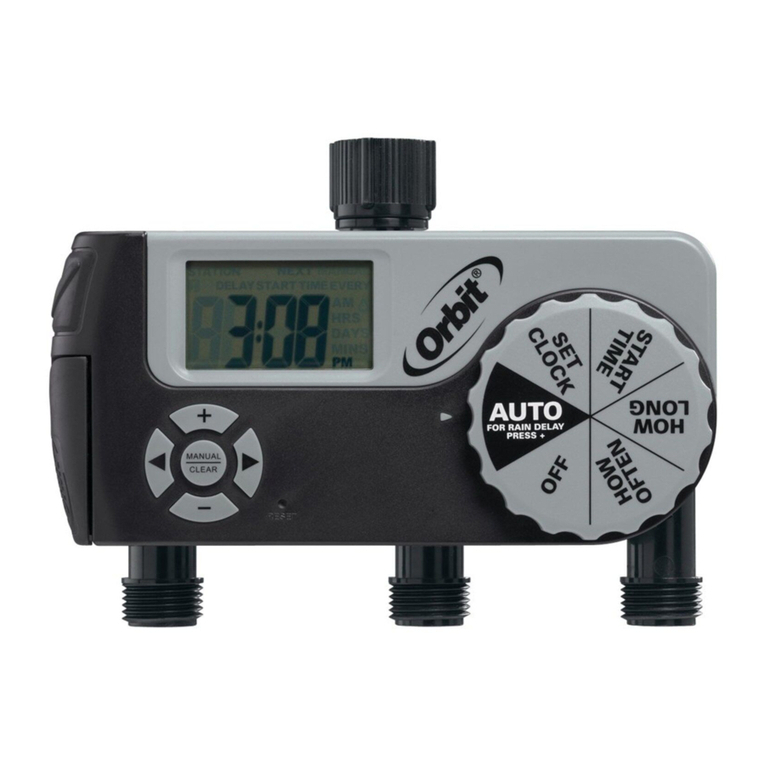
Orbit 28954 User manual

PN 57874-24 rB
MODELS / MODÈLES / MODELOS:
28954, 28956, 57874, 57876, 91874, 91876
Users ManUal
ManUel de l’UtilisateUr
ManUal del UsUario
p 801 295 9820
f 801 951 5815
www.fluid-studio.net
1065 South 500 West
Bountiful, Utah 84010
proof no: 5
date: 10.05.10
des: SM spck: XX
job no: NA
client: Orbit
sku: 57874
upc: NA
file name: 57874-24 rB.indd
software: InDesign CS5
colors
additional instructions:
· Font sizes cannot be smaller than 7 pt.
·
·
color
non printing
PMS
????
PMS
????
color
non printing
PMS
????
Registration
K
Printers are responsible for
meeting print production
requirements. Any changes
must be approved by the
client and Fluid Studio.
printed piece must meet
designated specifications
on this form.
dimensions:
flat: w: 14" h: 5"
finished: w: 7" d: " h: 5"
© 2007 Fluid Studio. This
work is the property of Fluid
Studio, and cannot be used,
reproduced or distributed
in any way without their
express permission.

2

Table of Contents
Section 1: Get to know your timer .................4
Section 2: Installation ...........................6
Section 3: Programming with Easy-Set Logic™.......9
Section 4: Additional Features ...................11
Section 5: Reference ...........................14
3
Congratulations on selecting your new Easy
Dial™ timer! With Orbit’s exclusive Easy-Set
Logic™, simple programming and setup are
combined with the latest timer technology
and versatility.
Your new timer provides convenience and
flexibility, letting you run a fully automatic,
a semi-automatic, or a manual watering
program for all your watering needs.
Although this timer is so easy to program
that you likely will not need instructions, we
recommend that you read this manual fully
before installation so that you understand all
of the advanced features.

4
A
B
C
Dial
Digital Display
Battery Compartment
Section 1: Get to know your timer
A
B
C

5
Buttons Function
ENTER To confirm a new setting
MANUAL To water manually
CLEAR To clear a setting
PROGRAM To move between programs: A and B
ARROW [ ] To advance to the next setting/watering
station or move to other programs/
settings
ARROW [ ] To go back to the previous setting/
watering station or move to other
programs/settings
RAIN DELAY To pause operation for 24-72 hours
due to rain or other factors
+To increase a numeric setting
–To decrease a numeric setting
Dial Position Function
AUTO Set program is running automatically
SET CLOCK Set clock time
SET DATE Year, Month, and Day
START TIME Set time to begin watering
RUN TIME Set watering duration for each station
HOW OFTEN Set frequency of watering days
OFF Turn all stations/functions off

6
Section 2: Installation
Required Tools
• Phillips Screwdriver
• Wire Strippers
1. Select a Location
When choosing a location for your timer, consider the
following:
•Choose a location near an electrical outlet.
•Ensure operating temperatures are not below 32° or
above 158° Fahrenheit (below 0° Celsius or above 70°
Celsius).
•Locate the timer where there is easy access to sprinkler
wire (from valves).
2. Mount the Timer
•Use the mounting template (included) to mark the
mounting screw location on the wall. See figure 1
•Install a No. 8 screw (included) into wall in the upper
template location. Leave the screw head protruding 1/8”
(3mm) from wall. Use expanding anchors (included) in
plaster or masonry, if necessary, for a secure hold.
•Slip the timer over protruding screw (using keyhole slot
in back of timer). See figure 2
•Drive a No. 8 screw through one of the two pre-formed
holes located in lower corners of the cabinet. See figure
2Figure 2: Hang timer on screw using keyhole
Keyhole
Pre-formed
mounting holes
No. 8 Screw
Wall
1/8"
Figure 1: Use Mounting Template (included)

7
3. Connect Valve Wires to Timer
•Strip 1/2” (12 mm) of the plastic insulation off the
end of each wire for both the timer wires and the
valve wires.
•Connect one wire from each valve (it doesn’t
matter which wire) to a single “Common”
sprinkler wire (usually white).
•Connect the remaining wire from each valve to a
separate colored sprinkler wire.
See figure 3
Note: The maximum loading for each station/pump is 250mA
(one valve), the maximum loading for the timer is 500mA.
Figure 3:
Wiring Electric Valves
If more than one valve is connected to a station the timer will
be permanently damaged.
If the distance between the sprinkler timer and valves is
under 700’ (210 m), use Orbit®sprinkler wire or 20 gauge
(AWG) plastic jacketed thermostat wire to connect the
sprinkler timer to the valves. If the distance is over 700’ (210
m), use 16 gauge (AWG) wire.
Important: All wires should be joined together using wire
nuts, solder, and/or vinyl tape. In wet environments like a
valve box it is recommended to use Orbit Grease Caps or
Speed Seals to prevent corrosion of the connection and for
protection from water infiltration.
Wiring Electric Valves
Strip 1/2” (12 mm) of plastic insulation off the end of
each individual wire. Each valve has two wires. One
wire (it doesn’t matter which one) is to be connected as
the common. The other valve wire is to be connected
to the specific station wire that will control that valve.
The common wires for all the valves can be connected
together to one common wire going to the controller.
To avoid electrical hazards and damage to the timer,
only one valve should be connected to each station. See
Figure 4
Important: The wire can be buried in the ground; however,
for more protection wires can be pulled through PVC pipe
and buried underground. Be careful to avoid burying the
wires in locations where they could be damaged by digging
or trenching in the future.
Solenoid
Wire Nut
To Timer
Valve
Common
Wire

Your timer is equipped with the simple “push-in”
terminals for easy connection. Connect common wire
to the common terminal. Connect remaining wires to
corresponding terminal locations.
4. Connect Electrical Transformer Power
Connect power connector to the timer. Insert the
transformer into an 120V electrical outlet. See Figure 5
5. Activate Battery
One Lithium CR2032 battery (included) is required
to retain the program in memory during power loss.
Annual replacement is recommended.
Remove the plastic strip to activate the pre-installed
battery. (See page 12 for battery replacement)
Note: The battery alone will not operate the valves in
your sprinkler system. The sprinkler timer has a built-in
transformer that must be connected to an AC voltage source.
8
24VAC SENSORCOM 1 2 3 4 5 6
Station 1
Push tab
upward to
release wire
Strip wire
Push in
Only connect one valve to
each terminal (station) or
damage will occur
Figure 4
Figure 5
24VAC SENSOR COM 1 2 3 4 5 6
Remove plastic
strip to activate
battery

Section 3: Programming with
Easy-Set Logic™
A note about multiple programs
Your sprinkler timer provides the flexibility of using 2
independent programs (A, B). The programs are where
you store all of your sprinkler settings. Each program
consists of a group of stations set to specific start
times and run times. Multiple programs allow you to
run different valves on different days with different
run times. While many applications only require one
program (A), using multiple programs (A, B) can be
useful for drip areas, newly planted lawn, or rotary
sprinkler stations. Using programs to group stations
with similar water needs will maximize irrigation
efficiency.
Primary programming can be accomplished in just a
few basic steps.
Primary Programming
Press the [RESET] to clear any previous factory
programming
1. Set Clock
• Turn dial to [SET CLOCK].
• Press the [+/–] buttons to set the current time of day.
Tip: To increase or decrease more rapidly, hold down
either the [+] or [-] buttons until the display goes into
rapid advance mode.
•Press the [ ] buttons to set am/pm.
•Turn dial to accept time.
2. Set Date
•Turn dial to [SET DATE].
•Press the PROGRAM button to select which
program you’d like to set.
•Press the [ ] buttons to select which stations
you’d like to set
•Y/M/D will appear (blinking letter indicates selection).
•Press the [+/–] buttons to set the correct year,
then press [ENTER] or [ ].
•Press the [+/–] buttons to set the correct month,
then press [ENTER].
•Press the [+/–] buttons to set the correct date.
•Turn dial to accept date.
3. Start time
•Turn dial to [START TIME].
•Press the [+/–] buttons to select time you’d like
your watering to begin. (time will adjust in 1
minute increments)
9

4. Run Time
• Turn the dial to [RUN TIME].
• Press the PROGRAM button to select which
program you’d like to set.
STATION is the area that will be watered by each valve.
On this screen the RUN TIME or duration for each
station is set.
•Press the [ ] to select a station and press the
[+/–] buttons to enter the watering duration for
that station.
•Press [ENTER] or the [ ] buttons to move to
the next station/valve, and enter watering duration
for each station.
5. How Often
• Turn the dial to [HOW OFTEN] - this screen allows
you to set how often to water.
There are 3 options provided:
1. Days of the week (Mon, Tues, Wed, etc.)
2. Intervals (Every “X” number of days)
3. Odd or Even Days
The display will show
Please note that [START TIME] is the time of day that
your programmed watering starts. You can set up to
4 start times at each program if you want to water
more than once per day. All stations that have a
programmed run time (how long) will run in sequence
at each start time.
Note: Start-Time Stacking
When a start time is set before the previous program has
completed, that start time will be “stacked” or delayed,
and will start upon completion of the previous program.
Example: Bill just planted new grass seed and wants
to water three times per day. He sets START TIME 1
for 5am, START TIME 2 for 12pm, and START TIME 3
for 5 pm.
He sets the INT (interval) to water every 1 DAYS (see
section 3, HOW OFTEN).
In AUTO mode the system will water 3 times per day.
Once Bill’s sod is established he can CLEAR start
times 2 and 3 and return to watering just once per day.
10
This manual suits for next models
5
Table of contents
Languages:
Other Orbit Timer manuals

Orbit
Orbit 94874 User manual

Orbit
Orbit Sunmate 62040 User manual

Orbit
Orbit B-hyve User manual

Orbit
Orbit 62056 User manual
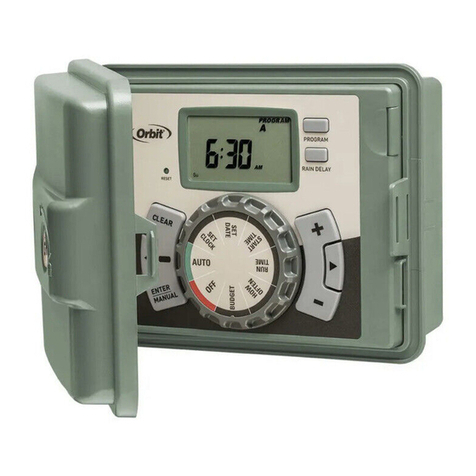
Orbit
Orbit 57896 User manual

Orbit
Orbit SunMate 62062 User manual

Orbit
Orbit WaterMaster 57194 User manual

Orbit
Orbit Daybreak User manual

Orbit
Orbit 58910 User manual

Orbit
Orbit 57880 User manual

Orbit
Orbit 57894 User manual

Orbit
Orbit 57896-50 rJ User manual

Orbit
Orbit 24713 User manual

Orbit
Orbit 57096 User manual

Orbit
Orbit B-HYVE WT24 User manual

Orbit
Orbit SunMate 62061 User manual

Orbit
Orbit 62034 User manual

Orbit
Orbit Watermaster 57004 User manual

Orbit
Orbit 27954 Guide
Orbit
Orbit timer User manual