Optoma EP7150 User manual

1
English
Table of Contents
Table of Contents ......................................................................................... 1
Usage Notice ................................................................................................ 2
Precautions ..........................................................................................................2
Introduction .................................................................................................. 4
Product Features ..................................................................................................4
Package Overview ...............................................................................................5
Product Overview .................................................................................................6
Main Unit ........................................................................................................................6
Control Panel .................................................................................................................7
Connection Ports ...........................................................................................................7
Remote Control with Laser Pointer ................................................................................8
Installation .................................................................................................... 9
Connecting the Projector ......................................................................................9
Powering On/Off the Projector ...........................................................................10
Powering On the Projector ...........................................................................................10
Powering Off the projector ...........................................................................................11
Warning Indicator .........................................................................................................11
Adjusting the Projected Image ...........................................................................12
Adjusting the Projector Image Height ..........................................................................12
Adjusting the Projector Zoom / Focus ..........................................................................13
Adjusting Projected Image Size ...................................................................................13
User Controls ............................................................................................. 14
Control Panel & Remote Control ........................................................................14
On-Screen Display Menus .................................................................................16
How to Operate ...........................................................................................................16
Menu Tree ..........................................................................................................17
Language .....................................................................................................................18
Image-I ........................................................................................................................19
Image-II (Computer Mode) ...........................................................................................21
Image-II (Video Mode) .................................................................................................23
Audio ............................................................................................................................25
Management ................................................................................................................26
Lamp Setting ................................................................................................................27
Appendices ................................................................................................ 28
Troubleshooting ..................................................................................................28
Replacing the Lamp ...........................................................................................32
Compatibility Modes ...........................................................................................33
Optoma Global Offi ces .......................................................................................34
Regulation & Safety notices ...............................................................................35

2
English
Usage Notice
Precautions
Follow all warnings, precautions and maintenance as recom-
mended in this user’s guide to maximize the life of your unit.
Warning- Do not look into the projector’s lens when the lamp is
on. The bright light may hurt your eyes.
Warning- To reduce the risk of fi re or electric shock, do not expose
this product to rain or moisture.
Warning- Please do not open or disassemble the product as this
may cause electric shock.
Warning- When changing the lamp, please allow unit to cool
down, and follow all changing instructions.
Warning- This product will detect the life of the lamp itself.
Please be sure to change the lamp when it shows warn-
ing messages.
Warning- Reset the “Lamp Reset” function from the On Screen
Display “Lamp Setting” menu after replacing the lamp
module (refer to page 27).
Warning- When switching the projector off, please ensure the
projector completes its cooling cycle before disconnect-
ing power.
Warning- Turn on the projector fi rst and then the signal sources.
Warning- Do not use lens cap when projector is in operation.
Warning- When the lamp reaches the end of its life, it will burn
out and may make a loud popping sound. If this hap-
pens, the projector will not turn back on until the lamp
module has been replaced. To replace the lamp, follow
the procedures listed under “Replacing the Lamp”. (see
page 32)

3
English
Usage Notice
Do:
Turn off the product before cleaning.
Use a soft cloth moistened with mild detergent to clean the
display housing.
Disconnect the power plug from AC outlet if the product is not
being used for a long period of time.
Don’t:
Block the slots and openings on the unit provided for ventila-
tion.
Use abrasive cleaners, waxes or solvents to clean the unit.
Use under the following conditions:
- In extremely hot, cold or humid environments.
- In areas susceptible to excessive dust and dirt.
- Near any appliance that generates a strong magnetic fi eld.
- In direct sunlight.

4
English
Introduction
Product Features
Congratulations and Thank You for choosing an EP7150 pro-
jector, an Optoma Product. This product is a XGA single chip
0.55” DLPTM projector. Outstanding features include:
True XGA, 1024 x 768 addressable pixels
Texas Instruments Single chip DLPTM Technology
NTSC/NTSC4.43/PAL/PAL-M/PAL-N/SECAM and
HDTV compatible (480i/p, 576i/p, 720p, 1080i)
Multi-Auto functions: Auto detection, Automatic saving
of user adjustments
IR remote control with laser pointer
User friendly multilingual on screen menu
Advanced digital keystone correction and high quality
full screen image re-scaling
User friendly control panel
One built-in speaker
UXGA, SXGA+, SXGA compression and SVGA, VGA re-
sizing
Mac compatible

5
English
Introduction
Power Cord 1.8m VGA Cable 1.8m
Wireless Remote
Controller
Composite Video Cable
1.8m
Projector with lens cap
Package Overview
This projector comes with all the items shown below. Check to
make sure your unit is complete. Contact your dealer immedi-
ately if anything is missing.
Documents :
User’s Guide
Quick Start Card
Warranty Card
Quick Troubleshooting Guide
SCART VGA/S-Video
Adaptor
(available in European
region only)
Due to the differ-
ence in applications
for each country,
some regions may
have different ac-
cessories.
2 x AA Batteries Carry Bag

6
English
Introduction
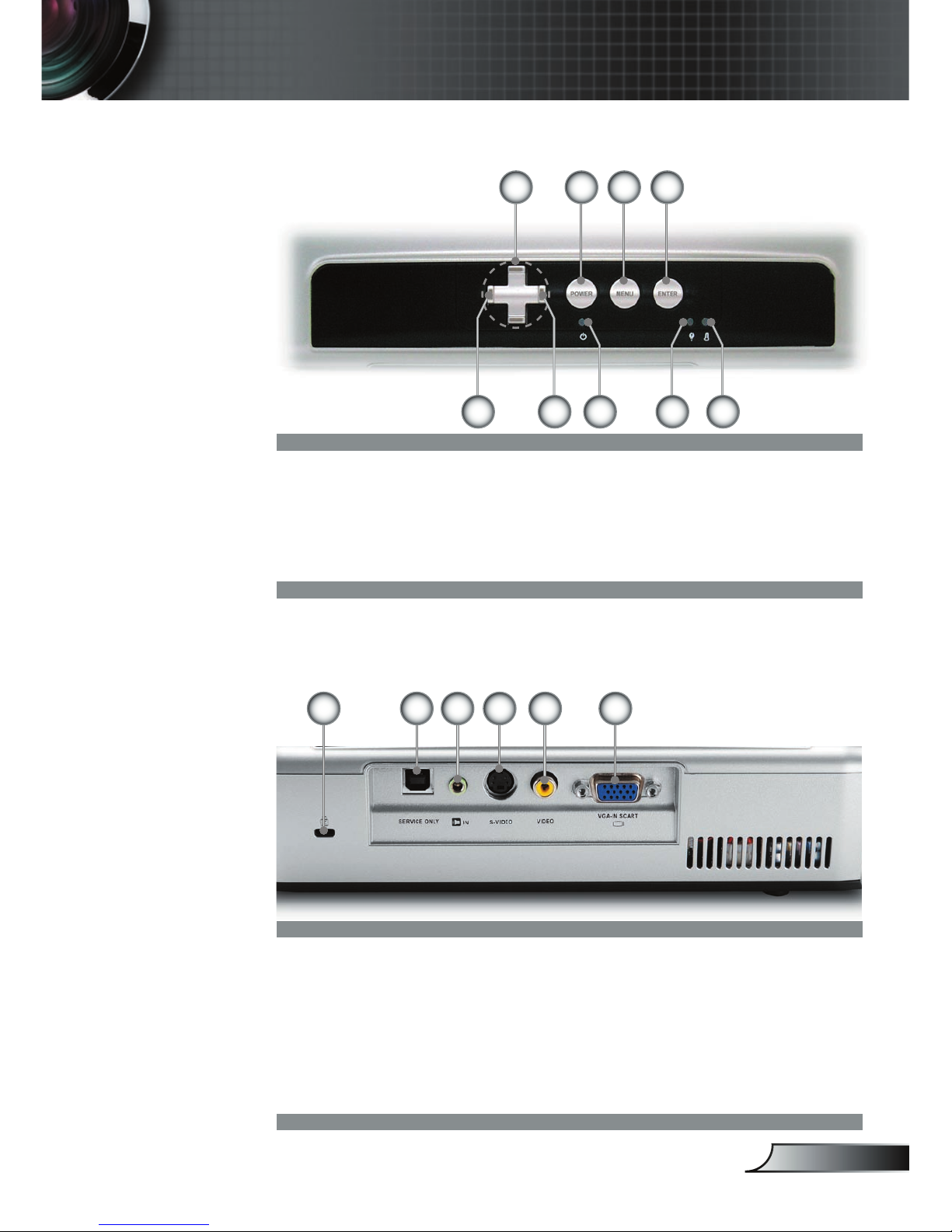
1. Control Panel
2. Zoom Lever
3. Power Socket
4. Speaker
5. Elevator Button
6. Zoom Lens
7. Focus Ring
8. IR Receivers
9. Connection Ports
Main Unit
Product Overview
12
5
6
1
9
8
3
7
2
4
7
English
Introduction
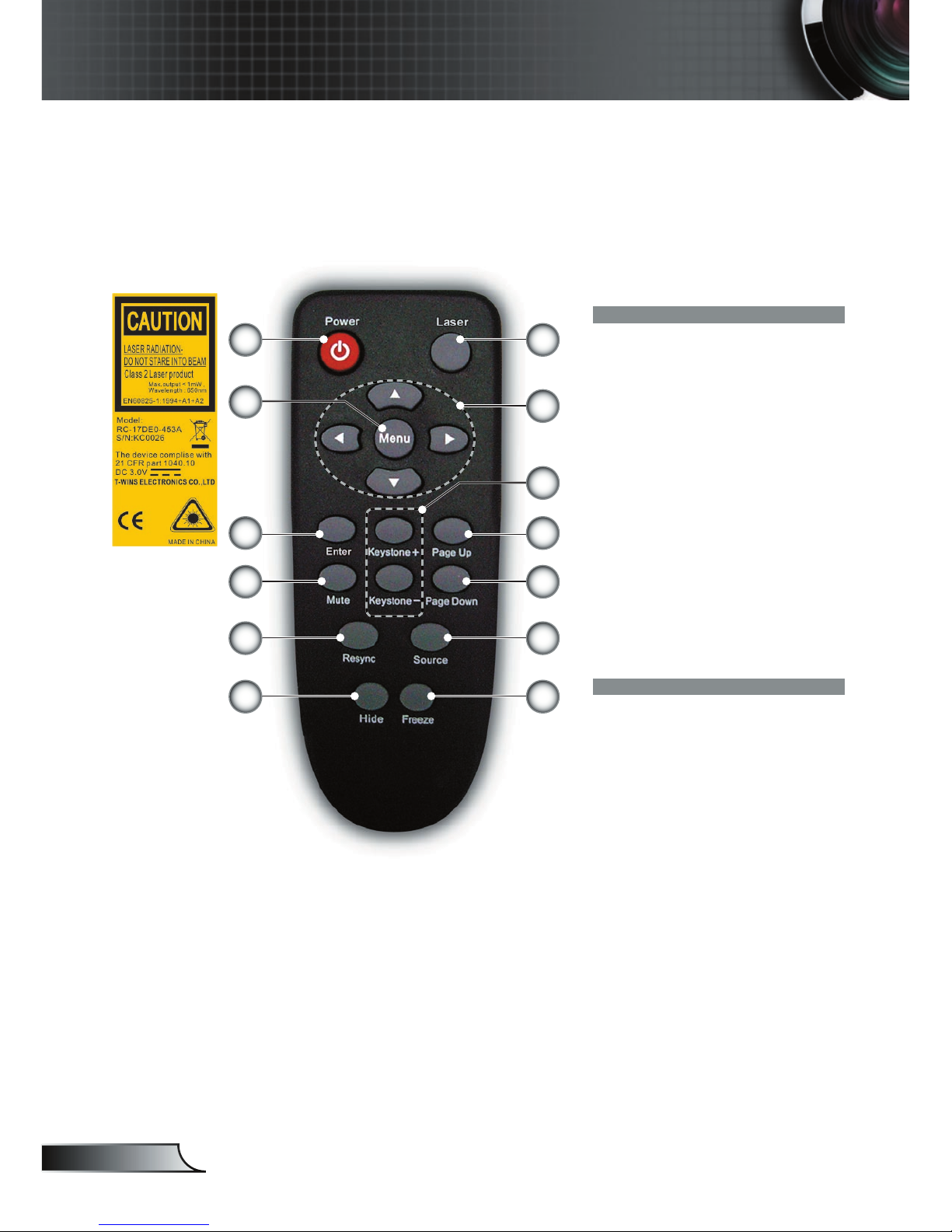
Control Panel
1. Enter
2. Menu (On/Off)
3. Power
4. Four Directional Select
Keys
123
8 9765
4
Connection Ports
1. VGA-In SCART Connector (PC Analog signal/SCART
RGB/HDTV/Component Video Input)
2. Composite Video Input Connector
3. S-Video Input Connector
4. Audio Input Connector
5. Service Connector
6. KensingtonTM Lock Port
4 3 256
5. Source Select
6. Resync
7. Power LED
8. Lamp Indicator LED
9. Temp Indicator LED
1
8
English
Introduction
Remote Control with Laser Pointer
1. Laser Button
2. Four Directional Select
Keys
3. Keystone +/-
4. Page Up
5. Page Down
6. Source Select
7. Freeze
8. Power
9. Menu
10. Enter
11. Mute
12. Resync
13. Hide
8
10
11
4
5
1
12
13
6
7
92
3

9
English
Installation
Connecting the Projector
Due to the differ-
ence in applications
for each country,
some regions may
have different acces-
sories. S-Video Output
Video Output DVD Player, Settop Box,
HDTV receiver
RGB
1. ..............................................................................................................VGA Cable
2. ...........................................................Audio Input Cable (Optional Accessory)
3. ........................................................................................ Composite Video Cable
4. ...................................................................S-Video Cable (Optional Accessory)
5. ....................................................... Audio Output Cable (Optional Accessory)
6. .....................................SCART VGA/S-Video Adaptor (For European Only)
7. ................................... D-15 to RCA Adapter for YPbPr (Optional Accessory)
1
2
6
5
4
3
7
1
To ensure the projector works well with your computer,
please set the display mode of your graphic card less than
or equal to 1600 x 1200 resolution. Make sure the timing of
the display mode is compatible with the projector. Refer to
the “Compatibility Modes” section on page 33.
10
English
Installation
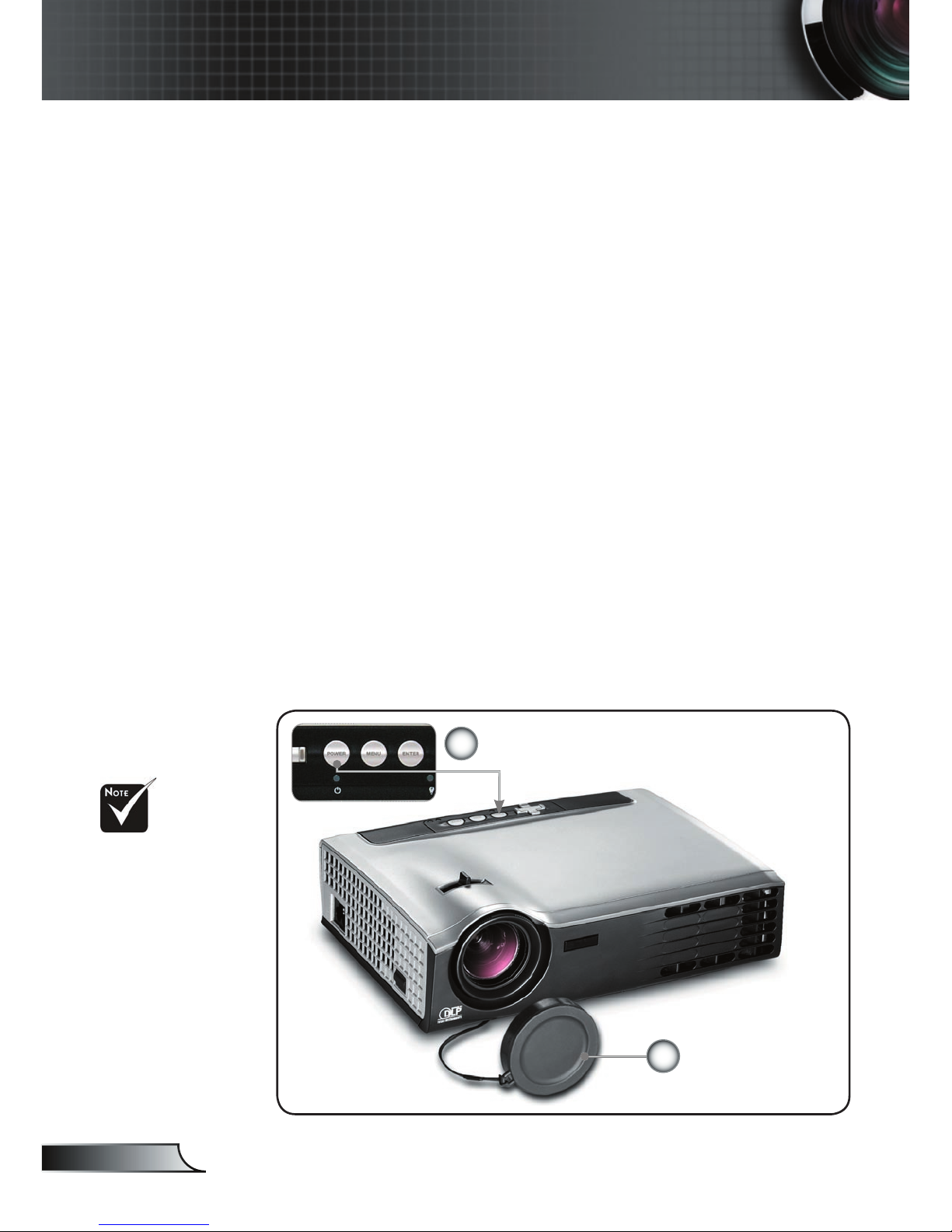
Powering On the Projector
1. Remove the lens cap.
2. Ensure that the power cord and signal cable are securely
connected. The Power LED will fl ash green.
3. Turn on the lamp by pressing “Power” button on the control
panel. And the Power LED will turn green.
4. Turn on your source (computer, notebook, video player,
etc.). The projector will detect your source automatically
within “Management” menu; check that “Source Lock” has
been set to “Off”.
If you connect multiple sources at the same time, use the
“Source” button on the control panel or on remote control to
switch.
Powering On/Off the Projector
Turn on the projec-
tor fi rst and then
the signal sources.
Power
Lens Cap
1
2
Other manuals for EP7150
2
Table of contents
Other Optoma Projector manuals

Optoma
Optoma H30 User manual

Optoma
Optoma Optoma EP718 User manual

Optoma
Optoma ML1500e User manual

Optoma
Optoma TX771 Owner's manual

Optoma
Optoma HD8000-LV Technical manual

Optoma
Optoma TX542 Installation manual

Optoma
Optoma EX765 User manual

Optoma
Optoma TX551 User manual

Optoma
Optoma W307USTi User manual

Optoma
Optoma HD600X-LV User manual

Optoma
Optoma HD145X User manual

Optoma
Optoma EW531 User manual

Optoma
Optoma HD73 User manual

Optoma
Optoma PRO360W User manual

Optoma
Optoma H57 User manual

Optoma
Optoma TW536 Administrator guide

Optoma
Optoma TW1692 User manual

Optoma
Optoma Optoma PRO150S User manual

Optoma
Optoma ZU500USTe User manual

Optoma
Optoma DV10 MovieTime User manual