Nokia 1616 User manual

Nokia 1616 User Guide
Issue 1.0

Contents
Safety 3
Get started 4
Insert the SIM card and battery 4
Remove the SIM card 4
Charge the battery 4
Antenna 5
Switch on or off 5
Your phone 6
Keys and parts 6
Main features 6
Calls 7
Write text 7
Message 8
Contacts 8
Multi-phonebook 8
FM Radio 9
Flashlight shortcuts in standby mode 9
Access codes 10
Product and safety information 11
2Contents

Safety
Read these simple guidelines. Not following them may be dangerous or illegal. Read
the complete user guide for further information.
SWITCH ON SAFELY
Do not switch the device on when wireless phone use is prohibited or when
it may cause interference or danger.
ROAD SAFETY COMES FIRST
Obey all local laws. Always keep your hands free to operate the vehicle while
driving. Your first consideration while driving should be road safety.
INTERFERENCE
All wireless devices may be susceptible to interference, which could affect
performance.
SWITCH OFF IN RESTRICTED AREAS
Follow any restrictions. Switch the device off in aircraft, near medical
equipment, fuel, chemicals, or blasting areas.
QUALIFIED SERVICE
Only qualified personnel may install or repair this product.
ACCESSORIES AND BATTERIES
Use only approved accessories and batteries. Do not connect incompatible
products.
WATER-RESISTANCE
Your device is not water-resistant. Keep it dry.
Safety 3

Get started
Insert the SIM card and battery
This phone is intended for use with the BL-5CB battery.
Safe removal. Always switch the device off and disconnect the charger before removing
the battery.
Important: Do not use a mini-UICC SIM card, also known as a micro-SIM card, a micro-
SIM card with an adapter, or a SIM card that has a mini-UICC cutout (see figure) in this
device. A micro-SIM card is smaller than the standard SIM card. This device does not
support the use of micro-SIM cards and use of incompatible SIM cards may damage the
card or the device, and may corrupt data stored on the card.
1 Place your finger in the recess at the bottom of the device, and carefully lift and
open the back cover (1).
2 Lift the battery, and remove it (2).
3 Insert the SIM card (3). Ensure the contact surface area is facing down and the
beveled corner of the SIM card is facing the bottom of the device.
4 Replace the battery (4) and back cover (5, 6, 7).
Remove the SIM card
Press the release spring (1), and slide out the SIM card (2).
Charge the battery
Your battery has been partially charged at the factory. If the device indicates a low
charge, do the following:
4Getstarted

1 Connect the charger to a wall outlet.
2 Connect the charger to the device.
3 When the device indicates a full charge, disconnect the charger from the device,
then from the wall outlet.
Tip: To save energy, unplug the charger when the battery is fully charged.
You do not need to charge the battery for a specific length of time, and you can use the
device while it is charging. If the battery is completely discharged, it may take several
minutes before the charging indicator appears on the display or before any calls can be
made.
Antenna
The antenna area is marked in gray.
Your device may have internal and external antennas. Avoid touching the antenna area
unnecessarily while the antenna is transmitting or receiving. Contact with antennas
affects the communication quality and may cause a higher power level during operation
and may reduce the battery life.
Switch on or off
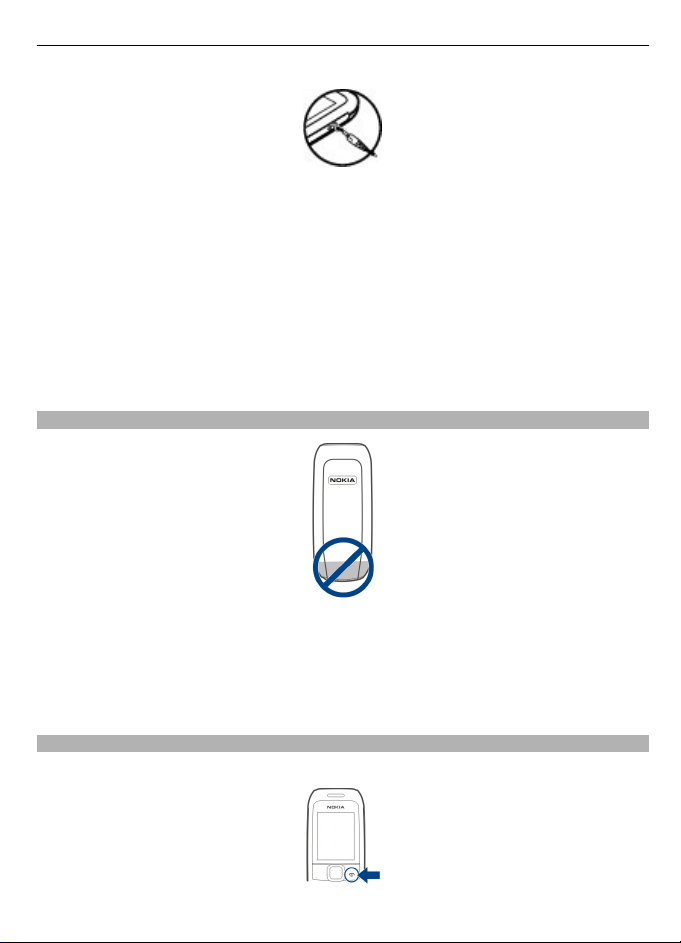
Press and hold the end key.
Get started 5

Your phone
Keys and parts
1Earpiece
2Display
3 Selection keys
4 Navi™ key (scroll key)
5 Call key
6 End/Power key
7Keypad
8Microphone
9 Flashlight
10 Headset connector (3.5mm)
11 Wrist strap eyelet
12 Charger connector
Main features
Select Menu and from the following:
Messages Create, send, and manage messages.
Contacts Save names and phone numbers.
Call log Access missed, received, and dialed calls.
Settings Set up various features of your device.
Clock Set the time for the alarm.
Radio Manage radio features.
Reminders Manage reminders.
Games Play or set up the games in your device.
Extras Access various applications.
SIM services Use supported SIM card services.
6 Your phone

Calls
To make a call, enter the phone number, including the country code and area code, if
necessary, and press the call key. To answer a call, press the call key. To end or reject a
call, press the end key.
To use a loudspeaker or earpiece during a call, select Loudsp. or Hands.. To adjust the
volume during a call, scroll left or right.
When the volume is high, do not hold the device near your ear.
Write text
To enter text, you can use traditional or predictive text input. Not all languages are
supported by predictive text input.
Use traditional text input
Press a key repeatedly until the desired letter is displayed.
Activate predictive text input
Select Options > Predictive text and the desired language.
Deactivate predictive text input
Select Options > Predictive text > Prediction off.
When using predictive text input, press each key once for a single letter. If the desired
word is displayed, press 0, and start writing the next word. If ? is displayed after the
word, the word is not in the dictionary.
Change a word
Press *repeatedly until the desired word is displayed.
Add a word
Select Spell, enter the word using traditional text input, and select OK.
Add a space
Press 0.
Change text input method
Press #repeatedly, and check the indicator at the top of the display.
Add a number
Press and hold the desired number key.
Add a special character
Press *when using traditional text input; press and hold *when using predictive text
input.
Your phone 7

Undo clearing of a message
Select Options > Undo clear.
Message
The message services can only be used if they are supported by your service provider.
Your device supports text messages beyond the limit for a single message. Longer
messages are sent as two or more messages. Your service provider may charge
accordingly. Characters with accents, other marks, or some language options take more
space, and limit the number of characters that can be sent in a single message.
Write and send a message
1 Select Menu > Messages > Create message.
2 Write the message. The message length indicator shows how many characters you
can enter in the message.
3 Select Options > Send, enter the recipient's phone number or select it from the
contacts list, and select OK.
Delete messages
Select Menu > Messages > Delete messages > All read or the desired folder.
Contacts
You can save names and phone numbers in the phone and SIM card memory. The
contacts list can contain up to 500 contacts, stored in the phone memory.
Search for a contact
Scroll down in the standby mode, enter the first characters or letters of the name, and
scroll to the desired contact.
Save contacts to the contacts list
Select Menu > Contacts > Add name.
Copy contacts between the phone and SIM card memory
Select Menu > Contacts > Copy.
Multi-phonebook
Your phone supports up to five separate phonebooks for multiple users. When the multi-
phonebook is activated, only the contacts in the active phonebook are visible.
A contact can belong to one or several phonebooks. The contacts in Shared contacts are
accessible from all phonebooks.
Select Menu > Contacts > Settings > Multi-Phonebook and the appropriate options.
8 Your phone

Activate the multi-phonebook
Select Phonebook style > Multi-Phonebook.
Activate a phonebook
Select Current phonebook and the desired phonebook or Shared contacts.
Assign a contact to one or more phonebooks
Select Manage contacts and the desired contact.
Rename a phonebook
Select Rename phonebooks and the desired phonebook.
FM Radio
The FM radio depends on an antenna other than the wireless device antenna. A
compatible headset needs to be attached to the device for the FM radio to function
properly. You may need to purchase a compatible headset separately.
To open the radio, select Menu > Radio. To adjust the volume of the radio, scroll left
or right.
You need at least one saved channel for the clock radio to function properly.
Warning:
Continuous exposure to high volume may damage your hearing. Listen to music at a
moderate level, and do not hold the device near your ear when the loudspeaker is in
use.
Flashlight shortcuts in standby mode
To switch on, scroll up twice. To switch off, scroll up once.
Do not shine the flashlight in anyone's eyes.
Your phone 9

Access codes
PIN or PIN2 code
(4-8 digits)
These protect your SIM card against unauthorized use or are
required to access some features.
You can set your device to ask for the PIN code when you switch
it on.
If not supplied with your SIM card or you forget the codes,
contact your service provider.
If you enter the code incorrectly three times in a row, you need
to unblock the code with the PUK or PUK2 code.
PUK or PUK2 code
(8 digits)
These are required to unblock a PIN or PIN2 code.
If not supplied with your SIM card, contact your service provider.
IMEI number
(15 digits)
This is used to identify valid devices in the network. The number
can also be used to block, for example, stolen devices.
To view your IMEI number, dial *#06#.
Lock code (security
code)
(min. 5 digits or
characters)
This helps you protect your device against unauthorized use.
You can set your device to ask for the lock code that you define.
The default lock code is 12345.
Keep the code secret and in a safe place, separate from your
device.
If you forget the code and your device is locked, your device will
require service. Additional charges may apply, and all the
personal data in your device may be deleted.
For more information, contact a Nokia Care Point or your device
dealer.
The personal unblocking key (PUK) code and the universal personal unblocking key
(UPUK) code (8 digits) are required to change a blocked PIN code and UPIN code,
respectively. The PUK2 code (8 digits) is required to change a blocked PIN2 code. These
codes are not supplied with the SIM card. Contact your local service provider for the
codes.
10 Access codes
Other manuals for 1616
7
Table of contents
Other Nokia Cell Phone manuals

Nokia
Nokia RH-37 Series Installation instructions

Nokia
Nokia NSM-9DX Installation instructions

Nokia
Nokia 6108 User manual

Nokia
Nokia Lumia 735 User manual

Nokia
Nokia 2300 - Cell Phone - GSM User manual

Nokia
Nokia TA-1092 User manual

Nokia
Nokia 2320 User manual

Nokia
Nokia 5310 XpressMusic User manual

Nokia
Nokia N79 Specification sheet

Nokia
Nokia NPD-4 Series Guide