
Moxa Technologies UPORT 1110 User manual

UPort 1110 and 1130 User’s Manual
First Edition, August 2006
www.moxa.com/product
MOXA Technologies Co., Ltd.
Tel: +886-2-8919-1230
Fax: +886-2-8919-1231
Web: www.moxa.com
MOXA Technical Support
Worldwide: support@moxa.com

UPort 1110 and 1130 User’s Manual
The software described in this manual is furnished under a license agreement and may be used only in
accordance with the terms of that agreement.
Copyright Notice
Copyright ©2006 MOXATechnologies Co., Ltd.
All rights reserved.
Reproduction without permission is prohibited.
Trademarks
MOXA is a registered trademark of The MOXA Group.
All other trademarks or registered marks in this manual belong to their respective manufacturers.
Disclaimer
Information in this document is subject to change without notice and does not represent a commitment on the
part of MOXA.
MOXA provides this document “as is,” without warranty of any kind, either expressed or implied, including, but
not limited to, its particular purpose. MOXAreserves the right to make improvements and/or changes to this
manual, or to the products and/or the programs described in this manual, at any time.
Information provided in this manual is intended to be accurate and reliable. However, MOXA assumes no
responsibility for its use or for any infringements on the rights of third parties that may result from its use.
This product may include unintentional technical or typographical errors. Changes are periodically made to the
information herein to correct such errors, and these changes are incorporated into new editions of the
publication.

Table of Contents
Chapter 1 Introduction ...............................................................................................1-1
Overview.............................................................................................................................. 1-2
Package Checklist................................................................................................................. 1-2
Product Features................................................................................................................... 1-2
Product Specifications..........................................................................................................1-3
LED Indicators ..................................................................................................................... 1-4
Chapter 2 Installation and Configuration .................................................................2-1
Initial Driver Installation...................................................................................................... 2-2
Hardware Installation ...........................................................................................................2-5
Windows 98 and Windows 2000.................................................................................. 2-5
Windows XP and Windows 2003................................................................................. 2-6
Configuring the COM Port................................................................................................. 2-12
Configuring the Adaptor..................................................................................................... 2-13
Removing the Adaptor........................................................................................................ 2-15
Uninstalling the Driver....................................................................................................... 2-16
Appendix A. Pin Assignments ......................................................................................A-1
UPort DB9 Pin Assignments ............................................................................................... A-1
Terminal Block PinAssignments......................................................................................... A-1
Appendix B. Service Information..................................................................................B-1
MOXA Internet Services......................................................................................................B-2
Technical Support E-mail Address...............................................................................B-2
Website for Product Information..................................................................................B-2
Problem Report Form...........................................................................................................B-3
Product Return Procedure.....................................................................................................B-4

1
1
Chapter 1 Introduction
The UPort 1110 and the UPort 1130 are USB-to-serial adaptors, an easy way to add a COM port to
your system. The UPort 1110 provides one RS-232 port and the UPort 1130 provides one
RS-422/RS-485 port.As a plug and play USB device, the adaptors are perfect for mobile,
instrumentation, and point-of sale applications.
The following topics are covered in this chapter:
Overview
Package Checklist
Product Features
Product Specifications
LED Indicators

UPort 1110 and 1130 User’s Manual Introduction
1-2
Overview
The UPort 1110 and UPort 1130 are part of Moxa’s UPort line of USB-to-serial adaptors. The
UPort line provides a range of easy-to-use solutions for adding COM ports through a PC’s USB
port. Simply install the drivers, connect the UPort to your computer, plug in your serial devices,
and you’re ready to go. Programming is not required, and you do not need to worry about IRQs,
configuring a board, power requirements, or connection schemes.
The UPort 1110 and UPort 1130 provide single COM port expansion. The UPort 1110 adds one
RS-232 port to your computer, which is the same type of COM port that is built into most PC
motherboards. The UPort 1130 adds one port that is configurable for RS-422, 2-wire RS-485, and
4-wire RS-485 modes. Both models can operate at speeds of up to 12 Mbps, which is much faster
than the current maximum serial transfer rate.
The adaptor is bus-powered, so no external power supply is required.
Package Checklist
The following items are included in your UPort package:
yUPort 1110 or UPort 1130 USB-to-Serial Adaptor
yUPort Documentation and Software CD
yUPort 1110/1130 Quick Installation Guide
y5-year Warranty Statement
The UPort 1130 also comes with the following item:
yMini DB9F-to-Terminal-Block Converter
NOTE: Notify your sales representative if any of the above items is missing or damaged.
Product Features
The UPort adaptor has the following features:
yFull-Speed USB operation at up to 12 Mbps
yAdditional I/O or IRQ not required
ySerial transmission speed up to 921.6 Kbps
y64-byte FIFO and built-in hardware and software flow control
yBuilt-in 15 KV ESD protection
ySupport for RS-422, 2-wire RS-485, and 4-wire RS-485 (UPort 1130 only)
yTerminal block adaptor (UPort 1130 only)
UPort 1110 and 1130 User’s Manual Introduction
1-3
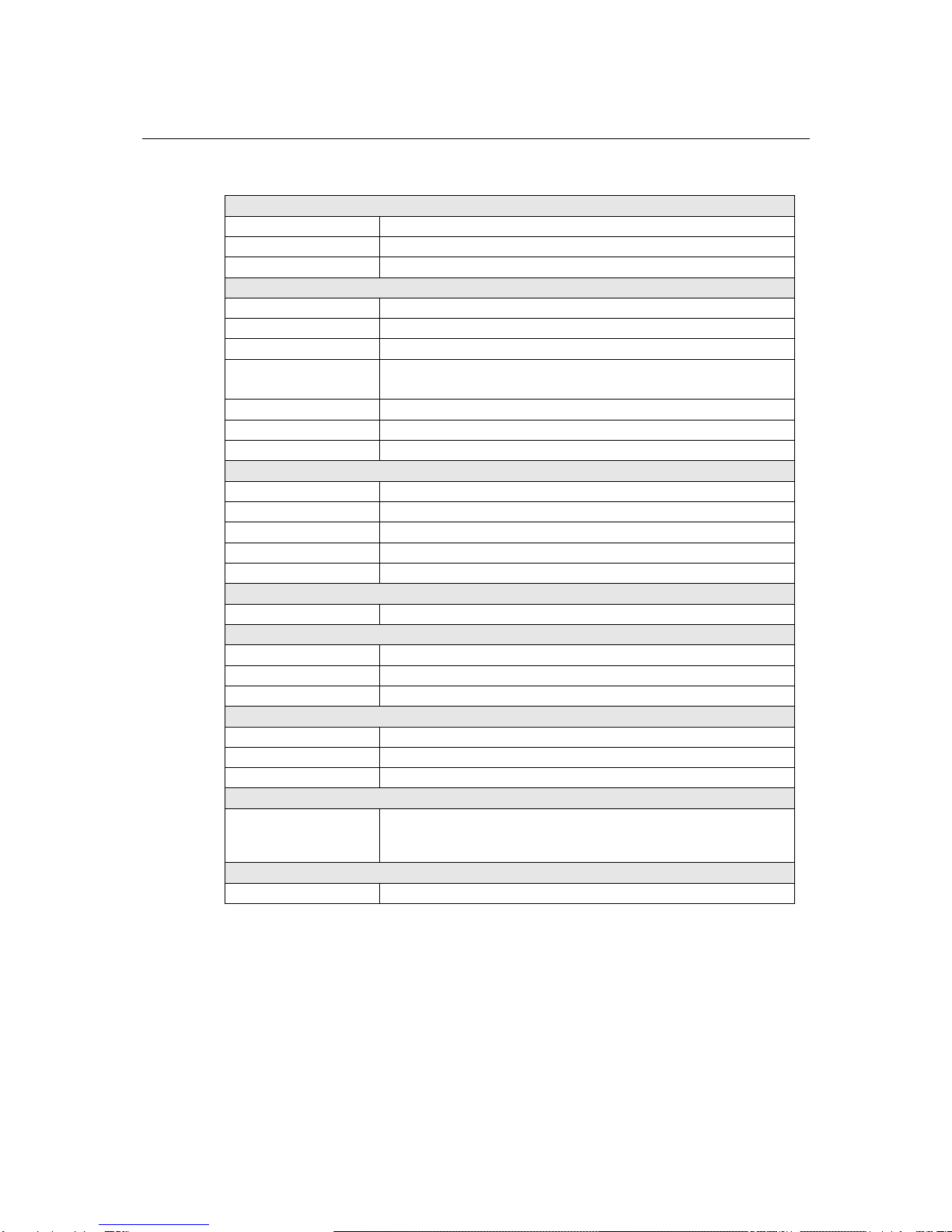
Product Specifications
USB
Version USB 1.1 (also compatible with USB 1.0 and 2.0)
Connector USB type B
Speed 12 Mbps
Serial Interface
No. of Ports 1
RS-232 (UPort 1110) TxD, RxD, RTS, CTS, DTR, DSR, DCD, GND
RS-422 (UPort 1130) TxD+(B), TxD-(A), RxD+(B), RxD-(A),GND
RS-485 (UPort 1130) 4-wire: TxD+(B), TxD-(A), RxD+(B), RxD-(A), GND
2-wire: Data+(B), Data-(A), GND
Connector Male DB9
FIFO 64 bytes
Serial line protection 15 KV ESD for all signals
Serial Communication Parameters
Parity None, Even, Odd, Space, Mark
Data bits 5, 6, 7, 8
Stop bits 1, 1.5, 2
Flow control RTS/CTS, XON/XOFF
Speed 50 bps to 921.6 Kbps
Power Requirements
Power Consumption 30 mA@5 VDC
Mechanical
Dimensions 37.5 x 20.5 x 60 mm (L x W x H)
Material ABS + PC
Gross Weight 60 g (0.13 lb)
Environmental
Operating Temperature 0°C to 55°C (32°F to 131°F)
Storage Temperature -20°C to 85°C (-4°F to 185°F)
Operating Humidity 5% RH to 95% RH
Regulatory Approvals
EN55022 Class B, EN55024, EN61000-3-2, EN61000-3-3, IEC
61000-4-2, IEC 61000-4-3, IEC 61000-4-4, IEC 61000-4-5, IEC
61000-4-8, FCC Part 15 Class B
Warranty
5 years
UPort 1110 and 1130 User’s Manual Introduction
1-4
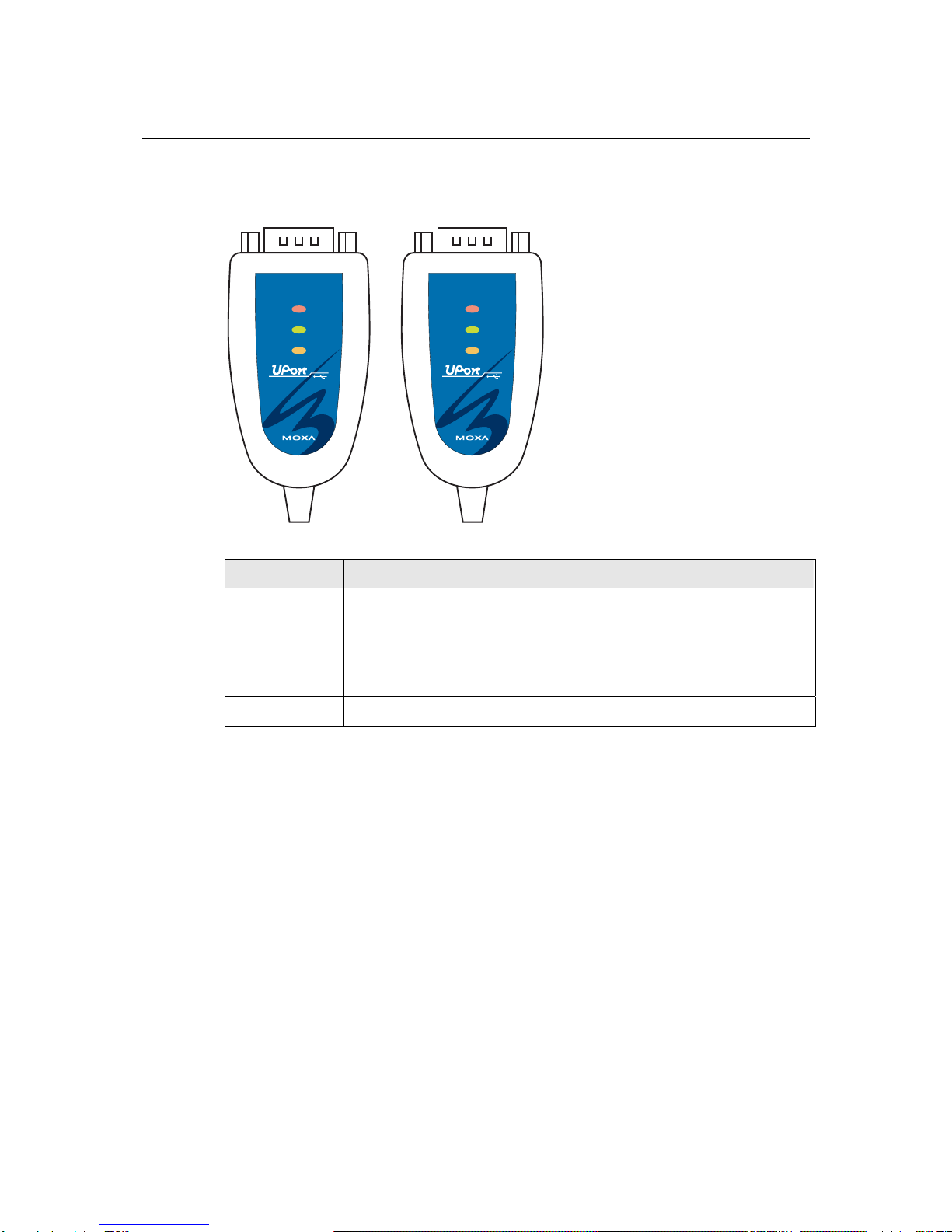
LED Indicators
Active
RxD
TxD
1110
RS-232
USB-to-Serial Adaptor
Active
RxD
TxD
1130
RS-422/485
USB-to-Serial Adaptor
UPort 1110 UPort 1130
Name Description
Active
This LED indicates normal operation. If the driver is installed correctly and the
adaptor is plugged into a functioning USB port, the Active LED will light up
and remain on. If the LED does not light up, there may be a problem with the
adaptor, the driver installation, or PC configuration.
TxD This LED blinks when the adaptor transmits data through its COM port.
RxD This LED blinks when the adaptor receives data through its COM port.

2
2
Chapter 2 Installation and Configuration
Installation of the adaptor is a simple process. First install the driver, then plug the adaptor into a
USB port. When the adaptor is plugged in, Windows will load the correct drivers for the adaptor
and the new COM port. In this chapter, basic installation and configuration procedures are
explained. Although the installation screens will be for Windows 2000, the procedures are
essentially the same for Windows 98 and later versions.
The following topics are covered in this chapter:
Initial Driver Installation
Hardware Installation
¾Windows 98 and Windows 2000
¾Windows XP and Windows 2003
Configuring the COM Port
Configuring the Adaptor
Removing the Adaptor
Uninstalling the Driver
UPort 1110 and 1130 User’s Manual Installation and Configuration
2-2
Initial Driver Installation
The Documentation and Software CD will contain the drivers for the adaptor. You may also
download the drivers at www.moxa.com. The installation procedure is the same for all Windows
operating systems.
Use Windows Explorer to locate the driver installation file, which will be Setup or Install.
On the Documentation and Software CD, this file will be located in the UPort 1100/Software
folder, filed by operating system. Double-click the Setup or Install file.
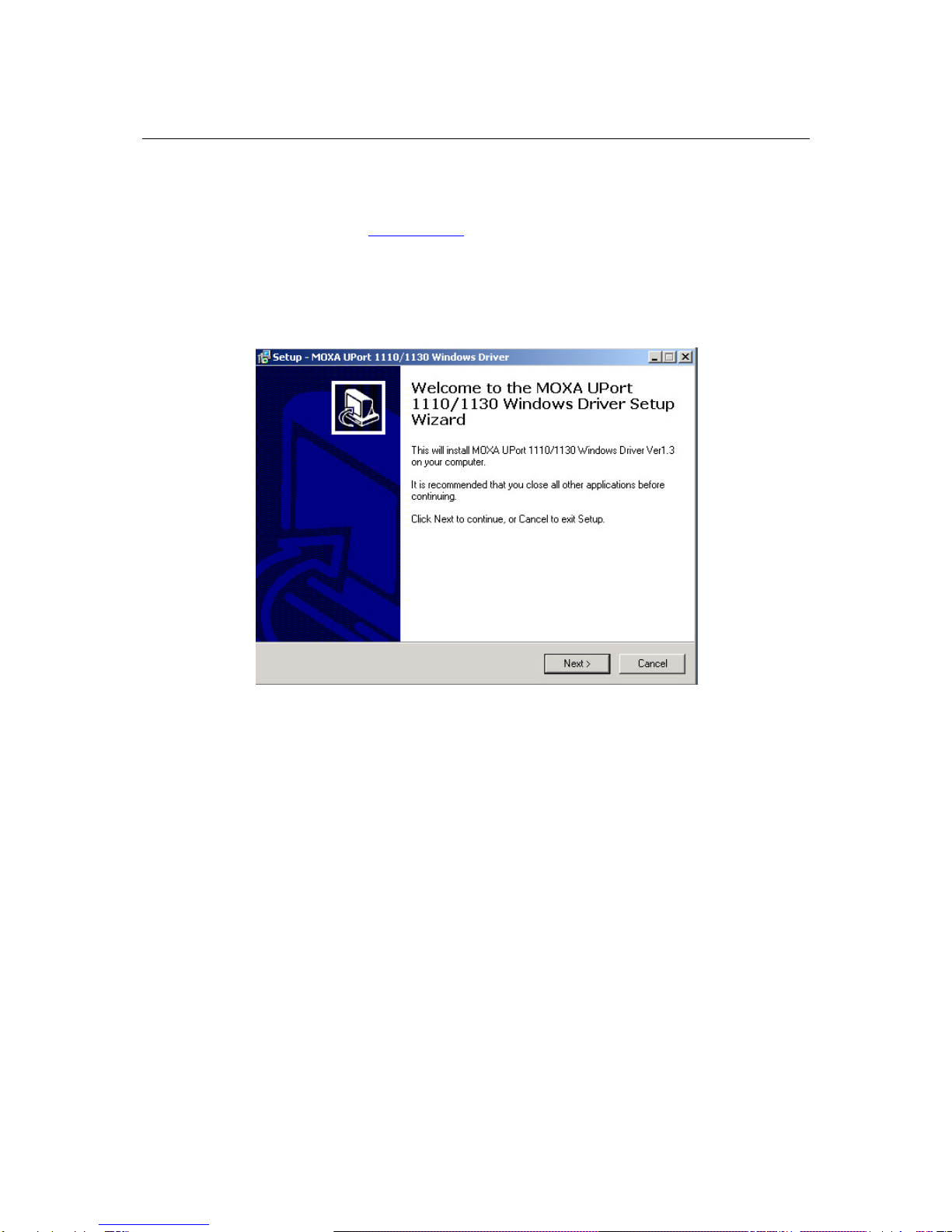
1. The Setup Wizard will open. Click Next to begin installing the driver.

UPort 1110 and 1130 User’s Manual Installation and Configuration
2-3
2. Click Next to install the driver in the indicated folder, or use the drop-down folder list to
locate a different folder.
3. Click Install to proceed with the installation.
Other manuals for UPORT 1110
3
This manual suits for next models
1
Table of contents
Other Moxa Technologies Network Card manuals

Popular Network Card manuals by other brands



Buffalo
Buffalo AirStation WLI-PCM-L11GP user manual

National Instruments
National Instruments NI 9234 operating instructions

Hama
Hama 49276 Operating instruction

Linksys
Linksys WCF54G - Wireless-G Compact Flash Card Product data

Compaq
Compaq Wireless LAN 100 specification

Bose
Bose PowerMatch Dante quick start guide