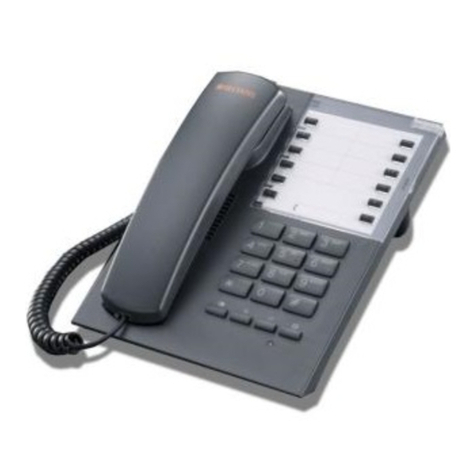
Mitel MiVoice 6940 User manual

© Copyright 2019, Mitel Networks Corporation. All Rights Reserved.
The trademarks, service marks, logos and graphics (collectively "Trademarks") appearing on Mitel's Internet sites or in its publications are registered and unregistered trademarks of Mitel Networks Corporation (MNC) or its subsidiaries (collectively "Mitel") or others.
Use of the Trademarks is prohibited without the express consent from Mitel. Please contact our legal department at [email protected] for additional information. For a list of the worldwide Mitel Networks Corporation registered trademarks, please refer to the website:
http://www.mitel.com/trademarks.
Mitel’s Power Over Ethernet (PoE) Powered Device (PD) products are covered by one or more of the U.S. patents (and any foreign patent counterparts thereto) identified at Mitel’s website: www.mitel.com/patents. For more information on the PD patents that are licensed,
please refer to www.cmspatents.com.
QUICK REFERENCE GUIDE
Quick Reference Guide
MiGuest Station
Getting Started
After the MiGuest application is successfully installed, the following screen is displayed
on the 6940 MiNet phone.
When the phone is in the idle state or a call is on hold, pressing the Guest Services
softkey displays the Client Suite screen.
MiGuest displays automatic screen pop-ups on incoming calls. The following figure
shows the core sections of the MiGuest application main screen displaying the guest
details when there is an incoming call and before the call is connected.
The following figure shows the core sections of the MiGuest application main screen
displaying guest details when a call is connected.

© Copyright 2019, Mitel Networks Corporation. All Rights Reserved.
The trademarks, service marks, logos and graphics (collectively "Trademarks") appearing on Mitel's Internet sites or in its publications are registered and unregistered trademarks of Mitel Networks Corporation (MNC) or its subsidiaries (collectively "Mitel") or others.
Use of the Trademarks is prohibited without the express consent from Mitel. Please contact our legal department at [email protected] for additional information. For a list of the worldwide Mitel Networks Corporation registered trademarks, please refer to the website:
http://www.mitel.com/trademarks.
Mitel’s Power Over Ethernet (PoE) Powered Device (PD) products are covered by one or more of the U.S. patents (and any foreign patent counterparts thereto) identified at Mitel’s website: www.mitel.com/patents. For more information on the PD patents that are licensed,
please refer to www.cmspatents.com.
QUICK REFERENCE GUIDE
Quick Reference Guide
The following figure shows the core sections of the MiGuest application main screen
displaying guest details when a guest has open tickets to be addressed.
Note: Viewing tickets on MiGuest stations is only available if your hotel uses a HOTSOS ticketing system,
and it is interfaced with MiGuest.
M695 Programmable Key Module
The 6940 IP phone has an expansion module that attach to the right side of the phone to
provide answer points for the MiGuest station.
Call Handling
Answering a Call
You can answer a call from any of the MiGuest stations by lifting the handset, or by
pressing the PKM key that indicates the incoming call by flashing LED light.
Ending a Call
You can end a call by:
1. Placing the handset back in its cradle.
2. Pressing the Drop or End Call softkey.
3. Pressing the Good Bye key.
Making an Outgoing Call to a Guest Room
Making an outgoing call to a Guest Room when there is no other incoming call
and the operator is not on a call
1. Pick up the handset, or press the speaker key , and start dialing the desired
Guest Room extension.
Or
2. Simply start entering the guest room extension number right away.
Note: The phone display shows the Guest Room you are calling. Once connected, the display will continue
to show this information. You may press the Guest Services softkey to view more detailed information about
the guest room, if desired.
Making an outgoing call while there are other incoming calls from Guest Rooms
An unanswered incoming call from a guest room will display detailed information about
the room. If you need to make an outgoing call while this event is occurring, do the
following:
1. Press the Close softkey.
2. Press the sets My Phone softkey and proceed with making the outgoing call as
normal.

© Copyright 2019, Mitel Networks Corporation. All Rights Reserved.
The trademarks, service marks, logos and graphics (collectively "Trademarks") appearing on Mitel's Internet sites or in its publications are registered and unregistered trademarks of Mitel Networks Corporation (MNC) or its subsidiaries (collectively "Mitel") or others.
Use of the Trademarks is prohibited without the express consent from Mitel. Please contact our legal department at [email protected] for additional information. For a list of the worldwide Mitel Networks Corporation registered trademarks, please refer to the website:
http://www.mitel.com/trademarks.
Mitel’s Power Over Ethernet (PoE) Powered Device (PD) products are covered by one or more of the U.S. patents (and any foreign patent counterparts thereto) identified at Mitel’s website: www.mitel.com/patents. For more information on the PD patents that are licensed,
please refer to www.cmspatents.com.
QUICK REFERENCE GUIDE
Quick Reference Guide
Transferring a Call
To transfer an answered incoming call from a guest room:
1. Press the Close softkey.
The guest room information page is dismissed.
1. Press the Transfer softkey.
The active call is placed on hold.
2. Dial the extension number to which you want to transfer the call.
3. To transfer the call without announcement, return the handset to its cradle, or press
the Transfer softkey to complete the transfer.
Or
4. To announce the transfer, wait for the called party to answer. Then return the handset
to its cradle or press the Transfer softkey to complete the transfer.
Putting a Call on Hold
To place a caller on hold:
1. Press the Hold hard key on the phone.
2. If you want to put a caller on hold to answer the next incoming call, press the PKM
button that displays the incoming call. This puts the other call on hold automatically.
The PKM square image on its display changes from red to flashing gold, with a pause
symbol.
3. To retrieve the call from hold, press the same PKM button again.
Guest Services
Viewing/Setting DND and Calling Restriction
To view the DND/restriction status (while on active call with guest):
1. The Services section displays the current DND and phone restriction of the active
guest room call.
2. To change the DND and Calling Restriction:
a. Tap the Services section of the display.
b. Change the DND or Calling restriction by tapping on that area of the display.
To view the DND/restriction status of a guest room (not on a call with a guest):
1. Press the Guest Services softkey and tap on the Room Search section of the
display.
2. Enter the room number for which you want to view or change DND/Calling Restriction
and press the Search softkey.
3. The Services section displays the current DND and phone restriction of the guest
room.
4. To change the DND and Calling Restriction:
a. Tap the Services section of the display.
b. Change the DND or Calling restriction by tapping on that area of the display.
Setting up Wake Up Calls
To set a wakeup call (while on active call with guest):
1. Tap the Wake Up area on the display.
2. Enter the Wake Up Time and use the NEXT softkey to adjust date if needed.
Note: If the guest wants a second wakeup call, use the Next softkey to advance to the second wake-up
field, and enter the number of minutes (must be greater than 15).
3. Press the Save softkey when done. Press the Back softkey to return to the Guest
Room Info page.
The wakeup call you just set is shown in the Wake Up call area of the display.
To set a wakeup call (not on a call with a guest):
1. Press the Guest Services softkey and tap on the Room Search area of the display.
2. Enter the room number for which you want to set the wakeup call and press the
Search softkey.
3. Tap the Wake Up area on the display.
4. Enter the Wake Up Time and use the NEXT softkey to adjust date if needed.
Note: If the guest wants a second wake up call, enter the number of minutes (must be greater than 15
minutes).
5. Press the Save softkey when done. Press the Back softkey to return to the Guest
Room Info page.
The wakeup call you just set is shown in the Wake Up call section of the display.
Clearing Wake Up Calls
To clear a single wakeup call (while on active call with guest):
1. The Wake Up section on the display lists the wake-ups presently set for the room.
2. Tap the Wake Up area on the display, and clear the wakeup by tapping the red X to
the right of the scheduled wakeup.
To clear a single wakeup call (not on a call with a guest room):
1. Press the Guest Services softkey and tap on the Room Search section of the
display.

© Copyright 2019, Mitel Networks Corporation. All Rights Reserved.
The trademarks, service marks, logos and graphics (collectively "Trademarks") appearing on Mitel's Internet sites or in its publications are registered and unregistered trademarks of Mitel Networks Corporation (MNC) or its subsidiaries (collectively "Mitel") or others.
Use of the Trademarks is prohibited without the express consent from Mitel. Please contact our legal department at [email protected] for additional information. For a list of the worldwide Mitel Networks Corporation registered trademarks, please refer to the website:
http://www.mitel.com/trademarks.
Mitel’s Power Over Ethernet (PoE) Powered Device (PD) products are covered by one or more of the U.S. patents (and any foreign patent counterparts thereto) identified at Mitel’s website: www.mitel.com/patents. For more information on the PD patents that are licensed,
please refer to www.cmspatents.com.
QUICK REFERENCE GUIDE
Quick Reference Guide
2. Enter the room number for which you want to clear the wakeup call and press the
Search softkey.
3. The Wake Up section on the display lists wake-ups presently set for the room.
4. Tap the Wake Up section on the display, and clear the wakeup by tapping the red X to
the right of the scheduled wakeup.
Note: If there is more than one wakeup call set, and you wish to clear them all, press the Clear All softkey.
This function requires confirmation.
Viewing Guest Room’s Wake Up Call History
To view the wakeup history report for an individual room:
1. Press the Guest Services softkey and tap on the Room Search area of the display.
2. Enter the room number for which you want to view the wakeup call history and press
the Search softkey.
3. Press the Reports softkey.
4. Tap Wake-up History Report (Past 5 Days) on the display.
Note: If you are on an active call with a guest, you can press the Reports softkey, then tap the Wake-up
History Report.
Viewing Pending Wake Up Calls for All Rooms
1. Press the Guest Services softkey on the main display of the phone and go to the
Client Suite page.
2. Tap the Pending Wake-up(s) item.
The main display of the phone shows a list of all pending wake-up calls for all the
guests grouped by their room number.
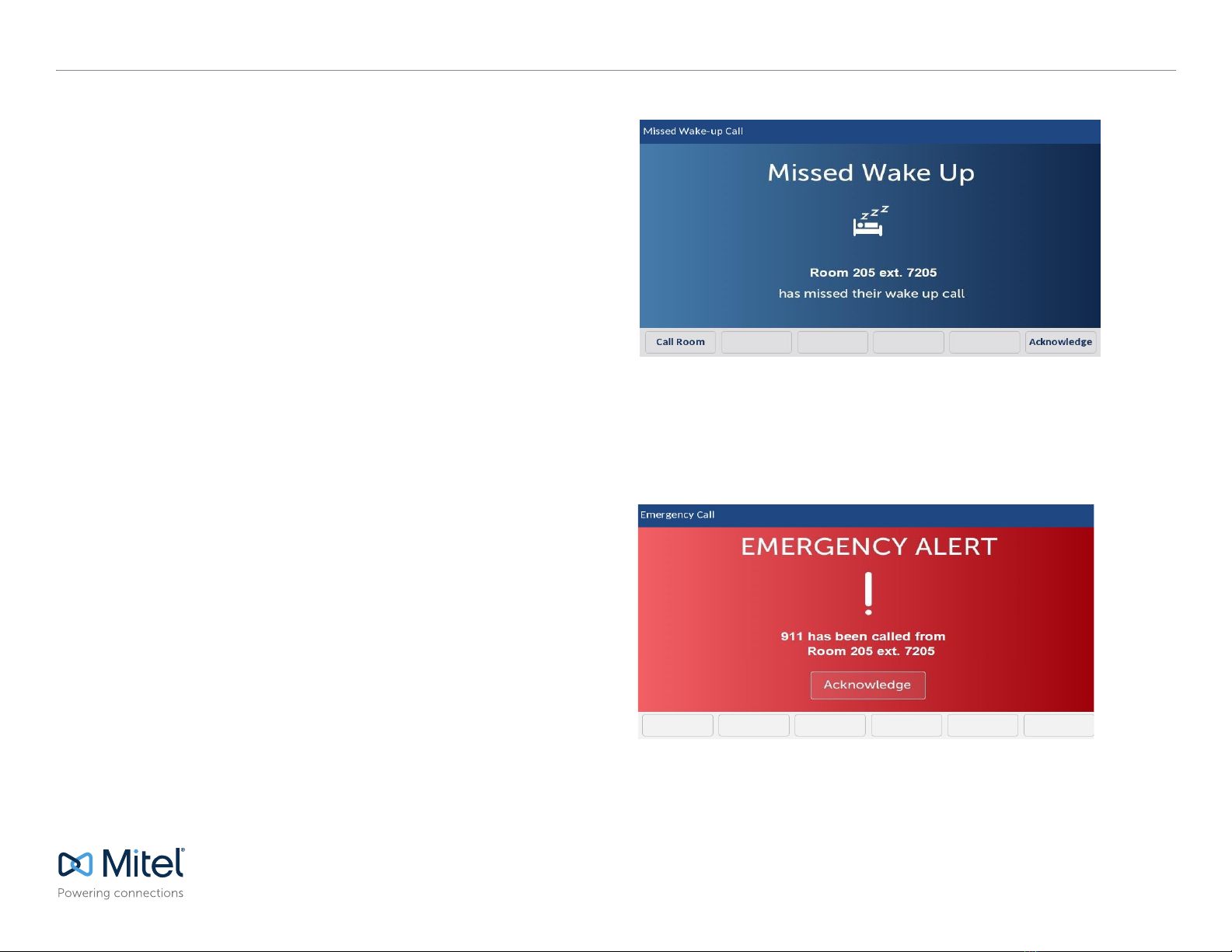
Acknowledging Missed Wake Up Call Notification
1. If a guest has requested a wake-up call and the wake-up call is not answered, all the
MiGuest stations receive a missed wake-up call notification.
You can either acknowledge the notification or press the Call Room soft key. If you press
the Call Room soft key, the application makes a call to the guest on an idle line and the
notification is cleared from the phone display.
Acknowledging Emergency Call Notification
1. If a guest dials the emergency number (for example, 911 for USA) from the guest’s
room, an emergency alert appears on all the main displays.
You can acknowledge the warning by pressing Acknowledge on the notification
screen.
The MiGuest application logs the operator's number and the time of acknowledgment in
the system. The alert is cleared from all the main displays and the displays get back to

Quick Reference Guide
© Copyright 2019, Mitel Networks Corporation. All Rights Reserved.
The trademarks, service marks, logos and graphics (collectively "Trademarks") appearing on Mitel's Internet sites or in its publications are registered and unregistered trademarks of Mitel Networks Corporation (MNC) or its subsidiaries (collectively "Mitel") or others.
Use of the Trademarks is prohibited without the express consent from Mitel. Please contact our legal department at [email protected] for additional information. For a list of the worldwide Mitel Networks Corporation registered trademarks, please refer to the website:
http://www.mitel.com/trademarks.
Mitel’s Power Over Ethernet (PoE) Powered Device (PD) products are covered by one or more of the U.S. patents (and any foreign patent counterparts thereto) identified at Mitel’s website: www.mitel.com/patents. For more information on the PD patents that are licensed,
please refer to www.cmspatents.com.
their previous state (screen).
Looking up a Guest Room in Idle State
1. Press the Guest Services softkey on the main display of the phone and go to the
Client Suite page.
2. Select the Room Search item by tapping on it and enter the guest room number on
the next screen and then press Search.
The MiGuest application main screen opens, displaying data for the guest residing in
the looked-up room.
Note: While looking up a guest room in idle state, you can perform all the tasks described in the previous
section. For example, view, set, or clear a wakeup call, view or set DND, and so on.
Looking up Guest Data on a Call
1. Place the current call on hold by pressing the PKM button associated with the
connected call.
The PKM line starts flashing slowly for that line.
2. Press the Close softkey, then press the Guest Services softkey.
3. Select the Room Search item by tapping on it and enter the guest room number on
the next screen, and then press Search.
The MiGuest application screen opens, displaying data populated for the guest
residing in the looked up room.
4. After completing the looked-up guest room operations, press the associated PKM
button with the slow flashing LED to return to the on-hold caller.
Viewing Tickets
Note: Viewing tickets on MiGuest stations is only available if your hotel uses a HOTSOS ticketing system,
and it is interfaced with MiGuest.
To view the open guest tickets:
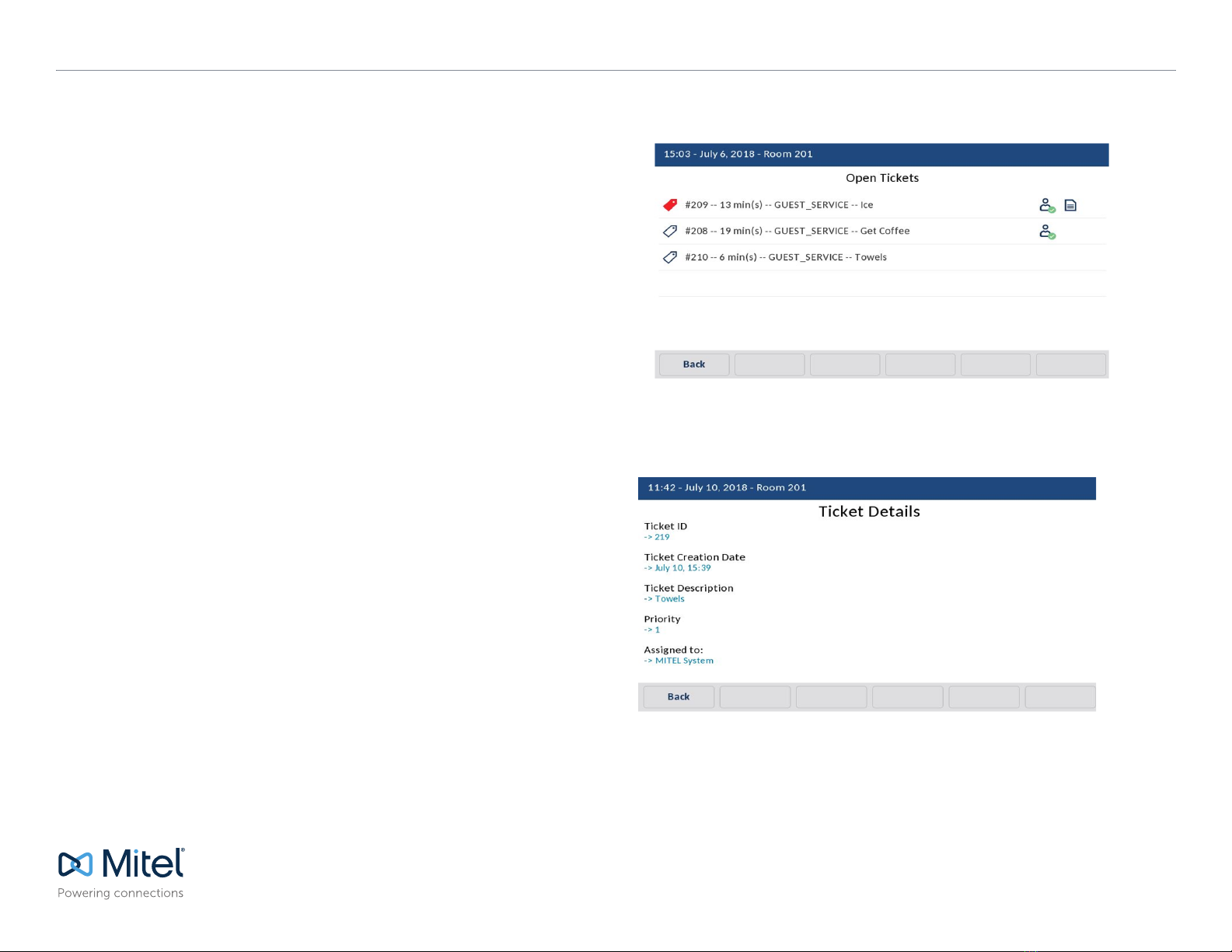
1. Tap Tickets to display the Open Tickets screen where more details about the tickets
are shown, including:
Ticket Priority Tag (High/Low)
Ticket Age in Minutes, Ticket Category Type, Ticket Name
Icon indicating that a ticket is assigned to someone
Icon indicating that a note is available for a ticket
2. Tap on a specific ticket item to view more details about that ticket, including:
Ticket ID, Ticket Creation Date, Ticket Description, Ticket Priority Number, Ticket
Assigned To, Ticket Category, Ticket Type ID, Ticket State, and Ticket Note.
3. If you complete or close all the tickets of a guest in HOTSOS, MiGuest screen does
not show the section for tickets.

© Copyright 2019, Mitel Networks Corporation. All Rights Reserved.
The trademarks, service marks, logos and graphics (collectively "Trademarks") appearing on Mitel's Internet sites or in its publications are registered and unregistered trademarks of Mitel Networks Corporation (MNC) or its subsidiaries (collectively "Mitel") or others.
Use of the Trademarks is prohibited without the express consent from Mitel. Please contact our legal department at [email protected] for additional information. For a list of the worldwide Mitel Networks Corporation registered trademarks, please refer to the website:
http://www.mitel.com/trademarks.
Mitel’s Power Over Ethernet (PoE) Powered Device (PD) products are covered by one or more of the U.S. patents (and any foreign patent counterparts thereto) identified at Mitel’s website: www.mitel.com/patents. For more information on the PD patents that are licensed,
please refer to www.cmspatents.com.
QUICK REFERENCE GUIDE
Quick Reference Guide
Troubleshooting
Incoming calls from guest rooms are no longer displaying detailed room infor-
mation screen pops on a MiGuest Station
It is possible that while browsing the MiGuest's application screens in idle mode (not on
an active call with a guest), the Good Bye key was pressed to exit these
screens. Doing this will cause subsequent guest calls to not display the detailed room
information. To correct this, simply press the Guest Services softkey again. This should
return MiGuest Station to display the detailed room information on incoming guest room
calls once again.
Note: In idle mode, do not close the application by pressing the Good Bye key. Always use the
Close softkey when returning the phone to its home page.
Other manuals for MiVoice 6940
18
Table of contents
Other Mitel Telephone manuals

Mitel
Mitel 6873i User manual

Mitel
Mitel Deskphone 6869 User manual

Mitel
Mitel MiVOICE 6920 User manual

Mitel
Mitel M7208N User manual

Mitel
Mitel 200 User manual

Mitel
Mitel 6390 User manual

Mitel
Mitel M7310 User manual

Mitel
Mitel 6300 Series Operator's manual

Mitel
Mitel Inter-Tel Axxess Service manual

Mitel
Mitel 3000 User manual

Mitel
Mitel MIVOICE 8528 User manual

Mitel
Mitel 3300 IP 5312 IP User manual

Mitel
Mitel 6940 SIP User manual

Mitel
Mitel 6735i User manual

Mitel
Mitel 7000 User manual

Mitel
Mitel NETLINK e340 User manual

Mitel
Mitel MiVoice 6900 Series User manual

Mitel
Mitel 5324 User manual

Mitel
Mitel Navigator 3300 ICP User manual

Mitel
Mitel Superset 4125 User manual