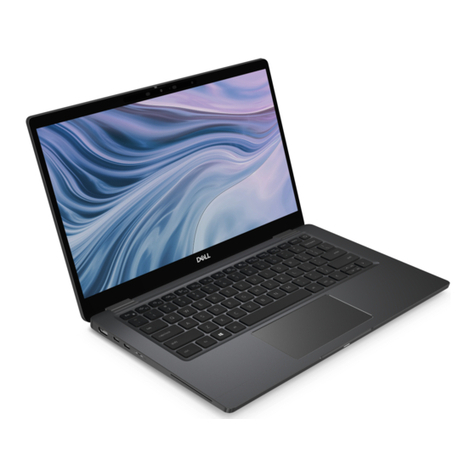
MiTAC MiStation EC-900 User manual


Revision: R00
(September 2008)
NOTE
The information in this manual is subject to change without notice.

i
Table of Contents
Table of Contents........................................................................i
Preface v
Safety Precautions ....................................................................v
About the Battery .................................................................v
About the AC Adapter ........................................................vi
Notational Conventions......................................................... vii
Chapter 1 .............................................................................1-1
Getting Started........................................................................1-1
Getting the Computer Running ............................................ 1-2
Unpacking ........................................................................ 1-2
Connecting to AC Power ................................................. 1-2
Opening the Cover ........................................................... 1-3
Turning On and Off the Computer................................... 1-4
Taking a Look at the Computer............................................ 1-6
Right-Side Components ................................................... 1-6
Left-Side Components ..................................................... 1-7
Bottom Components......................................................... 1-8
Top-open Components ..................................................... 1-9
Where to Go from Here...................................................... 1-11
Chapter 2 .............................................................................2-1
Operating Your Computer......................................................2-1
Starting and Stopping the Computer .................................... 2-2
Starting the Computer ...................................................... 2-2
Stopping the Computer .................................................... 2-2

ii
Using the Keyboard.............................................................. 2-4
Hot Keys .......................................................................... 2-5
Using the Touchpad ............................................................. 2-7
Configuring the Touchpad ............................................... 2-8
Using the Video Features ..................................................... 2-9
Configuring the Display Modes ....................................... 2-9
Using the Audio Features................................................... 2-10
Connecting Audio Devices ............................................ 2-10
Using the Communication Features ................................... 2-12
Using the LAN ............................................................... 2-12
Using the WLAN ........................................................... 2-12
Chapter 3 .............................................................................3-1
Managing Power......................................................................3-1
AC Adapter .......................................................................... 3-2
Battery Pack ......................................................................... 3-3
Charging the Battery Pack ............................................... 3-3
Initializing the Battery Pack............................................. 3-3
Checking the Battery Level.............................................. 3-4
Replacing the Battery Pack .............................................. 3-4
Battery Low Signals and Actions..................................... 3-5
Power Management.............................................................. 3-7
Hibernation....................................................................... 3-8
Power-Saving Tips ............................................................... 3-9
Chapter 4 .............................................................................4-1
Expanding Your Computer.....................................................4-1
Connecting an External Monitor .......................................... 4-2
Connecting a USB Device.................................................... 4-3
Using the Card Reader ......................................................... 4-4
Internal Components Upgrade.............................................. 4-5

iii
Chapter 5 .............................................................................5-1
Using BIOS Setup ...................................................................5-1
When and How to Use BIOS Setup ..................................... 5-2
When to Use..................................................................... 5-2
Starting BIOS Setup......................................................... 5-2
Moving Around and Making Selections .......................... 5-4
Main Menu ........................................................................... 5-5
Advanced Menu ................................................................... 5-6
Boot Menu............................................................................ 5-8
Security Menu ...................................................................... 5-9
Exit Menu........................................................................... 5-11
Chapter 6 .............................................................................6-1
Using the Software Drivers ....................................................6-1
How to Use the Driver Disc ................................................. 6-2
Chapter 7 .............................................................................7-1
Caring for the Computer.........................................................7-1
Protecting the Computer....................................................... 7-2
Using the Windows Security Center ................................ 7-2
Using the Password .......................................................... 7-3
Using the Cable Lock....................................................... 7-3
Taking Care of the Computer............................................... 7-4
Location Guidelines ......................................................... 7-4
General Guidelines........................................................... 7-4
Cleaning Guidelines ......................................................... 7-5
Battery Pack Guidelines................................................... 7-5
When Traveling.................................................................... 7-6
Chapter 8 .............................................................................8-1
Troubleshooting......................................................................8-1
Preliminary Checklist........................................................... 8-2
Solving Common Problems.................................................. 8-3

iv
Battery Problems.............................................................. 8-3
Display Problems ............................................................. 8-3
Hardware Device Problems.............................................. 8-4
Hard Disk Drive Problems ............................................... 8-5
Keyboard, Mouse and Touchpad Problems ..................... 8-5
LAN Problems ................................................................. 8-6
WLAN Problems.............................................................. 8-6
Power Management Problems.......................................... 8-7
Software Problems ........................................................... 8-8
Sound Problems ............................................................... 8-8
Startup Problems .............................................................. 8-9
Other Problems................................................................. 8-9
Resetting the Computer...................................................... 8-10
Recovering Pre-installed Software..................................... 8-11
Specifications.........................................................................A-1
Regulatory Information..........................................................B-1
Class B Regulations .............................................................B-2
USA..................................................................................B-2
Canada..............................................................................B-3
Europe ..............................................................................B-3
Index 1

v
Preface
Safety Precautions
About the Battery
DANISH
ADVARSEL! Lithiumbatteri – Eksplosionsfare ved fejlagtig håndtering. Udskiftning må kun ske
med batteri af samme fabrikat og type. Levér det brugte batteri tilbage til leverandøren.
NORWEGIAN
ADVARSEL: Eksplosjonsfare ved feilaktig skifte av batteri. Benytt samme batteritype eller en
tilsvarende type anbefalt av apparatfabrikanten. Brukte batterier kasseres i henhold til
fabrikantens instruksjoner.
SWEDISH
VARNING: Explosionsfara vid felaktigt batteribyte. Använd samma batterityp eller en
ekvivalent typ som rekommenderas av apparattillverkaren. Kassera använt batteri enligt
fabrikantens instruktion.
FINNISH
VAROITUS: Paristo voi räjähtää, jos se on virheellisesti asennettu. Vaihda paristo ainoastaan
valmistajan suosittelemaan tyyppiin. Hävitä käytetty paristo valmistajan ohjeiden mukaisesti.
ENGLISH
CAUTION: Danger of explosion if battery is incorrectly replaced. Replace only with the same or
equivalent type recommended by the equipment manufacturer. Discard used batteries according
to manufacturer's instructions.
DEUTSCH
VORSICHT: Explosionsgefahr bei unsachgemäßem Austausch der Batterie. Ersatz nur durch
denselben oder einen vom Hersteller empfohlenen gleich-wertigen Typ. Entsorgung gebrauchter
Batterien nach Angaben des Herstellers.

vi
FRENCH
ATTENTION: II y a danger d’explosion s’il y a remplacement incorrect de la batterie. Remplacer
uniquement avec une batterie du même type ou d’un type équivalent recommandé par le
constructeur. Mettre au rebut les batteries usagées conformément aux instructions du fabricant.
Attention (for USA Users)
The product that you have purchased contains a rechargeable battery. The
battery is recyclable. At the end of its useful life, under various state and local
laws, it may be illegal to dispose of this battery into the municipal waste stream.
Check with your local solid waste officials for details in your area for recycling
options or proper disposal.
About the AC Adapter
Use only the AC adapter supplied with your computer. Use of another type
of AC adapter will result in malfunction and/or danger.
Do not use the adapter in a high moisture environment. Never touch the
adapter when your hands or feet are wet.
Allow adequate ventilation around the adapter when using it to operate the
device or charge the battery. Do not cover the AC adapter with paper or
other objects that will reduce cooling. Do not use the AC adapter while it is
inside a carrying case.
Connect the adapter to a proper power source. The voltage requirements are
found on the product case and/or packaging.
Do not use the adapter if the cord becomes damaged.
Do not attempt to service the unit. There are no serviceable parts inside.
Replace the unit if it is damaged or exposed to excess moisture.

vii
Notational Conventions
Throughout this manual, the following conventions are used to distinguish
elements of text.
NOTE: identifies additional information that requires special attention.
CAUTION: identifies important information that, if not followed, may result in loss of data or
damage to the computer.
Keyboard keys are shown in a bold typeset. For example:
Press the Enter key to complete.
When keys are joined by a plus sign (+), press the first key, and, while keeping
the first key down, press the remaining keys, finally release all the keys. When
necessary, keys are also shown in graphics.
A title, command, setup item, or button that you can see on the screen is shown
in boldface. A value or an option that you can select for a setup item is shown in
italic. For example:
Select When I press the power button, set it to Shut down, and
then click the Save changes button.

Getting Started 1-1
Chapter 1
Getting Started
Congratulations on purchasing this computer.
Your computer incorporates desktop computer capabilities into a compact
notebook-sized package. It can greatly enhance your productivity either in the
office or at home. And, of course, wherever you need it, the computer is ready
and easy “to go.”
This chapter first tells you step by step how to get the computer up and running.
You will find instructions for these procedures:
Unpacking
Connecting to AC power
Opening the cover
Turning on the computer
Turning off the computer
Then, you will find a section briefly introducing the external components of the
computer. And the last section navigates you to the information you may need
after the computer is ready for use.
CHAPTER
Table of contents
Other MiTAC Laptop manuals