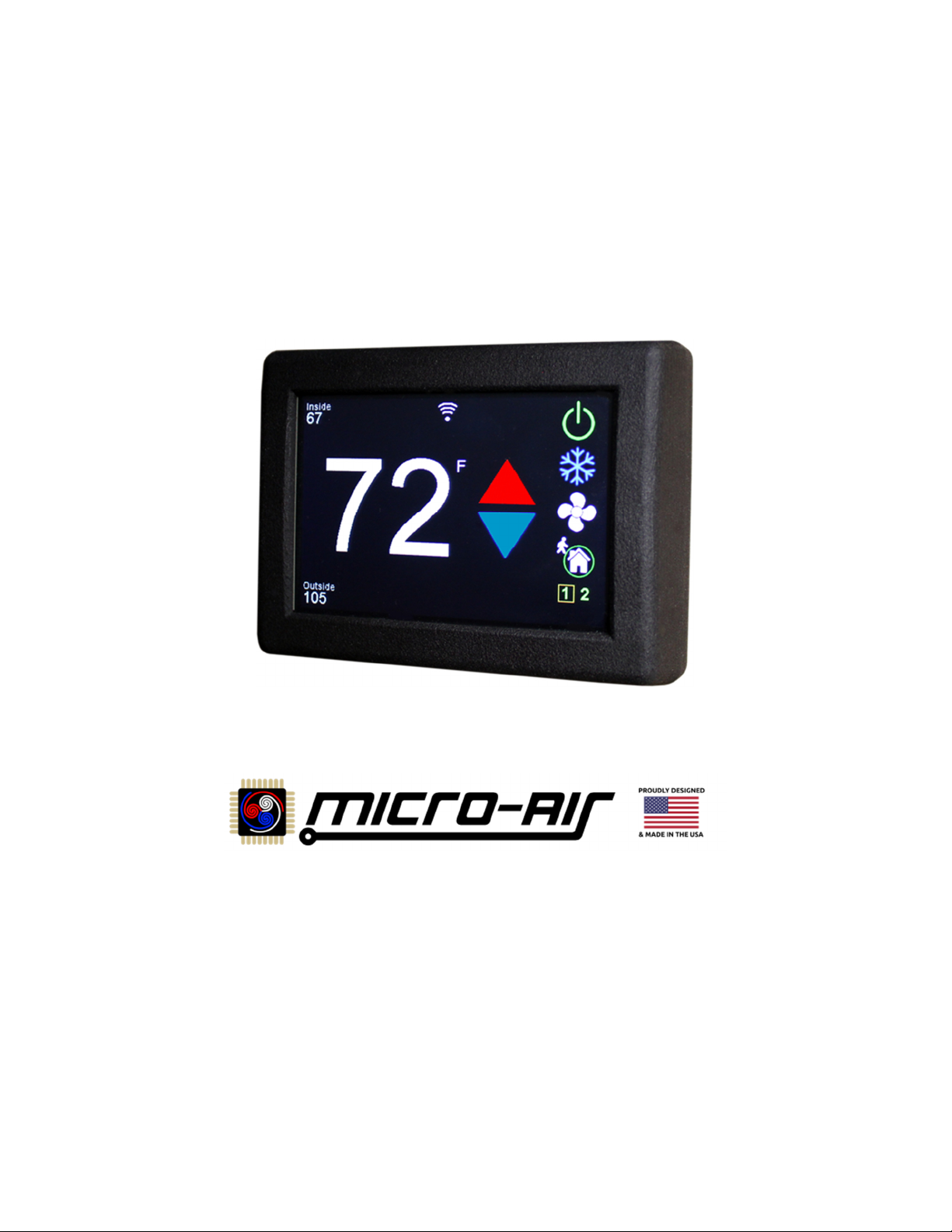
MICRO-AIR EasyTouch ASY-352 User manual

EasyTouch RV Thermostat
Installation, Quick Start Guide and Operation Manual

2
©2 2 Micro-Air, Inc. May 1, 2 2 Revision 1. 4
Contents
Important Safety Information ....................................................................................................................... 3
Installation .................................................................................................................................................... 4
Single Zone DC (ASY-352) .......................................................................................................................... 4
Multi-Zone OEM (ASY-35 ) ....................................................................................................................... 5
Single-Zone OEM (ASY-351) ...................................................................................................................... 5
Quick Start Guide .......................................................................................................................................... 6
Setting temperature, source, fan speed, Home or Away and Fahrenheit/Celsius ................................... 6
Setting the Clock and Away Scheduler ..................................................................................................... 6
Setting Up Bluetooth for Your Thermostat ............................................................................................... 6
Setting Up the WIFI App for Your Thermostat .......................................................................................... 6
Operation ...................................................................................................................................................... 7
Image Icons ............................................................................................................................................... 7
Basic operations ........................................................................................................................................ 7
Adjusting the brightness ....................................................................................................................... 7
Using the schedule ................................................................................................................................ 7
Connecting to the internet ....................................................................................................................... 8
Smart device applications ............................................................................................................................. 8
Downloading the apps .............................................................................................................................. 8
Connecting with Bluetooth ....................................................................................................................... 8
Accessing the thermostat ..................................................................................................................... 8
Resetting the Bluetooth password ....................................................................................................... 8
Connecting to WIFI.................................................................................................................................... 9
Create an account ................................................................................................................................. 9
Adding devices ...................................................................................................................................... 9
Appendix I: Image reference ....................................................................................................................... 1
System Off ............................................................................................................................................... 1
System On ............................................................................................................................................... 1
Settings.................................................................................................................................................... 11
Warranty ..................................................................................................................................................... 12
Copyright ©2 2 Micro-Air Inc. ................................................................................................................. 12

3
©2 2 Micro-Air, Inc. May 1, 2 2 Revision 1. 4
Important Safety Information
1. CAUTION: Voltages inside air conditioning equipment are potentially lethal.
Turn off all power to the equipment before installing or servicing the
thermostat.
2. RV systems can have multiple power sources that all must be disabled or turned off before
installation. Power sources can include AC line or shore power, generators, inverters, batteries,
vehicle connections, and solar energy. Be sure to inhibit or disconnect all sources before
installation. Contact your RV manufacturer if you are not sure how to disable these systems.
3. Do not reconnect or reapply power sources until the installation is completed.
4. Read and retain instructions: Read all the safety and operating instructions associated with your
equipment before installing and operating this device. Retain this documentation for future
reference.
5. Heed warnings: Adhere to all warnings and precautions listed in the operating instructions.
6. Manufacturer cautions: These precautions do not replace manufacturer cautions given by the
original equipment manufacturer. Read and follow all manufacturer guidelines related to the
connected equipment.
7. Follow instructions: Follow all operating instructions.
8. Water: Do not expose this device to any dripping or splashing water. Do not expose to
condensing humidity.
9. Cleaning: Wipe the surfaces with a soft cloth only to prevent scratches. Do not use solvents as
they may damage the device.
1 . CAUTION: Voltages inside the connected device are potentially lethal. Turn off all power to the
device before installing or servicing the equipment.
11. Ventilation: Install the device where adequate ventilation can be achieved.
12. Heat: keep device away from heat sources that can adversely affect its operation.
13. Grounding: Follow all applicable local guidelines for electrical safety regarding grounds.
14. Moisture: Never operate or store this thermostat in a wet or condensing environment.
15. Servicing: The user should not attempt to service this device beyond what is described in this
manual. All other servicing should be referred to the factory or a qualified service person.
16. Eye wear: Always wear eye protection when drilling holes for installation.

4
©2 2 Micro-Air, Inc. May 1, 2 2 Revision 1. 4
Installation
Single Zone DC (ASY-352)
Includes all Coleman™, Airxcel™, and RV products™ units except ZC and dual stage
1. Push up gently on the bottom of the original thermostat. The thermostat will snap up and then can be
removed from the wall.
2A. Models that have connectors on a short wire harness: Unplug the thermostat and remove it from
the wall.
2B. Models with directly connected wires: Take a picture of the wiring so it can be matched to your new
thermostat. Some installations may be able to move one wire at a time to the new thermostat.
3. Use the mounting template to locate and drill two 3/16” (4.76mm) holes. Insert the wall anchors into
the holes. Place the plastic mounting bracket against the wall with the smaller side closest to the wall.
Screw the wall mounting bracket into the wall anchors using the provided screws. Remove the center
plastic spacer after the screws are tight.
4A. Models with connectors on a short harness can plug EasyTouch RV into the harness.
4B. Models with directly connected wires should connect the wires using the wiring order from the
original thermostat. Match the wire label to the same label on the EasyTouch RV thermostat.
5. Insert the thermostat mounting pins into the back of the thermostat in the provided holes while
pressing it against the wall. Press down gently with the thermostat flush against the wall to lock down
the thermostat.

5
©2 2 Micro-Air, Inc. May 1, 2 2 Revision 1. 4
Multi-Zone O M (ASY-350)
Includes Dometic™ Multi-zone CCC2 systems only
1. Press up on the tab located on the bottom of the original Dometic™ thermostat with a small
screw driver and tilt the base of the display toward you to remove the thermostat faceplate.
2. Remove the four mounting screws from the thermostat.
3. Unplug the original thermostat from the cable. Press the small tab toward the cable and gently
pull out the connector.
4. Use the mounting template to locate and drill two 3/16” (4.76mm) holes. Insert the wall anchors
into the holes. Place the plastic mounting bracket against the wall with the smaller side closest
to the wall. Screw the wall mounting bracket into the wall anchors using the provided screws.
Remove the center plastic spacer after the screws are tight.
5. Plug the thermostat cable into the EasyTouch RV thermostat.
6. Insert the thermostat mounting pins into the back of the
thermostat in the provided holes while pressing it against the
wall. Press down gently with the thermostat flush against the
wall to lock down the thermostat.
Single-Zone O M (ASY-351)
Includes Dometic™ ingle zone systems only
1. Press up on the tab located on the bottom of the original Dometic™ thermostat with a small
screw driver and tilt the base of the display toward you to remove the thermostat faceplate.
2. Take a picture of the three wires connected inside the thermostat. Disconnect the three wires.
3. Remove the four mounting screws from the thermostat and completely remove the thermostat.
4. Use the mounting template to locate and drill two 3/16” (4.76mm) holes. Insert the wall anchors
into the holes. Place the plastic mounting bracket against the wall with the smaller side closest
to the wall. Screw the wall mounting bracket into the wall anchors using the provided screws.
Remove the center plastic spacer after the screws are tight.
5. Connect 12V- to GND, COMMS to SIG, and 12V+ to 12V from the previously disconnected wires.
6. Insert the thermostat mounting pins into the back of the thermostat in the provided holes while
pressing it against the wall. Press down gently with the thermostat flush against the wall to lock
down the thermostat.

6
©2 2 Micro-Air, Inc. May 1, 2 2 Revision 1. 4
Quick Start Guide
Setting temperature, source, fan speed, Home or Away and Fahrenheit/Celsius
Power “On”
Adjust temperature using red/blue arrows
Select source (AC only, heat only, AC and heat, fan only)
Select Fan speed, low or high (. . . and medium where available)
Select and set Home or Away. On the Away setting, adjust the inside temperature range
Select Fahrenheit or Celsius by pressing on the numbers in Home mode
Setting the Clock and Away Scheduler
Power off the Thermostat, Press the Clock, Set Time above the red arrow, hours first, minutes
next and AM/PM last
Choose 24- or 12-hour time format
To enable Scheduler for Away, press “dashes” at left or return later to set Scheduler
(note: user must set time before scheduling Away temperatures)
Set Scheduler’s begin time, choose temperature
Set Scheduler’s end time, choose temperature
Repeat Scheduler to set second daily begin/end times and temperatures
Setting Up Bluetooth for Your Thermostat
To use the thermostat’s smartphone/Bluetooth capacity, a user needs to remain within range.
Power on your thermostat and enable “Bluetooth” on your device
Download the EasyTouch RV™ app to your smartphone or other device from proper
store/source
Open the app on your device
Click Connect Bluetooth, then “add device”
Wait short delay for “Device found” to arrive, click “Device”
Enter a password, enter device name, click “OK”, click “Device Name”
Start adjusting your AC via your smartphone/device while staying within Bluetooth range.
Setting Up the WIFI App for Your Thermostat
To use the thermostat’s smartphone/WIFI capacity, the vehicle needs a router
Power off thermostat
Press Settings, then WIFI, then Internet-WPS (requires router)
Press WPS button on your router, then wait for “WIFI Connected!” on display, after a delay a
WIFI icon will appear top middle of your EasyTouch RV touchscreen (must finish in two minutes)
Press Settings icon, then press Connect WIFI and enter SSID and router password of your router.
Thermostat will reset and connect to Internet
For greater detail, see additional information under Image Icons below and our website’s
EasyTouch RV™ product page for a router information resource

7
©2 2 Micro-Air, Inc. May 1, 2 2 Revision 1. 4
Operation
Image Icons
Image icons are displayed on your screen as touch/press areas. A complete list of them is provided in
Appendix I of this document. They are organized to show related icons with functions described in the
text below.
Basic operations
Cool, heat strip, heat pump, and furnace
-
aqua modes are available based on system
configuration. Press the image icon to select a different operating mode.
Automatic modes switch between cooling and the
chosen
heating mode as required
to maintain temperature. These modes are available based on the heating modes
offered by your system.
Fan speed can be selected between low
and high,
medium (if
available), and
automatic. Automatic changes fan speeds as required for improved comfort.
Home, away, and schedule modes provide three different thermostat experiences.
Home mode is the traditional way a thermostat operates, changing at a specific set
point. Away mode provides two set points allowing a wider range of temperatures.
Schedule mode allows changing the temperature up to four times each day.
Adjusting the brightness
The display automatically dims after 25 seconds without a touch. There are two dimming modes
selectable for this feature. Day mode shows the screen but at a dimmer setting. Night mode shows only
a small logo with the rest of the screen black. Brightness adjustment is available for both modes.
Using the schedule
Schedule entries must be created before using the schedule. Press the power icon to turn the
control off then press the schedule icon. Set up to four times and temperature changes in the change
area under the 12/24-hour selection. --:-- indicates not enabled. Press the time or --:-- and a blue box
will appear over the value. Use the up and down arrows to make the adjustment. Press the power icon
The power button icon on the top right of the thermostat turns the system off and on.
Additional settings and scheduled temperature changes are available when the
thermostat is off.

8
©2 2 Micro-Air, Inc. May 1, 2 2 Revision 1. 4
when you are finished editing the times to save and exit the schedule. Press the home or away icon on
the main screen until the schedule icon appears. This activates the schedule. The schedule temperature
can be temporarily overridden by changing the set point. It will change the setpoint back at the next
scheduled change.
Connecting to the internet
Connecting to the internet is done through Bluetooth or WPS. This connection is only needed to
use automatic time setting or connection to the thermostat through the internet.
WPS is a router-based method where you push a button on the router enabling connection to
the thermostat. Turn the thermostat off and press the settings icon. Press the WIFI icon then Internet-
WPS. Press the WPS button on your router. This must be done within two minutes for the process to
work. Once the connection is made, the WIFI symbol will appear in the display showing connection to
the internet.
Press the settings icon once you are connected to the thermostat. Press the Connect WIFI
button and enter the SSID and password of the router you are connecting to. The thermostat will reset
and then connect to the internet. Bluetooth connectivity is explained in a later section.
Smart device applications
Downloading the apps
iPhone™ and Android™ applications are hosted by and available in the App Store and from
Google Play. They can be found by searching those stores for EasyTouch RV™ and making the free
download to your phone.
Connecting with Bluetooth
Bluetooth operation must be enabled on your device (phone/tablet/iPad) for this feature to
work. Start the mobile application on your phone or device and select the Bluetooth icon when the app
starts. Select “Add device” from the menu bar at the top of the screen. If your thermostat is powered
and operating, an entry will appear in the list for “EasyTouch 95551 ” (for example). Select the
thermostat and a new window will open, prompting you for a password and name for this device. The
password can be any combination of letters, numbers or punctuation. There is only one password for a
thermostat so additional users will need to enter the same password to be given access.
Accessing the thermostat
Select your control from the devices list. Thermostat information will be retrieved and returned
to the smart device. Control changes can be made for most functions found on the thermostat.
Resetting the Bluetooth password
If the password is lost you must reset the password on the thermostat. Turn off the thermostat
and press the Settings icon. Press the Bluetooth icon, then press the green check box to reset the
password. Swipe on the name in the devices list on your smart device to remove it, then add the device
again using your new password.

9
©2 2 Micro-Air, Inc. May 1, 2 2 Revision 1. 4
Connecting to WIFI
Create an account
Press the WIFI icon to set up this connection. The first time the app opens you will be prompted
to create an account. Enter the required information to create the account. The app will prompt you to
enter a code from your email to verify the account. Check your email and enter this code to complete
the process.
Adding devices
Press the “Add device” button to add your thermostat
Press the “Power” icon on the thermostat, then the “Settings” icon
Press the WIFI icon, then the account button
Enter the six-digit device access number into the smart device
The thermostat will be added to the app after the short delay required for the connection
process

1
©2 2 Micro-Air, Inc. May 1, 2 2 Revision 1. 4
Appendix I: Image reference
System Off
System On
System off. Press to turn on system.
Zone off. Press to turn on zone
.
Open settings menu.
Open
schedule menu.
Indicates system is active and working in the mode selected.
Cooling only mode. Uses compressor to provide cooling.
Heat pump mode
(1)
. Uses compressor to provide heating.
Heat strip mode
(1)
. Uses heat
strip to provide heating.
Furnace mode
(1)
. Uses furnace to provide heating.
Cool and furnace mode
(1)
. Uses compressor for cooling and furnace for heating.
Cool and heat pump mode
(1)
. Uses compressor for both heating and cooling.
Cool and heat strip mode
(1)
. Uses compressor for cooling and heat strip for heating.
Low fan speed.
High fan speed.
This manual suits for next models
3
Table of contents
Other MICRO-AIR Thermostat manuals

MICRO-AIR
MICRO-AIR EasyTouch 355 User manual

MICRO-AIR
MICRO-AIR EasyTouch 350 User manual

MICRO-AIR
MICRO-AIR EasyTouch 351 User manual

MICRO-AIR
MICRO-AIR EasyTouch RV 356 User manual

MICRO-AIR
MICRO-AIR EasyTouch 354 User manual

MICRO-AIR
MICRO-AIR EasyTouch RV User manual

MICRO-AIR
MICRO-AIR EasyTouch 352 User manual

MICRO-AIR
MICRO-AIR EasyTouch 357 User manual
Popular Thermostat manuals by other brands

Saswell
Saswell SAS920XWHB-7-S-RF User manual and warranty card

Aircalo
Aircalo TFP1-ET85P2 operating manual

Honeywell
Honeywell CM721 user manual

Carrier
Carrier DEBONAIR 33CS Installation and operating instructions

Lennox
Lennox iHarmony Zone Thermostat Installation and setup guide

Gemtech
Gemtech GT7000 Operation