Mi XMMNT27HQ User manual

Mi 2K Gaming Monitor 27” User Manual 1
Руководство пользователя Монитора Mi 2K Gaming Monitor 27" 14
Manual de usuario de Mi 2K Gaming Monitor 27” 27
Посібник користувача Ігрового монітора Mi 2K 27" 40
Manuale utente Mi 2K Gaming Monitor 27'' 53
Manuel d’utilisation de Mi 2K Gaming Monitor 27” 66
Mi 2K-Gaming-Monitor 27'' Benutzerhandbuch 79
Mi 2K 27 inç Oyun Monitörü Kullanım Kılavuzu 92
Monitor dla graczy Mi 2K 27” – instrukcja obsługi 105
Gebruikershandleiding Mi 2K Gaming Monitor 27 inch 118
27palcový herní monitor Mi 2K Uživatelská příručka 131
Panduan Pengguna Monitor Gaming Mi 2K 27” 144
Manual do utilizador do Monitor Gaming Mi 2K 27” 183
ѝҙіѠшѯњѧёєѠзѠлѥҖьўK2iM ѼнѲҖѬяѠѪєҕѬзњѧь72єдѯьҕјѯэѤіўѥ Җ
170
.J,멚핂짛졶삖핆칺푷컲졓컪



1
Contents
2
2
2
3
3
4
5
6
6
7
7
7
8
Product Overview
Monitor Overview
Package Contents
Installation
Installing the Base
Cable Management
Wall Mount Installation
Instructions
Connections
Indicator Status
Menu Description
10
10
12
Precautions
Troubleshooting
Specifications

2
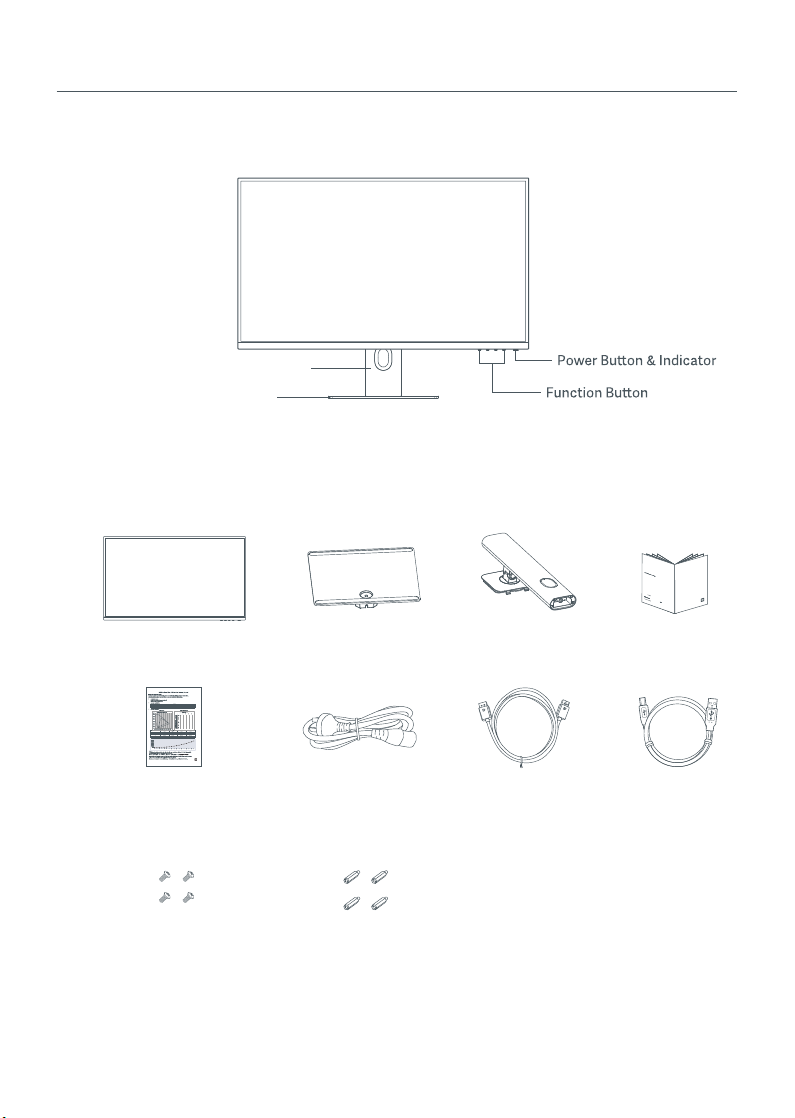
Monitor Overview
Stand
Product Overview Read this manual carefully before use, and
retain it for future reference
Base
Package Contents
User ManualMonitor Base Stand
Calibration Report Power Cord DisplayPort Cable USB Cable
Wall Mount Screws × 4 Hex Studs × 4
Xiaomi Communications Co., Ltd.
Address: #019, 9th Floor, Building 6, 33 Xi'erqi Middle Road, Haidian District, Beijing, China
For further information, please go to www.mi.com
Xiaomi Communications Co., Ltd.
Адрес: #019, 9th Floor, Building 6, 33 Xi'erqi Middle Road, Haidian District, Пекин, Китай, 100085
Чтобы получить дополнительную информацию, посетите сайт www.mi.com
Xiaomi Communications Co., Ltd.
Dirección: #019, 9th Floor, Building 6, 33 Xi'erqi Middle Road, Haidian District, Beijing, China, 100085
Para obtener más información, visite www.mi.com
Xiaomi Communications Co., Ltd.
Адреса:#019,9thFloor,Building6,33Xi'erqi Middle Road, Haidian District, Пекін, Китай, 100085
Щобдізнатисябільше,відвідайтесайтwww.mi.com
Fabbricato per: Xiaomi Communications Co., Ltd.
Indirizzo:#019,9thFloor,Building6, 33Xi'erqiMiddle Road,Haidian District, Pechino, Cina, 100085
Perulterioriinformazioni,visitareilsitowww.mi.com
XiaomiCommunicationsCo.,Ltd.
Address: #019,9thFloor,Building6,33Xi'erqi MiddleRoad, Haidian District,Beiji ng,Chine,100085
Xiaomi Communications Co., Ltd.
Adresse: #019, 9th Floor, Building 6, 33 Xi'erqi Middle Road, Haidian District, Beijing, China, 100085
Weitere Informationen finden Sie auf www.mi.com
Xiaomi Communications Co., Ltd.
Adres: #019, 9th Floor, Building 6, 33 Xi'erqi Middle Road, Haidian District, Pekin, Çin, 100085
Daha fazla bilgi için lütfen www.mi.com'u ziyaret edin
Xiaomi Communications Co., Ltd.
Adres: #019, 9th Floor, Building 6, 33 Xi'erqi Middle Road, Haidian District, Pekin, Chiny, 100085
Więcej informacji: www.mi.com
Xiaomi Communications Co., Ltd.
Adres: #019, 9th Floor, Building 6, 33 Xi'erqi Middle Road, Haidian District, Beijing, China, 100085
Ga voor meer informatie naar www.mi.com
Xiaomi Communications Co., Ltd.
Adresa: #019, 9th Floor, Building 6, 33 Xi'erqi Middle Road, Haidian District, Beijing, China
Další informace naleznete na webových stránkách www.mi.com
Xiaomi Communications Co., Ltd.
Alamat: #019, 9th Floor, Building 6, 33 Xi'erqi Middle Road, Haidian District, Beijing, Tiongkok
Untuk informasi selengkapnya, kunjungi www.mi.com
Xiaomi Communications Co., Ltd.
주소: #019, 9th Floor, Building 6, 33 Xi'erqi Middle Road, Haidian District, Beijing, China
제품관련정보는 를방문해주시기바랍니다.
Xiaomi Communications Co., Ltd.
: #019, 9th Floor, Building 6, 33 Xi'erqi Middle Road, Haidian District Beijing
www.mi.com
Morada: #019, 9th Floor, Building 6, 33 Xi'erqi Middle Road, Haidian District, Pequim, China, 100085
Para mais informações, consulte o site www.mi.com
Mi 2K Gaming Monitor 27” User Manual 1
РуководствопользователяМонитора Mi 2K Gaming Monitor 27" 14
Manual de usuario de Mi 2K Gaming Monitor 27” 27
ПосібниккористувачаІгрового монітора Mi 2K 27" 40
ManualeutenteMi 2K Gaming Monitor 27'' 53
Manueld’utilisationde Mi 2K Gaming Monitor 27” 66
Mi2K-Gaming-Monitor27'' Benutzerhandbuch 79
Mi 2K 27 inç Oyun Monitörü Kullanım Kılavuzu 92
Monitor dla graczy Mi 2K 27” – instrukcja obsługi 105
Gebruikershandleiding Mi 2K Gaming Monitor 27 inch 118
27palcový herní monitor Mi 2K Uživatelská příručka 131
Panduan Pengguna Monitor Gaming Mi 2K 27” 144
Manual do utilizador do Monitor Gaming Mi 2K 27” 183
ѝҙіѠшѯњѧёєѠзѠлѥҖьўK2iM ѼнѲҖѬяѠѪєҕѬзњѧь72єдѯьҕјѯэѤіўѥ Җ
170
.J,멚핂짛졶삖핆칺푷컲졓컪
2. Install the stand onto the base and fasten it
on the back of the monitor until it clicks into
place.
the stand.
Installation
Installing the Base
3. Remove the top foam layer and the plastic bag
to expose the mounting point on the back of the
monitor.
3
Do not press.
It is recommended
to install the monitor
on the foam to avoid dropping or scratching it.
its protective foam together from the box and
place them on a flat stable surface.
1
2

4
Cable Management
Remove the cable-management cover, then pass the power cord and DisplayPort cable through the opening
in the stand to connect them to the monitor. Install the cable-management cover back onto the monitor.
Cable-management Cover
Do not press the screen.
5. Use both hands to carefully take out the fully assembled monitor and place it on a flat stable surface.
CAUTION: To avoid damaging the screen, be careful not to press on the LCD screen when standing it up.

Wall Mount Installation
2. Install the four hex studs onto the back of the
monitor in the positions indicated, then use the
four wall mount screws to fasten the wall mount
(sold separately) to the hex studs.
Note: The compatible wall mount must have the
from each other vertically and horizontally.
Wall
Wall
Wall Mount
(sold separately)
Monitor Arm Wall Mount
(sold separately)
Quick Release
5
3. Refer to the instructions of the wall mount to mount the monitor.
CAUTION: Do not press on the screen during the wall-mounting to avoid damaging the screen.

6
Instructions
1. Connecting the DisplayPort cable (only when using DisplayPort).
a. Make sure the monitor and the computer are both turned off.
b. Connect one end of the DisplayPort cable to the computer's DisplayPort output port, and the other end
to one of the monitor's DisplayPort input ports.
2. Connecting the HDMI cable (sold separately) (only when using HDMI).
a. Make sure the monitor and the computer are both turned off.
b. Connect one end of the HDMI cable to the computer's HDMI output port, and the other end to one of the
monitor's HDMI input ports.
3. Connecting the USB cable.
a. Make sure the monitor and the computer are both turned off.
b. Connect the USB cable to the USB IN port of the monitor and the USB port of the computer.
4. Connect a headset or any 3.5 mm compatible external audio device to the monitor's audio output port.
5. Plug both the power cords of the computer and the monitor into a power outlet.
Connections
AC Power Cord
HDMI Cable
(sold separately)
DisplayPort Cable
USB Cable
CAUTION: If the power cord or DisplayPort cable is damaged, it must be replaced with a genuine power cord
CAUTION: The audio output port is only used for the output of audio signals.
DisplayPort (1.4): 2560 × 1440, max. refresh rate 165 Hz.
HDMI (2.0): 2560 × 1440, max. refresh rate 144 Hz.
5V-2A
5V-2A

On
In sleep mode
On
Dimmed Off
Blinking
Turn On/Off
Indicator Status
1Menu/Select
2Up
3
4
5
Down
Exit/Back
On/Off
7

8
Menu Description
Shortcut Key Description
Main Menu Shortcut
Key 1
Shortcut
Key 2
Exit
enter the shortcut menu.
shortcut menu to enter the corresponding option.
3. You can set the shortcut function via
Shortcut Key > Shortcut Key 1 / Shortcut Key 2. By default,
Main Menu Description
Standard Mode
Bri/Con Brightness
PQ
Display
Pro.Functions
Smart Modes
Input Source
DLC
Contrast
DCR
Black Level
Please go to the On-Screen Display (OSD) menu, and select Smart Modes > sRGB.
Main Menu
Bri/Con
Submenu Description Option Default
Brightness
DLC
Contrast
DCR
Black Level
Adjust the monitor's brightness
Adjust the monitor's dynamic
brightness
Adjust the monitor's contrast
Adjust the monitor's dynamic
Contrast
Adjust the monitor's black level
0-100 70
On/Off Off
0-100 75
On/Off Off
0-100 50
Display
Color
Temperature
Hue
Saturation
Gamma
Aspect Ratio
Adjust the monitor's color
temperature
Adjust the monitor's hue
Adjust the monitor's saturation
Adjust the monitor's gamma
Adjust the monitor's aspect ratio
Standard/Warm/
Cool/Custom
0-100
0-100
1.8/2.0/2.2/2.4/2.6
Full/1:1/Auto
Standard
50
50
2.2
Full
Response Time
IMBC
Sharpness
Adjust the monitor's response time
Reduces motion blur at high
refresh rates
Adjust the monitor's sharpness
Ultrafast / Superfast /
Fast / Normal
On/Off
0-100
Normal
Off
50
PQ
Table of contents
Languages:
Other Mi Monitor manuals