MediaTech MT7001 ENGAGE HQ PRO User manual
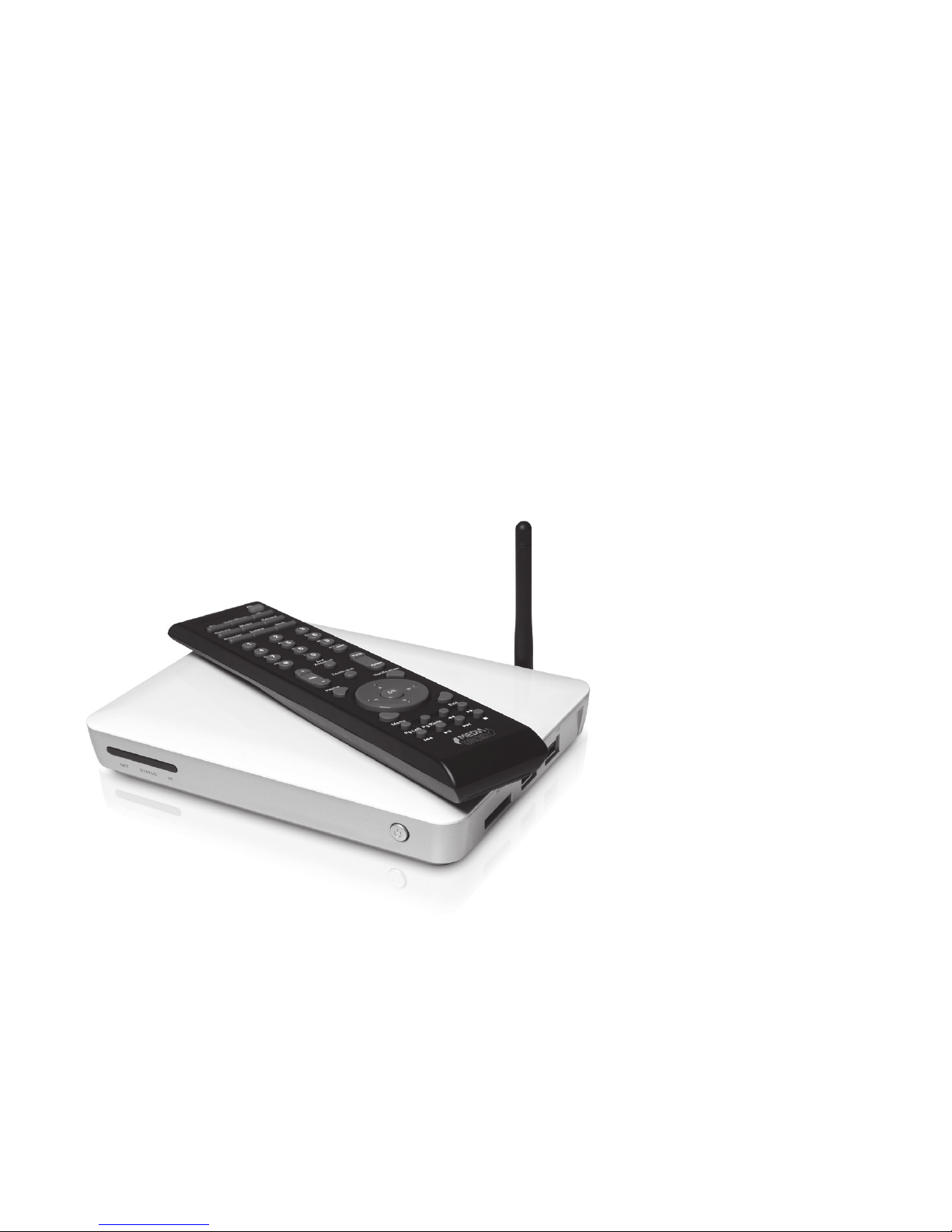
User manual
ENGAGE HQ PRO
Multimedia Fun Center
MT7001

2
EN Introduction
Thank you for buying a new multimedia fun center
device. MT7001 will expand capabilities of every TV
set: internet access, playing movies, viewing pictures,
listening music, playing games. Device is based on
Android operating system, it can be controlled via re-
mote control or USB keyboard or mouse – please visit
www.media-tech.eu to check latest accessories de-
signed for this device.
Introduction .................................................................................2
Connections .................................................................................3
Remote control ...........................................................................3
Power On.......................................................................................4
Functions of Main Menu..........................................................5
Settings ..........................................................................................5
Language setting .......................................................................5
Date setting..................................................................................5
Wireless and network settings...............................................6
Ethernet settings ........................................................................7
Accounts and sync .....................................................................7
Using web browser....................................................................9
Explorer..........................................................................................9
Install and uninstall third-party applications .............. 10
Uninstall third-party applications ..................................... 11
Picture Browser ........................................................................ 11
Music Player............................................................................... 12
Video Player............................................................................... 12
Factory reset.............................................................................. 13
Power Off.................................................................................... 14
Compatible accessories ........................................................ 14
USB mouse/keyboard. ........................................................... 14
USB DVB-T tuner ...................................................................... 15
3
EN
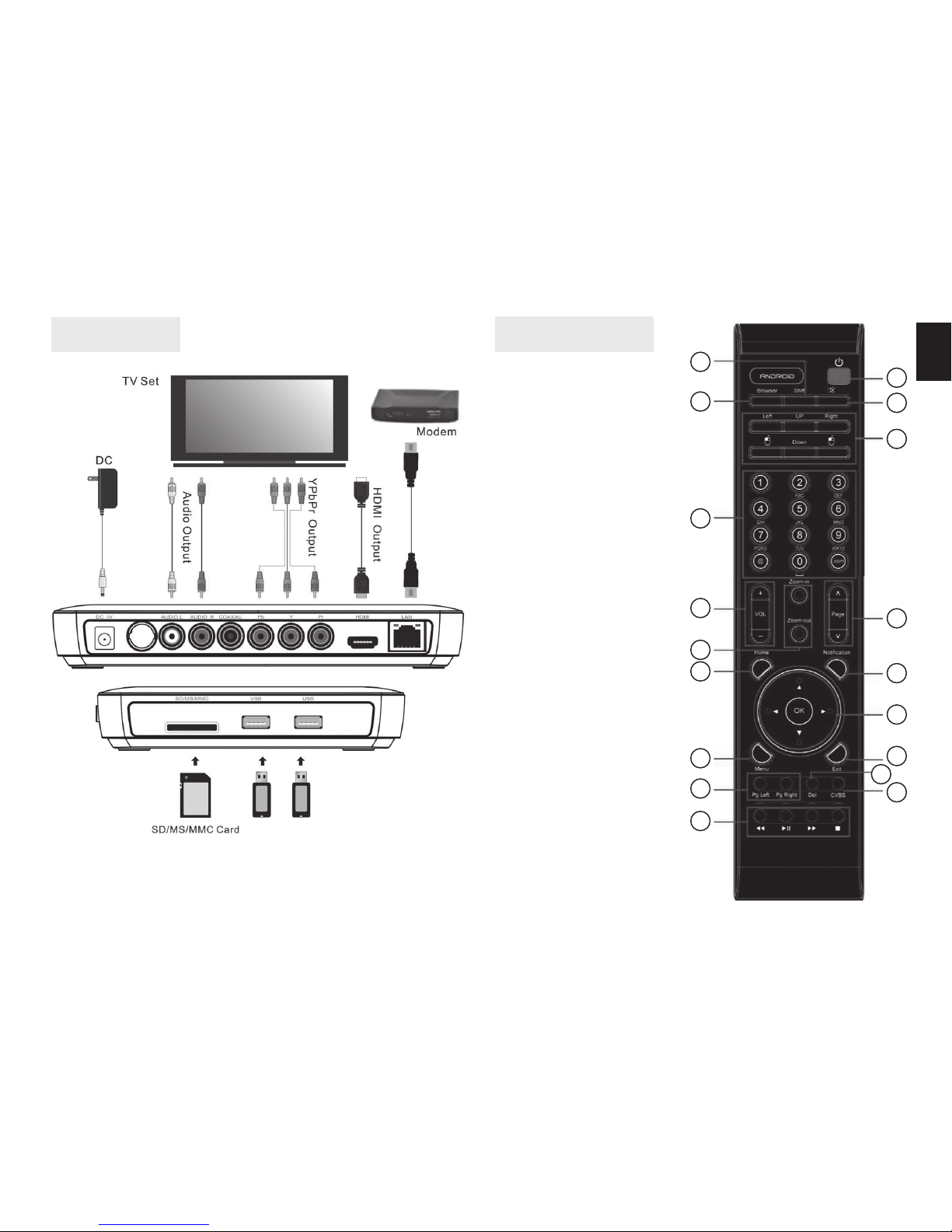
Connections Remote control
Note! Use only one type of connection: [HDMI] or
[YPbPr and audio R/L].
1. Power ON/OFF
2. Browser
3. Shift
4. Mute
5. Mouse control
6. Numeric keypad
7. Volume up/down
8. Page up/down
9. Zoom in/out
10. Home button
11. Notification
12. UP/DOWN/LEFT/
RIGHT/OK button
13. Menu
14. Exit
15. Page left/right
16. Delete
17. CVBS
18. Media control
18
15
13
10
9
7
6
2
3
1
4
5
8
11
12
14
16
17
4
EN Power On
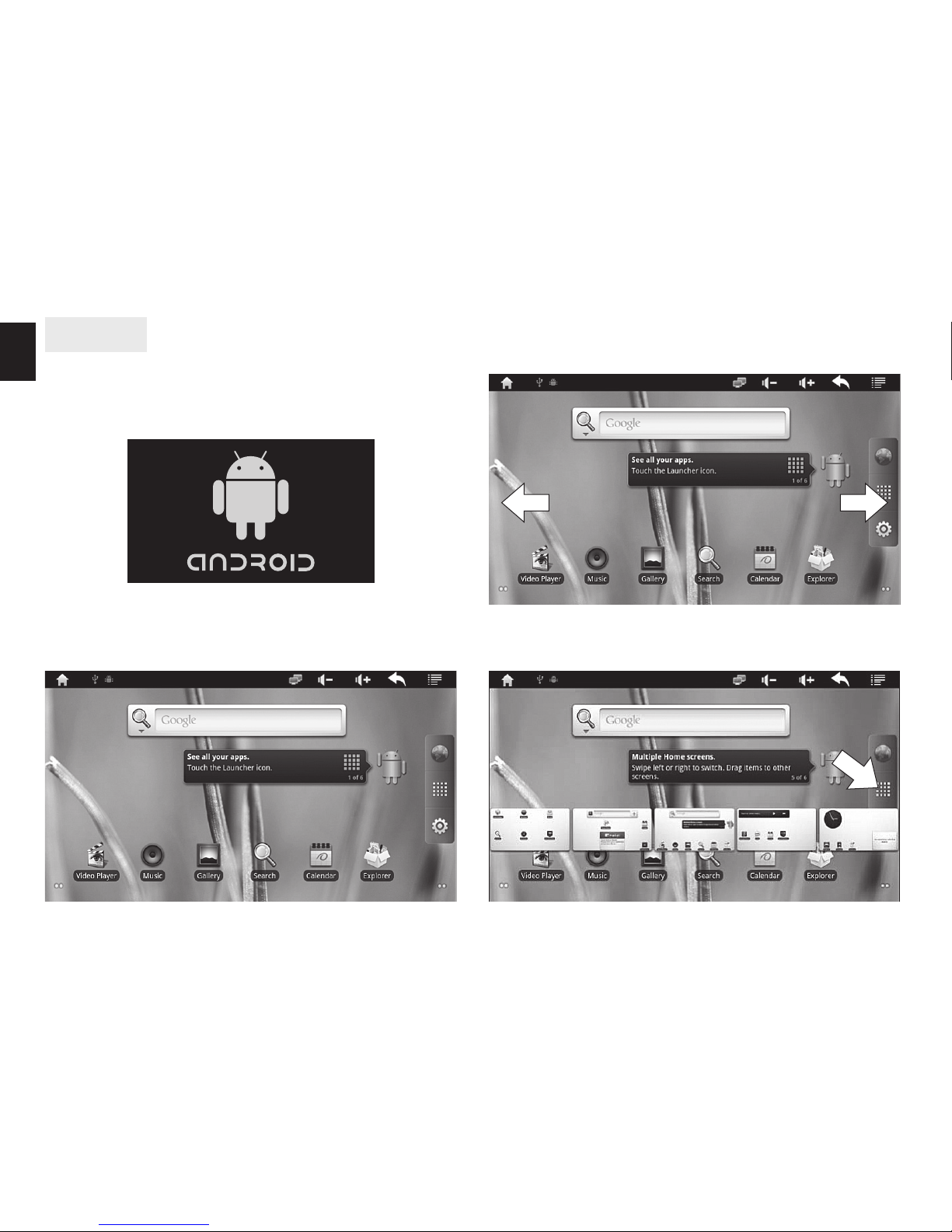
Make all connections, turn your TV to appropriate out-
put, then press“Power ON”button on remote control. It
takes about 8 seconds to show system logo:
System is loading…
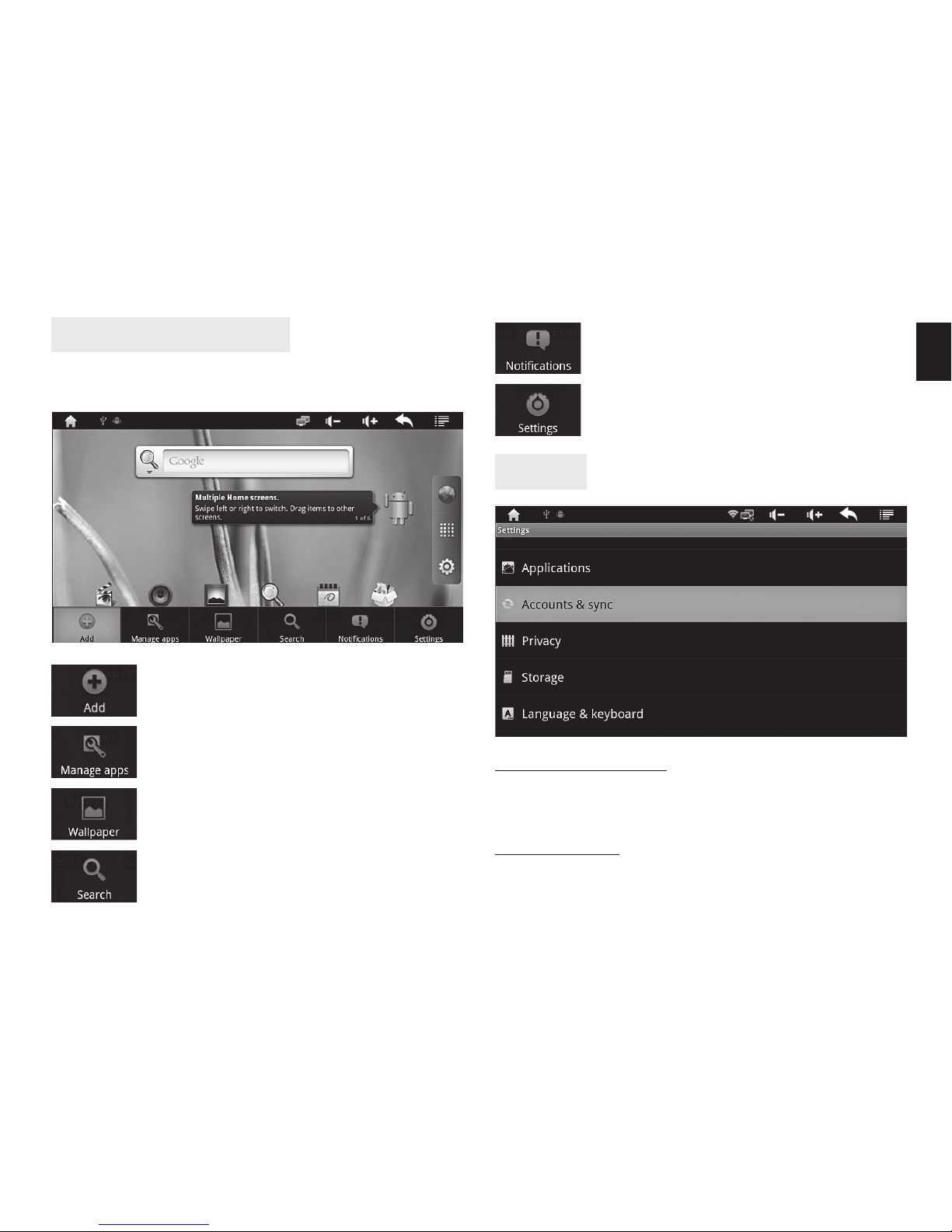
After about 50 seconds you will see main desktop as
below:
To switch between desktops click at left or right edge
of screen:
To show available desktops press and hold on
this icon:
5
EN
Add shortcuts, widgets to main
desktop
Direct access to application manager
Change wallpaper
Start Google search
Show system notification window
Show system settings menu
Functions of Main Menu
On the main desktop press“Menu”button on remote to
pop-up this menu:
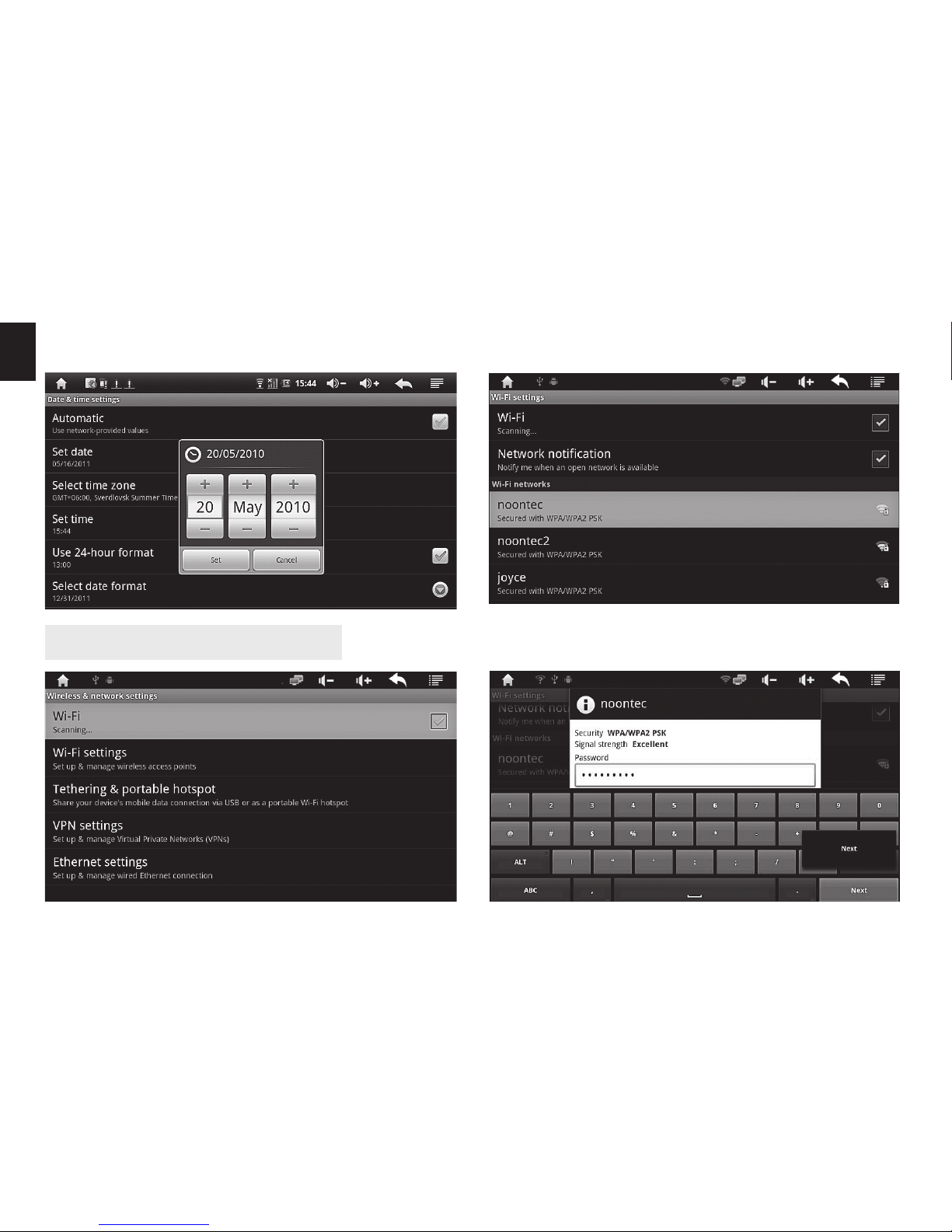
Settings
Language setting
Select “Language & keyboard”, then click “Select lan-
guage” and select desired system language.
Date setting
Go to “Settings/Date & time settings” and set manually
or mark option “Automatic” – date will be synchronized
6
EN automatically when device is connected to the inter-
net.
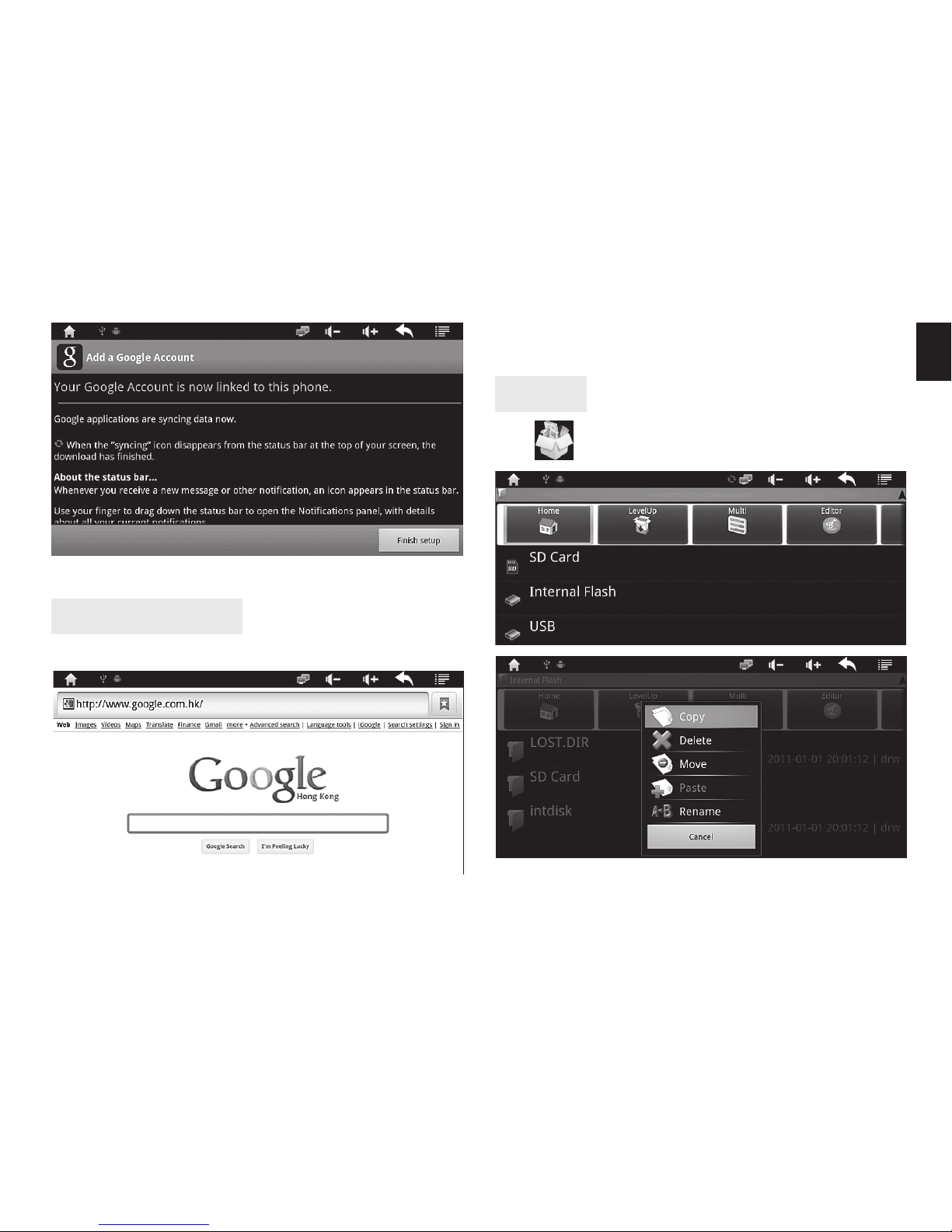
Wireless and network settings
Click “Wi-Fi” to enable Wi-Fi card, next click “Wi-Fi set-
tings”.
Click one of the available networks to make connec-
tion.

7
EN
Ethernet settings
Enter password provided by your ISP operator.
Click “Connect”.
When connection is established you will see info under
Wi-Fi option “Connected to...”.
Click “Ethernet” if you want to use this interface (auto-
matic configuration is enabled by default).
If you want to enter IP address manually click “Static IP
Settings” and enter parameters provided by your ISP
operator.
Accounts and sync
Click “Accounts&sync” to configure Google account. It
is required in order to use e-mail or download applica-
tions from “Android Market”.

8
EN
Note! You can add more subsequent accounts, but
only for synchronization gmail, calendar events and
contacts. For downloading applications from “An-
droid Market” use Google account added as first.
Now click“Add account”. Follow on-screen messages to
configure Google account.
Click “Next”.
Enter e-mail address and password, next click “Sign in”.
9
EN
Now click “Finish setup” to end this process.
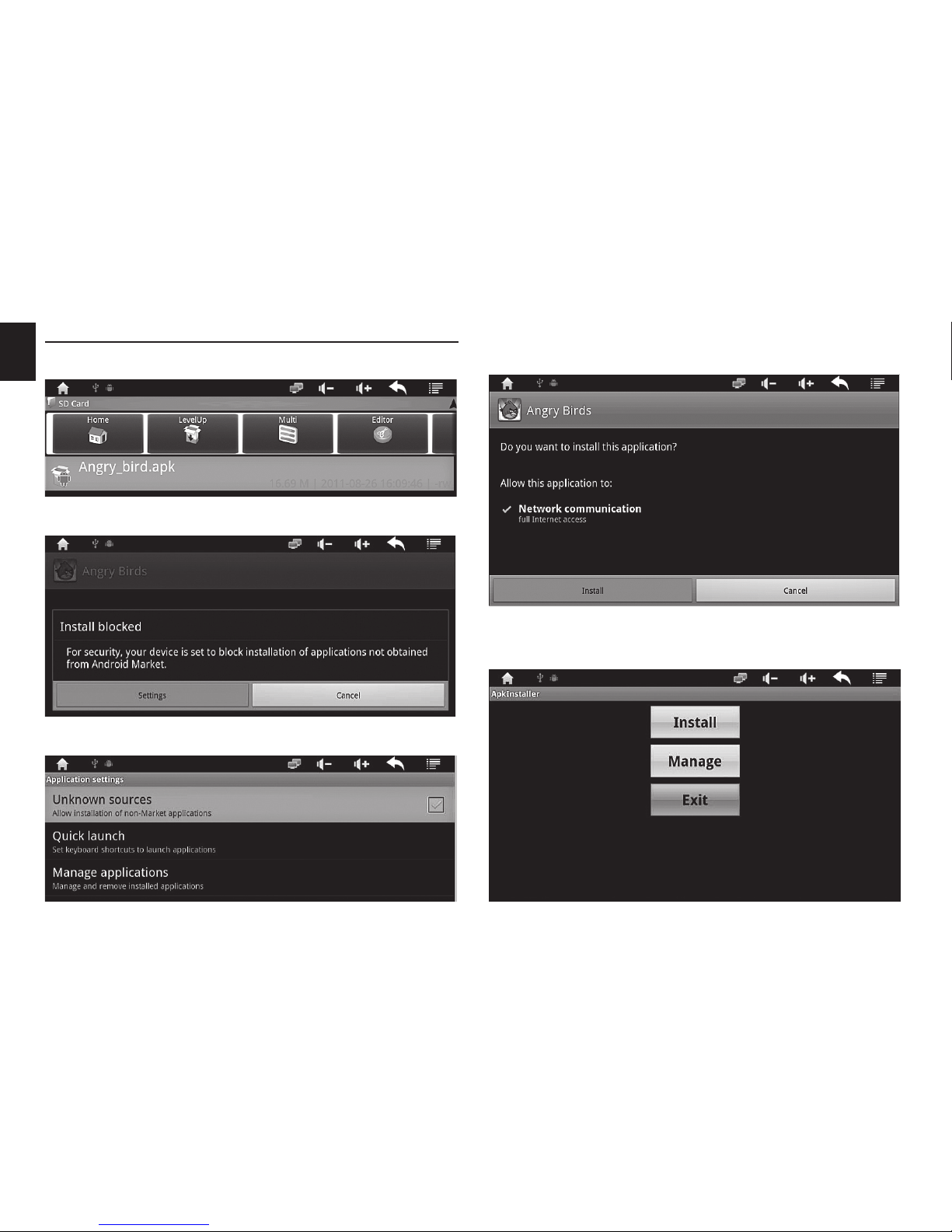
On selected item click and hold until menu pop-up,
now select type of operation.
Click icon to start explorer application.
Using web browser
Click“Earth”icon on main desktop to start web browser.
Explorer
Click on the page address to enter website address
or click inside Google search field to enter phrase to
search. A screen keyboard will pop-up.
10
EN Install and uninstall third-party applications
Run “Explorer” application, select *.apk file and click it.
If next window will pop-up, click “Settings”.
Enable installing applications from unknown sources.
Go back to explorer and click again selected *.apk file.
Click “Install” to continue.
You can also use “ApkInstaller” application to conduct
installation process. Click “Install”.
This manual suits for next models
1
Table of contents
Other MediaTech Media Player manuals