Lanix Ilium L420 User manual

Ilium L420
Quick Guide
2
INTRODUCTION
Thanks for choosing the phone, Single SIM Android smart phone
ased on 1.25GHz Quad-Core Processor. This smart phone is
running on Android OS, v6.0. If you’d like your phone to live a
long and fruitful life, please read this guide carefully and keep it
for future reference. You never know when you might need it.
And don’t worry if the pictures we use to demonstrate your
phone’s functions look a little different from what you see on its
screen. It’s the functions that matter.
* The Manufacturer reserves the right for the changes in the
manual without advanced notice.

3
Contents
Safety.................................................................................... 4
Using Your Phone Safely........................................................ 5
A out Your Phone ................................................................. 8
Inserting Your Micro-SIM/Micro-SD Card .............................. 9
Charging Your Phone........................................................... 11
Using Your Phone ................................................................ 12
Connect to Wi-Fi ................................................................. 19
Connect to Bluetooth.......................................................... 20
FCC Statement .................................................................... 21
Maintenance ...................................................................... 21
Take Care of Your Device ..................................................... 24
4
Safety
Safety Precautions
Please read through the following riefings carefully,
and act in accordance with these rules, so as to
prevent causing any danger or violating any law.
Information a out the meaning of Logo WEEE (Waste Electrical
and Electronic Equipment):
The WEEE logo on the product or on its ox indicates that this
product must not e disposed of or dumped with your other
household waste. You are lia le to dispose of all your electronic
or electrical waste equipment y relocating over to the specified
collection point for recycling of such hazardous waste. Isolated
collection and proper recovery of your electronic and electrical
waste equipment at the time of disposal will allow us to help
conserving natural resources. Moreover, proper recycling of the
electronic and electrical waste equipment will ensure safety of
human health and environment.
Caution: Risk of explosion if attery is replaced y an incorrect
type.
Dispose of used atteries according to the instructions.
For plugga le equipment, the socket-outlet shall e installed
near the equipment and shall e easily accessi le.

5
Using Your Phone Safely
On the Road
Using a phone while driving is illegal in many countries. Please
follow local laws and drive safely at all times.
Near Sensitive Electronics
Don’t use your phone near sensitive electronic equipment –
particularly medical devices such as pacemakers – as it could
cause them to malfunction. It can also interfere with the
operation of fire detectors and other automatic-control
equipment.
For more information a out how your phone affects pacemakers
or other electronic equipment, please contact the manufacturer
or your local distri utor.
Your phone may cause interference when used near TVs, radios
or automated office equipment.
hile Flying
Your phone can cause interference with aircraft equipment. So
it’s essential you follow airline regulations. And if airline
personnel ask you to switch off your phone, or disa le its
wireless functions, please do as they say.
In Hospital
Your phone may interfere with the normal operation of medical
equipment. Follow all hospital regulations and turn it off when
you’re asked to y posted warnings or medical staff.
At a Petrol Station
Don’t use your phone at petrol stations. In fact, it’s always est
to switch off whenever you’re near fuels, chemicals or
explosives.
Around ater
Keep your phone away from water (or any other liquid). It’s not a
waterproof model.
6
Making Repairs
Never take your phone apart. Please leave that to the
professionals. Unauthorized repairs could reak the terms of
your warranty.
Broken Antenna
Don’t use your phone if the antenna is damaged, as it could
cause injury.
Around Children
Keep your mo ile out of children’s reach. It should never e
used as a toy and it might not e good for their health.
Original Accessories
Only use the original accessories supplied with your phone or
those approved y the manufacturer. Using unapproved
accessories may affect performance, make the warranty void,
reak national regulations on the use of mo ile phones, or even
cause injury.
Near Explosives
Turn off your phone in or near areas where explosive materials
are used. Always o ey local laws and turn off your phone when
requested.
Emergency Calls
To make an emergency call your phone must e turned on and in
an area where there’s network coverage. Dial the national
emergency num er and press the dial key. Explain exactly where
you are and don’t hang up until help has arrived.
orking Temperature
The working temperature for the phone is etween 0 Degree
and 40 Degree Celsius. Please don’t use the phone outside the
range. Using the phone under too high or too low temperature
might cause pro lems.

7
To prevent possi le hearing damage, do not listen at
high volume levels for long periods.
8
About Your Phone
Main Keys Explained
Power Key:
•
Press and hold to turn on or off airplane mode, manage
notification sound and vi ration, restart, or to power off.
•
Press to turn off or on the screen display.
Volume Key: Press or hold to turn the volume up or down.

9
Inserting Your Micro-SIM/Micro-SD Card
1. Remove the ack cover.
2. Insert the Micro-SIM/Micro-SD card.
3. Insert the attery.
10
4. Press the cover gently ack into place until you hear a click.
Notes: is SD Card Association trademark.

11
Charging Your Phone
Notes:
1. Use only qualified factory supplied chargers and ca les. The
use of unapproved accessories could damage your phone or
cause the attery to explode.
2. Please normally use off the attery and fully charge the
attery for its perfect performance.
3. If the phone has een shut off for a long time or the attery
has een used up, you should charge the phone for 3 to 5
minutes then turn on.
4. Normal charge temperature: 0 to 4℃0℃.
12
Using Your Phone
Main Menu & its Functions
Press icon to enter main menu.
Allow you to view a list of features availa le in your phone.
1. Dial the Call
Tap to see the recent calling.
Tap icon to show the key oard and dial the phone
num er.
Tap to view contact information.
C
all record
Dial pad
C
ontacts
Setting menu

13
2. Answer and Reject Call
Tap the center of the screen,
Slide to , answer the call.
Slide to , reject the call.
Slide to , quick reply y message.
14
3. Calling
During the call, you can operate according to the a ove.
Contact info
Contact photo
End
Hold
Add a new call
Or
start
recording
Mute
Hands free

15
4. SMS/MMS
Tap icon on the top right corner of the screen to create
and edit the message.
Type the name or num er, and message or you can also tap
icon to attach files.
Tap icon to send message.
S
end
Add contact
T
ype name
or num er
Add attachment
16
5. Email
Firstly, you will add an account. Then send and receive the
emails.
Notes: Before use, you must connect to internet.

17
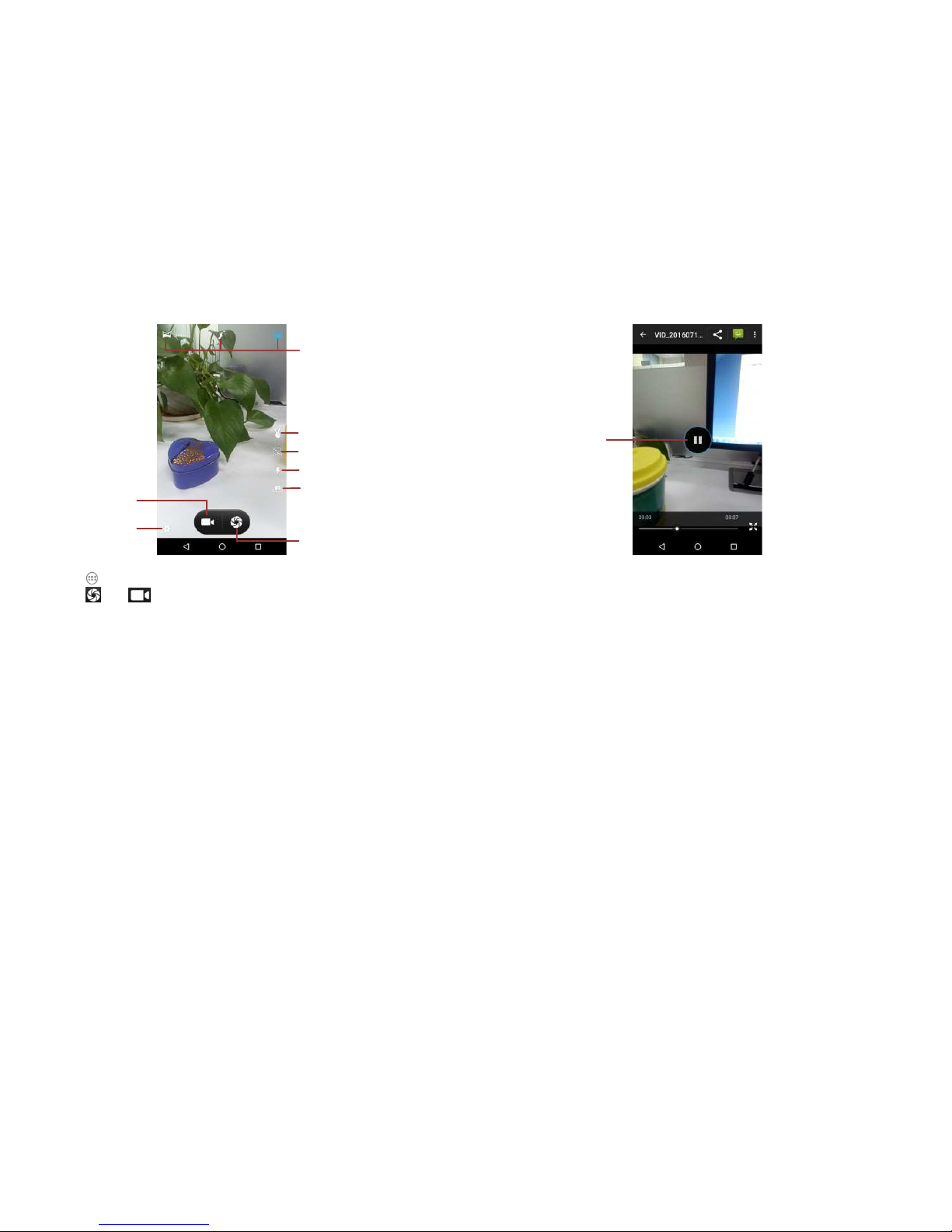
6. Camera
Tap on main screen--> Camera
Tap or for photo taking or video recording. You
may change the options during taking photo or video record
y the control panel.
Perspective switch
Take photo
Recording
Setting
Scene mode
Gesture
cap
ture
HDR on/off
Change flash
18
7. Video Player
You can watch videos if you have stored them in your phone.
8. Other Apps
You can also install some other third party APPs in your phone,
for example: Face ook, Skype, WhatsApp, Twitter, and so on.
Pause/Play

19
Connect to i-Fi
Tap on main screen--> Settings--> Wi-Fi, and turn it on.
Choose Wi-Fi network and connect to it.
Input the correct password when needed.
Connected, you can surf online…
Input
password
Connected
20
Connect to Bluetooth
You can easily transfer your files to each other y Bluetooth.
Tap on main screen--> Settings--> Bluetooth, and turn it
on.
Search for Bluetooth devices already open.
Connect to the destination device y the same passkey.
And the connected device will e shown on the Paired devices
list. You can transfer files or connect Bluetooth device such as
Bluetooth earphone, etc.
Pair
Select
Bluetooth
Table of contents
Other Lanix Cell Phone manuals