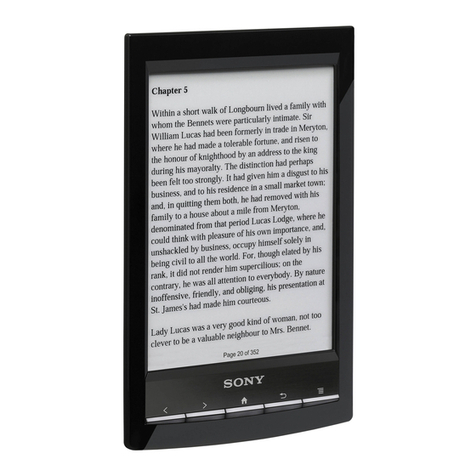
IRiver Story HD User manual

USER GUIDE
3rd IRIVER STORY
STORY HD

CONTENTS
Getting Started
Components
Locating the Controls
Power Management
Connecting the Product
Using Adobe Digital Editions
03
04
06
08
11
01
02
Using EB07
Home Screen
Viewing Books
Setting
13
15
19
03
Other Information
Important Safety Information
Troubleshooting
Copyrights
Certification
Registered Trademark
Exemption
21
23
24
35
35
35

Components
Getting Started
EB07
Quick Start Guide: Explains how to use our device.
Product Warranty: Please keep this in a safe place for use during any
warranty repairs.
USB Cable: Connects device to the computer and recharges the battery.
03
Components may be changed without prior notice for improvement of
product performance or quality.
Quick Start Guide
& Product warranty
USB Cables

Getting Started
04
1
2
3
4
EPD
SD Card Slot
USB Port
Power
It enables readers to feel as if they were
reading a paperback book.
Insert a SD card to view and replay the files
on the card.
Connect to computer or recharge the
battery using this port.
Turn off the power by pressing and holding.
Switch to standby mode by pressing briefly.
3
2
4
1
Locating the Controls
The exterior and the contents printed or engraved may differ by model
or according to the name of each part.

Getting Started
05
1 3 6542
11 12 13 14 15 16 17
7 8
9
10
1
2
3
4
5
6
7
8
9
10
11
12
13
14
15
16
17
HOME
BACK
Previous Page
Down
Up
Next page
ENTER
OPTION
DEL
ENTER
Shift
SYM(Symbol Key)
Zoom Out
Rotation
Space
BACK
Move
Move to the home screen.
Move to the previous screen.
Move to the previous page.
Move down in the list.
Move up in the list.
Move to the next page.
Confirm and execute the selected items.
Display Option window.
Delete entered letters and files on the list.
Confirm and execute the selected items.
Enter capital letters or double consonants.
Enter numbers or symbols.
Zoom letters.
Rotate the screen.
Set as Space bar / Favorite.
Move to previous screen.
Move to 4-way direction.

Getting Started
06
Power Management
1. If you press the [Power] when the product is on, you can switch to
Sleep Mode.
2. If you press the [Power] again, the Sleep Mode is terminated.
Switching to Sleep Mode
1. Slide to the [Power] in the direction of arrow and the power comes on.
2. When the product is on, slide [Power] in the opposite direction of
arrow and the power goes off.
This model supports an automatic power-saving feature to minimize
battery consumption. Depending on [Option - Setting - System - Auto
Power off], the product will be automatically turned off when keys are not
operated for a specified time. (Refer to page 20)
Power on/off

Getting Started
07
1. Turn on the computer and connect the product with your computer.
The internal battery will charge automatically.
Charging then Battery Using Your Computer
Replay Time
- Continuous Book Replay Time: Max. 14,000 page view
Do not use cables other than the USB cable provided. It may cause malfunction.
Verify that the product is connected to a high-power USB 2.0 port. Some low-power
USB ports built into certain peripheral devices, such as some types of keyboards
and USB hubs without internal power may not provide enough power to charge.
While the PC is switched to Sleep Mode, the product may not be charged.
Charge and store the product only at room temperature.
Do not expose the device to extremes in temperature while recharging.
The rechargeable battery is a consumable and the available usage time of
charged battery becomes shorter over time.
The battery will be fully charged within about 4.5 hours. (Based on fully
discharged, power Off).
Charging times may vary if device is used during recharge.
If the battery is completely discharged and has not been used for a long time,
power will not come on again until it has been charged for at least ten minutes.
1. If the product does not respond to key presses, reset it by pressing
and holding the [Power] for more than 14 seconds.
Using the Reset Function
Even if you use reset function, current time and memory data will be preserved.
To avoid damaging the memory, do not use reset function while the device
is playing.

Getting Started
08
1. Turn on the device and computer.
2. If you connect the device to your computer, you will see the screen
where you can select connection mode.
- Charge Battery: The product is currently being charged.
- Connect Removable Disk: The connection between the product
and the computer is established and you can start transferring data.
Connecting to Your Computer
Connecting the Product
Do not use cables other than the USB cable provided. It may cause malfunction.
For successful computer/USB connection, disable all functions.
Check that the product is connected to a high-power USB 2.0 port. Some low-power
USB ports built into certain peripheral devices, such as some types of keyboards
and USB hubs without internal power may not provide enough power to charge.
1. Safely disconnect the product from your computer by clicking the
icon on the taskbar of the computer screen.
2. Confirm the device disconnection by clicking [Confirm].
Disconnecting the Product

Getting Started
09
1. After selecting files/folders to copy from your computer, drag and
drop the selected file/folder to the added drive.
2. Files (or folders) will be transferred to folders below according to
their content type.
- E-Book : book - Comic Book : comic
Copying Files (Folders) to the Product
Depending on the operating system for example Windows XP, the icon may be
hidden from the taskbar. Hidden icons can be displayed by clicking indicator.
Safe disconnection may not be performed if application programs such as
Windows Explorer or Windows Media Player are being used.
Make sure that the product is safely disconnected after all the active
application programs are closed. If safe disconnection fails, try again later.
Failure to safely disconnect result in data loss.
Please connect the USB cable properly.
If the power of the computer or product is turned off or the USB cable is disconnected
while copying or moving files/folders, serious damage to the memory may result.
Transfer rate may differ depending on the computer or OS environment
available for your region.

Getting Started
10
1. Select the files/folders to be deleted, right-click on them and select
[Delete].
2. Click [Yes] when the [Confirm File/Folder Deletion] window pops up,
and the selected files/folders will be deleted.
Deleting Files (Folders) from the Product
1. Open the cover of SD Card slot.
2. Turn the power off, place the SD
card (see the figure below) in the
SD card slot, and press gently.
3. Press it in once more and the
card can be removed.
Inserting/removing the SD card
Other manuals for Story HD
1
Table of contents
Other IRiver Ebook Reader manuals