ipixo WIFI Doorbell User manual

1
WIFI Doorbell
User Manual

1
Contents
This user manual has all the information you need to make the most out of your WIFI Doorbell.
Please keep this manual for future reference and ensure you have read all safety instructions carefully
before use.
The manual is subject to change without notice. The updates will be added into the new version of the manual.
What you’ll need
Set up Doorbell
Installation
Live View
Motion Alerts
Accessing Playback
Sharing the Doorbell
Adding the Indoor Chime
Safety Information
2
3
4
6
7
8
9
11
12

2
What you’ll need
This is what you will need to set up your iPixo WIFI Doorbell
Compatible Device
An Apple or Android
Smartphone
Drill Bit
To install on surfaces such as
brick or concrete
Wall Plugs (provided)
Required to install on to
surfaces such as brick
or concrete
WIFI Broadband
A working internet connection on
a 2.4Ghz frequency channel
Phillips Bit
A power drill with Phillips driver bit
Screws (provided)
To mount the doorbell on to
the wall

3
Set up Doorbell
If you’re setting the Doorbell up for the rst time, you will need to:
1. Download the Tosee app from the Google Play Store or Apple App Store
2. Open the app and follow the on-screen instructions to add the Doorbell on to
the app.
You will be asked to connect to the Doorbell’s network, then enter your Wi-Fi
router password for the Doorbell to be connected to the App.
If you need help with this, please refer to the Quick Start Guide
included with the iPixo WIFI Doorbell.
You can also visit our online support section for additional help:
https://www.ipixo.com/product-downloads/

4
Installation
4 Feet
(1.2 metres)
We recommend that your install the WIFI
Doorbell around 4 feet from the ground.
This is the best height for the Doorbell’s eld of
view and motion detection range.
Before mounting the WIFI Doorbell, we
recommend that you test the Wi-Fi strength in
the area that you’d like to place it.
Hold the Doorbell in the position that you would
like to mount it and check that the live stream is
working well in the app.
Working well? Great, continue to the next page.
Can’t see the live stream? Your Wi-Fi may not
be strong enough in that area, you may need
to nd another spot or move your Wi-Fi router
closer.

5
Installation
Step 1
Mark screw holes where
you would like
to install the
mounting bracket
Step 2
Drill pilot holes.
Use the included wall
anchors if you’re
drilling into stone or
hard material
Step 3
Install the mounting
bracket on to the wall
using the four screws.
To attach the doorbell,
simply slot it in and push
it down into place
Step 4
Finally, use the provided
security screw to secure
the doorbell on to the
mounting bracket
6
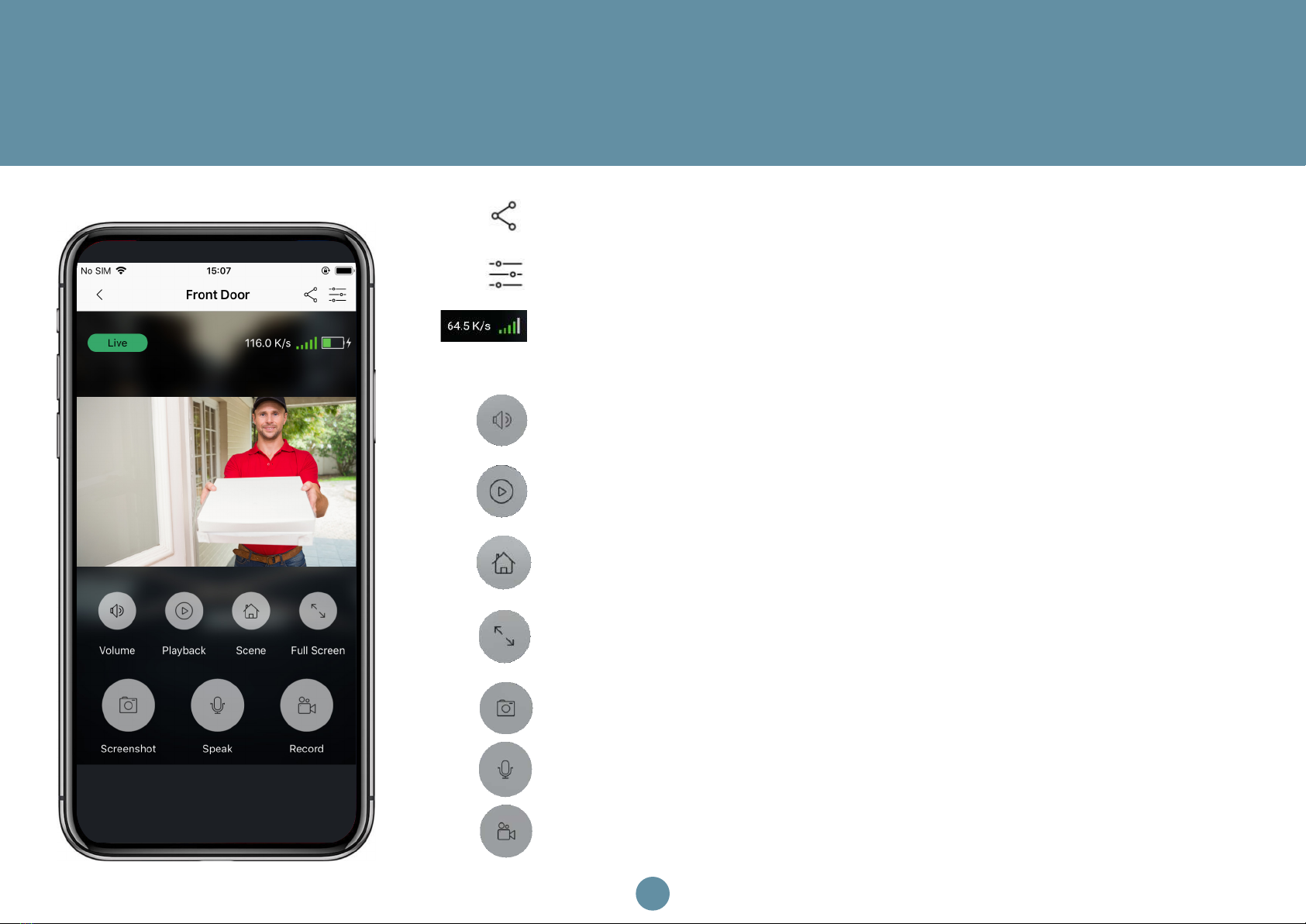
Live View
Click to activate or mute the speaker
Access video recordings
Change settings to best suit your outdoor
environment
View Full Screen
Save a screenshot to your smartphone gallery
Press to speak through the Doorbell
Record live footage to your smartphone gallery
Live View
Share the Doorbell with friends and family
Access Doorbell Settings
See your Wi-Fi Signal Strength and Speed
Share Doorbell with friends and family
Access Doorbell Settings
Change settings to best suit your outdoor environment
View full screen
Record live footage to your smartphone gallery
Press to speak through the Doorbell
Save a screenshot to your smartphone gallery
Click to activate or mute the speaker
Access video recordings
See your WI-FI Signal Strength and Speed
Click to activate or mute the speaker
Access video recordings
Change settings to best suit your outdoor
environment
View Full Screen
Save a screenshot to your smartphone gallery
Press to speak through the Doorbell
Record live footage to your smartphone gallery
Live View
Share the Doorbell with friends and family
Access Doorbell Settings
See your Wi-Fi Signal Strength and Speed

7
Motion Alerts
You will receive Motion alerts when the Doorbell detects movement – to adjust the sensitivity of the
motion sensor, follow the steps below:
Step 1
Click on the Settings icon.
You will be asked to enter
the Doorbell password
Step 3
Adjust the sensitivity by
dragging the bar across.
The higher the sensitivity,
the more alerts you will
receive.
When movement is
detected. You will receive
an alert straight to your
Smartphone.
If you Smartphone is
locked when motion has
been detected, you will
receive an alert on your
home screen.
Step 2
Click
“Motion Detection
Sensitivity”

8
Accessing Playback
The Doorbell records footage when someone rings the doorbell and when movement is detected
so you don’t need to remember to press record.
You can access the recordings
by clicking on the “Playback” icon
Select
a date
Recording of
movement
detected
Click to record
footage
manually, this
will save to
your phone
gallery
Recording
of someone
ringing the
Doorbell

9
Sharing the Doorbell
You are able to share the Doorbell with friends or family so they can also answer calls and have
access to recorded footage. They must also have the ToSee application downloaded on to their
smartphones.
Step 1
Click on the Share icon.
You will be asked to enter
the Doorbell password
Step 2
Click the + icon
(Android users: click Share)
Step 3
Add a name or nickname
of your friend or family
member
Click Conrm
Other manuals for WIFI Doorbell
1
Table of contents
Other ipixo Accessories manuals