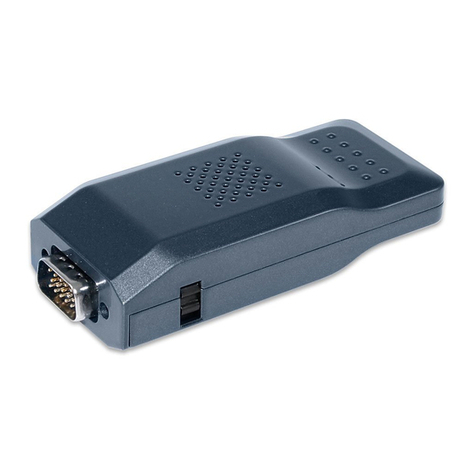
WPS-HD has the ability to simultaneously project up to four
desktops in split screen. This is useful for comparing data or
multimedia presentations.
To use split-screen mode, follow the steps just described for each of
up to four computers.
However,instead
of pressing the Play
button (the final step),
click on one of the four
split-screen buttons
(labeled1through4).
Useadifferentnumber
for each computer to
display them in the
four different sections
oftheprojector'ssplit
screen.
Split-screen mode
Conference mode allows a single administrator to control the
projector'scontentsatanytimewhenusingsplit-screenmodeand
multiple computers. To access this mode:
1. Navigatetheadministrator'sInternetbrowsertotheWPSmain
pagebyenteringtheServerIPfoundontheStartupscreen.
2.BelowtheDownloadtabisConferenceControl.Clickonthis
tab.Apasswordpromptwillappear.Thedefaultpasswordis
"trainer".Inputthepasswordandlogin.
Ifyou'dliketoprojectaudioalongwithvideo,youwon'tneedto
doanythingelseifyou'reusingWindows7,WindowsVista,orMac.
Sound from your computer will automatically be sent through the
projector'sspeakers.Ifyou'reusingWindowsXP,followsthese
steps to project audio:
1. InserttheincludedUSBTokenintoyourcomputer.In
theApplicationsfolderontheToken,double-click"VAC_
Setup1.0.8.5(forXP).exe"toinstalltheVirtualAudioControl.
2.YounowneedtoselecttheVirtualAudioDriverasyourplayback
device.ClickonControlPanel>>Sounds,Speech,andAudio
Devices>>SoundsandAudioDevices.
3.ClicktheAudiotab.UnderSoundPlayback,changetheDefault
Deviceto"VirtualCable1".ClickOK.
4.Theprojectorwillnowplaythecomputer'saudio.Rememberto
switchbacktoyourprevioussounddeviceafterusingWPS-HD.
On the control
panel, Speedy mode
is indicated by a
speedometer icon.
Conference mode Audio projection
Speedy mode
1. Aftersuccessfulsoftwareinstallation,double-clicktheWPSicon
on your desktop to start the WPS client.
2.Aloginscreenwillappear:
-For“ServerIP”entertheServerIPaddressfromtheprojector
Startup screen (if it does not already appear).
-For“UserName”enterwhateveryou'dliketoidentifythecomputer.
-For “Login Code” enter the four-digit login code displayed on
the Startup screen.
-Click Okay.
3.Acontrolpanelwillappear.ClickthePlaybuttontoenterfull-
screen projection mode. The projector will automatically sync
with your computer, and the contents of your desktop will be
projectedinrealtimeandhigh-denition720p.
Communicating with WPS-HD
3.Alistwillappearofallthecomputerscurrentlyconnectedto
theWPS-HD.UnderthePlayControlcolumn,theadministrator
may click on the buttons to control what is projected for each
computer.Buttonsinclude:
: Computer'scontentswillbeprojectedinfullscreen(no
split-screen)
:Computer'scontentswilloccupyQuadrant#1ofsplit-screen
mode
:Quadrant#2ofsplit-screenmode
:Quadrant#3ofsplit-screenmode
:Quadrant#4ofsplit-screenmode
: Stopsthecomputer'scontentsfromprojectingaltogether
NOTE: Audio projection is only available if you're using an HDMI
connection.
Click on the speedometer to enable Speedy mode. Speedy mode
buffersthevideoimagesothatvideoplaybackissmoother.The
projectorwillpauseafewsecondsforvideosyncaswellasaudio
sync.WerecommendenablingSpeedymodeforallofyourvideo
projections to ensure smooth playback.