iPECS LIP-9071 User manual

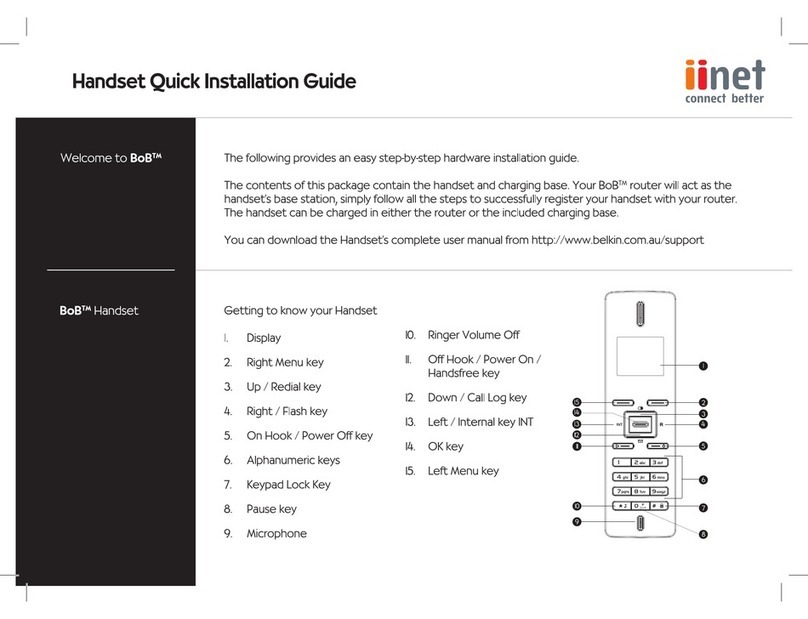
LIP-9071 Button Layout
15. Soft keys
17. Speakerphone
Dealing with calls
1. Touchscreen: displays features such as extension numbers.
video call, recent calls, and applications.
2. Camera: built-in HD camera used to take photos and for use
during video calls.
3. Ring LED: Flashing light indicates phone ringing and
voicemails.
4. NFC tagging: tap your phone on the Near Field
Communications touch point.
5. Home: return to the Home screen.
6. Menu: access the settings for your phone, such as changing
7. Back: return to the previous screen.
8. ECO:
9. Transfer: used to transfer a call to another destination.
10. DND (Do-Not-Disturb): blocks incoming calls. You can also
activate Do-Not-Disturb while the phone is ringing - this
terminates the call and the caller will get a fast busy tone.
11. Message: access your voicemail box.
12. Hold: place a call on hold – dependent on PBX set up, the
caller will receive on-hold music.
13. Headset: if a headset is plugged in this button allows you to
toggle between the headset and handset.
14. Mute: mute the call so that the caller cannot hear your voice.
15. Soft keys: Soft keys are interactive, changing function based
on the phones status.
16. Volume control: adjust the Ring, Headset, Handset, and
Speaker volume.
17. Speakerphone:
a call. The button will automatically illuminate when the phone
is in menu mode.
18. Microphone: Use to receive speech during handsfree call.
5.
6.
7.
Button Guide
2. Camera
3. Ring LED
1. 7” Touchscreen 4. NFC tagging
18.
Microphone
(speaker
phone)
8.
10.
11.
12.
13.
9. 14.
Incoming calls To answer the call, lift the handset or press the speakerphone button.
External calls LIP-9071 has a “’live dial pad’ which means you do not need to lift the handset or press the
Speakerphone button to start a call. To place a call, dial the desired number. Outgoing calls can
also be placed from the contacts, logs as well as speed dial.
Placing a call on hold press Hold button, the button will light to indicate there is a held call.
Internal calls y assigned to the contact.
Rejecting a call Press the DND button when a call comes in.
16. Volume
Touch
Home screen display The home button will display icons on the right handside,
messaging, a telephone icon which once pressed will direct
you to call options, contacts, call log and apps. This is the
default view, until an icon is pressed. To return to the default
screen, press the home key.
Telephone icon from home screen To make a call press the speakerphone button or to reach the
full feature set press the telephone icon from the default home
screen. This guide is based upon the display after you have
pressed the telephone icon from the default home display.

Quick access call tools
Speed
Last number redial From the touchscreen, press the redial soft key to display the last numbers dialled. Select required
number and press send to initiate the call. (if you do not have this option on the touchscreen display,
press the home button, followed by the telephone icon).
On the screen reached from the telephone icon from the default home screen,
Press the Speed button twice (located on the bottom right of the LCD screen, phone with lightening
bolt icon). Press ICM option to dial an internal contact, station speed name (personal speed dial list)
or system speed name (this takes you through to the main system database).
Press the desired name to connect a call.
For information on searching for contacts using alphanumeric function refer to the full handset user
that there is a call waiting. If the called party is busy, you may activate Camp-On which allows you
Press * and await an answer.
Camp on
Call Waiting
Do not disturb Press the DND button to activate.
Press the DND button again to deactivate.
Redialling a number
To access recent calls, press menu followed by call log. (if you do not have this option on the
touchscreen display, press the home button, followed by the telephone icon)
Recent calls
Pick up Press the pickup
(if you do not have this option on the touchscreen display, press the home button, followed by the
telephone icon).
Menu
The menu soft key gives you access to the phones key set up features such as contacts, call logs,
settings calendar, clock and camera. (if you do not have this option on the touchscreen display, press
the home button, followed by the telephone icon).
Conference
Conference calls To start a conference call:
2. Touch the CONF soft button.
3. Place next call and press the CONF soft button.
4. Repeat step 3 for additional parties.
5. Press the CONF soft button twice to connect all parties.
Video calling
Once a voice call is established you can initiate or accept a video call.
To start or respond to a Video Call invitation, press the Video Start button, which will open the
Video Call window.
Soft menu buttons display include, Video Stop/Start: pause and restart video transmission.
Press Conf to initiate a voice conference.
Video calls
Press the transfer button or TRANS soft key on the touch screen display. Dial the
recipient to announce the call, or simply hang up.
Transferring a call
Returning to caller from a Transfer Press the transfer key to return to caller.
Transferring a call

Wi-Fi
Connect Wi-Fi dongle to device’s USB port to use Wi-Fi.*
Then connect to a wireless access point, or “hotspot.”
1. Touch Settings > Wireless & networks > Wi-Fi.
2. Slide the Wi-Fi switch to the on position.
Secured networks are indicated with a Lock icon. If the device
connected to previously, it automatically connects to it.
4. Touch a network name to see more details or connect to it, and type a password if
necessary.
Or, if your Wi-Fi router supports Wi-Fi Protected setup, touch the WPs icon on your tablet,
and then touch the same button on your router.
*Not all dongles supported. Contact your service provider for more information.
Setting up Wi-Fi
You can add a Wi-Fi network so that your device will remember it, along with any security
credentials, and connect to it automatically when it’s in range. You must also add a Wi-Fi
network if the network does not broadcast its name (SSID), or to add a Wi-Fi network when you
are out of range.
Add a new Wi-Fi network
Browsing the internet To access the full cababilites of an internet browser including your emails directly from your
LIP-9071 phone, press home, press the apps key to access the application screen containing
browser, camera, play store, messaging and more.
Browsing the internet
The content of this document is subject to revision without notice due to continued progress in methodology, design and
manufacturing. Ericsson-LG Enterprise shall have no liability for any error or damage of any kind resulting from the use of this document
© Ericsson-LG Enterprise Co., Ltd.
Portsmouth Communications Ltd
Phone: 01329 235 050
Unit 13, Regent Trade Park, Barwell Lane, Gosport, Hants, PO13 0EQ
info@portsmouthcomms.co.uk | portsmouthcomms.co.uk
Other manuals for LIP-9071
1
Table of contents
Other iPECS Handset manuals

iPECS
iPECS LIP-9010 Specification sheet

iPECS
iPECS 1030i Owner's manual

iPECS
iPECS LIP-9020 Specification sheet

iPECS
iPECS 1050i Owner's manual

iPECS
iPECS GDC-800H User manual

iPECS
iPECS 1010i Owner's manual

iPECS
iPECS LIP-9040C Owner's manual

iPECS
iPECS Vertical Edge IP 9830 User manual

iPECS
iPECS 1040i Owner's manual

iPECS
iPECS LIP-9020 User manual