I-Tech BlueSpeak User manual

Cover Page
Version 3
BlueSPEAK

Page 0
The Stylish i.Tech BlueSPEAK Car Kit - Keep your eyes on the road and your hands
on the wheel
Thank you for purchasing the i.Tech BlueSPEAK –The Bluetooth Car Handsfree
Adaptor that pairs with your Bluetooth enabled phone to make incoming or outgoing
voice calls via the speaker and features high quality audio sound.

Table of Contents
i.Tech BlueSPEAK Overview 2
Getting Started 3
Remove the BlueSPEAK 3
Extendable microphone 4
Turning your BlueSPEAK on and off
Turning On
Turning Off
5
5
5
Pairing Your BlueSPEAK 6
Using Your BlueSPEAK
Answering a Call
Ending a Call
Rejecting a Call
Dialing from Your Mobile Phone
8
8
8
8
8
Care and Maintenance 9
Safety Information 10
Troubleshooting 11
Declaration of Conformity (DOC) 12
Product Specifications 13

<Page 2>
i.Tech BlueSPEAK Overview
Fig. 1
Fig. 2
Fig. 3
Multi-Function Button
(MFB)
LED Status indicator
Speaker
Microphone Socket
Cigarette Charger
Plug
Microphone
Multi-Function Button
(MFB) Extension
Microphone Plug
Volume Button
<Page 3>
Getting Started
To use your i.Tech BlueSPEAK, please follow these simple steps:
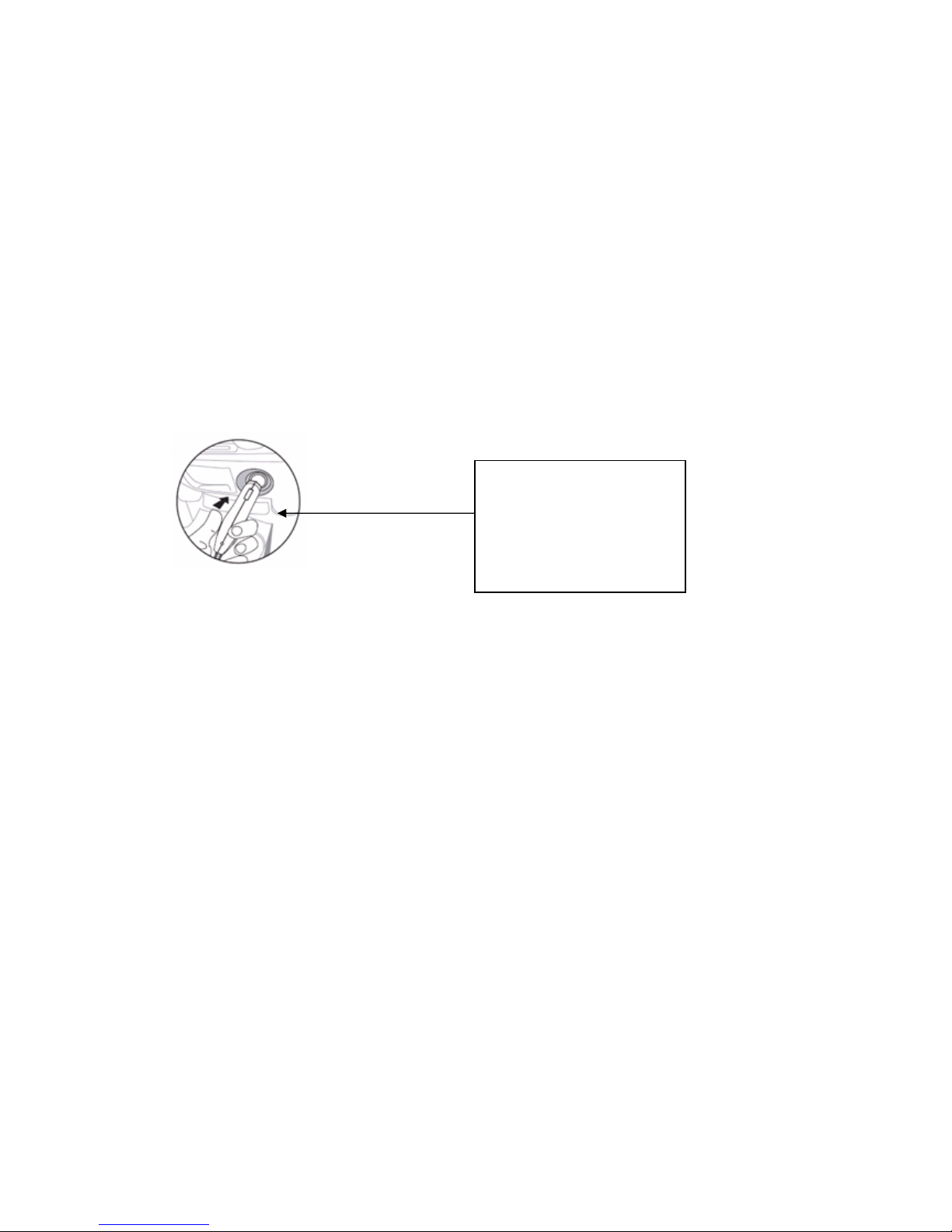
Start your car’s engine and plug the BlueSPEAK into the cigarette lighter port on
the dashboard (Fig. 4). The BlueSPEAK LED status indicator will automatically
light up
Pair your BlueSPEAK with your Bluetooth-enabled mobile phone which has
headset or handsfree profiles
Fig. 4
NOTE: The BlueSPEAK fits to MOST car models. If it does not fit to your car model,
please DO NOT plug it into the cigarette lighter port by force.
Remove the BlueSPEAK
Reverse Fig.4 above to remove the BlueSPEAK from your car’s cigarette lighter port.
**** Please insert the
plug in product by using
BlueSPEAK

<Page 4>
Extendable microphone
Fig. 5
Plug the extendable microphone jack into the BlueSPEAK microphone socket (Fig. 2)
Extend the microphone to minimize the noise and answer calls clearer and easier.
Fig. 6 – Interior connection and arrangement for the extendable microphone cable
*** Use line art only

<Page 5>
Turning your BlueSPEAK on and off
Turning On
Press and hold the Multi-function button (MFB) for approximately 2 seconds until
you see the LED flash Blue.
Turning Off
Press and hold the MFB for approximately 3 seconds until you see the LED indicator
flash RED.

<Page 6>
Pairing Your BlueSPEAK
Prior to using your BlueSPEAK for the first time, you must pair it with a
Bluetooth-enabled mobile phone.
The information on the next page describes pairing instructions for typical
Bluetooth-enabled mobile phone. The BlueSPEAK pairing procedure is subject to
different models of mobile phones.

<Page 7>
Pairing Your Adaptor
1. Place the adaptor and the mobile phone where they are easily viewable and no
more than 1 meter apart.
2. Ensure the BlueSPEAK is OFF.
3. Press and hold the MFB until the BlueSPEAK LED alternately flashes blue and
red.
4. Activate your mobile phone’s Bluetooth function by referring to your mobile
phone user guide for details.
5. Set the mobile phone to search for Bluetooth devices within a 1 meter range as
instructed in the mobile phone user guide and select “i.Tech BlueSPEAK” from
the list.
6. Enter the preprogrammed passkey “0000” and press “OK” to pair your
BlueSPEAK and mobile phone. When the pairing is complete, the BlueSEPAK
LED will flash blue rapidly for 5 times followed by a long beep.
7. Go back to your mobile phone’s main menu. For certain mobile phone models, a
headset icon will be shown on the screen. You should now be able to make and
receive calls using your headset.
IMPORTANT
zIf the pairing cannot be completed within 2 minutes while the pairing mode is
activated, the adaptor LED flashes purple red with 3 beeps and the headset is
turned off. Please repeat Steps 2 to 7 to pair the adaptor and the mobile phone
again.
zOnce a successful pairing has been completed, the BlueSPEAK will connect to your
mobile phone automatically when you plug it into the car’s cigarette lighter port.,If
no connection is established, please re-activate it from your mobile phone.
zPress the MFB again each time you turn on the BlueSPEAK to reactivate the
pairing so that the connection between the BlueSPEAKr and headset is resumed.

<Page 8>
Using Your BlueSPEAK
Answering a Call
When there is an incoming call, you will hear ringing through the BlueSPEAK
speaker. Press the MFB (Fig.1 on the product or Fig.3 on the extendable microphone)
to accept the call or answer the call via your mobile phone in the normal way.
Ending a Call
Press the MFB to end your call or end the call via your mobile phone in the normal
way.
Rejecting a Call
To reject an incoming call from the BlueSPEAK, press and hold the Volume Key for
2 seconds until you hear 2 beeps.
Dialing from Your Mobile Phone
Simply make calls on your mobile phone in the normal way.
Table of contents