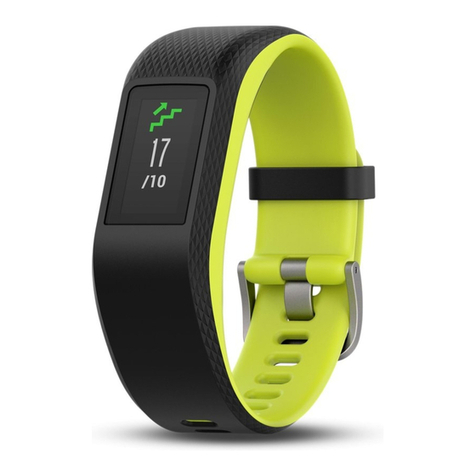
Huawei Band 3e Reference guide

HUAWEI Band 3e
HUAWEI Band 3e Online Help_V1.1
Issue 01
Date 2018-11-19
HUAWEI TECHNOLOGIES CO., LTD.

Copyright © Huawei Technologies Co., Ltd. 2018. All rights reserved.
No part of this document may be reproduced or transmitted in any form or by any means without prior written
consent of Huawei Technologies Co., Ltd.
Trademarks and Permissions
and other Huawei trademarks are trademarks of Huawei Technologies Co., Ltd.
All other trademarks and trade names mentioned in this document are the property of their respective
holders.
Notice
The purchased products, services and features are stipulated by the contract made between Huawei and the
customer. All or part of the products, services and features described in this document may not be within the
purchase scope or the usage scope. Unless otherwise specified in the contract, all statements, information,
and recommendations in this document are provided "AS IS" without warranties, guarantees or
representations of any kind, either express or implied.
The information in this document is subject to change without notice. Every effort has been made in the
preparation of this document to ensure accuracy of the contents, but all statements, information, and
recommendations in this document do not constitute a warranty of any kind, express or implied.
Huawei Technologies Co., Ltd.
Address: Huawei Industrial Base
Bantian, Longgang
Shenzhen 518129
People's Republic of China
Website: http://www.huawei.com
Email: [email protected]
Issue 01 (2018-11-19) Copyright © Huawei Technologies Co., Ltd. i

Contents
1 Getting started................................................................................................................................1
1.1 Using your band..............................................................................................................................................................1
1.2 Icons................................................................................................................................................................................1
1.3 Wearing your band..........................................................................................................................................................4
1.4 Screen Control................................................................................................................................................................ 5
1.5 Pairing your band with your phone................................................................................................................................ 7
1.6 Syncing time................................................................................................................................................................... 8
1.7 Charging your band........................................................................................................................................................ 9
1.8 Powering on and off/Restarting/Restoring your band to its factory settings................................................................10
2 Smart reminders...........................................................................................................................12
2.1 Incoming call notification.............................................................................................................................................12
2.2 Muting an incoming call...............................................................................................................................................12
2.3 Rejecting calls...............................................................................................................................................................13
2.4 Messages reminders......................................................................................................................................................13
2.5 Activity reminders........................................................................................................................................................ 14
2.6 Target completion alert................................................................................................................................................. 14
2.7 Finding a phone using the band....................................................................................................................................14
3 Fitness and health........................................................................................................................16
3.1 Switching between two wearing modes....................................................................................................................... 16
3.2 Running Form Monitoring............................................................................................................................................16
3.3 Daily activity tracking and monitoring.........................................................................................................................18
3.4 Sleep monitoring...........................................................................................................................................................18
3.5 Syncing and sharing your fitness and health data.........................................................................................................19
3.6 Dual device connection................................................................................................................................................ 19
4 Setting alarms...............................................................................................................................21
4.1 Setting a Smart alarm................................................................................................................................................... 21
4.2 Setting an Event alarm..................................................................................................................................................22
5 Updating and MAC address......................................................................................................24
5.1 Viewing version information........................................................................................................................................ 24
5.2 Updating your band and the Huawei Health app..........................................................................................................25
5.3 Viewing the Bluetooth name and MAC address...........................................................................................................26
HUAWEI Band 3e
HUAWEI Band 3e Online Help_V1.1 Contents
Issue 01 (2018-11-19) Copyright © Huawei Technologies Co., Ltd. ii

6 Maintenance................................................................................................................................. 27
6.1 Water resistance............................................................................................................................................................ 27
6.2 Cleaning and care......................................................................................................................................................... 28
HUAWEI Band 3e
HUAWEI Band 3e Online Help_V1.1 Contents
Issue 01 (2018-11-19) Copyright © Huawei Technologies Co., Ltd. iii

1 Getting started
1.1 Using your band
1.2 Icons
1.3 Wearing your band
1.4 Screen Control
1.5 Pairing your band with your phone
1.6 Syncing time
1.7 Charging your band
1.8 Powering on and off/Restarting/Restoring your band to its factory settings
1.1 Using your band
This smart band supports two wearing modes: Wrist mode and Foot mode. There are several
smart features in the band such as running form monitoring, daily activity tracking and
monitoring, sleep monitoring, and message reminders. The band is the perfect partner for
smartphones as it is a combination of fitness, health, and fashion. It helps you learn about
your fitness and sleeping habits, achieve better running results, and minimize risk of injury.
1.2 Icons
NOTE
The icons may vary with the band version. The following information is for your reference only.
Wrist Mode:
HUAWEI Band 3e
HUAWEI Band 3e Online Help_V1.1 1 Getting started
Issue 01 (2018-11-19) Copyright © Huawei Technologies Co., Ltd. 1

Time Steps Distance
Calories Sleep time Find phone
Switch manually to Foot mode Incoming call notification Muting an incoming call
Alarm Disable alarm Activity reminders
Achievement reminders Message reminders More
HUAWEI Band 3e
HUAWEI Band 3e Online Help_V1.1 1 Getting started
Issue 01 (2018-11-19) Copyright © Huawei Technologies Co., Ltd. 2

Restart Power off Device name
NOTE
You cannot view the "Find phone" icon when your band is not connected with your phone.
Foot Mode:
Single workout Switching to Wrist mode Single workout distance
Single workout time
Connection
Waiting for a Bluetooth
connection
Bluetooth connection
failed
Bluetooth connected
HUAWEI Band 3e
HUAWEI Band 3e Online Help_V1.1 1 Getting started
Issue 01 (2018-11-19) Copyright © Huawei Technologies Co., Ltd. 3

Bluetooth disconnected
Battery:
Charging Low battery alert
Others
Low temperature System upgrade
1.3 Wearing your band
1. Attach and fix the body into the wrist strap as shown in the following figure.
2. The band strap adopts a U-shaped buckle designs. To wear the band, insert one end of
the strap through the U-shaped buckle and then fasten it.
HUAWEI Band 3e
HUAWEI Band 3e Online Help_V1.1 1 Getting started
Issue 01 (2018-11-19) Copyright © Huawei Technologies Co., Ltd. 4

NOTE
lYour band is made of materials that are safe to use. If you experience skin discomfort when wearing
the band, stop using it and consult a doctor.
lMake sure to wear your band properly to maximize comfort.
lKeep the band and your skin dry and clean to prevent any damages caused by moisture.
1.4 Screen Control
The band offers a resolution of 48 × 88 pixels PMOLED 0.5-inch black and white screen with
a touch key on the bottom of the screen.
Operation Function
Single touch Switch screens
Touch and hold Enable related functions
HUAWEI Band 3e
HUAWEI Band 3e Online Help_V1.1 1 Getting started
Issue 01 (2018-11-19) Copyright © Huawei Technologies Co., Ltd. 5

Turning on the screen
To turn on the screen, raise your wrist or rotate it inward. The screen will stay on for 5
seconds.
NOTE
You can enable the Raise wrist to wake screen function in the Huawei Health app.
Switching between screens
Ensure that the screen is on, and then rotate your wrist to switch between screens.
NOTE
lYou can enable the Rotate wrist to switch screen function in the Huawei health app.
lYou cannot rotate your wrist to switch between screens when your band is in Foot mode.
HUAWEI Band 3e
HUAWEI Band 3e Online Help_V1.1 1 Getting started
Issue 01 (2018-11-19) Copyright © Huawei Technologies Co., Ltd. 6
Other manuals for Band 3e
3
Table of contents
Other Huawei Fitness Tracker manuals

Huawei
Huawei NYX-B10 User manual

Huawei
Huawei Band User manual

Huawei
Huawei TalkBand B2 User manual

Huawei
Huawei Band 8 User manual

Huawei
Huawei Band 3 Pro Installation guide

Huawei
Huawei ASK-B19 User manual

Huawei
Huawei Band 4e User manual

Huawei
Huawei BAND 6 BLACK User manual

Huawei
Huawei Band 7 User manual

Huawei
Huawei AW600 User manual

Huawei
Huawei LEA-B19 User manual

Huawei
Huawei FRA-B19 User manual

Huawei
Huawei Band 2 Pro User manual

Huawei
Huawei Band 6 User manual

Huawei
Huawei STA-B39 User manual

Huawei
Huawei JNS-BX9 User manual

Huawei
Huawei TalkBand User manual

Huawei
Huawei CRS-B19S User manual

Huawei
Huawei TalkBand B6 Instruction Manual

Huawei
Huawei Band 4 User manual