
Huawei Y7 User manual

User Guide

Contents
Exciting Features
Use Shortcuts to Access Frequently Used Features 1
More Features 1
New Device
Connecting to the Internet 4
Smart Charging: Charge Your Device Faster and Safer 4
Legal Notice 5
Gestures and Operation
Screenshots and Screen Recording 8
Home Screen
Quick Switch 11
Notication and Status Bar 12
Screen Lock and Unlock 16
Go Back to Basics with Simple Mode 18
Home Screen Management 18
Contacts
Managing Business Cards 22
Managing Contacts 23
Dialing
Basic Calling Functions 26
Block Nuisance Calls: Get the Peace and Quiet You Deserve 28
Message
Basic Messaging Functions 29
Camera
Basic Camera Functions 31
Panorama 33
Beautication 34
Discover New Possibilities with Customized Shooting Modes 35
Gallery
Photo Management 36
Phone Manager
Use One-touch Optimization 39
Manage Your Mobile Data 39
Optimize Power Consumption 40
Use Virus Scan to Keep Your Phone Safe 41
i

Email
Add Email Accounts 42
Manage Email Accounts 42
Manage VIP Email Contacts 43
Set Auto Response for Exchange Email 43
Calendar
Calendar: Your Event Management Center 44
Navigate the Calendar 44
Import To-Dos to Keep Your Work Organized 45
View Global Holidays 46
Clock
Use the Clock 47
Notepad
Manage Your Notes to Keep Your Records in Order 49
Utilities
Use Recorder to Make Audio Notes 50
Device Connection
Bluetooth 51
Transfer Data Between Your Phone and Computer 53
Security and Privacy
Fingerprint 54
Face Unlock 56
Location Information Protection 58
Use App Lock to Lock Important Apps 59
Enhanced Data Protection: Defend Your Privacy 59
Backup and Restoration
Data Backup: Prevent Data Loss 61
Back Up Your Data to a microSD Card 61
Back Up Your Data to Internal Storage 61
Back Up Your Data to a USB Storage Device 62
Wi-Fi and Network
Wi-Fi 63
Connecting to the Internet 65
Share Your Mobile Network with Other Devices 66
Sound and Display
Congure Do Not Disturb Mode 68
Congure Your Sound Settings 68
Contents
ii

Enable Eye Comfort Mode to Prevent Eye Strain 69
More Display Settings 70
Storage
Storage Cleaner 75
System
Language and Input Method 77
Accessibility 77
General Settings 80
System Update
Performing an Online Update 85
Contents
iii

Exciting Features
Use Shortcuts to Access Frequently Used Features
Touch and hold an app icon to display a menu of frequently used features for quick access. You can
also touch and hold a feature and drag it to your home screen to create a shortcut.
If you touch and hold an app icon and a shortcut is not created, the app does not support home
screen shortcuts.
Quickly access frequently used app features: Touch and hold an app icon on your home screen,
and then touch a frequently used feature to access it. Each app supports up to four frequently used
features. These are preset by the app and cannot be changed. For example, to take a sele, touch and
hold the camera icon, and then touch Sele in the pop-up menu.
Add shortcuts to your home screen: Touch and hold an app icon on your home screen to bring up
the menu. Touch and hold the desired feature, and then drag it to your home screen to create a
shortcut. For example, you can add a shortcut for the camera's sele feature for quick access to the
sele camera.
More Features
Wi-Fi+: Your Smart Connectivity Assistant
Wi-Fi+ intelligently connects to Wi-Fi networks to save mobile data consumption. When your device
detects a known or free Wi-Fi network, it will automatically turn on Wi-Fi and connect to the network.
Your device will also automatically select the optimal network in the area for the best Internet
connection.
1

Once you have enabled Wi-Fi+, your device will:
lAutomatically select and connect to the optimal network: Automatically select and connect to
Wi-Fi networks you've previously connected to, free networks, or your mobile data network,
depending on the signal strength at your current location.
lAutomatically turn Wi-Fi on and off: Depending on the Wi-Fi networks you have connected to
previously, Wi-Fi will be automatically enabled or disabled in specic locations. This will prevent your
device from constantly searching for new networks.
lAssess the quality of available networks: Evaluate currently available network hotspots and
prevent your device from automatically connecting to networks with no Internet connection.
Clean Up Memory for Faster Performance
Does your Phone slow down over time? Do you want to clean up your system storage but are unsure
which les to delete? Memory cleanup helps you quickly clear your cache, large and residual les, and
unused app les to speed up system performance and keep your Phone in top shape.
When your system performance slows down or remaining storage space is low, Phone Manager will
remind you to clean up. You can follow the onscreen prompts to clean up your Phone's memory and
free up storage space.
Clean: Scan for and clean up trash les and system cache to quickly free up memory and internal
storage space without affecting your Phone usage.
Deep clean: Scan for redundant les including WeChat les, large les, videos, images, app residual
les, music les, unnecessary installation packages, unused les, and les that take up a lot of space,
Exciting Features
2

and obtain cleaning suggestions based on the scan results. This helps you free up storage space
without accidentally deleting important les.
Exciting Features
3

New Device
Connecting to the Internet
Connect to Wi-Fi networks effortlessly with your device.
Connecting to a Wi-Fi network
1Swipe down from the status bar to open the notication panel.
2Touch and hold to open the Wi-Fi settings screen.
3Switch on Wi-Fi. Your device will list all available Wi-Fi networks at your location.
4Select the Wi-Fi network you want to connect to. If you select an encrypted network, you will also
need to enter the Wi-Fi password.
Connecting using mobile data
Before using mobile data, ensure that you have a data plan with your carrier to avoid incurring
excessive data charges.
1Swipe down from the status bar to open the notication panel.
2Touch to enable mobile data.
When you don't need to access the Internet, disable mobile data to save battery power and
reduce data usage.
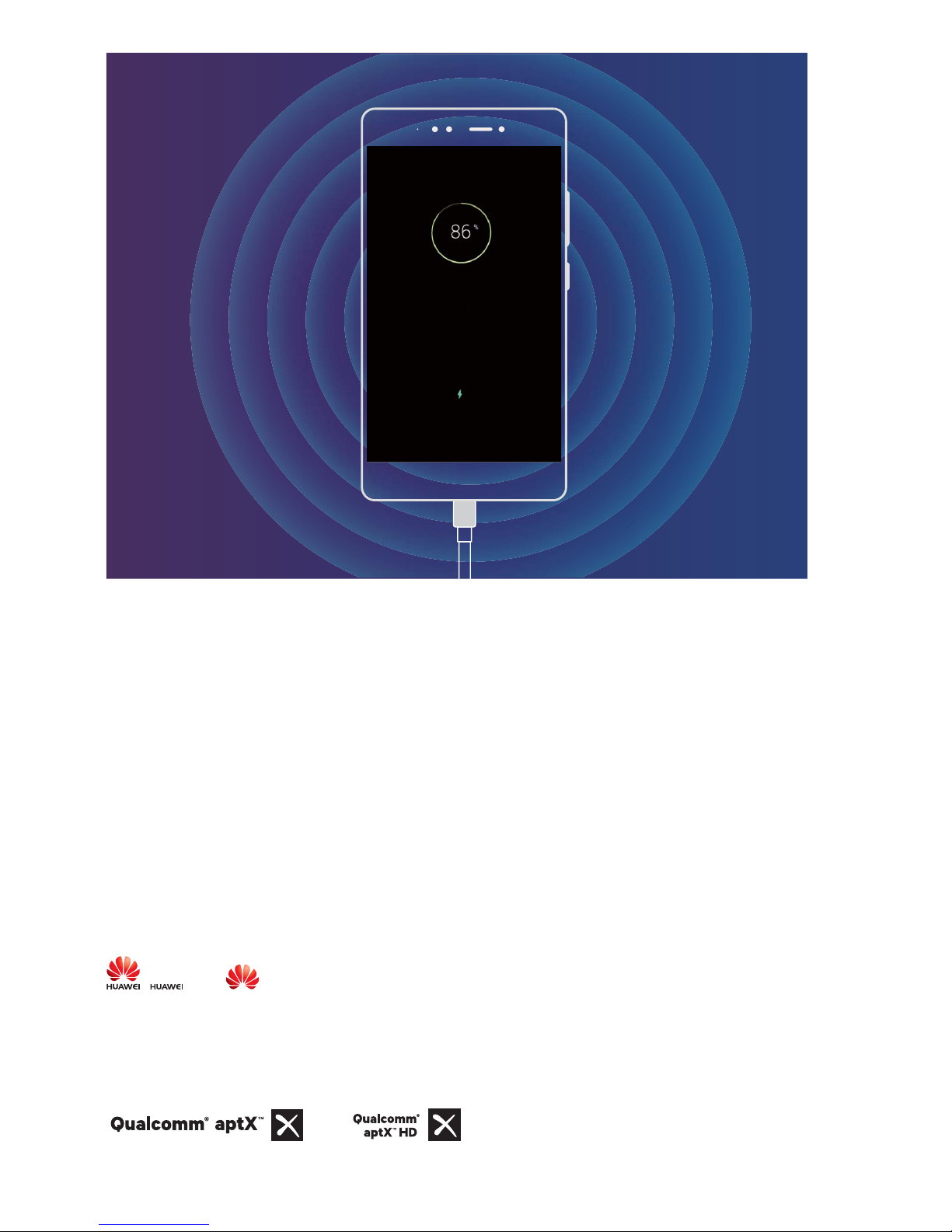
Smart Charging: Charge Your Device Faster and Safer
Many people nd ordinary charging too slow, but worry about the safely of fast-charging. Worry no
more: SmartCharge has you covered. SmartCharge establishes a direct connection between the Phone
and the charger and intelligently coordinates the charging voltage and current based on the battery
power of the Phone to provide a smarter, faster, and safer charge.
Make sure you are using the original charger and USB cable when charging your Phone. Using a
third-party charger or USB cable may cause repeated restarts, longer charges, overheating, and in
extreme cases, Phone battery damage or even explosion.
4
Legal Notice
Copyright © Huawei Technologies Co., Ltd. 2018. All rights reserved.
No part of this manual may be reproduced or transmitted in any form or by any means without prior
written consent of Huawei Technologies Co., Ltd. and its afliates ("Huawei").
The product described in this manual may include copyrighted software of Huawei and possible
licensors. Customers shall not in any manner reproduce, distribute, modify, decompile, disassemble,
decrypt, extract, reverse engineer, lease, assign, or sublicense the said software, unless such
restrictions are prohibited by applicable laws or such actions are approved by respective copyright
holders.
Trademarks and Permissions
, , and are trademarks or registered trademarks of Huawei Technologies Co., Ltd.
Android™ is a trademark of Google Inc.
The Bluetooth® word mark and logos are registered trademarks owned by Bluetooth SIG, Inc. and any
use of such marks by Huawei Technologies Co., Ltd. is under license.
and are registered trademarks of Qualcomm Inc.
(NASDAQ: QCOM).
New Device
5

is a registered trademark of Sony Corporation.
Other trademarks, product, service and company names mentioned may be the property of their
respective owners.
Notice
Some features of the product and its accessories described herein rely on the software installed,
capacities and settings of local network, and therefore may not be activated or may be limited by
local network operators or network service providers.
Thus, the descriptions herein may not exactly match the product or its accessories which you
purchase.
Huawei reserves the right to change or modify any information or specications contained in this
manual without prior notice and without any liability.
Third-Party Software Statement
Huawei does not own the intellectual property of the third-party software and applications that are
delivered with this product. Therefore, Huawei will not provide any warranty of any kind for third
party software and applications. Neither will Huawei provide support to customers who use third-
party software and applications, nor be responsible or liable for the functions or performance of third-
party software and applications.
Third-party software and applications services may be interrupted or terminated at any time, and
Huawei does not guarantee the availability of any content or service. Third-party service providers
provide content and services through network or transmission tools outside of the control of Huawei.
To the greatest extent permitted by applicable law, it is explicitly stated that Huawei shall not
compensate or be liable for services provided by third-party service providers, or the interruption or
termination of third-party contents or services.
Huawei shall not be responsible for the legality, quality, or any other aspects of any software installed
on this product, or for any uploaded or downloaded third-party works in any form, including but not
limited to texts, images, videos, or software etc. Customers shall bear the risk for any and all effects,
including incompatibility between the software and this product, which result from installing software
or uploading or downloading the third-party works.
This product is based on the open-source Android™ platform. Huawei has made necessary changes to
the platform. Therefore, this product may not support all the functions that are supported by the
standard Android platform or may be incompatible with third-party software. Huawei does not
provide any warranty or representation in connect with any such compatibility and expressly excludes
all liability in connection with such matters.
DISCLAIMER
ALL CONTENTS OF THIS MANUAL ARE PROVIDED "AS IS". EXCEPT AS REQUIRED BY APPLICABLE
LAWS, NO WARRANTIES OF ANY KIND, EITHER EXPRESS OR IMPLIED, INCLUDING BUT NOT LIMITED
New Device
6
Other manuals for Y7
6
Table of contents
Other Huawei Cell Phone manuals

Huawei
Huawei M328 User manual

Huawei
Huawei Y6P User manual

Huawei
Huawei U9200 Reference guide

Huawei
Huawei Boulder User manual
Huawei
Huawei T-Mobile Sonic User manual

Huawei
Huawei EVE-LX3 User manual

Huawei
Huawei Vitria User manual

Huawei
Huawei Ascend G510 User manual

Huawei
Huawei Ascend Y511 User manual

Huawei
Huawei Honor 6x User manual

Huawei
Huawei CUN-L33 User manual

Huawei
Huawei SUMMIT User manual

Huawei
Huawei Mobile Phones User manual

Huawei
Huawei U8520-1 User manual

Huawei
Huawei Virqin media VM720 User manual

Huawei
Huawei CHM-U01 Dimensions

Huawei
Huawei MRD-LX1N User manual

Huawei
Huawei Nova 5T User manual

Huawei
Huawei G2201 User manual

Huawei
Huawei LDN-LX2 User manual


