
Hanwang Technology Graphicpal 0504 User manual

Graphics Tablet
User’s Manual
Hanwang Technology Co., Ltd.

Copyright © Hanwang Technology Co., Ltd, 2009
All rights reserved. No part of this manual may be reproduced except for your
express personal use. Hanwang Technology Co., Ltd reserves the rights to revise
this publication without obligation to provide notification of such changes.
Hanwang Technology Co., Ltd does its best to provide current and accurate
information in this manual. However, Hanwang Technology Co., Ltd reserves the
right to change any specifications and product configurations at its discretion,
without prior notice and without obligation to include such changes in this manual.
Art Master, Graphicpal, Rollick and Hanvon are registered trademarks of
Hanwang Technology Co., Ltd.
Microsoft, Windows, and Vista are either registered trademarks or trademarks of
Microsoft Corporation in the United States and/or other countries. Apple, the
Apple logo, and Macintosh are registered trademarks of Apple Computer, Inc.,
registered in the U.S. and other countries. Any additional company and product
names mentioned in this documentation may be trademarked and /or registered
as trademarks. Mention of third-party products is for information purposes only
and constitutes neither an endorsement nor a recommendation.
Hanwang Technology Co., Ltd assumes no responsibility with regard to the
performance or use of these products.

Contents
CHAPTER 1 GRAPHICS TABLET INTRODUCTION ................................1
1.1 GENERAL INTRODUCTION................................................................ 1
1.2 FEATURES............................................................................................. 1
1.3 QUICK-START TUTORIAL...................................................................2
CHAPTER 2 INSTRUCTION FOR WINDOWS SYSTEMS .......................7
2.1 SYSTEM REQUIREMENTS................................................................. 7
2.2 INSTALLATION ......................................................................................7
2.3 UNINSTALLING......................................................................................8
2.4 CONFIGURATION.................................................................................8
CHAPTER 3 INSTRUCTION FOR MAC SYSTEMS.................................19
3.1 SYSTEM REQUIREMENTS............................................................... 19
3.2 INSTALLATION ....................................................................................19
3.3 UNINSTALLING....................................................................................21
3.4 CONFIGURATION...............................................................................21
CHAPTER 4 BUNDLED SOFTWARE........................................................ 27
4.1 HANVON SHELL ................................................................................. 27
4.2 PENWRITE...........................................................................................32
4.3 PENSIGN.............................................................................................. 38
4.4 PENMAIL............................................................................................... 39
4.5 PENMARK ............................................................................................41
4.6 WHITEBOARD.....................................................................................43
CHAPTER 5 MAINTENANCE......................................................................47

5.1 PEN HOLDER......................................................................................47
5.2 EXCHANGE PEN NIB.........................................................................48
5.3 CAUTIONS............................................................................................ 49
APPENDIX.......................................................................................................50
WARRANTY................................................................................................50
This User’s Manual provides quick access to information about Hanvon®
Drawing Tablet or Hanvon®Graphics Tablet.
This User’s Manual does not contain detailed information of any software
from third party.
Due to our continuous updates on the product, all figures in this manual are
only for reference, the actual item is the standard.

INTRODUCTION
1
Chapter 1 Graphics Tablet
Introduction
1.1 General Introduction
The Hanvon Graphics Tablet allows you to create graphics on a
computer using a cordless and battery-free pen. It is very easy to use.
You don’t need to be an experienced graphic artist to use it. This USB
graphics tablet supports a variety of professional painting and photo
editing software including Painter, Photoshop, Ulead Photolmpact,
Flash, Dabbler, Maya, PaintShop and more.
1.2 Features
zExpress Touch Keys and Touch Strip
zUses standard USB without the need for an external power
adapter
zCordless and Battery-free pen
zPressure Sensitive technology
zWindows & Mac compatible
zSoftware Supported: Painter / Photoshop / Ulead PhotoImpact /
Flash / CorelDraw / Dabbler / Maya and a variety of graphic
processing software
INTRODUCTION
2
1.3 Quick-Start Tutorial
Note: Some series of graphics tablets have no pen slot and do not
support touch keys and strip. For example as follow:

INTRODUCTION
3
Holding the pen
Hold the pen as usual.
zThe pen will take effect when it comes within 7mm above the
tablet.
zWhile using the pen, be sure that your thumb or index finger can
easily control the button on the pen, which acts as the right-click
key of a mouse.
Positioning
Moving the pen in the active area of the tablet will control the cursor’s
position on the computer screen.

INTRODUCTION
4
The pen and tablet use the Absolute Coordination method. This
means the active area of the tablet represents the entire computer
screen. Moving the pen on the tablet creates a corresponding
movement of the cursor on the screen.
Single Click
One slight touch of the pen on the tablet has the same effect as a
single left-click of the mouse.
Double Click
Two immediate clicks on the tablet have the same effect as a double
left-click of the mouse.

INTRODUCTION
5
Double Click Technique
When the cursor is positioned, press the tablet twice immediately with
the pen tip, making sure that you do not move the pen tip. The
response for the double click can be slow for beginners. You can
solve this problem by adjusting the double click speed from the
normal setting of the tablet.
Dragging
Select a target by pressing the pen down on it, and do not release the
pen till you have moved the target to the new position you want.

INTRODUCTION
6
Pressure Sensitive Painting
In applicable software, you can use the pressure sensitivity of the pen
to control the painting brushwork for different effects such as direction,
stroke width, color and thickness.
The software that supports pressure sensitivity includes Adobe
Photoshop, Painter, Flash, Ulead PhotoImpact, Art Dabbler etc.
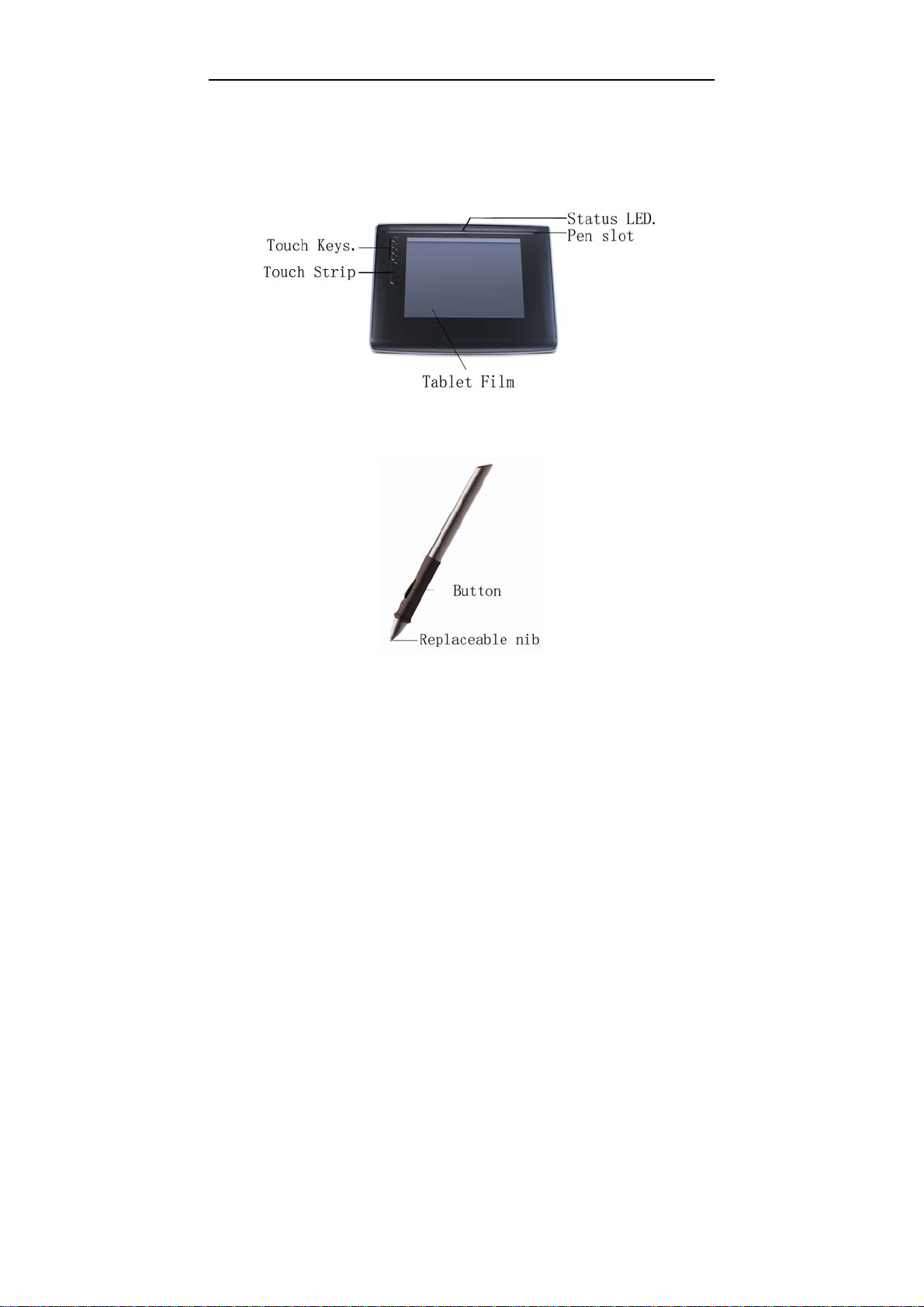
Touch key and Touch Strip
Touch keys are programmable for modifier keys, keyboard shortcuts,
mouse clicks, open/run applications, and pop-up menus. The default
is Rubber, Alt, Shift and Space.
The touch strip is used for quick scrolling, zooming, controlling brush
size, and other functionality by user configuration.
This manual suits for next models
2
Table of contents
Other Hanwang Technology Graphic Tablet manuals


