
Hanwang Technology GraphicPal ? User manual

GraphicPal Ⅳ
User’s Manual
Hanwang Technology Co., Ltd.

Copyright © Hanwang Technology Co., Ltd, 1999-2014
All rights reserved. No part of this manual may be reproduced except
for your express personal use. Hanwang Technology Co., Ltd reserves
the rights to revise this publication without obligation to provide
notification of such changes. Hanwang Technology Co., Ltd does its
best to provide current and accurate information in this manual.
However, Hanwang Technology Co., Ltd reserves the right to change
any specifications and product configurations at its discretion, without
prior notice and without obligation to include such changes in this
manual.
GraphicPal and Hanvon are registered trademarks of Hanwang
Technology Co., Ltd.
Microsoft, Windows, and Vista are either registered trademarks or
trademarks of Microsoft Corporation in the United States and/or other
countries. Apple, the Apple logo, and Macintosh are registered
trademarks of Apple Computer, Inc., registered in the U.S. and other
countries. Any additional company and product names mentioned in
this documentation may be trademarked and /or registered as
trademarks. Mention of third-party products is for information purposes
only and constitutes neither an endorsement nor a recommendation.
Hanwang Technology Co., Ltd assumes no responsibility with regard to
the performance or use of these products.

INTRODUCTION
1
Contents
Chapter 1 Graphics Tablet Introduction······················· 3
1.1 General Introduction·········································· 3
1.2 Features ·························································· 3
1.3 Quick-Start Tutorial············································· 4
Chapter 2 Instruction for Windows Systems···············11
2.1 System Requirements········································11
2.2 Installation·······················································11
2.3 Uninstalling······················································12
2.4 Configuration ···················································13
Chapter 3 Instruction for Mac Systems ······················27
3.1 System Requirements········································27
3.2 Installation·······················································27
3.3 Uninstalling······················································31
3.4 Configuration ···················································32
Chapter 4 Bundled Software·····································39
4.1 Hanvon Shell ···················································39

INTRODUCTION
2
4.2 PenWrite·························································45
4.3 PenSign··························································52
4.4 PenMail ··························································53
4.5 PenMark ·························································56
Chapter 5 Maintenance ············································62
5.1 Pen Holder ······························错误!未定义书签。
5.2 Exchange Pen Nib ············································62
5.3 Cautions ·························································62
Appendix································································63
Warranty ······························································63
This User’s Manual provides quick access to information about
Hanvon®Drawing Tablet or Hanvon®Graphics Tablet.
This User’s Manual does not contain detailed information of any
software from third party.
Due to our continuous updates on the product, all figures in this
manual are only for reference, the actual item is the standard.
For latest updated user manual, please visit and download from
http://www.hanvon.com.

INTRODUCTION
3
Chapter 1 Graphics Tablet
Introduction
1.1 General Introduction
The Hanvon Graphics Tablet allows you to create graphics on
a computer using a cordless and battery-free digital pen. It is
very easy to use. You don’t need to be an experienced
graphic artist to use it. This USB graphics tablet supports a
variety of professional painting and photo editing software
including Painter, Photoshop, Ulead Photolmpact, Flash,
Dabbler, Maya, PaintShop and more.
1.2 Features
Express Keys and Touch Ring
Uses standard USB without the need for an external
power adapter
Cordless and Battery-free Digital Pen
Pressure Sensitive Technology
Eraser and Programmable Switches on Stylus
Widescreen and Multiple Monitors Supported
Vista/Windows7/8 Supported, Windows & Mac

INTRODUCTION
4
compatible
Software Supported: Painter / Photoshop / Ulead
PhotoImpact / Flash / CorelDraw / Dabbler / Maya and a
variety of graphic processing software
1.3 Quick-Start Tutorial

INTRODUCTION
5
Holding the pen
Hold the pen as usual.
The pen will take effect when it comes within 10mm
above the tablet.
While using the pen, be sure that your thumb or index
finger can easily control the programmable buttons on
the pen, which act as the “right-click”and “double-click”
key of a mouse individually.

INTRODUCTION
6
Positioning
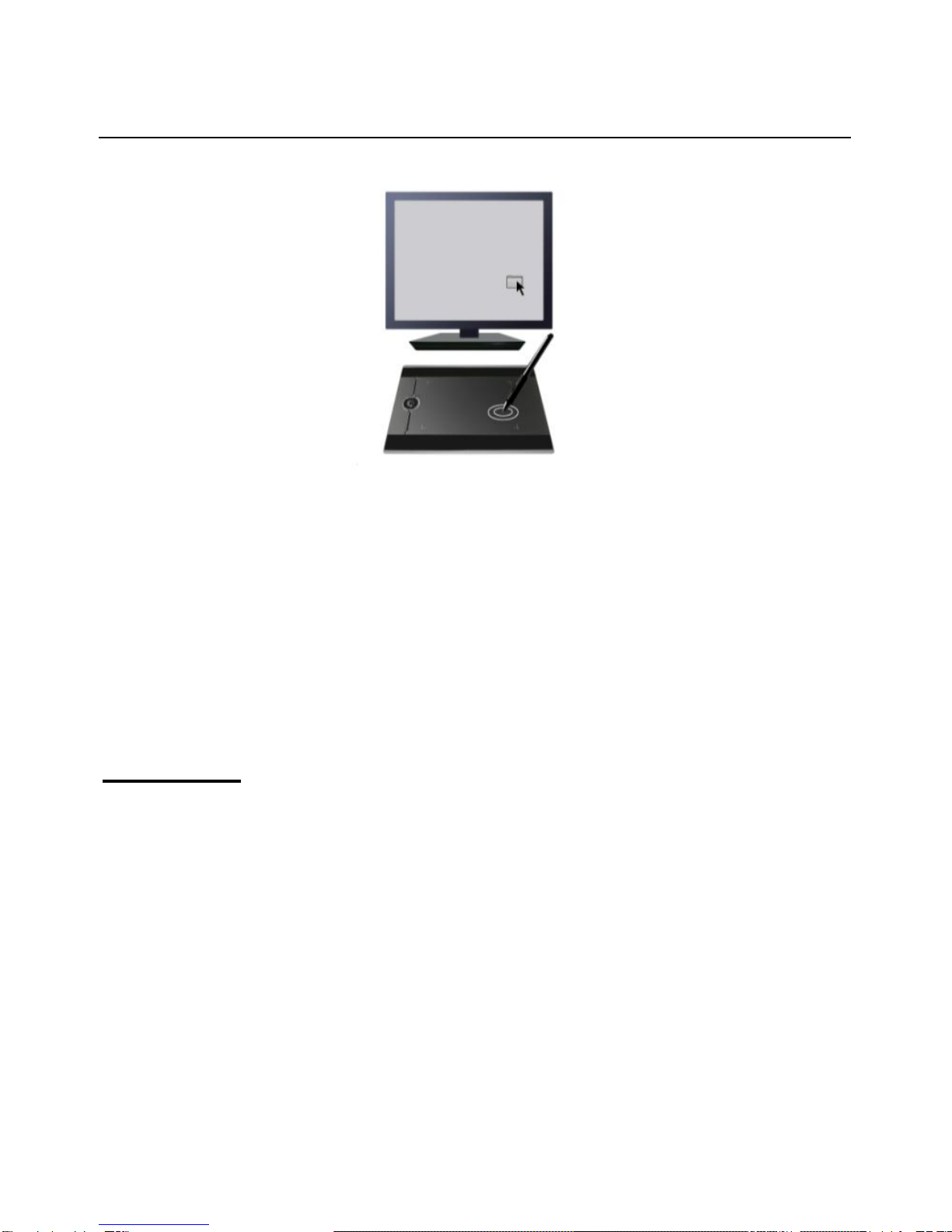
Moving the pen in the active area of the tablet will control the
cursor’s position on the computer screen.
The pen and tablet use the Absolute Coordination method.
This means the active area of the tablet represents the entire

INTRODUCTION
7
computer screen. Moving the pen on the tablet creates a
corresponding movement of the cursor on the screen.
Single Click
One slight touch of the pen on the tablet has the same effect
as a single left-click of the mouse.
Double Click
Two immediate clicks on the tablet have the same effect as a
double left-click of the mouse.
INTRODUCTION
8
Double Click Technique
When the cursor is positioned, press the tablet twice
immediately with the pen tip, making sure that you do not
move the pen tip. The response for the double click can be
slow for beginners. You can solve this problem by adjusting
the double click speed from the normal setting of the tablet.
Dragging
Select a target by pressing the pen down on it, and do not
release the pen till you have moved the target to the new
position you want.
Table of contents
Other Hanwang Technology Graphic Tablet manuals


