Haltian thingsee AIR Manual

User and Installation Guide
ENVIRONMENT
v.21.03
Welcome to use Thingsee
Congratulations on choosing Haltian Thingsee as your IoT solution. We
at Haltian want to make IoT easy and accessible for everyone, so we
have created a solution platform that is easy to use, scalable and
secure. I hope our solution will help you achieve your business
goals!
Pasi Leipälä
CEO, Haltian Oy
Thingsee ENVIRONMENT
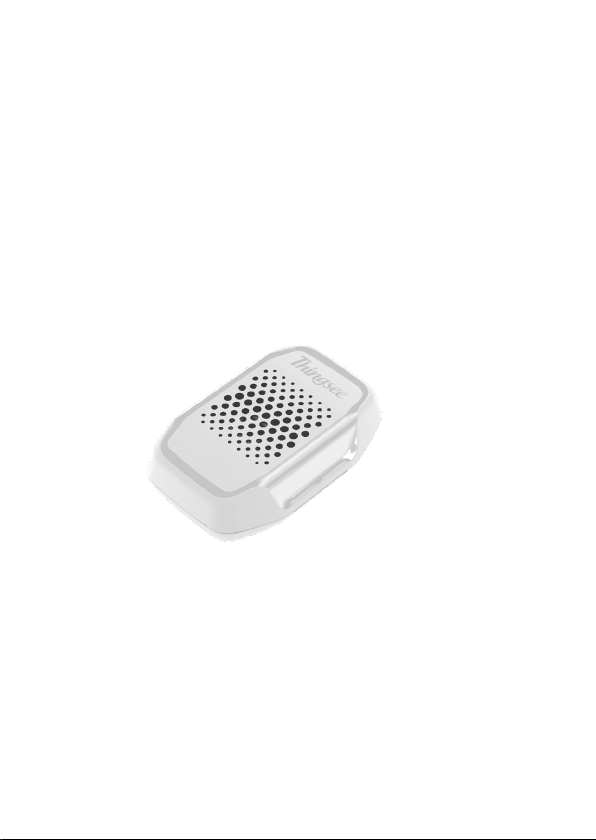
Thingsee ENVIRONMENT is a multipurpose wireless IoT sensor for
environment monitoring. It is a perfect match for building new IoT
solutions for a variety of business verticals. It can be used to measure
several environmental variables or monitor machine usage rates.
Thingsee ENVIRONMENT is part of Haltian Thingsee IoT solution and
product family.

Using Thingsee ENVIRONMENT sensor
Sales package content
Indoor environment monitoring can make any building or space smart.
Real-time information over temperature and humidity can be used
to create better end-user experiences, eicient energy consumption
and better facility management planning with factual data over the
environmental factors.
Thingsee ENVIRONMENT sensor measures temperature, humidity,
barometric pressure, and ambient light. In addition, it has an
accelerometer and a magnetic switch.
Thingsee ENVIRONMENT’s magnetic switch recognition can be used
to monitor the open/closed position of doors and windows, and the
ambient light sensor can recognize if the lights are on or o.
The accelerometer can identify the sensor’s position, but also recognise
even the smallest G-forces, which can be used to measure machine
usage rates. This is very handy when tracking the usage for various
machines and predicting their maintenance needs.
The sensor is for indoor use only.
The environment humidity can be measured between 0 - 100 % RH at
all time.
The usage temperature range is -40 ºC to +85 ºC, non-condensing
environments only.
• Thingsee ENVIRONMENT sensors
• 1 x Opening Key
Note before installation
Please make sure the Thingsee gateway device is installed before you
install the sensor.
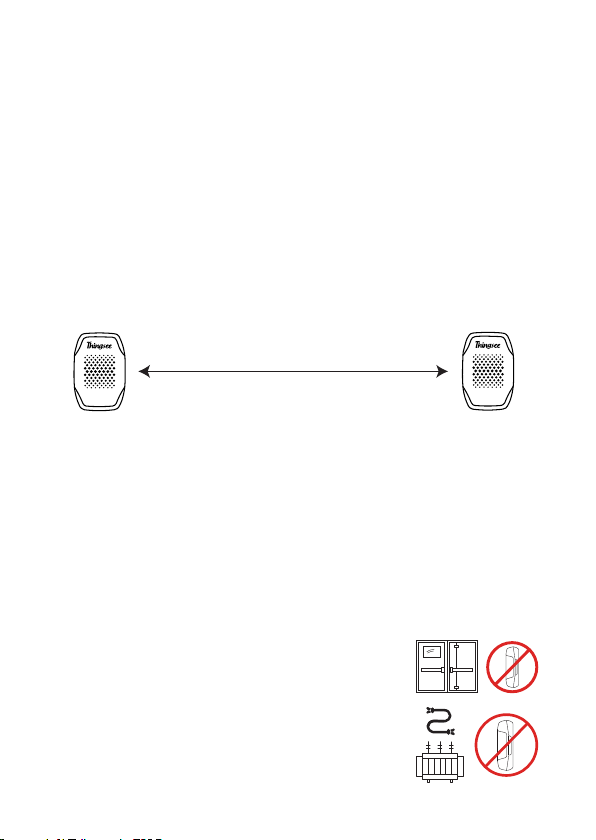
To ensure strong enough signal strength for data delivery, keep the
maximum distance between installed sensors under 20 m.
If the distance between a measuring sensor and the gateway is > 20 m
or if the sensors are separated by a fire door or other thick building
materials, use extra sensors as routers to ensure adequate signal
strength.
Things to avoid in installation
Avoid installing the Thingsee products near the following:
Thick concrete structures or thick fire doors
Electrical transformers or thick electrical wires
< 20 m
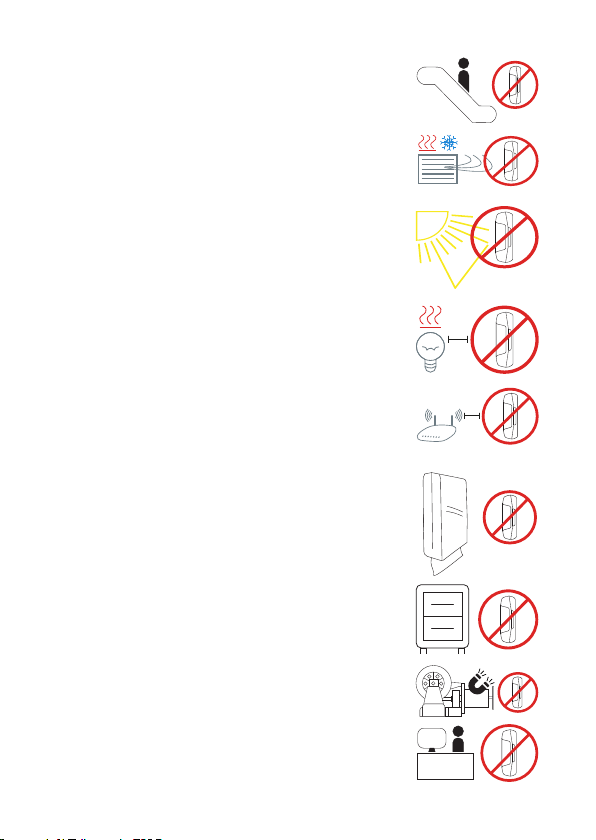
Direct sun light
Nearby heating or cooling devices and/or vents
Escalators
Nearby halogen lamps, fluorescent lamps or
similar lamps with hot surface
Nearby radio equipment like WiFi routers or any
other similar high power RF transmitters
Inside metal box or covered with a metal plate
Inside or underneath a metal cabinet or box
Near elevator motors or similar targets causing a
strong magnetic field
Avoid installing the sensor in close proximity to a
spot where there’s people presence constantly,
such as right next to workstations
Installation
Please make sure the Thingsee gateway device is installed before you
install the sensors.
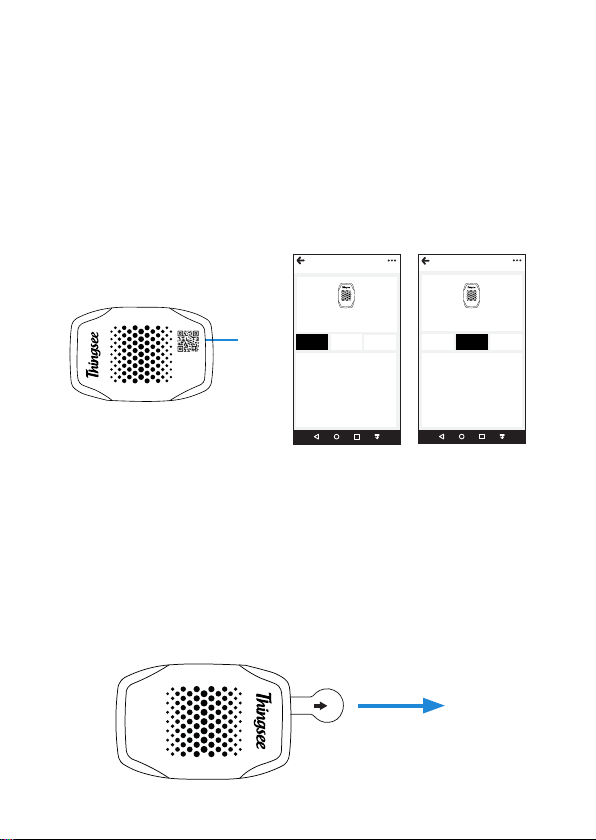
To identify the sensor, read the QR code on the front of the device
with a QR code reader or Thingsee installation application on your
mobile device.
Identifying the device is not necessary, but it will help you keep track of
your IoT installation and help Haltian support to solve possible issues.
Note: Make sure the sensor is installed max. 20 meters form the next sensor or
gateway. This is to ensure full coverage mesh network between the sensors and
the gateway.
DEVICE
DEVICE EVENTS TOPOLOGY
DEVICE
DEVICE EVENTS TOPOLOGY
ENVIRONMENT
BIN VERSION:
3.4.37.0
SW VERSION:
2018.07.02.2_ts_pinsp34
BATT LEVEL: 100%
DESCRIPTION: Room1
TUID: TSPR042O02500875
INFO
ENVIRONMENT
16/11/2018 09:15:57
16/11/2018 09:14:57
16/11/2018 09:13:57
16/11/2018 09:12:57
16/11/2018 09:11:57
QR code
Carefully pull out the battery security tab.
LED indicator (red) will flash once. If the LED doesn’t flash within 2
minutes, tap the sensor against your palm. If you do not see the LED
blink or see the events from the sensor within 5 minutes, re-install the
batteries.
Security tab
R
e
m
o
v
e
T
a
b
Clean the surface you will attach the sensor to with IPA -solvent
(isopropyl alcohol).
Remove the tape’s paper cover from the backside of the sensor.
Attach the sensor to its place by pushing it firmly against the surface for
a minimum of 5 seconds.
Changing the batteries
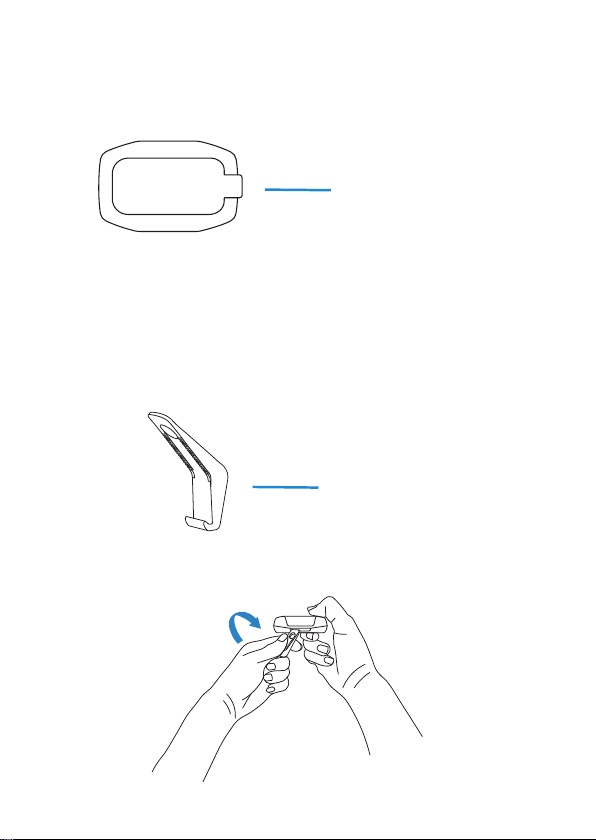
Open the sensor to change the batteries or reboot the device by
replacing the batteries. Use the opening key to open the sensor.
When holding the sensor in hand: Place the opening key in the hole on
the side of the sensor and twist to open.
Opening Key
Tape with paper cover

When the sensor is on the installed surface:
Place the batteries inside the B-cover.
Attach the A-cover to the B-cover attached to the installed surface.
A-cover
B-cover
Batteries
B-cover
Bend the
key to the
direction
shown
Place the
opening
key to the
hole on the
side of the
sensor
Installation surface
A-cover
B-cover B-cover
A-cover
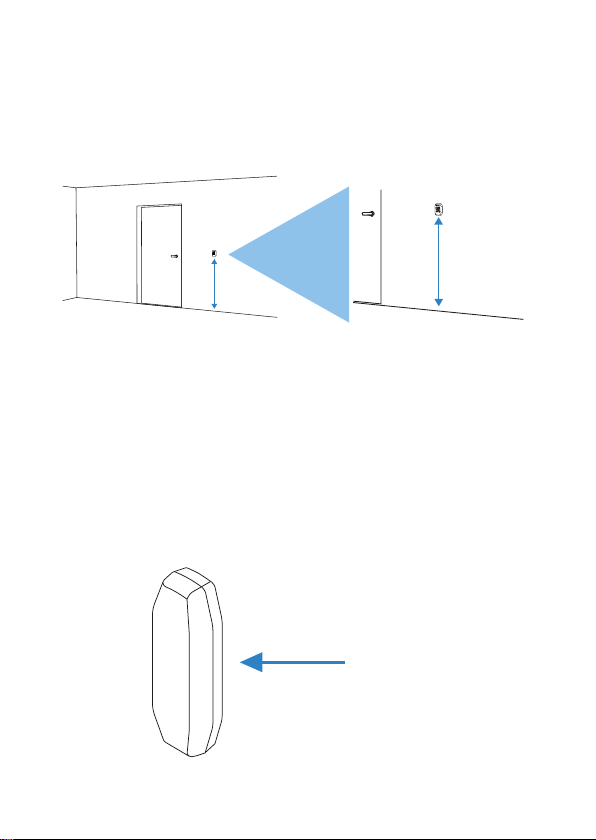
To monitor temperature, humidity, air pressure and light levels, install
the sensor on a wall at 1,2 m height.
Magnet Holder
Thingsee ENVIRONMENT is used to monitor doors and windows with
the magnet holder accessory. The magnet holder is attached to the
door or window, and Thingsee ENVIRONMENT is attached to the frame,
so that when the door/window is closed, the sensor detects the magnet
by its side.
Environment monitoring
Monitoring the open/closed position of
doors and windows
1,2 m
1,2 m
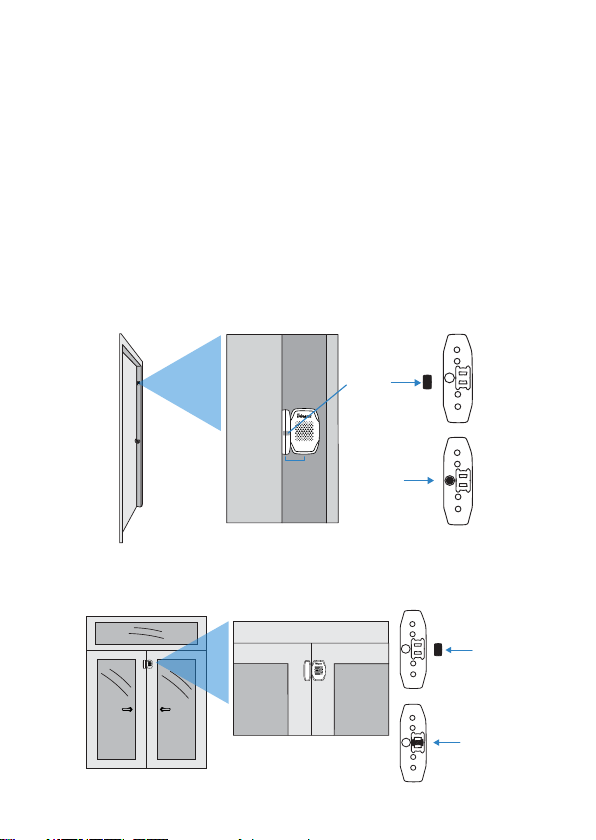
Magnet
Align Magnet
The small magnet inside the magnet holder accessory is positioned so
that the magnet is aligned with the magnetic switch inside Thingsee
ENVIRONMENT. The magnetic switch is on the le side of the device.
When the magnet holder comes across the sensor device, the magnet
is placed in magnet position 1 (see image 1). When the holder and the
sensor device are aligned, the magnet is placed in magnet position 2
(see image 2). Make sure to align the sensor and the magnet holder at
the bottom.
Magnet positions
Magnet position 1
Magnet
Magnet
Magnet position 2
Other manuals for thingsee AIR
2
Table of contents
Other Haltian Accessories manuals