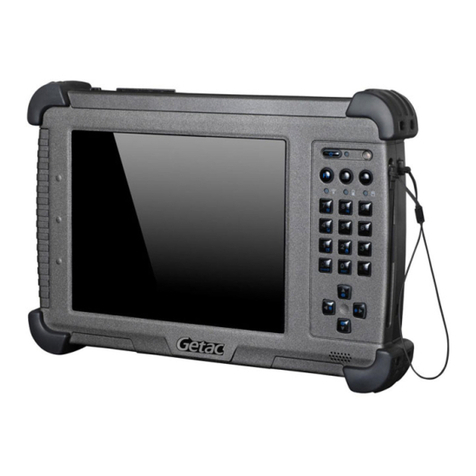
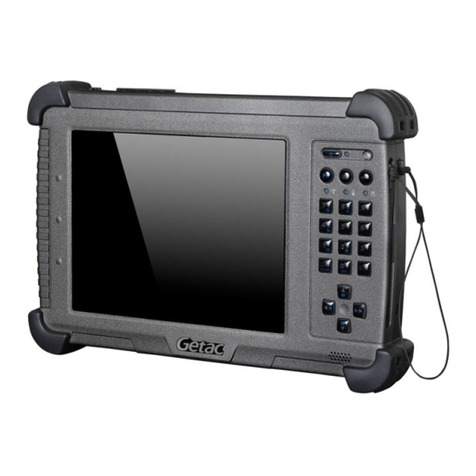
Getac UX10G3 User manual

Rugged Mobile Computing Solutions
UX10 Series
USER MANUAL

August 2023
Trademarks
The Bluetooth® word mark and logos are registered trademarks owned by
Bluetooth SIG, Inc.
Thunderbolt is a trademark of Intel Corporation or its subsidiaries.
All brand and product names are trademarks or registered trademarks of
their respective companies.
Disclaimer
Specifications and manuals are subject to change without notice. Getac
assumes no liability for damage incurred directly or indirectly from errors,
omissions, or discrepancies between the device and the manuals.
Note
For the latest version of the manual, please visit the Getac website at
www.getac.com.

i
Table of Contents
Chapter 1 Getting Started.................................................................1
Getting the Tablet PC Running................................................. 2
Unpacking .............................................................................. 2
Installing the Micro-SIM Card (Optional)............................. 3
Installing the Battery Pack .................................................... 4
Using the Tether .................................................................... 5
Connecting to AC Power....................................................... 6
Turning On and Off the Tablet PC ....................................... 7
Identifying Hardware Components .......................................... 8
Front Components................................................................. 8
Rear Components ................................................................ 10
Right-Side Components....................................................... 12
Left-Side Components ......................................................... 13
Top Components.................................................................. 14
Bottom Components ........................................................... 15
Chapter 2 Operating Your Tablet PC ..............................................16
Navigating on the Screen........................................................ 17
Using the Touchscreen ........................................................ 17
Using the Dual Mode Display (Optional) ........................... 20
Using Network and Wireless Connections ............................. 21
Using the LAN (Optional).................................................... 21
Using the WLAN................................................................... 21
Using the Bluetooth Feature .............................................. 22
Using the WWAN Feature (Optional) ................................ 24
Chapter 3 Managing Power ............................................................25
AC Adapter............................................................................... 26
Battery Pack.............................................................................. 27
Charging the Battery Pack .................................................. 27
Initializing the Battery Pack................................................ 28
Checking the Battery Level ................................................. 28
Battery Low Signals and Actions ........................................ 29

ii
Replacing the Battery Pack ................................................. 30
Hot Swapping the Battery Pack (Optional) ....................... 32
Power-Saving Tips .................................................................... 34
Chapter 4 Using Options and Peripherals......................................35
Using the Fingerprint Scanner (Optional) .............................. 36
Enrolling a Fingerprint ........................................................ 36
Fingerprint Login................................................................. 37
Using the Barcode Scanner (Optional) ................................... 38
Notes..................................................................................... 39
Connecting Peripheral Devices ............................................... 40
Connecting a Display Monitor ............................................ 40
Connecting a USB Device .................................................... 40
Connecting a Thunderbolt™ Device .................................. 41
Connecting a Serial Device (Optional) ............................... 42
Connecting an Audio Device .............................................. 42
Using Various Card Readers .................................................... 43
Using MicroSD Cards (Optional) ......................................... 43
Using Smart Cards (Optional) ............................................. 44
Using the RFID Reader (Optional) ...................................... 45
Chapter 5 Using BIOS Setup............................................................46
When and How to Use............................................................. 47
Menu Descriptions ................................................................... 48
Information Menu ............................................................... 48
Main Menu........................................................................... 48
Advanced Menu................................................................... 48
Security Menu ...................................................................... 50
Boot Menu ........................................................................... 51
Exit Menu ............................................................................. 52
Chapter 6 Using Getac Software ....................................................53
OSD Control Panel ................................................................... 54
G-Manager ............................................................................... 55
G-Camera.................................................................................. 56
Chapter 7 Care and Maintenance ...................................................57
Protecting the Tablet PC.......................................................... 58
Using an Anti-Virus Strategy............................................... 58
Using the Cable Lock ........................................................... 58
Taking Care of the Tablet PC .................................................. 59
Location Guidelines ............................................................. 59
General Guidelines .............................................................. 59
Cleaning Guidelines............................................................. 60

iii
Battery Pack Guidelines....................................................... 60
Touchscreen Guidelines....................................................... 61
When Traveling........................................................................ 63
Chapter 8 Troubleshooting .............................................................64
Preliminary Checklist................................................................ 65
Solving Common Problems...................................................... 66
Battery Problems ................................................................. 66
Bluetooth Problems............................................................. 66
Display Problems.................................................................. 67
Fingerprint Scanner Problems............................................. 68
Hardware Device Problems ................................................. 68
Power Management Problems ........................................... 68
Software Problems .............................................................. 69
Sound Problems ................................................................... 69
Startup Problems ................................................................. 70
WLAN Problems ................................................................... 70
Other Problems.................................................................... 71
Resetting the Tablet PC ........................................................... 73
System Recovery....................................................................... 74
Using Windows RE............................................................... 74
Using Recovery Partition ..................................................... 75
Using the Driver Disc (Optional) ............................................. 76
Appendix A Specifications .................................................................77
Appendix B Regulatory Information.................................................79
Safety Notices........................................................................... 80
About the Battery................................................................ 80
About the AC Adapter ........................................................ 82
Heat Related Concerns ........................................................ 83
North America.......................................................................... 84
USA ....................................................................................... 84
Canada.................................................................................. 87
User Notification of Take-back Service .............................. 88
Europe Marking and Compliance Notices.............................. 89
Statements of Compliance.................................................. 89
Restriction of Hazardous Substances (RoHS) Directive ..... 91
Declaration of Conformity.................................................. 91
About UX10-Ex......................................................................... 92
Special Conditions for Safe Use .......................................... 92
Protective Covers ................................................................. 92
Use of Accessories................................................................ 93
ENERGY STAR ........................................................................... 94

iv
About Battery and External Enclosure Replacement ............ 95
Battery .................................................................................. 95
External Enclosure ............................................................... 95
Manufacture Date and Labels................................................. 96

1
Chapter 1
Getting Started
This chapter first tells you step by step how to get the Tablet PC up and
running. Then, you will find a section briefly introducing the external
components of the Tablet PC.
CAUTION: Safety instructions are provided in related sections throughout
the User Manual. Please read the manual and any accompanying document(s)
before starting to use the product.
NOTE: Depending on the model you purchased, the appearance of your
Tablet PC may not be exactly the same as those shown in this manual.

2
Getting the Tablet PC Running
Unpacking
After unpacking the shipping carton, you should find these standard items:
UX10 Tablet PC
AC adapter
AC power cord
Battery pack
Stylus
Tether
Document(s) Driver disc (optional)
Inspect all the items. If any item is damage or missing, notify your dealer
immediately.
NOTE: Specific models do not have the AC adapter and power cord as
standard items. To purchase the AC adapter kit for your model, contact a
Getac authorized distributor. (Check https://www.getac.com/en/contact/ for
contact information.)

3
Installing the Micro-SIM Card (Optional)
NOTE: The micro-SIM card socket is located below the battery pack. If you
have already installed the battery pack, remove it in order to install the
micro-SIM card.
CAUTION:Before installing the micro-SIM card, make sure the AC adapter is
not connected and the power is not turned on.
1. Locate the micro-SIM card socket. Remove one screw to detach the small
metal plate that covers the micro-SIM card socket.
2. Slide the socket cover toward the unlocked direction ( ) and open
the cover.
3. Noting the orientation, put down the micro-SIM card on the socket.
4. Close the cover and slide it back to the locked position ( ).
5. Replace the metal plate and secure it in place with the screw previously
removed.

4
Installing the Battery Pack
1. With the battery pack correctly oriented, attach its connector side to the
battery compartment at an angle () and then press down the other
side (). The battery release latch should automatically engage.
NOTE: If you have the high-capacity battery model, the battery pack looks
different from the one shown here. The removal and installation method is
the same.
2. Slide the security lock to the locked position ( ).
CAUTION: Make sure the lock is correctly locked, not revealing the
underneath red part.
Battery
release latch
Locked
U
nlocked
This manual suits for next models
1
Table of contents
Other Getac Tablet manuals
Popular Tablet manuals by other brands

Laser
Laser MID-1060 Quick operation guide

MUNBYN
MUNBYN IRT09J Easy setup guide

Motorola
Motorola MC3090R - Win CE 5.0 Professional 520 MHz quick start guide

Dell
Dell Latitude ST Setup and features information

Lenovo
Lenovo IdeaTab S6000L Hardware Maintenance Manual

Venturer
Venturer WT9L11 quick start guide