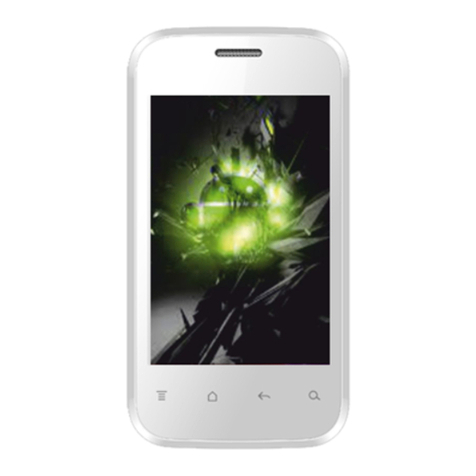
FLY F32 User manual

PN: 5839004883

1
ALL RIGHTS RESERVED
© 2012. All rights are reserved. No part of this document may be reproduced without
permission.
While all efforts have been made to ensure the accuracy of all contents in this User’s
Manual, we assume no liability for errors or omissions or statements of any kind in this
User’s Manual, whether such errors or omissions or statements are a result of
negligence, accidents, or any other cause. The contents of this User’s Manual are
subject to change without notice.
Protect our environment! We strive to produce products in compliance with global
environmental standards. Please consult your local authorities for proper disposal.
Note: Specifications and information in this User’s Manual are furnished for information
only and are subject to change without prior notice. These should not be construed as a
commitment or a certificate of technology. FLY mobile phones assumes no
responsibility for any errors or omissions that may appear in this manual.

2
TABLE OF CONTENTS
GENERAL INFORMATION ....................................................................5
Antenna............................................................................................................... 5
Network Service.................................................................................................. 5
Accessories......................................................................................................... 5
PHONE OVERVIEW..............................................................................7
Notification Panel................................................................................................ 2
Using the Touchscreen ....................................................................................... 3
ADDING A NEW HOME SCREEN ITEM................................................4
MOVING A HOME SCREEN ITEM.........................................................4
REMOVING A HOME SCREEN ITEM....................................................5
Locking and Unlocking the Screen ..................................................................... 6
GETTING STARTED..............................................................................7
Installing SIM Card and Battery.......................................................................... 7
Installing Memory Card....................................................................................... 9
Charging the Device ......................................................................................... 10
Switch On/Off the Phone ...................................................................................11

3
BASIC OPERATIONS..........................................................................12
Make Calls........................................................................................................ 12
To Dial International Number ............................................................................ 13
Clear Wrong Entries.......................................................................................... 13
Adjusting the Sound Volume............................................................................. 13
Answer/Reject an Incoming Call....................................................................... 13
MAIN MENU........................................................................................14
Browser............................................................................................................. 14
Phone................................................................................................................ 15
Messaging......................................................................................................... 17
Clock................................................................................................................. 17
Email................................................................................................................. 17
Music................................................................................................................. 18
File Manager..................................................................................................... 18
Sound Recorder................................................................................................ 18
Camera ............................................................................................................. 18
Calendar ........................................................................................................... 19
Calculator.......................................................................................................... 19
Gallery............................................................................................................... 20

FM Radio .......................................................................................................... 20
Gmail................................................................................................................. 20

4
Google Search.................................................................................................. 21
SIM ToolKit........................................................................................................ 21
Facebook............................................................Error! Bookmark not defined.
Opera Mini ..........................................................Error! Bookmark not defined.
Play store.......................................................................................................... 21
Settings............................................................................................................. 22
APPENDIX ..........................................................................................32
Troubleshooting ................................................................................................ 32
FOR YOUR SAFETY:..................................................................................35

5
GENERAL INFORMATION
Antenna
Use of other antenna devices could damage your mobile phone and reduce
performance. Your phone has a built-in antenna. Don’t touch the antenna area
unnecessarily when the phone is switched on. Contact with the antenna affects call
quality and may cause the phone to operate at a higher power level than otherwise
needed.
Network Service
To use the device you must have service from a network service provider. Some
features are not available on all networks and some other features may require
subscription from your network service provider. Check with your service provider for
instructions on use and details about fees in your home network and/or while roaming
on other networks.
Accessories
Your FLY mobile phone comes with a rechargeable Li-ion battery. Some batteries
perform best after several full charge/discharge cycles.
We recommend you to use batteries, chargers and accessories approved by the phone
manufacturer with this particular model. The use of any other types will invalidate any
approval or warranty applying to the phone, and may be dangerous.
Please consult with your dealer for availability of approved accessories.

6

7
PHONE OVERVIEW
1
Power Key
2
Receiver
3
Camera
4
Speaker
5
Back Key
6
Home Key
7
Menu Key

PN: 5839004883
Notification Panel
On the top part of the Android screen there is one Notification Panel which is like a
banner that holds all your notifications and alerts. Through the Notification Panel, your
mobile phone notifies you on a new or an upcoming event e.g., a new message, a
missed call etc. It also informs you of alarms, settings, operator info etc.
Opening the Notification Panel
1. When a new notification icon appears on the Notification Bar, place your finger on

PN: 5839004883
the notification bar and flick down to open the notification panel.
2. On the panel, you can:
•Touch a notification to open the related application.
•Touch ‘Clear’to clear all notifications.
Closing the Notification Panel
Touch and hold the bottom of the panel. Then flick up to close it.
Using the Touchscreen
Touchscreen Actions
• Touch: Tap the screen with your finger to select an item, confirm a selection, or start
an application.
• Touch and hold: Touch an item with your finger and do not release it until the mobile
phone responds. For example, to open the Options Menu for the active screen, touch
and hold the screen until the menu appears.
• Flick: Move your finger either vertically or horizontally across the screen.
• Drag: Touch and hold the desired item with your finger. To move an item, drag the
item to any part of the screen. You can drag an icon to move or delete it.
Table of contents
Other FLY Cell Phone manuals