Fisher PLC-XP50L User manual

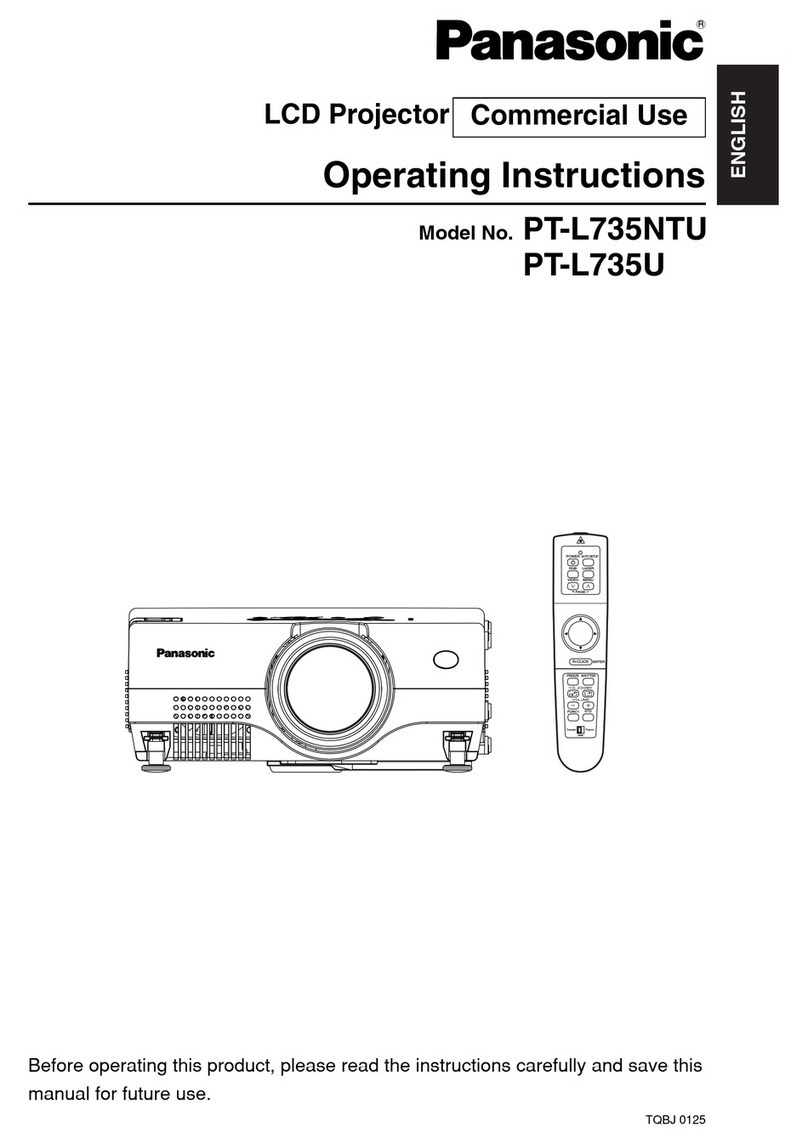
Owner’s Manual
PLC-XP50
Multimedia Projector
MODEL
PLC-XP50L (Lensless)

2
CAUTION : TO REDUCE THE RISK OF ELECTRIC SHOCK, DO NOT REMOVE COVER (OR BACK). NO USER-
SERVICEABLE PARTS INSIDE EXCEPT LAMP REPLACEMENT. REFER SERVICING TO QUALIFIED
SERVICE PERSONNEL.
THIS SYMBOL INDICATES THAT DANGEROUS
VOLTAGE CONSTITUTING A RISK OF ELECTRIC
SHOCK IS PRESENT WITHIN THIS UNIT.
THIS SYMBOL INDICATES THAT THERE ARE IMPORTANT
OPERATING AND MAINTENANCE INSTRUCTIONS IN THE
OWNER'S MANUAL WITH THIS UNIT.
CAUTION
RISK OF ELECTRIC SHOCK
DO NOT OPEN
Before operating this projector, read this manual thoroughly and operate the projector properly.
This projector provides many convenient features and functions. Operating the projector properly enables you to
manage those features and maintains it in better condition for a considerable time.
Improper operation may result in not only shortening the product-life, but also malfunctions, fire hazard, or other
accidents.
If your projector seems to operate improperly, read this manual again, check operations and cable connections and try
the solutions in the “Trouble-shooting” section of the end of this booklet. If the problem still persists, contact the sales
dealer where you purchased the projector or the service center.
TO THE OWNER
SAFETY PRECAUTIONS
WARNING : TO REDUCE THE RISK OF FIRE OR ELECTRIC SHOCK, DO NOT EXPOSE THIS APPLIANCE TO
RAIN OR MOISTURE.
●This projector produces intense light from the projection lens. Do not stare directly into the lens as possible.
Eye damage could result. Be especially careful that children do not stare directly into the beam.
●This projector should be set in the way indicated. If not, it may result in a fire hazard.
●Take appropriate space on the top, sides and rear of the projector
cabinet for allowing air circulation and cooling the projector.
Minimum distance should be taken. If the projector is to be built
into a compartment or similarly enclosed, the minimum distances
must be maintained. Do not cover the ventilation slot on the
projector. Heat build-up can reduce the service life of your
projector, and can also be dangerous.
●Do not put any flammable object or spray can near the projector, hot air is exhausted from the ventilation
holes.
●Remote Control Unit, supplied to this projector, emits the laser beam as the laser pointer function from Laser
Light Window while pressing LASER button (for 1 minute / LASER POINTER INDICATOR lights red to indicate
laser emission). Do not look into Laser Light Window or shine the laser beam on yourself or other people. Eye
damage may result.
●If the projector is not to be used for an extended time, unplug the projector from the power outlet.
READ AND KEEP THIS OWNER'S MANUAL FOR LATER USE.
20cm
50cm 50cm 50cm
SIDE and TOP REAR

3
SAFETY INSTRUCTIONS
All the safety and operating instructions should be read before
the product is operated.
Read all of the instructions given here and retain them for later
use. Unplug this projector from AC power supply before
cleaning. Do not use liquid or aerosol cleaners. Use a damp
cloth for cleaning.
Follow all warnings and instructions marked on the projector.
For added protection to the projector during a lightning storm,
or when it is left unattended and unused for long periods of
time, unplug it from the wall outlet. This will prevent damage
due to lightning and power line surges.
Do not expose this unit to rain or use near water... for
example, in a wet basement, near a swimming pool, etc...
Do not use attachments not recommended by the
manufacturer as they may cause hazards.
Do not place this projector on an unstable cart, stand, or table.
The projector may fall, causing serious injury to a child or
adult, and serious damage to the projector. Use only with a
cart or stand recommended by the manufacturer, or sold with
the projector. Wall or shelf mounting should follow the
manufacturer's instructions, and should use a mounting kit
approved by the manufacturers.
An appliance and cart combination should
be moved with care. Quick stops,
excessive force, and uneven surfaces
may cause the appliance and cart
combination to overturn.
Slots and openings in the back and bottom of the cabinet are
provided for ventilation, to insure reliable operation of the
equipment and to protect it from overheating.
The openings should never be covered with cloth or other
materials, and the bottom opening should not be blocked by
placing the projector on a bed, sofa, rug, or other similar
surface. This projector should never be placed near or over a
radiator or heat register.
This projector should not be placed in a built-in installation
such as a book case unless proper ventilation is provided.
Never push objects of any kind into this projector through
cabinet slots as they may touch dangerous voltage points or
short out parts that could result in a fire or electric shock.
Never spill liquid of any kind on the projector.
This projector should be operated only from the type of power
source indicated on the marking label. If you are not sure of
the type of power supplied, consult your authorized dealer or
local power company.
Do not overload wall outlets and extension cords as this can
result in fire or electric shock. Do not allow anything to rest on
the power cord. Do not locate this projector where the cord
may be damaged by persons walking on it.
Do not attempt to service this projector yourself as opening or
removing covers may expose you to dangerous voltage or
other hazards. Refer all servicing to qualified service
personnel.
Unplug this projector from wall outlet and refer servicing to
qualified service personnel under the following conditions:
a. When the power cord or plug is damaged or frayed.
b. If liquid has been spilled into the projector.
c. If the projector has been exposed to rain or water.
d. If the projector does not operate normally by following the
operating instructions. Adjust only those controls that are
covered by the operating instructions as improper
adjustment of other controls may result in damage and will
often require extensive work by a qualified technician to
restore the projector to normal operation.
e. If the projector has been dropped or the cabinet has been
damaged.
f. When the projector exhibits a distinct change in
performance-this indicates a need for service.
When replacement parts are required, be sure the service
technician has used replacement parts specified by the
manufacturer that have the same characteristics as the
original part. Unauthorized substitutions may result in fire,
electric shock, or injury to persons.
Upon completion of any service or repairs to this projector, ask
the service technician to perform routine safety checks to
determine that the projector is in safe operating condition.
Voor de klanten in Nederland
Bij dit product zijn batterijen
geleverd.
Wanneer deze leeg zijn,
moet u ze niet weggooien
maar inleveren als KCA.

4
COMPLIANCES
AC Power Cord for the United Kingdom :
This cord is already fitted with a moulded plug incorporating a fuse, the value of which is indicated on the pin face of
the plug. Should the fuse need to be replaced, an ASTA approved BS 1362 fuse must be used of the same rating,
marked thus . If the fuse cover is detachable, never use the plug with the cover omitted. If a replacement fuse
cover is required, ensure it is of the same colour as that visible on the pin face of the plug (i.e. red or orange). Fuse
covers are available from the Parts Department indicated in your User Instructions.
If the plug supplied is not suitable for your socket outlet, it should be cut off and destroyed.
The end of the flexible cord should be suitably prepared and the correct plug fitted. (See Over)
WARNING : A PLUG WITH BARED FLEXIBLE CORD IS HAZARDOUS IF ENGAGED IN A LIVE SOCKET
OUTLET.
The Wires in this mains lead are coloured in accordance with the following code:
Green-and-yellow ············ Earth
Blue ································· Neutral
Brown ······························ Live
As the colours of the wires in the mains lead of this apparatus may not correspond with the coloured markings
identifying the terminals in your plug proceed as follows:
The wire which is coloured green-and-yellow must be connected to the terminal in the plug which is marked by the
letter E or by the safety earth symbol or coloured green or green-and-yellow.
The wire which is coloured blue must be connected to the terminal which is marked with the letter N or coloured black.
The wire which is coloured brown must be connected to the terminal which is marked with the letter L or coloured red.
WARNING : THIS APPARATUS MUST BE EARTHED.
ASA
The AC Power Cord supplied with this projector meets the requirement for use in the country you purchased it.
AC Power Cord for the United States and Canada :
AC Power Cord used in the United States and Canada is listed by the Underwriters
Laboratories (UL) and certified by the Canadian Standard Association (CSA).
AC Power Cord has a grounding-type AC line plug. This is a safety feature to be sure that the
plug will fit into the power outlet. Do not try to defeat this safety feature. Should you be
unable to insert the plug into the outlet, contact your electrician.
GROUND
THE SOCKET-OUTLET SHOULD BE INSTALLED NEAR THE EQUIPMENT AND EASILY ACCESSIBLE.
AC POWER CORD REQUIREMENT
Federal Communication Commission Notice
Note : This equipment has been tested and found to comply with the limits for a Class B digital device, pursuant to part
15 of the FCC Rules. These limits are designed to provide reasonable protection against harmful interference in a
residential installation. This equipment generates, uses and can radiate radio frequency energy and, if not installed and
used in accordance with the instructions, may cause harmful interference to radio communications. However, there is no
guarantee that interference will not occur in a particular installation. If this equipment does cause harmful interference to
radio or television reception, which can be determined by turning the equipment off and on, the user is encouraged to try
to correct the interference by one or more of the following measures :
–Reorient or relocate the receiving antenna.
–Increase the separation between the equipment and receiver.
–Connect the equipment into an outlet on a circuit different from that to which the receiver is connected.
–Consult the dealer or an experienced radio/TV technician for help.
Use of shielded cable is required to comply with class B limits in Subpart B of Part 15 of FCC Rules.
Do not make any changes or modifications to the equipment unless otherwise specified in the instructions. If such
changes or modifications should be made, you could be required to stop operation of the equipment.
Model Number : PLC-XP50/PLC-XP50L
Trade Name : Sanyo
Responsible party : SANYO FISHER COMPANY
Address : 21605 Plummer Street, Chatsworth, California 91311
Telephone No. : (818)998-7322

5
TABLE OF CONTENTS
FEATURES AND DESIGN 6
BEFORE OPERATION 15
PREPARATION 7
NAME OF EACH PART OF PROJECTOR 7
SETTING-UP PROJECTOR 8
CONNECTING AC POWER CORD 8
POSITIONING PROJECTOR 9
ADJUSTABLE FEET 10
INSTALLING PROJECTOR IN PROPER POSITION 10
MOVING PROJECTOR 11
CONNECTING PROJECTOR 12
TERMINALS OF PROJECTOR 12
CONNECTING TO COMPUTER 13
CONNECTING TO VIDEO EQUIPMENT 14
OPERATION OF REMOTE CONTROL 15
LASER POINTER FUNCTION 15
REMOTE CONTROL BATTERIES INSTALLATION 16
TOP CONTROLS AND INDICATORS 17
OPERATING ON-SCREEN MENU 18
HOW TO OPERATE ON-SCREEN MENU 18
FLOW OF ON-SCREEN MENU OPERATION 18
MENU BAR 19
BASIC OPERATION 20
TURNING ON / OFF PROJECTOR 20
ADJUSTING SCREEN 21
ZOOM ADJUSTMENT 21
FOCUS ADJUSTMENT 21
LENS SHIFT ADJUSTMENT 21
KEYSTONE ADJUSTMENT 21
PICTURE FREEZE FUNCTION 22
NO SHOW FUNCTION 22
P-TIMER FUNCTION 22
SOUND ADJUSTMENT 22
TRADEMARKS
●Apple, Macintosh, and PowerBook are trademarks or registered trademarks of Apple Computer,Inc.
●IBM and PS/2 are trademarks or registered trademarks of International Business Machines, Inc.
●Windows and PowerPoint are registered trademarks of Microsoft Corporation.
●Each name of corporations or products in the owner's manual is a trademark or a registered trademark of its
respective corporation.
COMPUTER INPUT 23
VIDEO INPUT 30
SETTING 37
APPENDIX 41
SELECTING INPUT SOURCE 23
SELECTING COMPUTER SYSTEM 23
PC ADJUSTMENT 25
AUTO PC ADJUSTMENT 25
MANUAL PC ADJUSTMENT 26
PICTURE IMAGE SELECT 28
IMAGE LEVEL SELECT 28
PICTURE SCREEN ADJUSTMENT 29
SELECTING INPUT SOURCE 30
SELECTING VIDEO SYSTEM 31
PICTURE IMAGE SELECT 32
IMAGE LEVEL SELECT 32
PICTURE SCREEN ADJUSTMENT 33
SETTING MENU 37
OPERATING WIRELESS MOUSE 41
MAINTENANCE 42
WARNING TEMP. INDICATOR 42
AIR FILTER CARE AND CLEANING 43
CLEANING PROJECTION LENS 43
LAMP REPLACEMENT 44
LAMP REPLACE COUNTER 45
TROUBLESHOOTING 46
INDICATORS AND PROJECTOR CONDITION 48
COMPATIBLE COMPUTER SPECIFICATION 49
MENU TREE 50
TECHNICAL SPECIFICATIONS 52
CONFIGURATIONS OF TERMINALS 53
OPTIONAL PARTS 54
LENS REPLACEMENT 54
PICTURE IMAGE 34
PICTURE IMAGE ADJUSTMENTS 34

6
FEATURES AND DESIGN
This Multimedia Projector is designed with most advanced technology for portability, durability, and ease of use. This
projector utilizes built-in multimedia features, a palette of 16.77 million colors, and matrix liquid crystal display (LCD)
technology.
◆Compatibility
This projector widely accepts various video and
computer input signals including;
●Computers
IBM-compatible or Macintosh computer up to 1280
x 1024 resolution.
●6 Color Systems
NTSC, PAL, SECAM, NTSC 4.43, PAL-M or PAL-
N color system can be connected.
●Component Video
Component video signal, such as a DVD player
output high definition TV signals including 480i,
480p, 575i, 575p, 720p, 1035i or 1080i, can be
connected.
●S-Video
S-Video signal, such as a S-VHS VCR output
signal, can be connected.
◆High Resolution Image
This projector provides 1024 x 768 dots resolution for
computer input and 800 horizontal TV lines. Resolution
from a computer between XGA (1024 x 768) and SXGA
(1280 x 1024) is compressed into 1024 x 768 dots. This
projector cannot display image of over 1280 x 1024 dots.
When resolution of your computer is over than 1280 x
1024, reset a computer output for lower resolution.
◆Multi-Scan System
This projector has Multi-Scan System to conform to
almost all computer output signals quickly. There is no
need for troublesome manual adjustment of frequency
and other settings.
◆Keystone Correction
Positioning of a projector may result in distorted image
being displayed in a trapezoid shape. Keystone
Correction solves this problem by digitally altering
projection to produce undistorted images.
◆Multilanguage Menu Display
Operation menu is displayed in; English, German,
French, Italian, Spanish, Portuguese, Dutch, Swedish,
Russian, Chinese, Korean or Japanese.
◆One-Touch Auto PC Adjustment
Incoming computer video signals are recognized and
best adjustment is automatically set by Auto PC
Adjustment. No complicated setup is necessary and
projection is always precise.
◆Digital Zoom (for Computer)
Digital Zoom function adjusts image size to approx. 1/4 ~
49 times of original image size, allowing you to focus on
crucial information at a presentation.
◆Compact Design
This projector is extremely compact in size and weight.
It is designed to carry and work anywhere you wish to
use.
◆Power Management
Power Management function is provided to reduce power
consumption while a projector is not in use.
This Power Management function operates to turn
Projection Lamp off when a projector detects signal
interruption and any button is not pressed. Projection
Lamp is automatically turned on again when a projector
detects signal or any operation button is pressed.
This projector is shipped with this function ON.
◆Wireless Mouse
Remote Control Unit supplied with this projector has
Wireless Mouse function for a connected computer. This
function enables you to operate both projector and
computer with Remote Control Unit only.
◆Digital Visual Interface
This projector is equipped with DVI 24-pin terminal for
connecting DVI output from a computer.
◆Laser Pointer Function
Remote Control Unit supplied with this projector includes
Laser Pointer function. This function helps you to make
a smart presentation on a projected screen.
◆Motor-driven Lens Shift
Projection lens can be moved up and down with motor-
driven lens shift function. This function makes it easy to
provide projected image where you want.
Zoom and focus can be also adjusted with motor-driven
operation.
◆PJ-Net Organizer (Optional)
PJ-Net Organizer enables the projector to display the
image of the computer screen and the data image stored
in the computer via a network. The projector can be also
controlled and maintained through a web browser.

7
PREPARATION

NOTE ON POWER CORD
AC Power Cord must meet requirement of country where you use a projector.
Confirm an AC plug type with chart below and proper AC Power Cord must be used.
If supplied AC Power Cord does not match your AC outlet, contact your sales dealer.
SETTING-UP PROJECTOR
8
PREPARATION

9
PREPARATION
POSITIONING PROJECTOR
●This projector is designed to project on a flat
projection surface.
●Projector can be focused from 4.6’(1.4m) ~ 47.3’
(14.4m).
●Refer to figure below to adjust screen size.
Screen
Size
Distance
40”
31”
4.6’(1.4m)
40”
4.6’(1.4m)
11.8’(3.6m)
23.6’(7.2m)
35.4’(10.8m) Max. Zoom
Min. Zoom
47.3’(14.4m)
100”
200”
300”
400”
308”
231”
154”
77”
31”
ROOM LIGHT

10
PREPARATION
ADJUSTABLE FEET
Picture tilt and projection angle can be adjusted by
rotating ADJUSTABLE FEET. Projection angle can be
adjusted to 10.5 degrees.
Lift front of a projector and pull FEET LOCK LATCHES
on both sides of a projector.
1
Release FEET LOCK LATCHES to lock ADJUSTABLE
FEET and rotate ADJUSTABLE FEET to fine tune
position and tilt.
2
To shorten ADJUSTABLE FEET, lift front of a projector
and pull and undo FEET LOCK LATCHES.
Position and keystone distortion of image can be adjusted
using Menu Operation. (Refer to P 21 and 37.)
3
INSTALLING PROJECTOR IN PROPER POSITION
Install the projector properly. Improper installation may reduce the lamp lifetime and cause a fire hazard.
Do not tilt the projector more than 10 degrees above and below.
Table of contents
Other Fisher Projector manuals

Fisher
Fisher PLC-SU51 User manual

Fisher
Fisher PLC-SU22N User manual

Fisher
Fisher PLC-XP40 User manual

Fisher
Fisher PLC-XU33 User manual

Fisher
Fisher PLC-XP41 User manual

Fisher
Fisher PLC-XU10N User manual

Fisher
Fisher PLC-XF10N User manual

Fisher
Fisher PDG-DSU20N User manual

Fisher
Fisher PLC-SW20AR User manual

Fisher
Fisher PLC-XU22N User manual

Fisher
Fisher PLC-XU07N User manual

Fisher
Fisher PDG-DXT10KL User manual

Fisher
Fisher PLV-75 User manual

Fisher
Fisher PLC-XP17N User manual

Fisher
Fisher PLC-XP46 User manual

Fisher
Fisher PLC-SU70 User manual

Fisher
Fisher LNS-T01Z User manual

Fisher
Fisher PLC-XU30 User manual

Fisher
Fisher PLC-SW20 User manual

Fisher
Fisher PLC-XU47 User manual