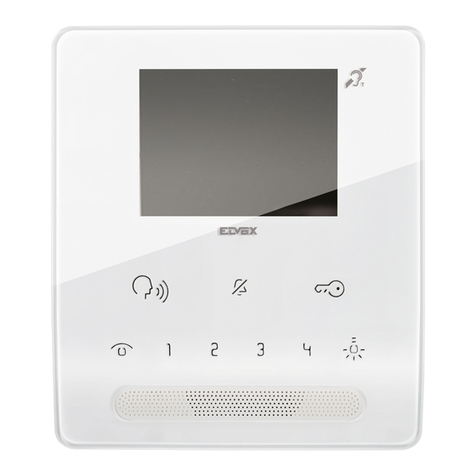
Fermax DUOX PLUS VEO-XL User manual


Other manuals for DUOX PLUS VEO-XL
1
Table of contents
Languages:
Other Fermax Intercom System manuals

Fermax
Fermax iLoft City User manual

Fermax
Fermax Olympo Basic Series User manual

Fermax
Fermax 8300 User manual

Fermax
Fermax CM-204 User manual
Fermax
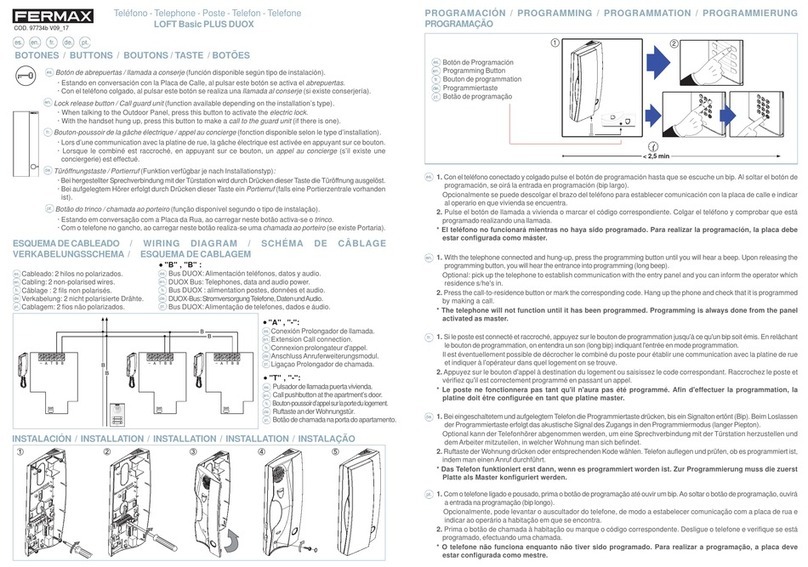
Fermax LOFT Basic PLUS DUOX User manual

Fermax
Fermax CityMax 1035 User manual

Fermax
Fermax CITYMAX BASIC DUOX User manual

Fermax
Fermax LOFT Extra DUOX User manual

Fermax
Fermax KIT VIDEO SALING Series User manual

Fermax
Fermax FVQ-6040APP KIT User guide

Fermax
Fermax OneToOne Instruction Manual

Fermax
Fermax 2235 User manual

Fermax
Fermax PBX EXP Manual

Fermax
Fermax House Keeper User manual

Fermax
Fermax DUOX plus 970050b User guide

Fermax
Fermax Cityline User guide

Fermax
Fermax LOFT 60 Years Limited Edition User manual

Fermax
Fermax LOFT 4+n Basic 3393 User manual

Fermax
Fermax DUOX BASIC LOFT TELEPHONE Instruction Manual

Fermax
Fermax 970114h User manual