
eTung MR-900W User manual

Instruction Manual for High Speed WCDMA 3G Serial
Product MR-900W
MR-900WAppearance,Specifications,andAccessories
MR-900WCommonNetworkingApplicationStructure
Appendix
BriefIntroduction
Application caseA: Configure MR-900W for high-speed internet connection
Application case B: Configure MR-900W for connecting web video device
MR-900WConfiguringProcedure
ApplicationcaseC:ConfiguringMR-900WforserialportDTUfunction
1
FQA
Example 1: Connecting MR-900W toAIXS 205 (webcam) for wireless video surveillance
Example 2: Configuring MR-900W for remotely controlling color LED screen
Application case D: Configuring MR-900W for using Ethernet port and serial port simultaneously
ApplicationcaseE:MR-900WusedforremoteconnectingtoLANbyVPN
Others

Brief Introduction
Thank you for choosing E-Tung high speed WCDMA 3G product MR-900W。This manual will help you to
know the function and usage of this product. Please read carefully about this manual.
MR-900W Specification
Product Outlook
Port RJ45
Serial Port RS232
+5~36V DC Supply
Mounting Kit
2
Antenna
Indicator
For Configuration
Serial Port RS232
Mounting Kit
SIM Card
Product Specification
Power Supplier:+5 ~ +36V DC Supplier
Power Interface:inner(+) outer(-)
Max Current:800mA@+5V DC
Standby Current :220mA@+5V DC

3
Data interface:RS232/RJ45
Network:WCDMA network
Buffer Size:RAM 64M FLASH 4M
Frequency:UMTS/HSDPA/HSDPA850/1900/2100MHz
Quad-BandGSM850/900/1800/1900MHz
Working Temperature:-25℃~ +70℃
Working Max Humidity:95%@+40℃
Size:80x104x38mm (Not include antenna and mounting kit)
Basic Function
Network Interface IP Adjustable
Supporting NAT Online Sharing
Supporting DHCP Server
Supporting DNS Proxy
Supporting Interface Mapping
Supporting DMZ Host(IPAddress Mapping)
Supporting VPN Function
Supporting DDNS Automatic Registration
Supporting Static Routes Configuration
Supporting GSM/WCDMA
Supporting Display Wireless Transmitting Speed
Supporting Serial Port Configuration, Telnet Configuration, WEB Page Frame Configuration
Supporting Serial Port DTU Function,Both Ethernet port and Serial port are usable
Indicator
LED
Indicator color Status description
On Power on
Power Red Off Power off
On Connected to Data Base
Off No Connection with Data Base
Quick Flash Connecting to Data Base
Online Green
Slow Flash Dialing
Flash Data is Transmitting/Stand By
Transmitting Red Off No Data Transmition
Flash Ethernet is connected
Ethernet Red Off Ethernet is not connected
Interface Definition
MR-900W Serial Port Configuration(Standard RS-232 DB9 Female Port)Socket definition
is as following:
Types RS-232
Socket 235
Definition
RXD(out) TXD(in) GND
MR-900W user serial port:
Types RS-232 RS-485
Socket 235782 3 5
Definition
RXD(in) TXD(out) GND RTS(out) CTS(in) ABGND
Accessory
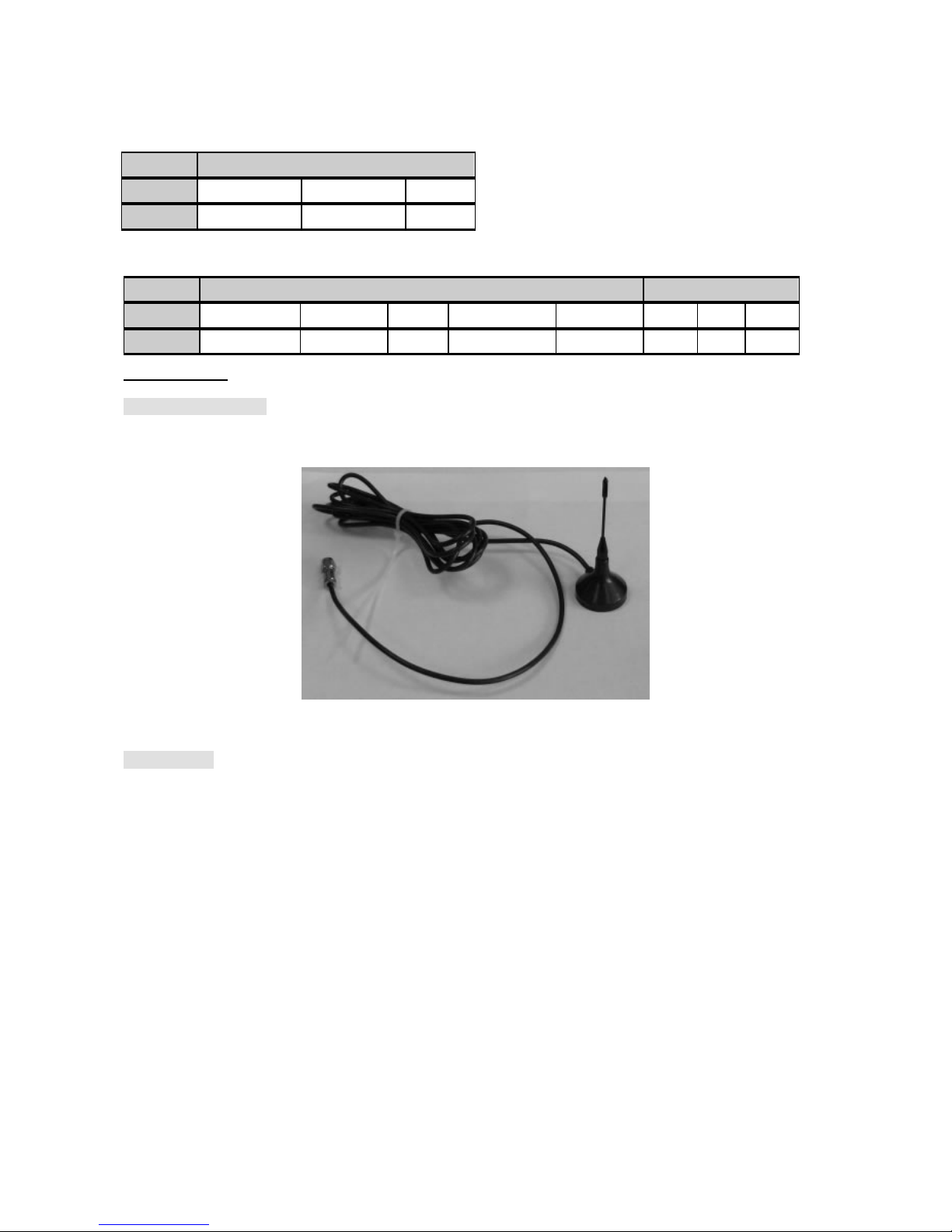
3G Sucking Antenna
Cross Cable
4

Power Supplier
MR-900W Common NetworkingApplication Chart
5

6

MR-900W Configuration Procedure
Step 1:Plug in cables
•Put in the SIM card with WCDMA function
•Using a cross cable to connect MR-900W’s Ethernet port with a computer’s Ethernet port
•Plug in Power Supplier
Step 2:Sign in for configuration
•Turn on computer, and set the computer’s IP address as “Automatically obtaining IP address”
•Opening The IE browser,and key in “http://192.168.1.1” on the browser and press “enter”.
•In the new window, key in “root” as the username,and “1234” as password,and then press “enter” to get
into web configuration interface.
7

Application case A: Configure MR-900W for high-speed internet connection
MR-900W may be directly connected to one computer Ethernet port to achieve wireless online, and also it
may be connected to a switcher or a HUB to make a few computers sharing the internet. We will illustrate these 2
types of connection as following.
1、 Direct connecting a computer to the internet through MR-900W
Set up procedure:
(1) Connecting the computer’s Ethernet port with MR-900W through a cross cable.
(2) Choose computer’s IP as “automatically obtain IP address”
Click on “control panel ”Γnetwork connecting”Γlocal connecting”,Îright click on“local
connecting”, and then click on “property”, and then choose “automatically obtain IP address”
8

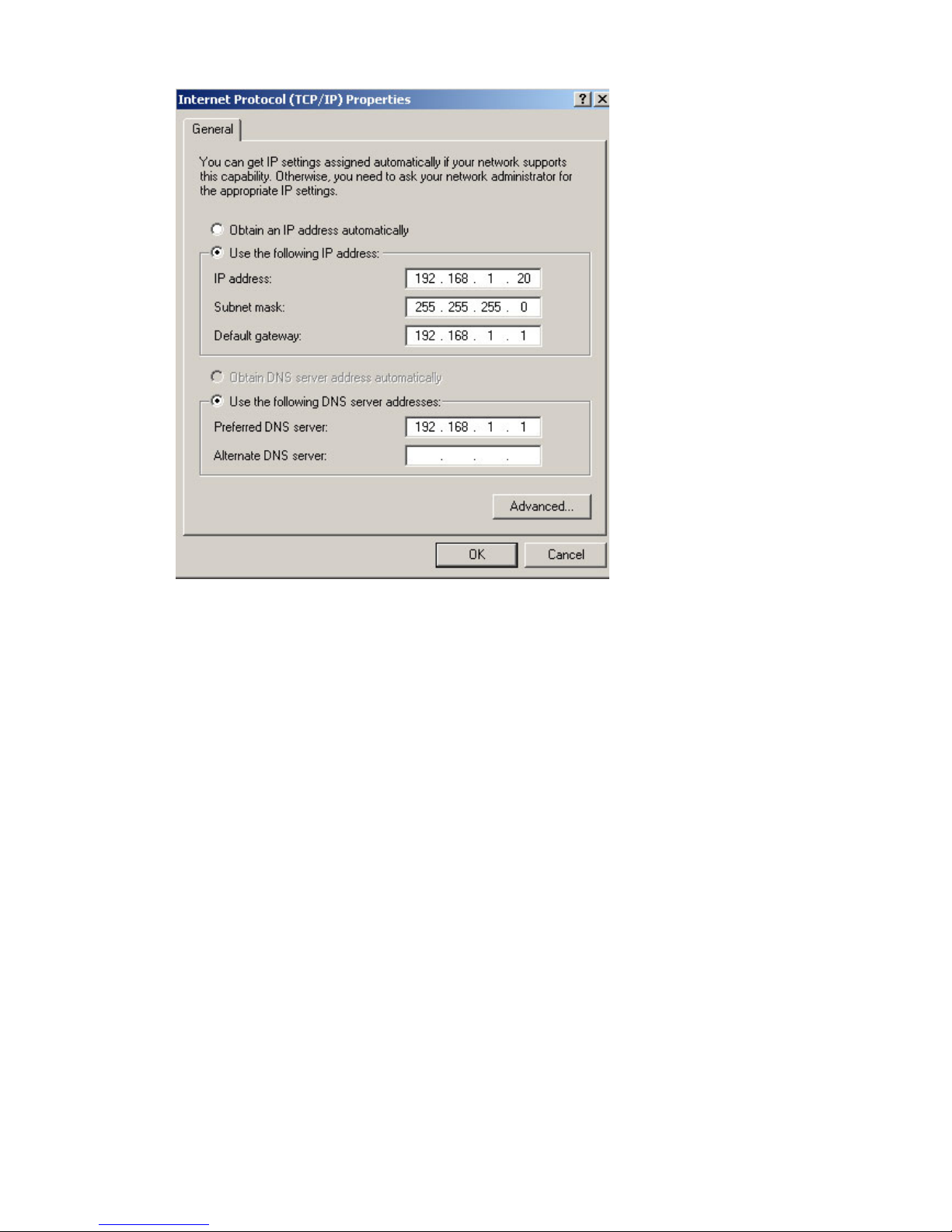
If you would like to set a IP address for MR-900W, then you should set the IP address for MR-900W as
192.168.1.1,and IP address as 192.168.1.20,(as show in the following figure):
9
(3) Put an WCDMA SIM card into the MR-900W wireless router, and turn on the power. MR-900W will dial
up for online automatically, then we can browse website and send/receive email. We can also check the
device’s working status through the following interface. We Key in “http://192.168.1.1” on the address
bar, and then type in the user name as “root” and password as “1234” for login. After login the working
interface for MR-900W,we can check the device’s online speed as well as data traffic.
10
Table of contents
Other eTung Wireless Router manuals


