
Elko EKO09765 User manual

ELKO – Smart Radiator Thermostat
Device User Guide
Commissioning instructions for the ELKO Smart system, devices and app.
03/2023
www.elko.no

Legal Information
The ELKO brand and any trademarks of ELKO AS and its subsidiaries referred to in
this guide are the property of ELKO AS or its subsidiaries. All other brands may be
trademarks of their respective owners.
This guide and its content are protected under applicable copyright laws and
furnished for informational use only. No part of this guide may be reproduced or
transmitted in any form or by any means (electronic, mechanical, photocopying,
recording, or otherwise), for any purpose, without the prior written permission of
ELKO.
ELKO does not grant any right or license for commercial use of the guide or its
content, except for a non-exclusive and personal license to consult it on an "as
is" basis. ELKO products and equipment should be installed, operated,
serviced, and maintained only by qualified personnel.
As standards, specifications, and designs change from time to time, information
contained in this guide may be subject to change without notice.
To the extent permitted by applicable law, no responsibility or liability is assumed by
ELKO and its subsidiaries for any errors or omissions in the informational content of
this material or consequences arising out of or resulting from the use of the
information contained herein.

Table of Contents
Safety information.......................................................................................4
Smart Radiator Thermostat.......................................................................5
For your safety ..........................................................................................5
About the device.........................................................................................6
Installing the device ....................................................................................6
Pairing the device .......................................................................................7
Pairing device manually.........................................................................7
Pairing device with auto scan.................................................................9
Configuring the device ..............................................................................10
Changing the device icon ....................................................................10
Renaming the device .......................................................................... 11
Changing the device location ............................................................... 11
Removing the device ................................................................................12
Resetting the device .................................................................................12
Using the device.......................................................................................13
Individual thermostat visibility in home page..........................................14
Setting the room temperature manually ................................................14
Setting the room temperature using app ...............................................15
Using the boost mode .........................................................................17
Checking the device history .................................................................19
Creating a Schedule............................................................................20
Activating the child Lock ......................................................................20
Creating a moment .............................................................................21
Creating an automation .......................................................................23
Replacing the batteries .............................................................................27
LED indications ........................................................................................27
Troubleshooting .......................................................................................28
Technical data ..........................................................................................29
DUG_ITRV_ELKO-00 3
Safety information
Safety information
Important information
Read these instructions carefully and look at the equipment to become familiar
with the device before trying to install, operate, service, or maintain it. The
following special messages may appear throughout this manual or on the
equipment to warn of potential hazards or to call attention to information that
clarifies or simplifies a procedure.
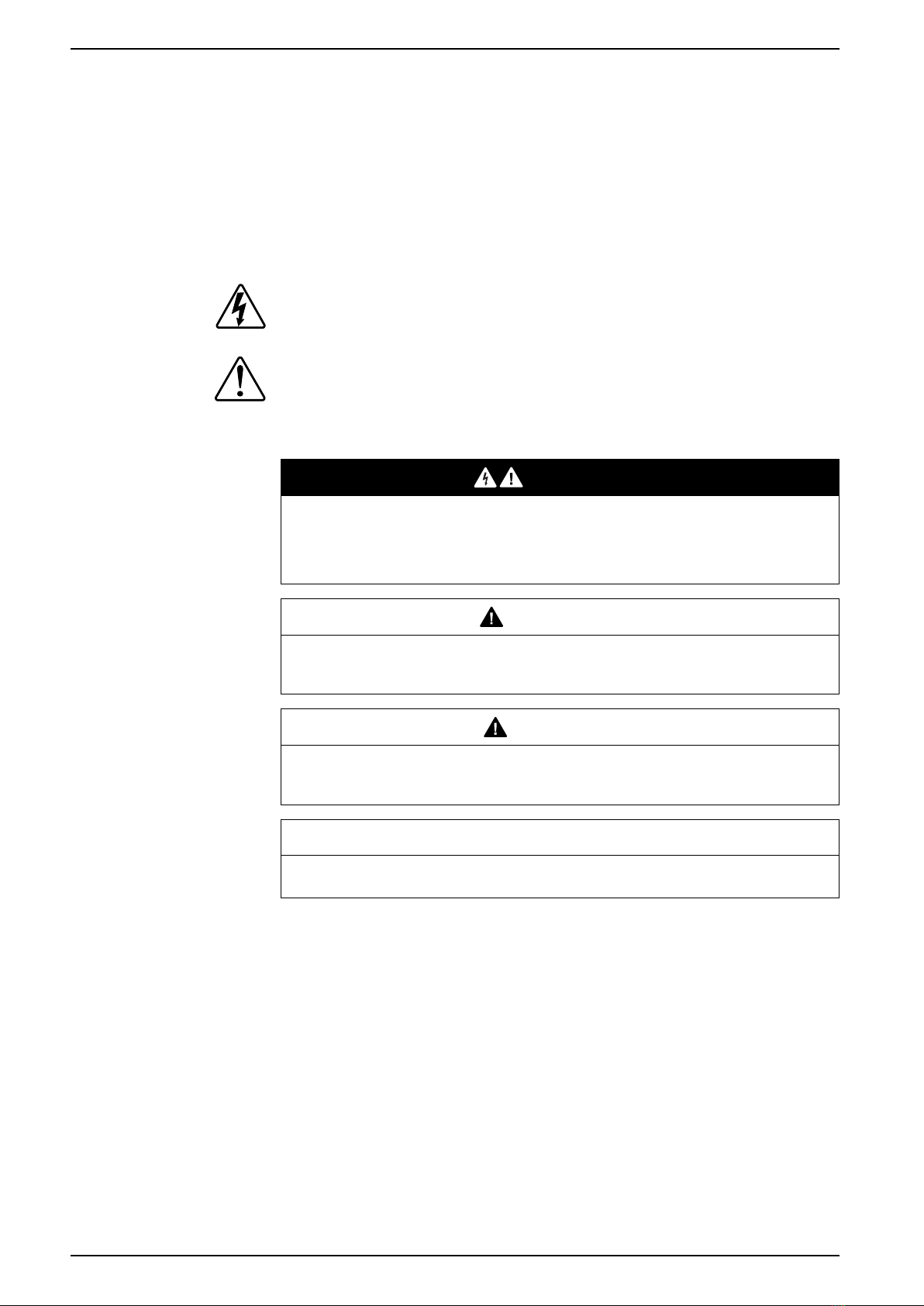
The addition of either symbol to a “Danger” or “Warning” safety label indicates
that an electrical hazard exists which will result in personal injury if the
instructions are not followed.
This is the safety alert symbol. It is used to alert you to potential personal injury
hazards. Obey all safety messages that accompany this symbol to avoid possible
injury or death.
DANGER
DANGER indicates a hazardous situation which, if not avoided, will result in
death or serious injury.
Failure to follow these instructions will result in death or serious injury.
WARNING
WARNING indicates a hazardous situation which, if not avoided, could result
in death or serious injury.
CAUTION
CAUTION indicates a hazardous situation which, if not avoided, could result in
minor or moderate injury.
NOTICE
NOTICE is used to address practices not related to physical injury.
4 DUG_ITRV_ELKO-00
Smart Radiator Thermostat
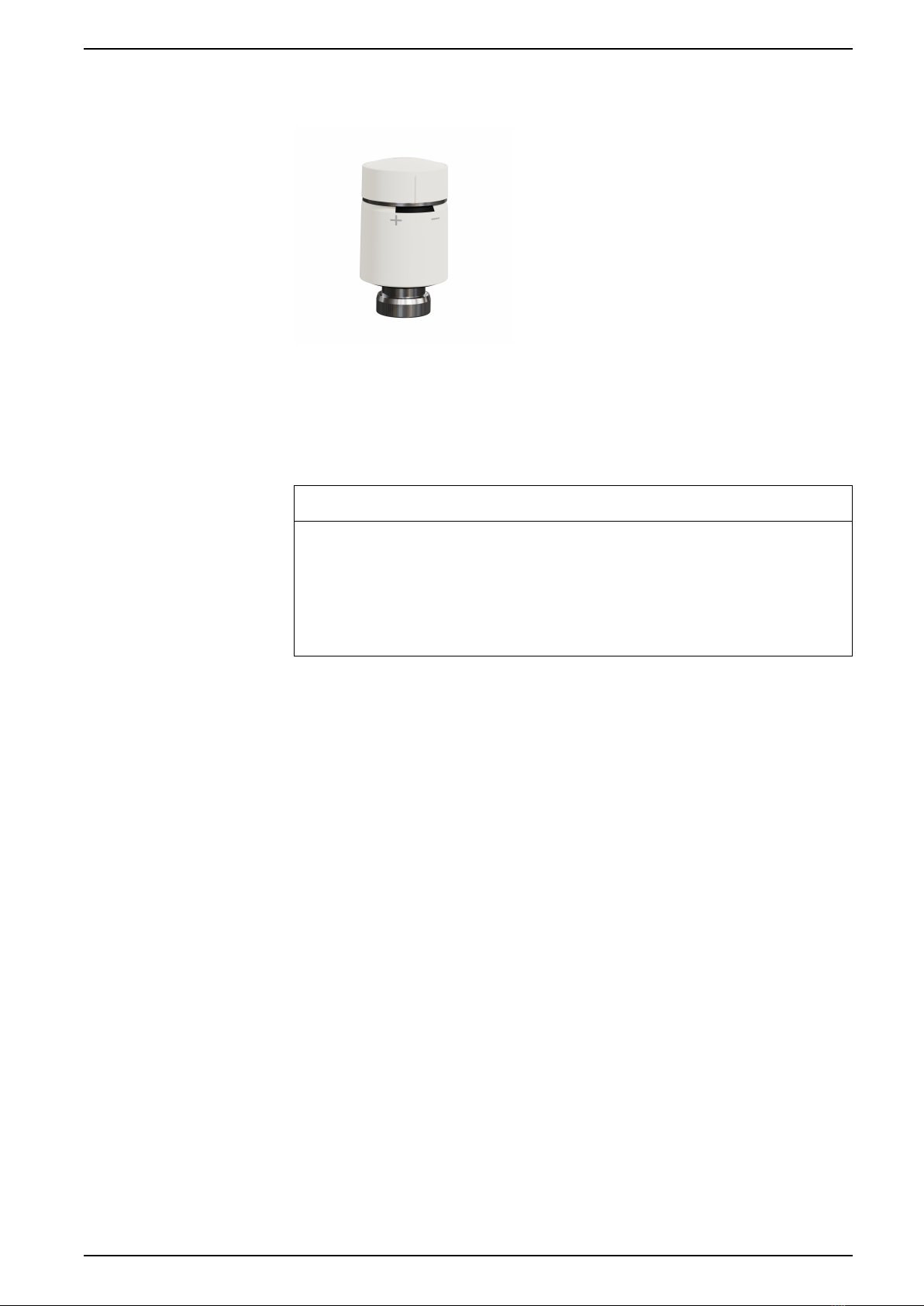
Smart Radiator Thermostat
EKO09765
For your safety
NOTICE
RISK OF DAMAGE TO DEVICE
• Make sure that the O-ring is seated firmly on the thread.
• The ring nut should be tightened by hand, do not use any tools. Do not tighten
too hard.
Failure to follow these instructions can result in equipment damage.
DUG_ITRV_ELKO-00 5
Smart Radiator Thermostat
About the device
The Smart Radiator Thermostat (hereinafter referred to as Thermostat) uses
integrated temperature sensors to control the flow of water through a radiator,
thereby regulating the temperature in a room. The target temperature and the
switching times are set in the ELKO Smart app.
Personalize your home heating by adding a Thermostat to your ELKO Smart
system. This provides an effortless control to set different schedules and
temperatures in different rooms, and upgrading to room-to-room heating control
could save energy usage. Thermostats provide ultimate comfort, convenience and
practicality.
Intended use:
• Individual room control
• Mobile control anytime, anywhere with the ELKO Smart app
• Boost mode for ease and comfort.
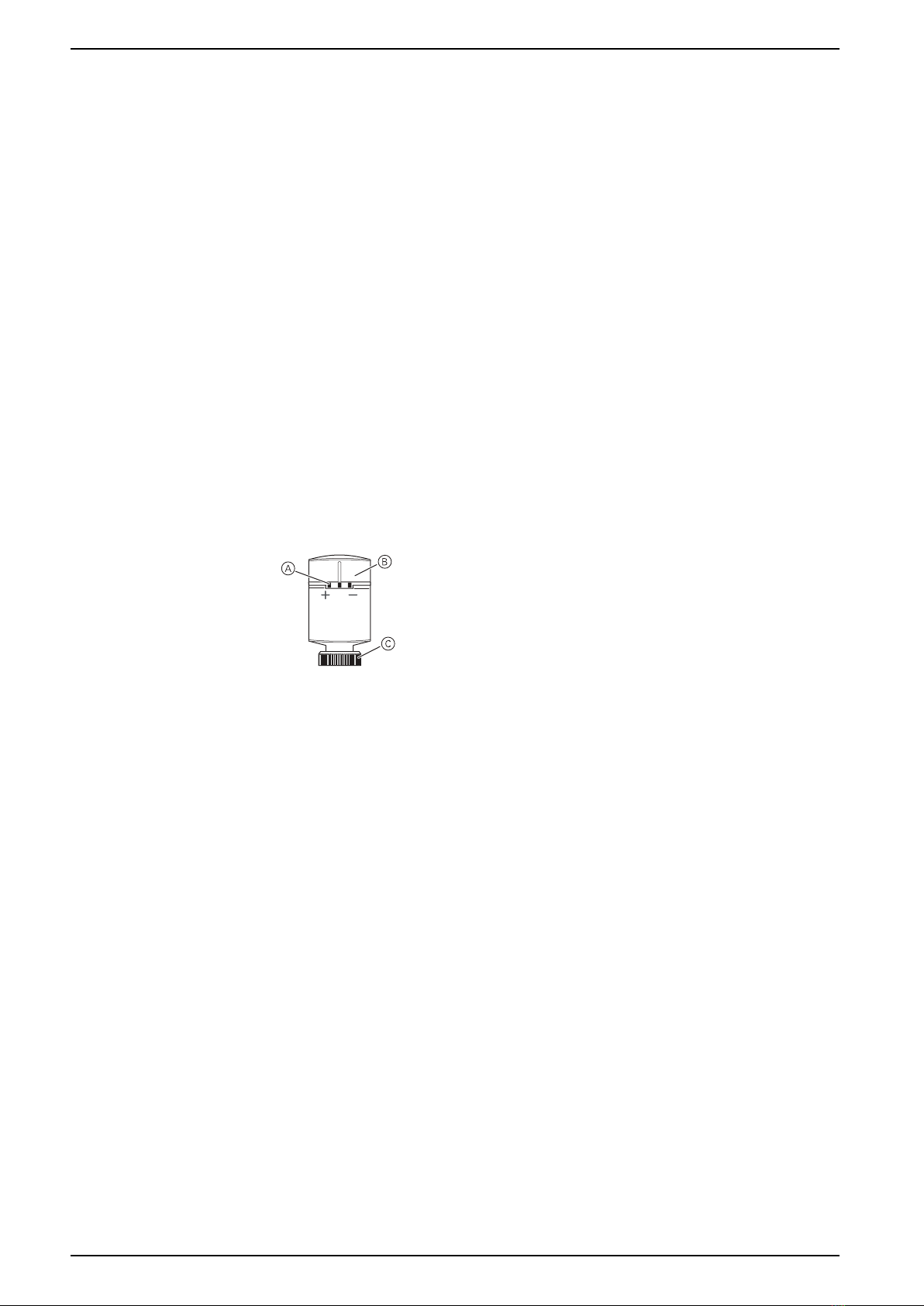
Diagram of operating elements
A. 3 status LEDs
B. Twistable cap
C. Chrome ring nut.
Installing the device
Refer to the installation instruction supplied with this product.
See Smart Radiator Thermostat.
6 DUG_ITRV_ELKO-00
Smart Radiator Thermostat
Pairing the device
Using the ELKO Smart app, pair your device with the ELKO SmartHub to access
and control the device. You can either add the device manually or do an auto-scan
to pair it.
Pairing device manually
To pair the device manually:
NOTE: Remember to insert the batteries to power On the device.
1. On the Home page, tap +.
2. Tap , select the ELKO SmartHUB and tap Done.
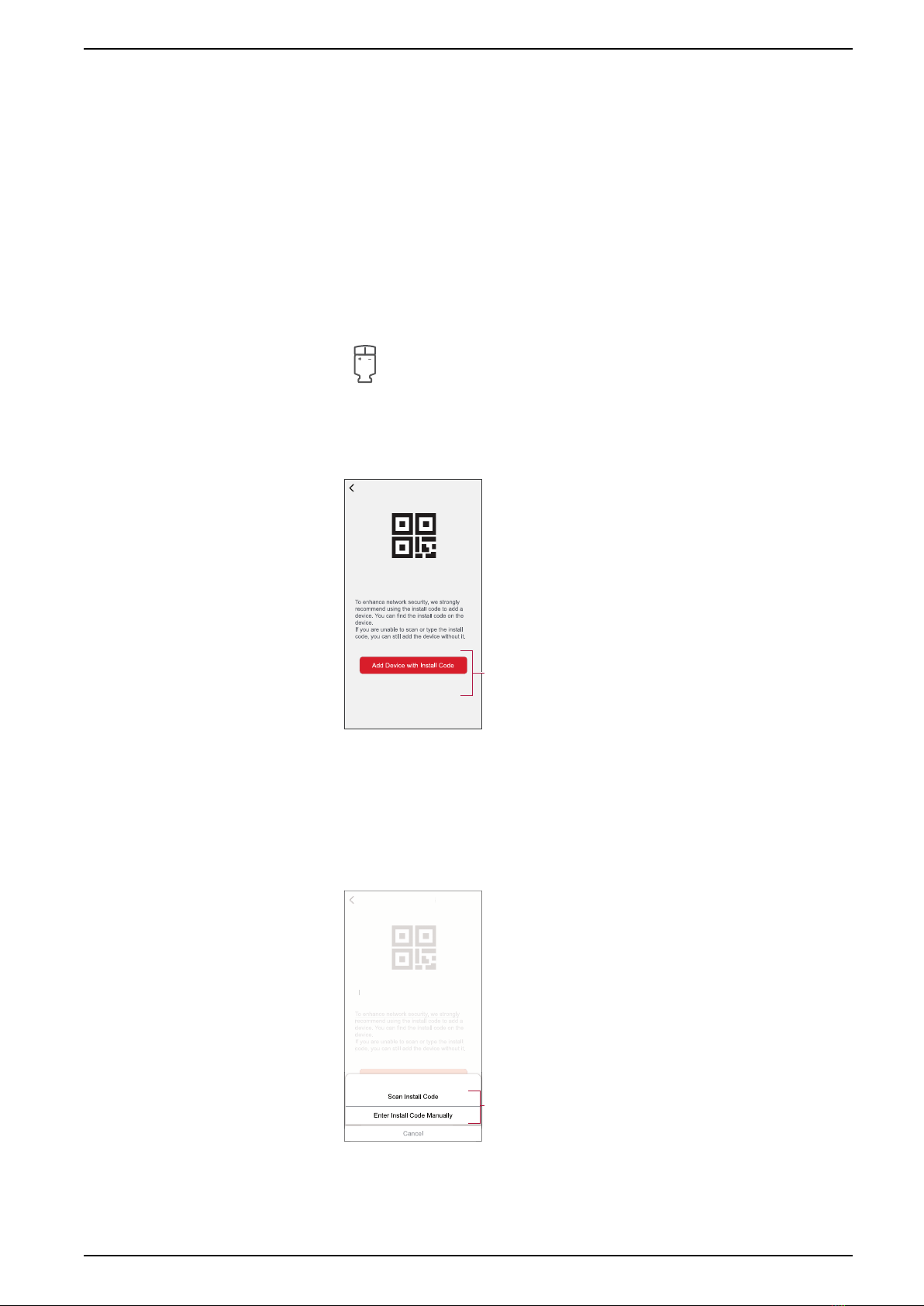
3. Select an option to add the device (A):
–Add Device with Install Code
–Add Device without Install Code
Add Device
Install Code is Recommended
Add Device without Install Code
A
4. To pair the device with install code, tap Add Device with Install Code to
display the slide-up menu. Select any one of the options (B):
–Scan Install Code - You can scan the device for the install code.
–Enter Install Code Manually - You can manually enter the install code
from the device.
After pairing the device with install code, proceed to Step 6.
Add Device
Install Code is Recommended
Add Device without Install Code
Add Device
Install Code is Recommended
B
TIP: It is highly recommended to add the device with install code.
5. To pair the device without install code, tap Add Device without Install Code.
DUG_ITRV_ELKO-00 7

Smart Radiator Thermostat
6. Turn and hold the cap in the “+” direction for a few seconds.
The middle LED blinks green.
7. In the app, select Middle LED blinking in green and tap Start configuration
(C).
Cancel
How to pair device
1. Power on the device.
C
8. After a few seconds, a solid green LED indicates that the device is
successfully paired to the ELKO SmartHUB.
9. After the device is added in the app, tap Done.
NOTE:
• Before you tap Done, you can select the room to assign the
Thermostats. This creates a group to control the Thermostats, refer
to Using the device, page 13.
• Refer to Changing the device location to assign a room to the
Thermostat, if you did not assign the room at Step 9.
8 DUG_ITRV_ELKO-00
Smart Radiator Thermostat
Pairing device with auto scan
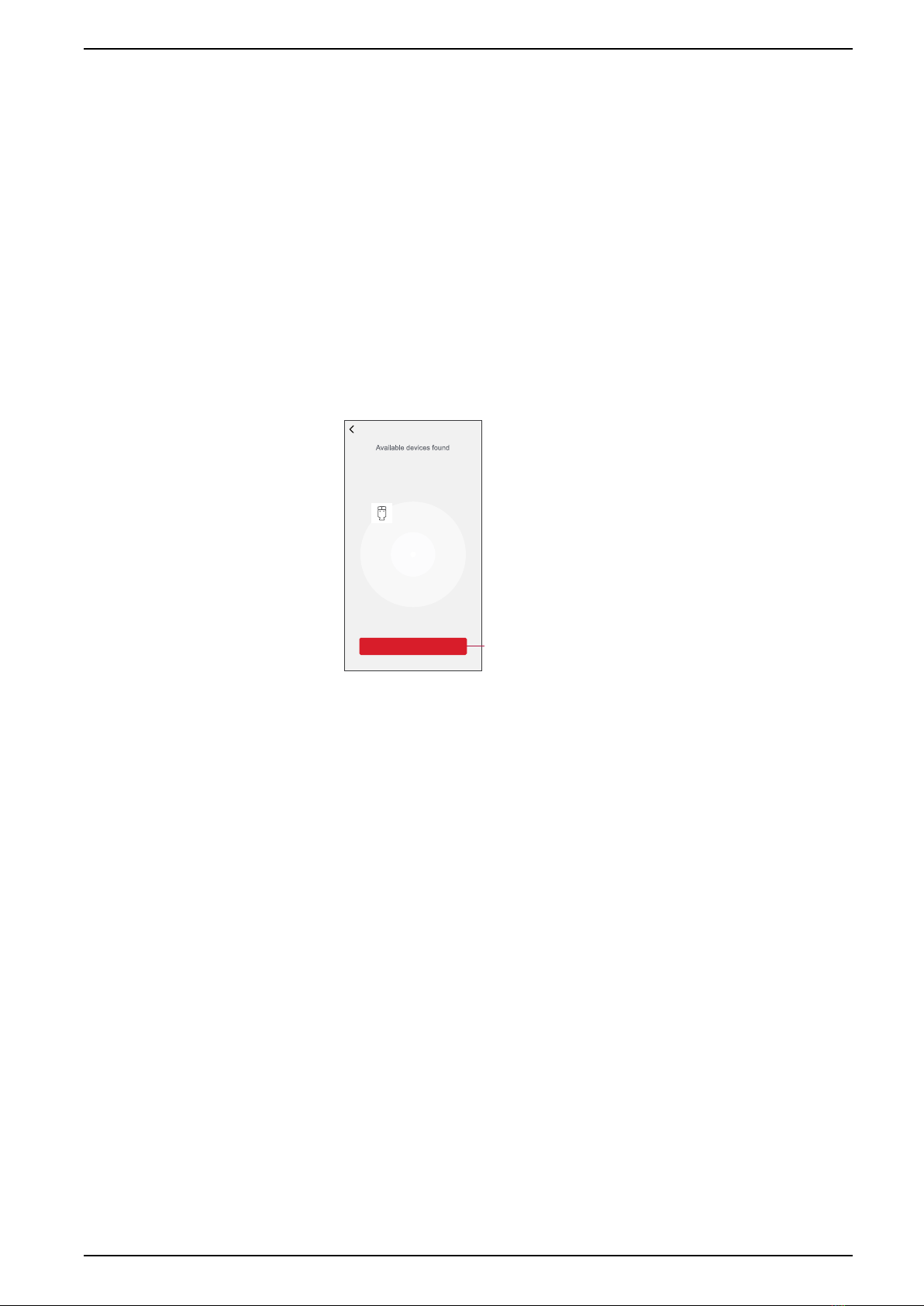
Pairing the device with auto scan automatically discovers the device when the
corresponding device is powered on.
To pair the device:
NOTE: Remember to insert the batteries to power On the device.
1. On the Home page, tap +.
2. Tap Auto scan tab and tap Confirm.
3. If you have multiple hubs, do Step 4 or proceed to Step 5.
4. Tap Select hub and select the ELKO SmartHub from the slide-up menu.
5. Turn and hold the cap in the “+” direction for a few seconds.
NOTE: Please wait for a few seconds until the device search is complete.
6. Tap Next (A) and select iTRV.
Auto Scan
iTRV
Next A
7. Once the device is added successfully, tap Done.
DUG_ITRV_ELKO-00 9
Smart Radiator Thermostat
Configuring the device
Changing the device icon
You can change the device icon using the ELKO Smart app.
1. On the Home page, select the device for which you wish to change the icon.
2. At the top-right corner of the screen, tap .
3. Tap edit next to the device name.
4. Tap Icon to view the menu.
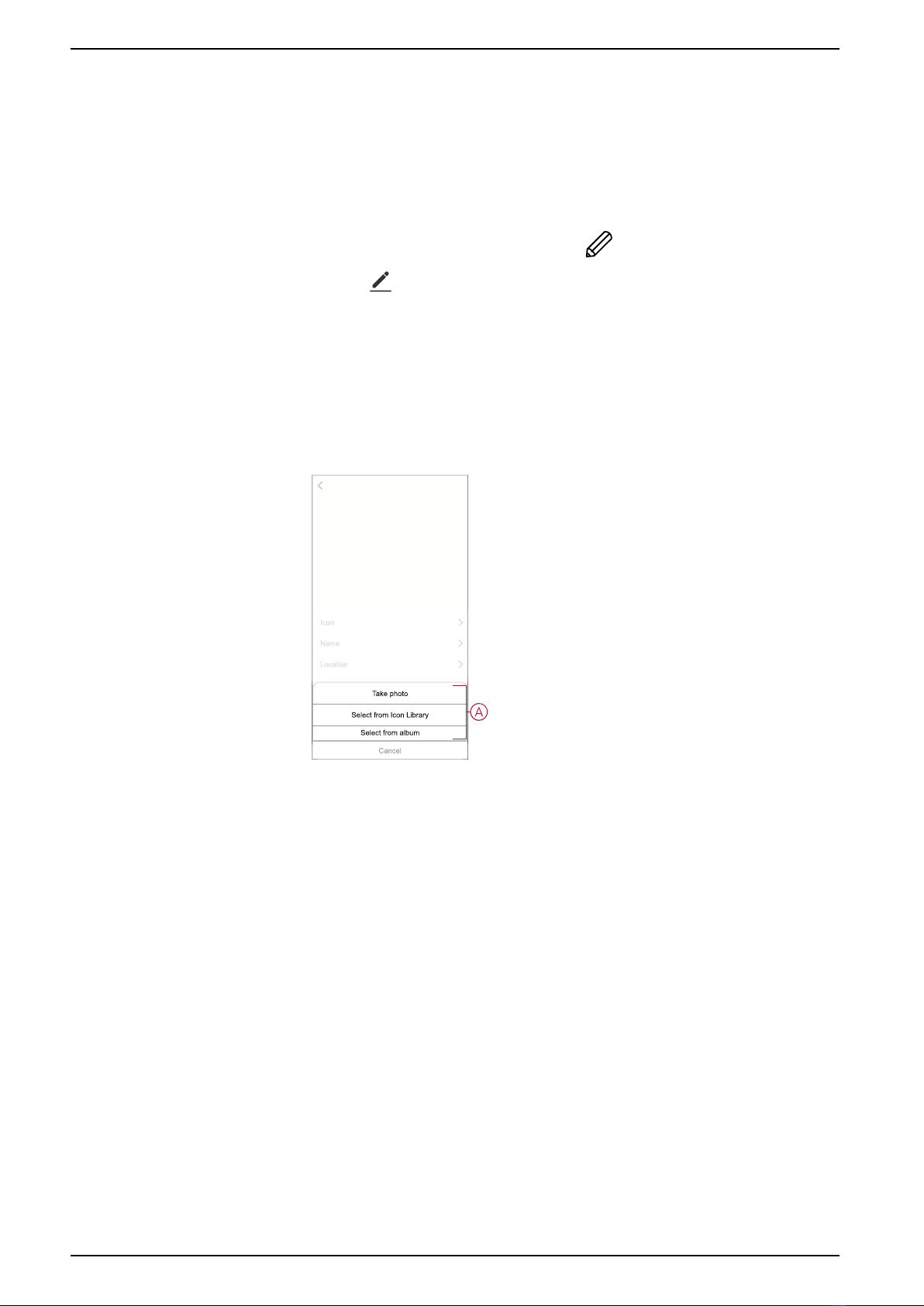
5. In the slide-up menu, select any one of the following (A) to change the device
icon:
–Take photo - allows you to click a photo from the mobile camera.
–Select from Icon Library - allows you to select an icon from the app
library.
–Select from Album - allows you to select a photo from the mobile gallery.
10 DUG_ITRV_ELKO-00
Table of contents
Other Elko Thermostat manuals


Popular Thermostat manuals by other brands


Saswell
Saswell SAS920XWHB-7-S-RF User manual and warranty card

Aircalo
Aircalo TFP1-ET85P2 operating manual

Honeywell
Honeywell CM721 user manual

Carrier
Carrier DEBONAIR 33CS Installation and operating instructions

Lennox
Lennox iHarmony Zone Thermostat Installation and setup guide

Gemtech
Gemtech GT7000 Operation


