
Dell Venue 8 Pro 5855 User manual

Venue 8 Pro
User’s Guide
Computer Model: Venue 8 Pro 5855
Regulatory Model: T03D
Regulatory Type: T03D001

Notes, cautions, and warnings
NOTE: A NOTE indicates important information that helps you make better
use of your tablet.
CAUTION: A CAUTION indicates either potential damage to hardware or loss
of data and tells you how to avoid the problem.
WARNING: A WARNING indicates a potential for property damage, personal
injury, or death.
Copyright ©2015 Dell Inc. All rights reserved. This product is protected by U.S. and
international copyright and intellectual property laws. Dell™and the Dell logo are trademarks
of Dell Inc. in the United States and/or other jurisdictions. All other marks and names
mentioned herein may be trademarks of their respective companies.
2015 - 10
Rev. A00

Contents
Features......................................................................................... 5
Setting up your tablet.................................................................8
Charging the tablet............................................................................................8
Power and battery-charge status light behavior........................................ 9
Power and battery-charge status light icons............................................10
Turning on your tablet.....................................................................................10
Inserting a micro-SIM card.............................................................................. 11
Removing the micro-SIM card........................................................................ 12
Inserting a microSD card................................................................................. 13
Removing the microSD card........................................................................... 14
Using headphones........................................................................................... 15
Using your tablet........................................................................17
Turning off your tablet..................................................................................... 17
Using the power button on the Start screen.............................................17
Using the charms menu.............................................................................17
Using the power button............................................................................. 17
Turning off the screen......................................................................................17
Using the charms menu.............................................................................17
Using the power button............................................................................. 17
Start screen...................................................................................................... 18
Wi-Fi................................................................................................................. 18
Turning Wi-Fi on or off.............................................................................. 18
Connecting to a network...........................................................................18
Mobile broadband setting................................................................................19
Turning mobile broadband on or off........................................................ 19
Connecting to a network...........................................................................19
Bluetooth..........................................................................................................19
Turning Bluetooth on or off...................................................................... 19
3

Pairing with Bluetooth-enabled devices...................................................19
Screen orientation...........................................................................................20
Locking/unlocking the screen orientation............................................... 20
Adjusting the screen brightness......................................................................20
Auto adjust..................................................................................................21
Synchronizing your tablet................................................................................21
Restoring your operating system....................................................................22
Refreshing your tablet............................................................................... 22
Resetting your tablet..................................................................................22
Gestures........................................................................................................... 23
Troubleshooting........................................................................25
Battery problem............................................................................................... 25
Network problem............................................................................................ 26
Touchscreen problem..................................................................................... 27
System problem...............................................................................................27
Entering BIOS setup program.................................................29
With keyboard..................................................................................................29
Without keyboard............................................................................................ 29
Specifications.............................................................................30
Getting help ...............................................................................34
Self-help resources......................................................................................... 34
Contacting Dell..........................................................................35
Locating your Service Tag and Express Service Code........36
4

Features
Feature
1. Camera-status light Turns on when the front camera or rear
camera is in use.
2. Front camera Allows you to capture photos, and
record videos.
3. Service Tag label Provides the Service Tag and Express
Service Code needed when contacting
Dell.
4. Speaker Provide audio output.
5. USB 3.0 and power-adapter
port (USB-C)
Connect a power adapter to provide
power to your tablet and charge the
battery. Connect peripherals such as
storage devices, printers, displays and
5

Feature
so on. Provides data transfer speeds up
to 5 Gbps.
NOTE: You need to use converters
(sold separately) to connect
standard USB, HDMI, and
DisplayPort devices.
6. Power and battery-charge
status light
Indicates the power-state and the
battery-charging status of the tablet.
7. Micro-SIM card slot Insert a micro-SIM card to connect to a
mobile broadband network.
8. microSD card slot Insert a microSD card to expand the
tablet’s storage capacity. Your tablet
supports a microSD card with capacity
up to 128 GB.
9. Microphone Provides sound input for audio
recording, voice calls, and so on.
10. Volume-control buttons (2) Press to increase or decrease the
volume.
11. Windows button • Press to open the Windows Start
screen.
• Press for quick access to the most
recently used app or most recently
used screen.
12. NFC-sensor area (optional) Near Field Communication feature
allows you to share files wirelessly with
other NFC-compatible devices.
13. Rear camera Allows you to capture photos, and
record videos.
14. Power button • Press and hold for 2 seconds to turn
on the tablet if it is turned off.
• Press to turn on the tablet if it is in
sleep state.
• Press to put the tablet in sleep state
if it is turned on.
6

Feature
15. Headset port Connect a headphone, a microphone,
or a headphone and microphone
combo (headset).
7

Setting up your tablet
WARNING: Before you begin any of the procedures in this section,
read the safety information that shipped with your tablet. For
additional best practices information, go to www.dell.com/
regulatory_compliance.
Charging the tablet
CAUTION: Charge the battery in an ambient temperature of 0°C to
35°C (32°F to 95°F).
CAUTION: Use only the supplied power adapter to charge your tablet.
Using unauthorized power adapters or cables may severely damage
your tablet.
NOTE: The battery may not be fully charged when you unpack your
tablet.
1 Connect the power cable into the power adapter.
2 Connect the power adapter to the power-adapter port on the tablet.
8

3 Connect the power adapter to an electrical outlet and charge the tablet
until the battery is fully charged.
NOTE: A fully discharged battery takes about 4 to 5 hours to fully
charge.
Power and battery-charge status light behavior
You can check the power and battery-charge status from the battery-
charging status light or the battery icon displayed at the bottom of the
Windows desktop:
Behavior Description
Solid white Battery is getting charged.
Solid amber Battery charge is critically low and the
tablet is off.
9

NOTE: If you try turning on the tablet
when the battery charge is critically
low and the battery is insufficiently
charged, the Dell logo flashes on the
screen, the battery-charging status
light illuminates for 2 seconds, and
then the tablet turns off.
Off Battery is not getting charged or battery is
fully charged.
Power and battery-charge status light icons
Icon Description
Tablet is connected to a power supply and the battery is fully
charged.
Tablet is connected to a power supply and the battery is getting
charged.
Tablet is running on the battery power and the battery is
discharging.
Tablet is running on the battery power and the battery charge is
low.
Tablet is running on the battery power and the battery charge is
critically low.
Turning on your tablet
When you turn on the tablet for the first time, you must finish Windows setup
to start using your tablet. For more information, see the Quick Start Guide
that shipped with your tablet.
1 Press and hold the power button for 2 seconds to turn on your tablet.
The lock screen appears.
10
Table of contents
Other Dell Tablet manuals

Dell
Dell Inspiron 20 User manual

Dell
Dell Venue 10 Pro 5056 User manual

Dell
Dell Latitude 10 - ST2 Owner's manual
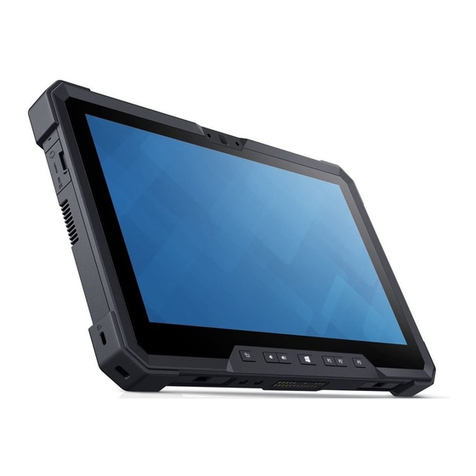
Dell
Dell Latitude 12 Rugged 7202 User manual

Dell
Dell STREAK 7 User manual

Dell
Dell Venue 10 5050 User manual

Dell
Dell Latitude 12 7212 User manual

Dell
Dell Latitude 7212 User manual

Dell
Dell Latitude 7220 Operation and maintenance manual

Dell
Dell XPS 12 User manual

Dell
Dell 8 User manual

Dell
Dell 8 User manual

Dell
Dell XPS 18 User manual

Dell
Dell T03H User manual

Dell
Dell Venue 8 7000 Series User manual

Dell
Dell Venue 11 Pro-7140 User manual

Dell
Dell XPS 18 User manual

Dell
Dell XPS 18 User manual

Dell
Dell Venue 10 7000 Series User manual

Dell
Dell Venue 11 Pro User manual






