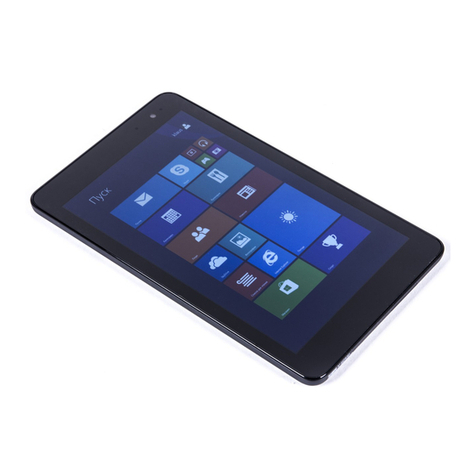
Dell Venue 10 Pro 5056 User manual

Venue 10 Pro 5056
User’s Guide
Computer Model: Venue 5056
Regulatory Model: T16G
Regulatory Type: T16G001

Notes, cautions, and warnings
NOTE: A NOTE indicates important information that helps you make better
use of your tablet.
CAUTION: A CAUTION indicates either potential damage to hardware or loss
of data and tells you how to avoid the problem.
WARNING: A WARNING indicates a potential for property damage, personal
injury, or death.
Copyright ©2015 Dell Inc. All rights reserved. This product is protected by U.S. and
international copyright and intellectual property laws. Dell™and the Dell logo are trademarks
of Dell Inc. in the United States and/or other jurisdictions. All other marks and names
mentioned herein may be trademarks of their respective companies.
2015 - 10
Rev. A00

Contents
Features......................................................................................... 5
Accessories................................................................................... 8
Keyboard and stylus features............................................................................ 8
Setting up your tablet...............................................................10
Charging the tablet..........................................................................................10
Checking battery-charge status.................................................................11
Turning on your tablet..................................................................................... 12
Inserting a micro-SIM card.............................................................................. 12
Removing the micro-SIM card........................................................................ 13
Inserting a microSD card................................................................................. 13
Removing the microSD card........................................................................... 14
Using headphones........................................................................................... 15
Using your tablet....................................................................... 16
Turning off your tablet.....................................................................................16
Using the power button on the Start screen............................................ 16
Using the power button.............................................................................16
Turning off the screen..................................................................................... 16
Using the power button on the Start screen............................................ 16
Using the power button.............................................................................16
Start screen...................................................................................................... 16
Wi-Fi..................................................................................................................17
Turning Wi-Fi on or off...............................................................................17
Connecting to a network...........................................................................17
Mobile broadband setting................................................................................17
Bluetooth..........................................................................................................18
Turning Bluetooth on or off ..................................................................... 18
3

Pairing with Bluetooth-enabled devices...................................................18
Screen orientation............................................................................................18
Locking or unlocking the screen orientation............................................18
Adjusting screen brightness.............................................................................19
Auto adjust..................................................................................................19
Synchronizing your tablet................................................................................19
Restoring your operating system....................................................................20
Resetting your tablet................................................................................. 20
Gestures...........................................................................................................20
Keyboard and stylus..................................................................23
Docking your tablet......................................................................................... 23
Undocking your tablet.....................................................................................24
Using the stylus................................................................................................24
Charging the stylus..........................................................................................25
Entering BIOS setup program................................................. 27
With keyboard.................................................................................................. 27
Without keyboard............................................................................................ 27
Specifications.............................................................................28
Troubleshooting........................................................................33
Battery problem............................................................................................... 33
Network problem............................................................................................ 34
Touchscreen problem.....................................................................................35
System problem...............................................................................................35
Getting help ...............................................................................37
Self-help resources..........................................................................................37
Contacting Dell..........................................................................38
Locating your Service Tag and Express Service Code........39
4

Features
Feature
1. Power button • Press to turn on the tablet if it is
turned off or in sleep state.
• Press to put the tablet in sleep state
if it is turned on.
2. Power and battery-charge
status light
Indicates the power-state of the tablet.
5

Feature
3. Right microphone Provides sound input for audio
recording, voice calls, and so on.
4. Left microphone Provides sound input for audio
recording, voice calls, and so on.
5. Front camera Allows you to video chat, capture
photos, and record videos.
6. Headset port Connect a headphone, a microphone,
or a headset (headphone and
microphone combo).
7. Volume-control buttons (2) Press to increase or decrease the
volume.
8. Micro-HDMI port Connect a TV, monitor, or another
HDMI-in enabled device. Provides
video and audio output.
9. USB 3.0 port Connect peripherals such as storage
devices, printers, and so on. Provides
data transfer speeds up to 5 Gbps.
10. USB 3.0 and power-adapter
port (USB-C)
Connect a power adapter to provide
power to your tablet and charge the
battery. Connect peripherals that
support USB-C. Provides data transfer
speeds up to 5 Gbps.
11. Rear camera Allows you to video chat, capture
photos, and record videos.
12. Keyboard docking slots (2) Allows docking to the keyboard dock.
13. Service Tag label Provides the Service Tag and Express
Service Code needed when contacting
Dell.
14. Docking pins Allows docking to the keyboard dock.
15. NFC-sensor area (optional) Allows NFC-enabled devices to
communicate with your tablet.
16. Noble security cable slot Connect a Noble security cable to
prevent unauthorized movement of
your tablet.
17. Micro-SIM card slot Insert a micro-SIM card to connect to a
mobile broadband network.
6

Feature
18. microSD card slot Insert a microSD card to expand the
tablet’s storage capacity. Your tablet
supports a microSD card with capacity
up to 128 GB.
19. Windows button • Press to display the Windows Start
menu or Start screen.
• Press for quick access to the most
recently used app or most recently
viewed screen.
20. Camera-status light Turns on when the camera is in use.
7

Accessories
Your tablet supports the following accessories:
• Keyboard
• Stylus
Keyboard and stylus features
Feature
1. Docking connector Allows docking to the tablet.
2. Undock button Press to undock the tablet.
3. Tabs (2) Allows docking to the tablet.
4. Left-click area Press to left-click.
5. Right-click area Press to right-click.
6. Stylus holder Allows you to charge the stylus.
Replace the stylus here after use.
7. Buttons (2) Customize these buttons to perform
functions such as right-click, erase, and
so on.
8

Feature
8. Stylus Allows you to draw, write text, and
perform basic mouse functions.
9

Setting up your tablet
WARNING: Before you begin any of the procedures in this section,
read the safety information that shipped with your tablet. For
additional best practices information, go to www.dell.com/
regulatory_compliance.
Charging the tablet
CAUTION: Charge the battery in an ambient temperature of 0°C to
35°C (32°F to 95°F).
CAUTION: Use only the supplied power adapter to charge your tablet.
Using unauthorized power adapters or cables may severely damage
your tablet.
NOTE: The battery may not be fully charged when you unpack your
tablet.
1 Connect the power cable into the power adapter.
2 Connect the power adapter to the power-adapter port on the tablet.
3 Connect the power adapter to an electrical outlet and charge the tablet
until the battery is fully charged.
NOTE: A fully discharged battery takes about 4 to 5 hours to fully
charge.
10
Other manuals for Venue 10 Pro 5056
2
Table of contents
Other Dell Tablet manuals

Dell
Dell STREAK 7 User manual

Dell
Dell Open Manage Printer Manager 1.2 User manual

Dell
Dell Venue 7 3736 China Only User manual

Dell
Dell Venue 8 Pro User manual

Dell
Dell XPS 18 User manual

Dell
Dell Latitude 12 Rugged 7202 User manual

Dell
Dell Latitude ST Owner's manual

Dell
Dell Streak User manual

Dell
Dell XPS 18 User manual

Dell
Dell Streak User manual

Dell
Dell Venue Pro 11 -7130 User manual

Dell
Dell P08T User manual

Dell
Dell Venue 11 Pro User manual

Dell
Dell Streak User manual

Dell
Dell Venue 8 7000 Series User manual

Dell
Dell Venue 7 User manual

Dell
Dell Venue 8 Pro User manual

Dell
Dell Streak User manual

Dell
Dell Streak User manual

Dell
Dell Inspiron 13-7347 2-in-1 User manual