Clas Ohlson DPU2290MB User manual

SVENSKANORSKSUOMI ENGLISH
Portable DVD Player
Portabel dvd-spelare
Portabel DVD-spiller
Kannettava dvd-soitin
18-8039/38-2905
Model: DPU2290MB
www.clasohlson.com
Ver. 200806


ENGLISH
Portable DVD Player
Article number 18-8039/38-2905, model DPU2290MB
Please read the entire instruction manual before using the product and save it for future reference.
We apologise for any text or photographic errors and any changes of technical data. If you have any
questions concerning technical problems please contact our Customer Service Department (see address
on reverse).
Table of Contents
Safety 3
Buttons and Functions 4
Getting Started 6
Operating Instructions 7
Settings 10
Care and Maintenance 12
Troubleshooting Guide 12
Disposal 12
Specications 12
Safety
• The product should only be repaired by qualied service personnel.
• The product should not be taken apart or modied.
• The product is made only for use indoors.
• Never expose the device to high temperatures, blows, dampness or moisture.
• Do not place the product where it could fall into water or other type of liquid. Do not place any objects
which contain liquid on the product, e.g. ower vases or soft drinks.
• Do not place the device in a damp, dusty environment or where there are strong vibrations.
• Shut off the standby function and pull out the plug at night, or if you plan to be away for an extended period.
• Never expose the battery to high temperatures.
• Long exposure to high volume levels from the headphones can damage your hearing.
CLASS 1
LASER PRODUCT
CLASS 1 LASER DEVICE
Warning: Do not open the casing! Invisible laser beams can cause eye
damage. Do not look directly into the laser beam or look directly at it
through an optical instrument.
ENGLISH
Buttons and Functions
DVD Player
1
2
3
4
5
6
7
028
19
18
17
16
15
14
13
12
11
10
9
1
2
4
5
6
9
19 1817 15
14
12 11
10 8
3
7
13
16
29
3232
20 21 22
28
27
2625
24
23
31 30
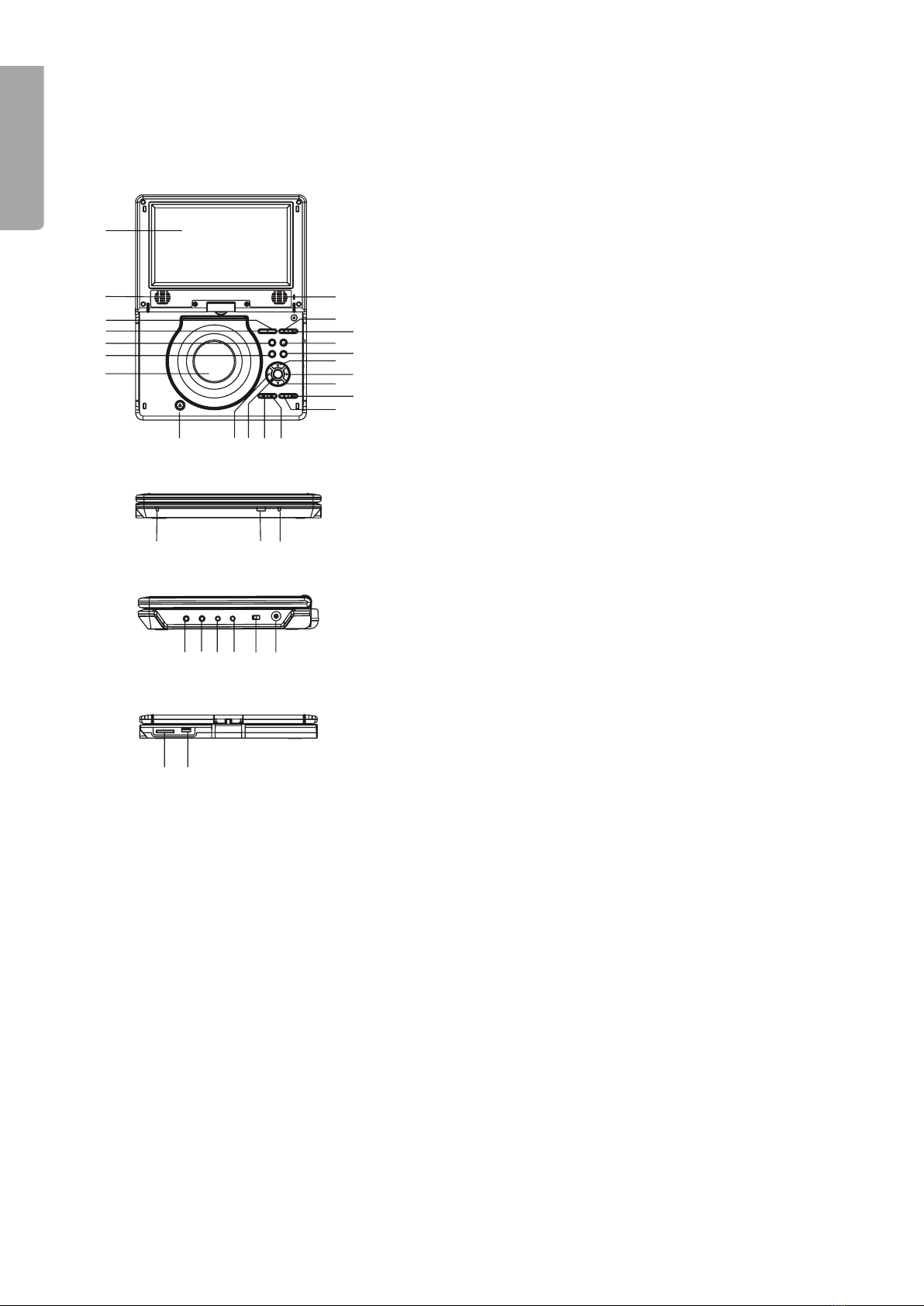
1. TFT display
2. Volume control (-)
. Volume control (+)
. MENU Return to the previous menu
5. TITLE Return to start menu
6. DISPLAY Displays disc information
7. SETUP Activates the settings menu
8. AUDIO Selects track
9. SUBTITLE Chooses subtitles
10. ▲ Navigate up button
11. ► Navigate right button
12. ▼ Navigate down button
1. PLAY/PAUSE Starts or pauses playback
1. STOP/USB/SD/MMC Stops playback/Selects USB
or memory card
15.►►| Next track/fast forward
16. |◄◄ Previous track/rewind
17. OK/ENTER Conrms settings
18. ◄ Navigate left button
19. OPEN Opens the disc player
20. Charging indicator
21. Remote control sensor
22. Standby indicator
2. PHONES 1 x . 5 mm stereo headphone
connection
2. PHONES 2 x . 5 mm stereo headphone
connection
25. AUDIO TV audio outlet
26. VIDEO TV video outlet
27. POWER ON/OFF Power switch, completely turns
off the device
28. DC IN 9-12 V Input for external power
supply/charger
29. DVD Door
0. USB USB memory input
1. SD/MMC CARD SD or MMC memory card input
2. Speakers
5
ENGLISH
Remote control
1
2
3
4
5
6
7
028
19
18
17
16
15
14
13
12
11
10
9
1
2
4
5
6
9
19 1817 15
14
12 11
10 8
3
7
13
16
29
3232
20 21 22
28
27
2625
24
23
31 30
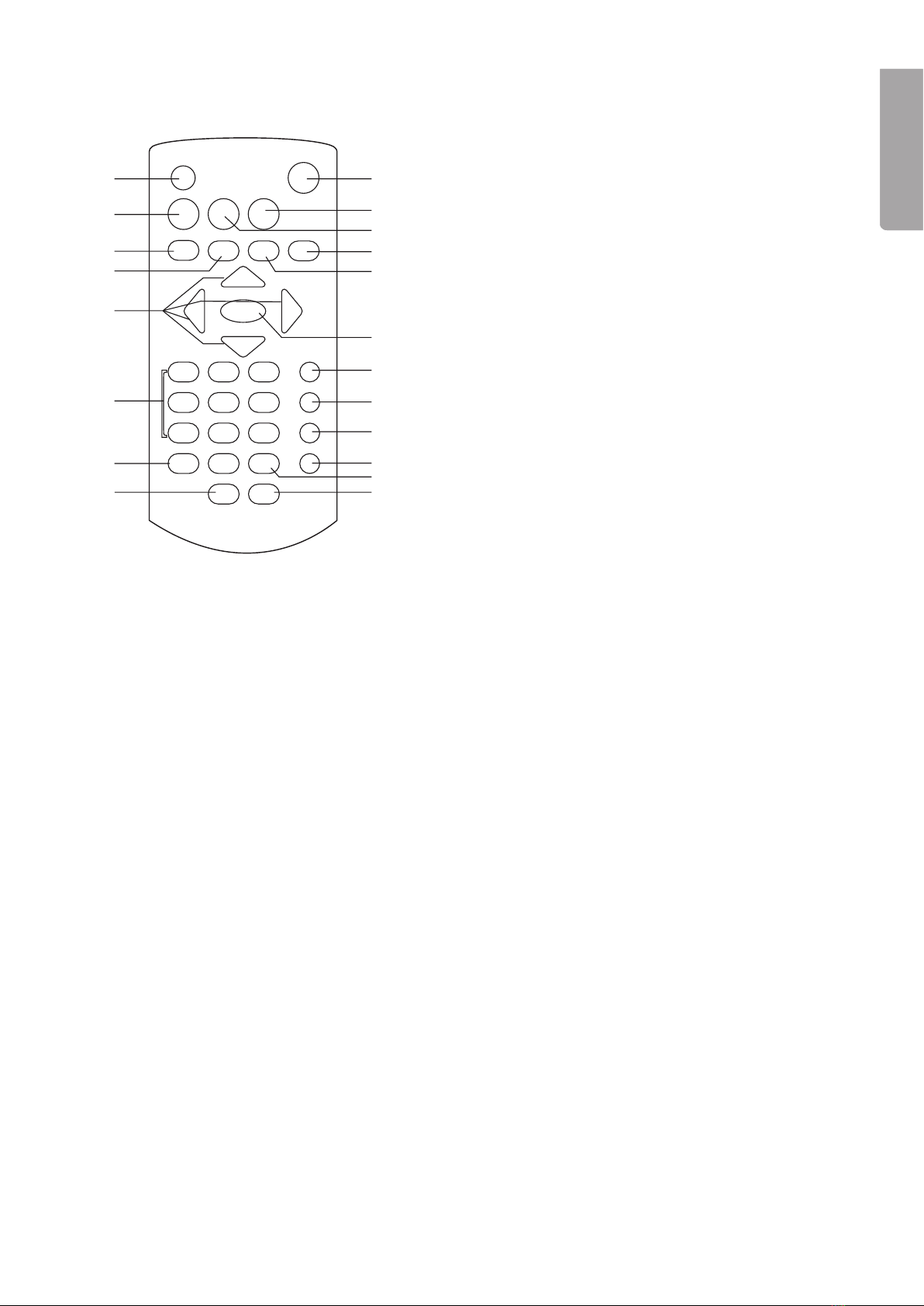
1. SCREEN ON/OFF Press to adjust brightness and colour.
Press and hold to turn on/off the display.
2. TITLE Return to the start menu
. |◄◄ Previous track/ rewind
. ►►| Next track/fast forward
5. Navigation buttons Moves you through the menus
6. Numerical buttons
7. PROGRAM/ANGLE Programmed playback/Change picture angle
8. VOLUME (-) Reduces volume
9. ON/OFF Turns the device on/off
10. SETUP Activates the settings menu
11. MENU Return to the previous menu
12. DISPLAY Press to display disc information
1. STOP/USB/SD/MMC Stops playback/Press and hold to move between USB, SD
and MMC.
1. OK/PLAY/PAUSE Conrm settings/Start or pause playback
15. SUBTITLE Chooses subtitles
16. AUDIO Selects track
17. SEARCH Press to search for track/scene
18. REPEAT Replay
19. ZOOM/SLOW Enlarge picture/Press and hold for slowmotion playback
20. VOLUME (+ Increases volume
6
ENGLISH
Getting Started
Inserting the remote control’s batteries
Open the remote’s battery cover and insert 2 x LR0/AAA-batteries. Make sure to install the batteries
according to the markings in the battery compartment.
2
AUDIO R AU DIO L VIDEO IN
S-VIDEO YU V INP UT
AV AUDIO/VIDEO INPUT
2
AUDIO R AU DIO L VIDEO IN
S-VIDEO YU V INP UT
AV AUDIO/VIDEO INPUT
To the car’s cigarette outlet
Replacing the fuse
1. Unscrew the top ring from the car adaptor.
2. Replace the fuse with a new T, 15 A fuse.
. Screw the top ring back in place. Make sure the contacts
are correctly in place and the top ring is secure.
2
AUDIO R AU DIO L VIDEO IN
S-VIDEO YU V INP UT
AV AUDIO/VIDEO INPUT
Fuse
Indoor power supply
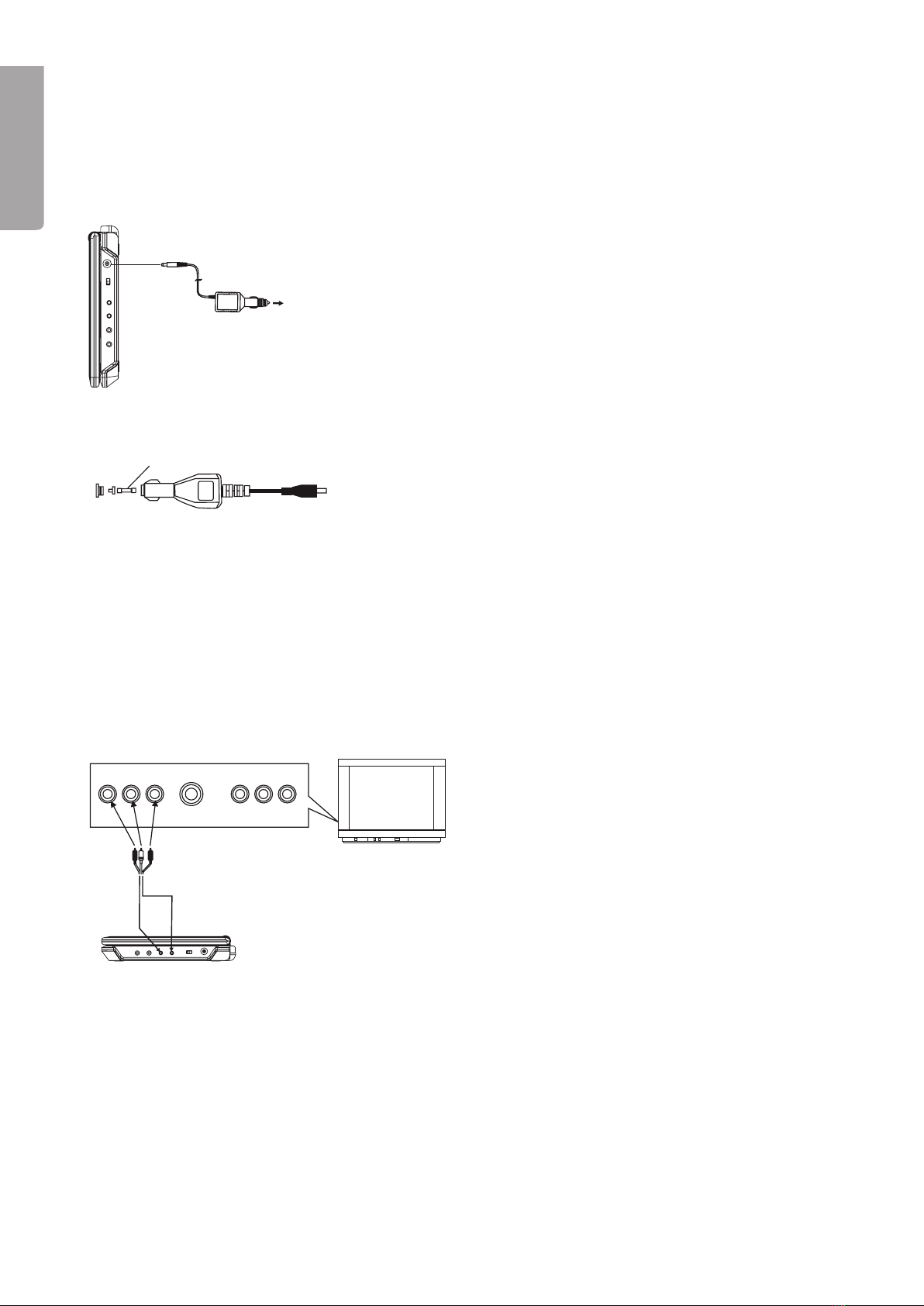
Connect the included adaptor to the DVD’s power connection (28) and then to an available power point.
N.B. Always remove the car/power adaptor when the DVD is not being used.
Connecting an external TV or Home Theatre Amplier
In car power supply
Connect the car adaptor to the DVD’s power connection (28)
and then to a 12 or 2 V (cigarette) outlet.
N.B. Only use the supplied car adaptor.
The DVD player can be connected to an external TV using the included cables.
1. First make sure that the DVD player and TV/Home Theatre Amp. are turned off before connecting.
2. Connect the RCA connectors between the player and your TV according to the diagram.
• Red connector to AUDIO R
• White connector to AUDIO L
• Yellow connector to VIDEO IN
. Connect the two .5 mm connectors to the DVD player’s audio and video outlets.
• Connect the 2 pole connector (single wire lead) to the VIDEO OUT outlet.
• Connect the pole connector (double wire lead) to the AUDIO OUT outlet.
A/V Cable
TV

7
ENGLISH
Operating Instructions
Starting the DVD player
Set the switch (27) to the ON position to start the device.
Using the remote control
Aim the remote control towards the sensor (21) on the front of the player and press the desired button for the
desired function.
Using the headphones
Two pairs of headphones can be connected to the player for simultaneous listening.
1. First reduce the device’s volume before connecting the headphones.
2. Connect the headphones (.5 mm stereo jack) to one of the headphone outlets (2/2).
. Adjust the volume to the desired level.
N.B. Long exposure to high volume levels from the headphones can damage your hearing.
Playing a CD or DVD
1. Push OPEN to open disc player’s cover.
2. Place in a CD/DVD with the label facing up and close the door. Playback should start automatically and
the CD/DVD menu should be displayed (if CD/DVD has such a menu).
. Use the navigation buttons on the remote control to navigate through the disc’s menu. Make your desired
selection and conrm with OK to start playback.
Playback from USB or memory card
1. Set the switch (27) to the ON position to start the device.
2. Insert a USB or SD/MMC memory card containing music or video les into their respective slots on
the back of the device (0 & 1). The player will automatically detect the inserted memory and display
accessible les and folders.
• NB. Press and hold the STOP/USB/SD/MMC button (1) on the remote to shufe between DVD and
the USB/memory card/s.
. Use the navigation buttons to select the folder or le you wish to play. Press OK to conrm and start
playback. Playback of the rst le in the folder starts automatically.
Adjusting the volume
Use Volume - and Volume + to adjust the volume. The set volume will be briey shown on the top portion
of the display.
Next/previous track/section
Use the|◄◄ or ►►| buttons in order to go to the next or previous track/section.
Fast forward/rewind
• Press and hold |◄◄ or ►►| to quickly search back wards or forwards for a track. The actual playback
speed is shown on the display.
• Press and hold the same button for a longer time to change the search speed. You can choose between
2, , 8 or 20 times playback speed.

8
ENGLISH
Stopping playback
During video playback:
• Press the STOP button once to stop playback. The player goes on stand-by and PRE STOP is shown on
the screen. Press PLAY/PAUSE to restart playback.
• Press the STOP button once again to completely stop playback. The player goes into standby mode.
During music playback:
• Press the STOP button to stop playback.
Slow motion playback (only for video)
• During playback, press and hold ZOOM/SLOW on the remote once or many times in order to activate
and change the playback speed (slow motion). Every press reduces the speed a seventh of the normal
playback speed.
• Press PLAY/PAUSE to restart normal playback.
Repeated playback (Repeat)
During playback, press REPEAT once or many times to choose the type of repeated playback desired
(the chosen selection will be displayed).
REP 1 Repeat one chapter/track
REP DIR Repeat entire folder
REP ALL Repeat entire disc/all tracks
REP OFF Normal playback
REP A Specify a starting point for repetition
REP B Specify a ending point for repetition
A-B CANCEL Cancel specied repetition
NB: The type of playback repetition depends entirely on the type of media being played.
Searching for a section
1. Press SEARCH once on the remote during playback to search for a section.
2. Use the navigation buttons to mark the title/track, chapter or point on the track.
. Use the numerical buttons to select the desired track or section. The display shows the current chapter
and total number of chapters, e.g. CH 002/022.
. Press OK to conrm and start playback according to your settings.
5. To exit the search menu, press the SEARCH button again.
Programmed playback
A total of 16 tracks can be programmed for playback in desired order.
1. During playback, press the PROGRAM button once on the remote.
2. Choose the desired program number with the navigation buttons.
. Use the number and navigation buttons to set the title (T) and track/section number (C).
. Repeat steps 2 and in order to add more tracks/sections to the play list.
5. Press OK to conrm and start playback. Playback occurs in the order each track was added and
PRG PLAY will show on the display.
6. In order to delete existing programs, select <CLEAR> in the program menu and press OK to conrm
or press STOP twice.
Enlarging or reducing picture size
• Press ZOOM/SLOW once or many times to increase picture size (up to x) or reduce picture size (up to
one quarter). The display shows the current increase/decrease in picture size.
• Use the navigation buttons to position the enlarged area.

9
ENGLISH
Displaying playback information
During playback, press DISPLAY repeatedly to view playback information. The information will be shown on
the upper part of the screen.
Audio track (DVD)
Works only with discs with more than one track.
• Press AUDIO once or repeatedly to change tracks. The current language selection will be displayed.
• Current audio settings will also be displayed.
Picture Angle (DVD)
• Only works with certain DVD’s.
• During playback, press and hold ANGLE to display and select from available picture angles.
Subtitles (DVD)
• Only works with certain DVD’s.
• During playback, repeatedly press SUBTITLE in order to select the subtitle language.
The current language selection will be displayed.
Setting the brightness and colour
The display’s brightness and colour can be set at anytime during playback.
Press SCREEN ON/OFF repeatedly on the remote to set the display’s settings.
Adjust the value with ◄ and ►.
• BRI Brightness
• COL Colour
• CON Contrast
MP3/MPEG4
1. Insert a CD/DVD or USB/memory card containing MP or MPEG les.
2. The display shows the folders found on the disk/memory and playback of the rst folder
begins automatically.
. Use the navigation buttons to select the folder or le you wish to play. Press OK to conrm
and start playback. Playback of the rst le in the folder starts automatically.
. Use the |◄◄ or ►►| to go to the next or previous track.
Slideshow
1. Insert a CD or DVD with image les in JPEG format. The display shows the folders on the disk.
2. Use the navigation buttons to select the folder or picture le to be shown. Press OK to conrm.
The slideshow should now begin.
. Use |◄◄ or ►►| to go to the next or previous picture.
. Use REPEAT to repeat the slide show (see Repeated playback section).
• During playback, press the navigation buttons to rotate or ip the pictures.
• Press ZOOM/SLOW once or many times to increase picture size (up to x) or reduce picture size
(up to one quarter). The display shows the current increase/decrease in picture size.
10
ENGLISH
Settings
You can always activate the settings menu by pressing the SETUP button on the device or the remote
• Use the navigation buttons to move between menus and press OK in order to conrm your choices
and settings.
• Press SETUP again to nish and exit the menus.
Explanation of the menus
Menu headings are shown in English.
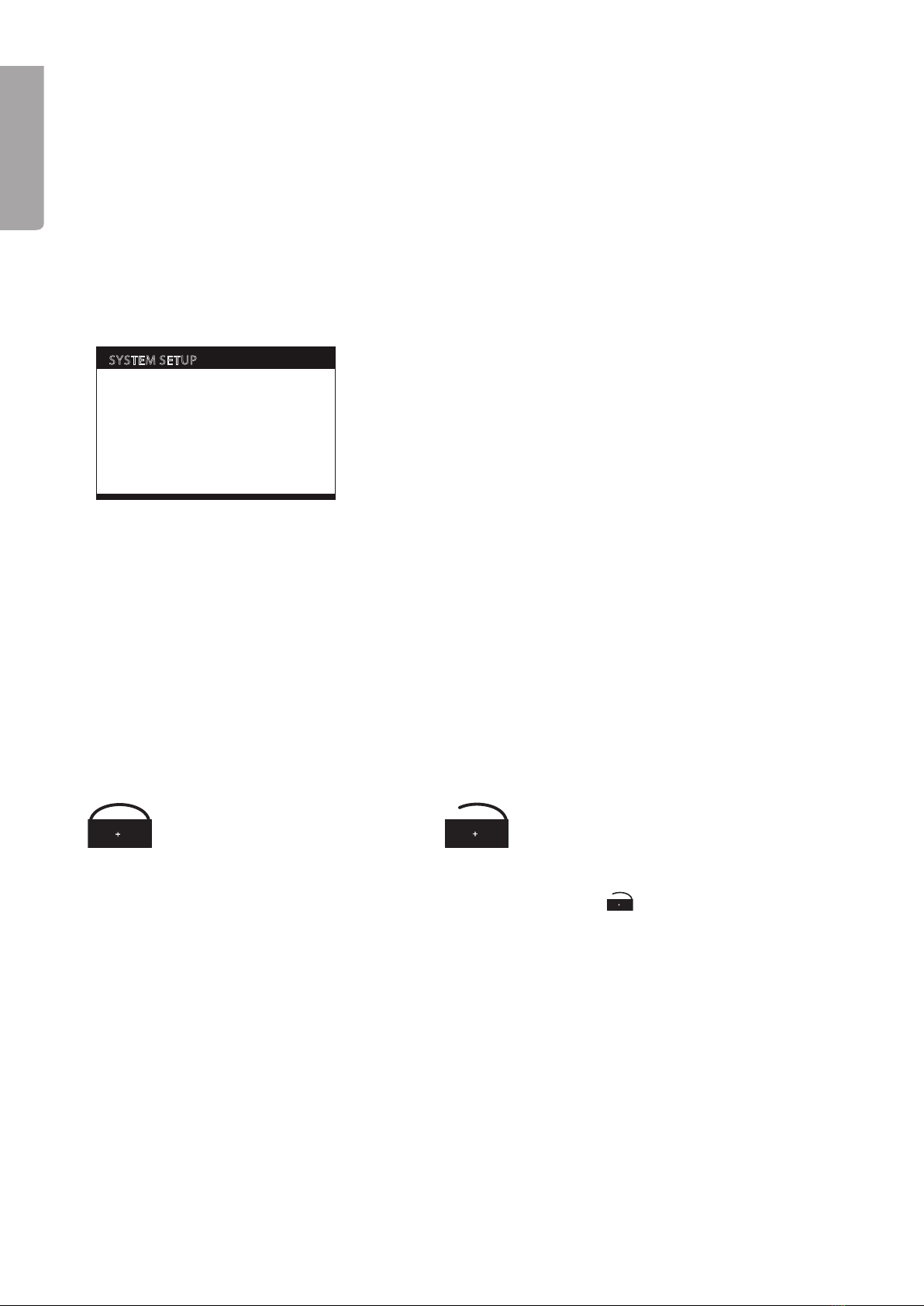
1. SYSTEM SETUP (system settings)
SYSTEM SETUP
TV SYSTEM
PASSWORD
RATING
DEFAULT
EXIT SETUP
TV TYPE
LCD MODE
LANGUAGE SETUP
OSD LANGUAGE
AUDIO LANG
SUBTITLE LANG
MENU LANG
EXIT SETUP
AUDIO SETUP
AUDIO OUT
EXIT SETUP
VIDEO SETUP
BRIGHTNESS
CONTRAST
HUE
SATURATION
EXIT SETUP
SPEAKER SETUP
DOWNMIX
EXIT SETUP
1.1 TV SYSTEM
Set the TV system’s outgoing signal from DVD player. Choose between NTSC (USA), PAL (Europe)
or AUTO (automatic).
1.2 LCD MODE
Select the picture format for the DVD player. : or 16:9.
1.3 TV TYPE
Select the picture format for the DVD player’s outgoing signal.
1.4 PASSWORD
Use a password to lock or unlock certain menus on the DVD player to protect against unauthorised use.
• Use the remote‘s number buttons to create a password. 0000 is the pre-installed password.
Conrm with OK.
• Repeat the instructions above to lock or unlock the menus depending on any previous settings.
Menus protected/locked Menus unprotected/unlocked
Changing the password
• Enter your current password (”0000” pre-installed) to unlock the menus, is displayed.
• Enter a new password using the number buttons on the remote. The lock is activated a new password is
required for unlocking (if you have forgotten the password you can give the administrator’s password: 8200).
1.5 RATING
This setting allows setting access restrictions for children and to prevent any inappropriate material from
being shown. Set appropriate access level (1 -8).
1.6 DEFAULT
Restores the player to factory default settings.
This manual suits for next models
2
Table of contents
Languages:
Other Clas Ohlson Portable DVD Player manuals

Clas Ohlson
Clas Ohlson PDVD-163BHD2P-UK User manual

Clas Ohlson
Clas Ohlson DPU3270V+SSD70S-UK User manual

Clas Ohlson
Clas Ohlson PDV-196-UK User manual

Clas Ohlson
Clas Ohlson PDVD-196-UK User manual

Clas Ohlson
Clas Ohlson DPX3270V SSD70S-UK User manual

Clas Ohlson
Clas Ohlson SPDV-1020US-UK User manual

Clas Ohlson
Clas Ohlson DPX3270V SSD70S User manual