Canon Pixma MG2400 Series Setup guide

MG2400 series
Online Manual
Troubleshooting
English

Contents
Troubleshooting. . . . . . . . . . . . . . . . . . . . . . . . . . . . . . . . . . . . . . . . . . . . . . . . . . . 5
Problems with Printing. . . . . . . . . . . . . . . . . . . . . . . . . . . . . . . . . . . . . . . . . . . . . . . . . . . . . 6
Printing Does Not Start. . . . . . . . . . . . . . . . . . . . . . . . . . . . . . . . . . . . . . . . . . . . . . . . . . . . . . . . . . . . . . . 7
Paper Jams. . . . . . . . . . . . . . . . . . . . . . . . . . . . . . . . . . . . . . . . . . . . . . . . . . . . . . . . . . . . . . . . . . . . . . . . 9
Paper Does Not Feed Properly/"No Paper" Error Occurs. . . . . . . . . . . . . . . . . . . . . . . . . . . . . . . . . . . . 10
Copying/Printing Stops Before It Is Completed. . . . . . . . . . . . . . . . . . . . . . . . . . . . . . . . . . . . . . . . . . . . 12
Problems with Printing Quality. . . . . . . . . . . . . . . . . . . . . . . . . . . . . . . . . . . . . . . . . . . . . . 13
Print Results Not Satisfactory. . . . . . . . . . . . . . . . . . . . . . . . . . . . . . . . . . . . . . . . . . . . . . . . . . . . . . . . . 14
Cannot Print to End of Job. . . . . . . . . . . . . . . . . . . . . . . . . . . . . . . . . . . . . . . . . . . . . . . . . . . . . . . . 15
No Printing Results/Printing Is Blurred/Colors Are Wrong/White Streaks. . . . . . . . . . . . . . . . . . . . 16
Colors Are Unclear. . . . . . . . . . . . . . . . . . . . . . . . . . . . . . . . . . . . . . . . . . . . . . . . . . . . . . . . . . . . . 19
Lines Are Misaligned. . . . . . . . . . . . . . . . . . . . . . . . . . . . . . . . . . . . . . . . . . . . . . . . . . . . . . . . . . . . 20
Line Does Not Print or Prints Partially. . . . . . . . . . . . . . . . . . . . . . . . . . . . . . . . . . . . . . . . . . . . . . . 21
Image Does Not Print or Prints Partially. . . . . . . . . . . . . . . . . . . . . . . . . . . . . . . . . . . . . . . . . . . . . 22
Printed Paper Curls or Has Ink Blots. . . . . . . . . . . . . . . . . . . . . . . . . . . . . . . . . . . . . . . . . . . . . . . . 23
Paper Is Smudged/Printed Surface Is Scratched. . . . . . . . . . . . . . . . . . . . . . . . . . . . . . . . . . . . . . 24
Back of the Paper Is Smudged. . . . . . . . . . . . . . . . . . . . . . . . . . . . . . . . . . . . . . . . . . . . . . . . . . . . 27
Colors Are Uneven or Streaked. . . . . . . . . . . . . . . . . . . . . . . . . . . . . . . . . . . . . . . . . . . . . . . . . . . . 28
Ink Is Not Ejected. . . . . . . . . . . . . . . . . . . . . . . . . . . . . . . . . . . . . . . . . . . . . . . . . . . . . . . . . . . . . . . . . . . 30
Problems with Scanning. . . . . . . . . . . . . . . . . . . . . . . . . . . . . . . . . . . . . . . . . . . . . . . . . . . 31
Problems with Scanning. . . . . . . . . . . . . . . . . . . . . . . . . . . . . . . . . . . . . . . . . . . . . . . . . . . . . . . . . . . . . 32
Scanner Does Not Work. . . . . . . . . . . . . . . . . . . . . . . . . . . . . . . . . . . . . . . . . . . . . . . . . . . . . . . . . 33
ScanGear (Scanner Driver) Does Not Start. . . . . . . . . . . . . . . . . . . . . . . . . . . . . . . . . . . . . . . . . . . 34
Error Message Appears and the ScanGear (Scanner Driver) Screen Does Not Appear. . . . . . . . 35
Cannot Scan Multiple Items at One Time. . . . . . . . . . . . . . . . . . . . . . . . . . . . . . . . . . . . . . . . . . . . 36
Cannot Scan Properly with Auto Scan. . . . . . . . . . . . . . . . . . . . . . . . . . . . . . . . . . . . . . . . . . . . . . . 37
Slow Scanning Speed. . . . . . . . . . . . . . . . . . . . . . . . . . . . . . . . . . . . . . . . . . . . . . . . . . . . . . . . . . . 38
"There is not enough memory." Message Is Displayed. . . . . . . . . . . . . . . . . . . . . . . . . . . . . . . . . . 39
Computer Stops Operating during Scanning. . . . . . . . . . . . . . . . . . . . . . . . . . . . . . . . . . . . . . . . . . 40
Scanner Does Not Work after Upgrading Windows. . . . . . . . . . . . . . . . . . . . . . . . . . . . . . . . . . . . . 41
Scanned Image Does Not Open. . . . . . . . . . . . . . . . . . . . . . . . . . . . . . . . . . . . . . . . . . . . . . . . . . . 43
Scan Results Not Satisfactory. . . . . . . . . . . . . . . . . . . . . . . . . . . . . . . . . . . . . . . . . . . . . . . . . . . . . . . . . 44
Scan Quality (Image Displayed on the Monitor) Is Poor. . . . . . . . . . . . . . . . . . . . . . . . . . . . . . . . . 45
Scanned Image Is Surrounded by Extra White Areas. . . . . . . . . . . . . . . . . . . . . . . . . . . . . . . . . . . 47
Cannot Scan at the Correct Size. . . . . . . . . . . . . . . . . . . . . . . . . . . . . . . . . . . . . . . . . . . . . . . . . . . 48
Item Is Placed Correctly, but the Scanned Image Is Slanted. . . . . . . . . . . . . . . . . . . . . . . . . . . . . 49

Scanned Image Is Enlarged (Reduced) on the Computer Monitor. . . . . . . . . . . . . . . . . . . . . . . . . 50
Software Problems. . . . . . . . . . . . . . . . . . . . . . . . . . . . . . . . . . . . . . . . . . . . . . . . . . . . . . . . . . . . . . . . . . 51
The E-mail Client You Want to Use Does Not Appear in the Screen for Selecting an E-mail Client 52
Problems with the Machine. . . . . . . . . . . . . . . . . . . . . . . . . . . . . . . . . . . . . . . . . . . . . . . . . 53
The Machine Cannot Be Powered On. . . . . . . . . . . . . . . . . . . . . . . . . . . . . . . . . . . . . . . . . . . . . . . . . . . 54
The Machine Turns Off Unintendedly. . . . . . . . . . . . . . . . . . . . . . . . . . . . . . . . . . . . . . . . . . . . . . . . . . . 55
Cannot Connect to Computer Properly. . . . . . . . . . . . . . . . . . . . . . . . . . . . . . . . . . . . . . . . . . . . . . . . . . 56
FINE Cartridge Holder Does Not Move to the Position for Replacing. . . . . . . . . . . . . . . . . . . . . . . . . . . 57
Printer Status Monitor Is Not Displayed. . . . . . . . . . . . . . . . . . . . . . . . . . . . . . . . . . . . . . . . . . . . . . . . . . 58
Problems with Installation/Downloading. . . . . . . . . . . . . . . . . . . . . . . . . . . . . . . . . . . . . . . 59
Cannot Install the MP Drivers. . . . . . . . . . . . . . . . . . . . . . . . . . . . . . . . . . . . . . . . . . . . . . . . . . . . . . . . . 60
Easy-WebPrint EX Does Not Start Up or Easy-WebPrint EX Menu Does Not Appear. . . . . . . . . . . . . . 62
About Errors/Messages Displayed. . . . . . . . . . . . . . . . . . . . . . . . . . . . . . . . . . . . . . . . . . . 63
If an Error Occurs. . . . . . . . . . . . . . . . . . . . . . . . . . . . . . . . . . . . . . . . . . . . . . . . . . . . . . . . . . . . . . . . . . . 64
A Message Is Displayed. . . . . . . . . . . . . . . . . . . . . . . . . . . . . . . . . . . . . . . . . . . . . . . . . . . . . . . . . . . . . 67
If You Cannot Resolve the Problem. . . . . . . . . . . . . . . . . . . . . . . . . . . . . . . . . . . . . . . . . . 71
Support Code List. . . . . . . . . . . . . . . . . . . . . . . . . . . . . . . . . . . . . . . . . . . . . . . . 72
Support Code List (When Paper Is Jammed). . . . . . . . . . . . . . . . . . . . . . . . . . . . . . . . . . . 73
1300. . . . . . . . . . . . . . . . . . . . . . . . . . . . . . . . . . . . . . . . . . . . . . . . . . . . . . . . . . . . . . . . . . . . . . . . . . . . . 74
Paper Is Jammed inside the Machine. . . . . . . . . . . . . . . . . . . . . . . . . . . . . . . . . . . . . . . . . . . . . . . . . . . 76
In Other Cases. . . . . . . . . . . . . . . . . . . . . . . . . . . . . . . . . . . . . . . . . . . . . . . . . . . . . . . . . . . . . . . . . . . . . 79
1000. . . . . . . . . . . . . . . . . . . . . . . . . . . . . . . . . . . . . . . . . . . . . . . . . . . . . . . . . . . . . . . . . . 80
1200. . . . . . . . . . . . . . . . . . . . . . . . . . . . . . . . . . . . . . . . . . . . . . . . . . . . . . . . . . . . . . . . . . 81
1203. . . . . . . . . . . . . . . . . . . . . . . . . . . . . . . . . . . . . . . . . . . . . . . . . . . . . . . . . . . . . . . . . . 82
1401. . . . . . . . . . . . . . . . . . . . . . . . . . . . . . . . . . . . . . . . . . . . . . . . . . . . . . . . . . . . . . . . . . 83
1403. . . . . . . . . . . . . . . . . . . . . . . . . . . . . . . . . . . . . . . . . . . . . . . . . . . . . . . . . . . . . . . . . . 84
1485. . . . . . . . . . . . . . . . . . . . . . . . . . . . . . . . . . . . . . . . . . . . . . . . . . . . . . . . . . . . . . . . . . 85
1682. . . . . . . . . . . . . . . . . . . . . . . . . . . . . . . . . . . . . . . . . . . . . . . . . . . . . . . . . . . . . . . . . . 86
1684. . . . . . . . . . . . . . . . . . . . . . . . . . . . . . . . . . . . . . . . . . . . . . . . . . . . . . . . . . . . . . . . . . 87
1686. . . . . . . . . . . . . . . . . . . . . . . . . . . . . . . . . . . . . . . . . . . . . . . . . . . . . . . . . . . . . . . . . . 88
1687. . . . . . . . . . . . . . . . . . . . . . . . . . . . . . . . . . . . . . . . . . . . . . . . . . . . . . . . . . . . . . . . . . 89
1688. . . . . . . . . . . . . . . . . . . . . . . . . . . . . . . . . . . . . . . . . . . . . . . . . . . . . . . . . . . . . . . . . . 90
1700. . . . . . . . . . . . . . . . . . . . . . . . . . . . . . . . . . . . . . . . . . . . . . . . . . . . . . . . . . . . . . . . . . 91
1701. . . . . . . . . . . . . . . . . . . . . . . . . . . . . . . . . . . . . . . . . . . . . . . . . . . . . . . . . . . . . . . . . . 92

1890. . . . . . . . . . . . . . . . . . . . . . . . . . . . . . . . . . . . . . . . . . . . . . . . . . . . . . . . . . . . . . . . . . 93
2900. . . . . . . . . . . . . . . . . . . . . . . . . . . . . . . . . . . . . . . . . . . . . . . . . . . . . . . . . . . . . . . . . . 94
2901. . . . . . . . . . . . . . . . . . . . . . . . . . . . . . . . . . . . . . . . . . . . . . . . . . . . . . . . . . . . . . . . . . 95
4100. . . . . . . . . . . . . . . . . . . . . . . . . . . . . . . . . . . . . . . . . . . . . . . . . . . . . . . . . . . . . . . . . . 96
4102. . . . . . . . . . . . . . . . . . . . . . . . . . . . . . . . . . . . . . . . . . . . . . . . . . . . . . . . . . . . . . . . . . 97
5011. . . . . . . . . . . . . . . . . . . . . . . . . . . . . . . . . . . . . . . . . . . . . . . . . . . . . . . . . . . . . . . . . . 98
5012. . . . . . . . . . . . . . . . . . . . . . . . . . . . . . . . . . . . . . . . . . . . . . . . . . . . . . . . . . . . . . . . . . 99
5100. . . . . . . . . . . . . . . . . . . . . . . . . . . . . . . . . . . . . . . . . . . . . . . . . . . . . . . . . . . . . . . . . 100
5200. . . . . . . . . . . . . . . . . . . . . . . . . . . . . . . . . . . . . . . . . . . . . . . . . . . . . . . . . . . . . . . . . 101
5400. . . . . . . . . . . . . . . . . . . . . . . . . . . . . . . . . . . . . . . . . . . . . . . . . . . . . . . . . . . . . . . . . 102
5B00. . . . . . . . . . . . . . . . . . . . . . . . . . . . . . . . . . . . . . . . . . . . . . . . . . . . . . . . . . . . . . . . . 103
5B01. . . . . . . . . . . . . . . . . . . . . . . . . . . . . . . . . . . . . . . . . . . . . . . . . . . . . . . . . . . . . . . . . 104
6000. . . . . . . . . . . . . . . . . . . . . . . . . . . . . . . . . . . . . . . . . . . . . . . . . . . . . . . . . . . . . . . . . 105
6800. . . . . . . . . . . . . . . . . . . . . . . . . . . . . . . . . . . . . . . . . . . . . . . . . . . . . . . . . . . . . . . . . 106
6801. . . . . . . . . . . . . . . . . . . . . . . . . . . . . . . . . . . . . . . . . . . . . . . . . . . . . . . . . . . . . . . . . 107
6930. . . . . . . . . . . . . . . . . . . . . . . . . . . . . . . . . . . . . . . . . . . . . . . . . . . . . . . . . . . . . . . . . 108
6931. . . . . . . . . . . . . . . . . . . . . . . . . . . . . . . . . . . . . . . . . . . . . . . . . . . . . . . . . . . . . . . . . 109
6932. . . . . . . . . . . . . . . . . . . . . . . . . . . . . . . . . . . . . . . . . . . . . . . . . . . . . . . . . . . . . . . . . 110
6933. . . . . . . . . . . . . . . . . . . . . . . . . . . . . . . . . . . . . . . . . . . . . . . . . . . . . . . . . . . . . . . . . 111
6936. . . . . . . . . . . . . . . . . . . . . . . . . . . . . . . . . . . . . . . . . . . . . . . . . . . . . . . . . . . . . . . . . 112
6937. . . . . . . . . . . . . . . . . . . . . . . . . . . . . . . . . . . . . . . . . . . . . . . . . . . . . . . . . . . . . . . . . 113
6938. . . . . . . . . . . . . . . . . . . . . . . . . . . . . . . . . . . . . . . . . . . . . . . . . . . . . . . . . . . . . . . . . 114
6940. . . . . . . . . . . . . . . . . . . . . . . . . . . . . . . . . . . . . . . . . . . . . . . . . . . . . . . . . . . . . . . . . 115
6941. . . . . . . . . . . . . . . . . . . . . . . . . . . . . . . . . . . . . . . . . . . . . . . . . . . . . . . . . . . . . . . . . 116
6942. . . . . . . . . . . . . . . . . . . . . . . . . . . . . . . . . . . . . . . . . . . . . . . . . . . . . . . . . . . . . . . . . 117
6943. . . . . . . . . . . . . . . . . . . . . . . . . . . . . . . . . . . . . . . . . . . . . . . . . . . . . . . . . . . . . . . . . 118
6944. . . . . . . . . . . . . . . . . . . . . . . . . . . . . . . . . . . . . . . . . . . . . . . . . . . . . . . . . . . . . . . . . 119
6945. . . . . . . . . . . . . . . . . . . . . . . . . . . . . . . . . . . . . . . . . . . . . . . . . . . . . . . . . . . . . . . . . 120
6946. . . . . . . . . . . . . . . . . . . . . . . . . . . . . . . . . . . . . . . . . . . . . . . . . . . . . . . . . . . . . . . . . 121
B200. . . . . . . . . . . . . . . . . . . . . . . . . . . . . . . . . . . . . . . . . . . . . . . . . . . . . . . . . . . . . . . . . 122
B201. . . . . . . . . . . . . . . . . . . . . . . . . . . . . . . . . . . . . . . . . . . . . . . . . . . . . . . . . . . . . . . . . 123

Troubleshooting
The Machine Cannot Be Powered On
Printing Does Not Start
Paper Does Not Feed Properly/"No Paper" Error Occurs
Print Results Not Satisfactory
Ink Is Not Ejected
Paper Jams
If an Error Occurs
Search Each Function
Problems with Printing
Problems with Printing Quality
Problems with Scanning
Problems with the Machine
Problems with Installation/Downloading
About Errors/Messages Displayed
If You Cannot Resolve the Problem
5

Printing Does Not Start
Check1 Make sure that the power plug is securely plugged in, then press the ON button
to turn the machine on.
While the ON lamp is flashing, the machine is initializing. Wait until the ON lamp stops flashing and remains lit.
Note
•When printing large data such as a photo or graphics, it may take longer to start printing. While the ON
lamp is flashing, the computer is processing data and sending it to the machine. Wait until printing starts.
Check2 Make sure that the USB cable is securely plugged in to the machine and the
computer.
When the machine is connected to your computer with a USB cable, check the followings:
•If you are using a relay device such as a USB hub, disconnect it, connect the machine directly to the
computer, and try printing again. If printing starts normally, there is a problem with the relay device. Consult
the reseller of the relay device for details.
•There could also be a problem with the USB cable. Replace the USB cable and try printing again.
Check3 If you are printing from the computer and there are any unnecessary print jobs,
delete them.
Deleting the Undesired Print Job
Check4 Make sure that your machine's name is selected in the Print dialog box.
The machine will not print properly if you are using a printer driver for a different printer.
Make sure that your machine's name is selected in the Print dialog box.
Note
•To make the machine the one selected by default, select Set as Default Printer.
Check5 Configure the printer port appropriately.
Make sure that the printer port is configured appropriately.
1. Log on as a user account with administrator privilege.
2. Select items as shown below.
•In Windows 8, select Control Panel from the Settings charm on Desktop > Hardware and Sound >
Devices and Printers.
• In Windows 7, select Devices and Printers from the Start menu.
•In Windows Vista, select the Start menu > Control Panel > Hardware and Sound > Printers.
• In Windows XP, select the Start menu > Control Panel > Printers and Other Hardware > Printers
and Faxes.
3. Open the properties of the printer driver for the machine.
•In Windows 8 or Windows 7, right-click the "Canon XXX Printer" icon (where "XXX" is your machine's
name), then select Printer properties.
• In Windows Vista or Windows XP, right-click the "Canon XXX Printer" icon (where "XXX" is your
machine's name), then select Properties.
7

4. Click the Ports tab to confirm the port settings.
Make sure that a port named "USBnnn" (where "n" is a number) with "Canon XXX Printer" appearing in the
Printer column is selected for Print to the following port(s).
• If the setting is incorrect:
Reinstall the MP Drivers with the Setup CD-ROM or install them from our website.
•Printing does not start even though the machine is connected to the computer using a USB cable and
the port named "USBnnn" is selected:
In Windows 8, select My Printer on the Start screen to start My Printer. If My Printer is not displayed
on the Start screen, select the Search charm, then search for "My Printer".
Set the correct printer port on Diagnose and Repair Printer. Follow the on-screen instructions to set
the correct printer port, then select your machine's name.
In Windows 7, Windows Vista, or Windows XP, click Start and select All programs, Canon Utilities,
Canon My Printer, Canon My Printer, then select Diagnose and Repair Printer. Follow the on-
screen instructions to set the correct printer port, then select your machine's name.
If the problem is not resolved, reinstall the MP Drivers with the Setup CD-ROM or install them from our
website.
Check6 Is the size of the print data extremely large?
Click Print Options on the Page Setup sheet on the printer driver. Then, set Prevention of Print Data Loss in
the displayed dialog to On.
* When On is selected for Prevention of Print Data Loss, print quality may be reduced.
Check7 Restart your computer if you are printing from the computer.
8

Paper Jams
When paper is jammed, the Alarm lamp flashes orange and a troubleshooting message is displayed on the
computer screen automatically. Take the appropriate action described in the message.
Watch the movie
For details on how to remove the jammed paper, refer to Support Code List (When Paper Is Jammed).
Note
• You can confirm the actions against errors with Support Codes on your computer by searching a
Support Code.
Click Here to Search
9

Paper Does Not Feed Properly/"No Paper" Error Occurs
Check1 Make sure that paper is loaded.
Loading Paper
Check2 Make sure of the following when you load paper.
• When loading two or more sheets of paper, align the edges of the sheets before loading.
• When loading two or more sheets of paper, make sure that the paper stack does not exceed the paper load
limit.
However, proper feeding of paper may not be possible at this maximum capacity depending on the type of
paper or environmental conditions (either very high or low temperature and humidity). In such cases, reduce
the sheets of paper you load at a time to less than half of the paper load limit.
•Always load the paper in portrait orientation, regardless of the printing orientation.
•When you load the paper, load the paper with the print side facing UP. Align the paper stack against the
right side of the rear tray and slide the paper guide so that it just touches the left edge of the stack.
Loading Paper
Check3 Check to see if the paper you are printing on is not too thick or curled.
Media Types You Cannot Use
Check4 Make sure of the following when you load envelopes.
•When printing on envelopes, refer to Loading Paper, and prepare the envelopes before printing.
Once you have prepared the envelopes, load them in portrait orientation. If the envelopes are placed in
landscape orientation, they will not feed properly.
Check5 Confirm that the media type and the paper size settings correspond with the
loaded paper.
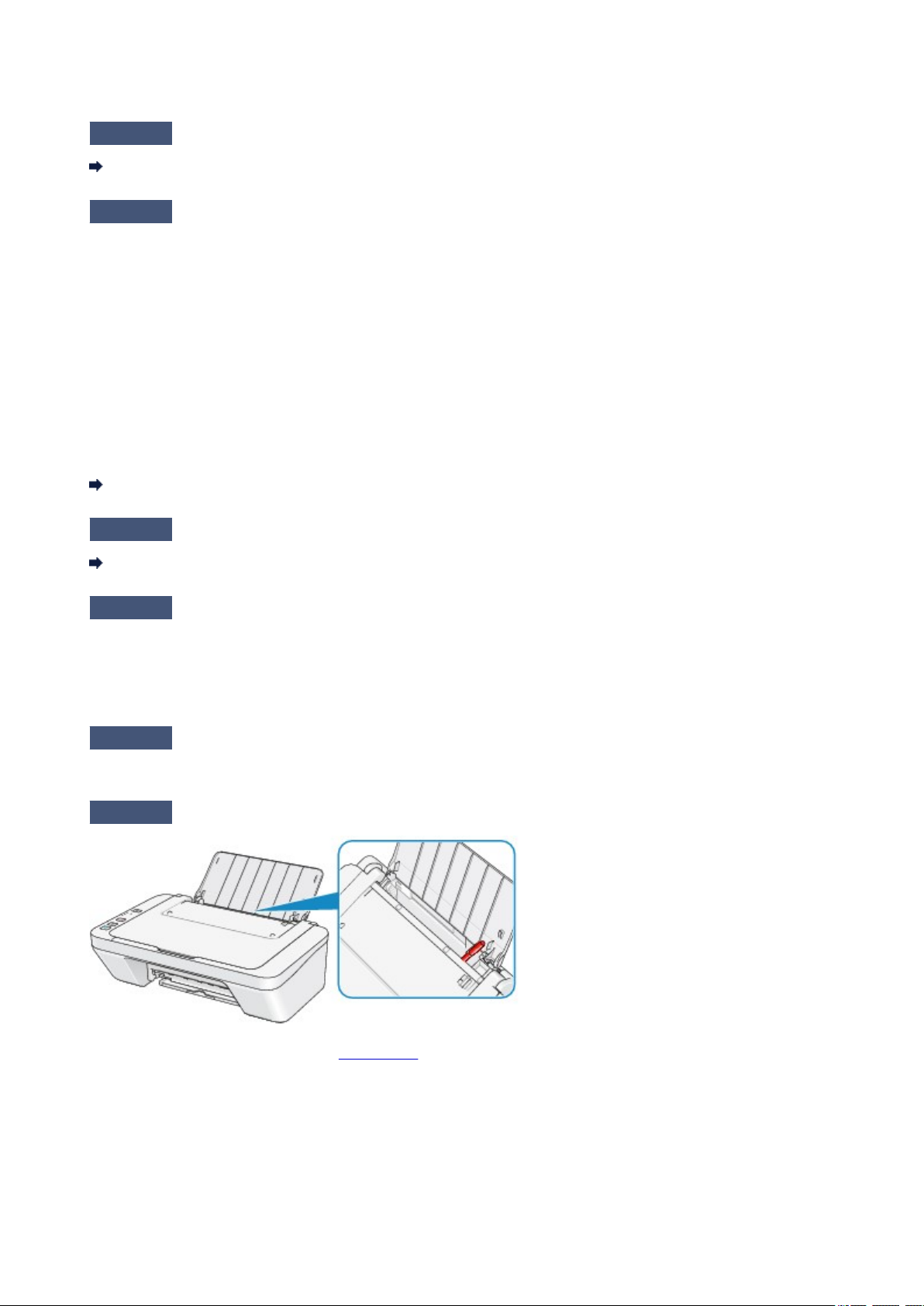
Check6 Make sure that there are not any foreign objects in the rear tray.
If the paper tears in the rear tray, see Paper Jams to remove it.
If there are any foreign objects in the rear tray, be sure to turn off the machine, unplug it from the power supply,
then remove the foreign object.
10
Other manuals for Pixma MG2400 Series
4
Table of contents