Buffalo LinkTheater mini PC-P1LAN User manual
Network Media Player
PC-P1LAN
User’s Manual
Using Link Theater
Detailed Conguration
Appendix

Contents
Using LinkTheater
Supported le formats ......................................... 3
Registering playback folders .............................. 4
Data playback on a television ............................. 4
Converting les .................................................... 4
Conguring access restrictions.......................... 6
DLNA media server
playback
.............................. 8
Detailed Settings
LinkTheater Advanced Settings.......................... 9
Media Server Conguration............................... 10
BootServer Manager .......................................... 11
Appendix
Manually conguring an IP address ................ 12
Verifying computer’s IP address......................... 12
Conguring the LinkTheater's IP address .......... 14
Troubleshooting ................................................. 16
Glossary .............................................................. 21
Specications ..................................................... 22
Using this manual
The following notations and symbols are used throughout this manual.
Notations and Symbols
Caution mark ................ Items which follow
Caution
are items that you must pay particular attention to
when handling Link Theater. Failure to follow this mark may result in personal
injury and/or damage to the device.
Next operation mark ..... Page numbers that come after indicate the page you should proceed to
next.
Terminology notation within the manual
• This manual assumes that your computer has the following drive conguration:
C: Hard disk
E: CD-ROM drive
• Names enclosed in [ ] brackets within the manual represent dialog box names, menus, buttons, check
boxes or other such items that you need to select when operating the device.
• Names enclosed in < > brackets represent keys on the keyboard. (Example) <Enter>

Using LinkTheater
Thank you for choosing LinkTheater! This manual should help you congure and use your new LinkTheater.
Supported le formats
The following le formats can be played back using LinkTheater.
Media Server trans code compatible
format (*1)
AVI (*2), WMV, WMA, GIF
Compatible formats
• Audio les encoded in either MP3 or WAV (uncompressed)
• Image les saved/compressed in JPEG, BMP or PNG formats
• Video les encoded in MPEG-2 format
Compatible video
formats
Image section
digital compres-
sion format
• MPEG-2 standard resolution (*.MPG le, m2p le)
• Maximum resolution 720 x 480 Maximum 8Mbps (*3)
• Maximum frame rate 30fps
Audio section
d i g i t a l c o m -
pressed
• MPEG-1 Audio Layer 2 2 channel
• MPEG-1 Audio Layer 3 2 channel
Au d io se c tion
digital uncom-
pressed
Linear PCM 2 channel
(S/P DIF) 16 bit, 48kHz
Compatible audio formats • Linear PCM (*.WAV)
• MPEG-1 Audio Layer -3 (*.MP3)
Compatible image formats • JPEG (*4), BMP, PNG
*1: LinkTheater plays MPEG-2 and MP3 les. Other formats are transformed into MPEG-2 and MP3 for
playback.
For format transformation, your PC should meet the following requirements.
■ Minimum system requirements
[CPU] Pentium4 1.4GHz or higher, or equivalent performance CPU
[Memory] 256 MB or higher
■ Recommended system requirements
[CPU] Pentium4 1.8GHz or higher/ Celeron 1.8GHz or higher/ Pentium M 900MHz or higher
Celeron M 1.0GHz or higher, or equivalent performance CPU recommended.
[Memory] 512 MB or higher recommended.
* Low bit rates may allow some les to play from PCs that do not meet the above requirements.
* Not all les can be played.
*2: The AVI codec must be installed in your computer to convert and play AVI les.
*3: If LinkTheater is connected to an 11Mbps wireless LAN, or if playback is performed from an USB1.1
device, demanding video les (3Mbps or more) may skip or drop frames.
*4: Only baseline JPEGs can be viewed.

4Mini LinkTheater User’s Manual
Registering a folder for playback
In order to play computer les on LinkTheater, you need to register the folders on the computer. Refer
to the separate [Read Me First] document, and register your media folders for playback.
Data playback on a television
Refer to the separate [Read Me First] document for details on the procedure for playing back computer
or server data on a television.
Note
LinkTheater can play MPEG-2 and MP3 les. Other formats are automatically transformed for
playback. You can change the image quality by right-clicking on the Transcoder's task tray icon and
selecting Quality from the displayed menu, or as shown below.
Converting data
When videos cannot be played smoothly because of dropped frames, or if you want to play back
MPEG-2 les that have a bitrate higher than 8Mbps, you need to convert the les on your computer
before playback, as shown below.
1Click [Start]-[(All) Programs]-
[BUFFALO]-[PC-P1LAN]-
[Transcoder]-[Transcoder].
2Drag and drop the le that you
want to convert.
3Click [Edit Settings].
4Select the compression
quality, then click [OK].
* In order for you to distinguish between
explanations concerning the television
screen and computer screen and
explanations about the computer screen
are marked with this icon .
* Screens shown in this manual are
examples. Your display may be slightly
different.

5
Mini LinkTheater User’s Manual
Using LinkTheater
Detailed Conguration
Appendix
If you wish to congure image quality settings
individually, click [Add] in step 4 on page 4, and
set the details as desired. Individual items can be
selected under [New Prole].
The following items can be set.
Mode
Mode can be selected from constant bitrate (CBR),
variable bitrate (CVBR), and constant quality (CQ).
The features of each mode are explained in the
[Glossary] on page 21. Items that can be set in [Rate
settings] differ depending on the mode selected
here.
Bitrate
The larger the set value, the clearer the image
will be. However, the size of the recorded le also
increases. The possible setting range is 192~8000
(kbps).
If [Variable Bitrate] is selected in adjustment mode,
recording is performed within the range of bitrates
set for maximum bitrate and minimum bitrate. Set
this value so that it falls between the [Maximum
Bitrate] and [Minimum Bitrate] which will be set
below.
Maximum Bitrate
This setting is the maximum bitrate used when
recording. This can only be set when [Variable
Bitrate] is selected in adjustment mode. It is possible
to set a value in the range of the [Bitrate] value in
the item above ~8000 (kbps).
Minimum Bitrate
This setting is the minimum bitrate used when
recording. This can only be set when [Variable
bitrate] is selected in adjustment mode. It is possible
to set a value in the range of the [Bitrate] value in
the item above ~192 (kbps).
DeInterlacing
“Bob” interlacing produces the sharpest image but
may leave noise artifacts. “Median” interlacing
reduces noise but may remove image detail.
CPU processing speed
Image quality improves with a larger value, but the
strain placed on the CPU (computer) also increases.
Use higher numbers if you have a fast computer.
Normally, a value in the range of
0~2 is used.
Audio bitrate
A high bitrate provides higher sound quality, but it
also increases the size of the le.
5Click [Add].
Note
You can specify the save destination
and name of the le after conversion by
clicking [Output le]-[Browse]. By default,
the converted le is added and saved
to the same location as the conversion
source le, and [MPEG2 (PC-P1LAN)]_000
is added to the end of the le name (the
000 number counts up when the same
name le is converted a number of times).
6[Status] displays [Awaiting
conversion] →[Converting] →
[Conversion completed].
Note
To stop the conversion process, click
[Stop]. Click [Start] to restart a stopped
le.
6 Mini LinkTheater User’s Manual
Conguring access restrictions
You can set access restrictions to shared playback folders, so that the folder can only be played back
when specic conditions are met. These settings can be performed as follows.
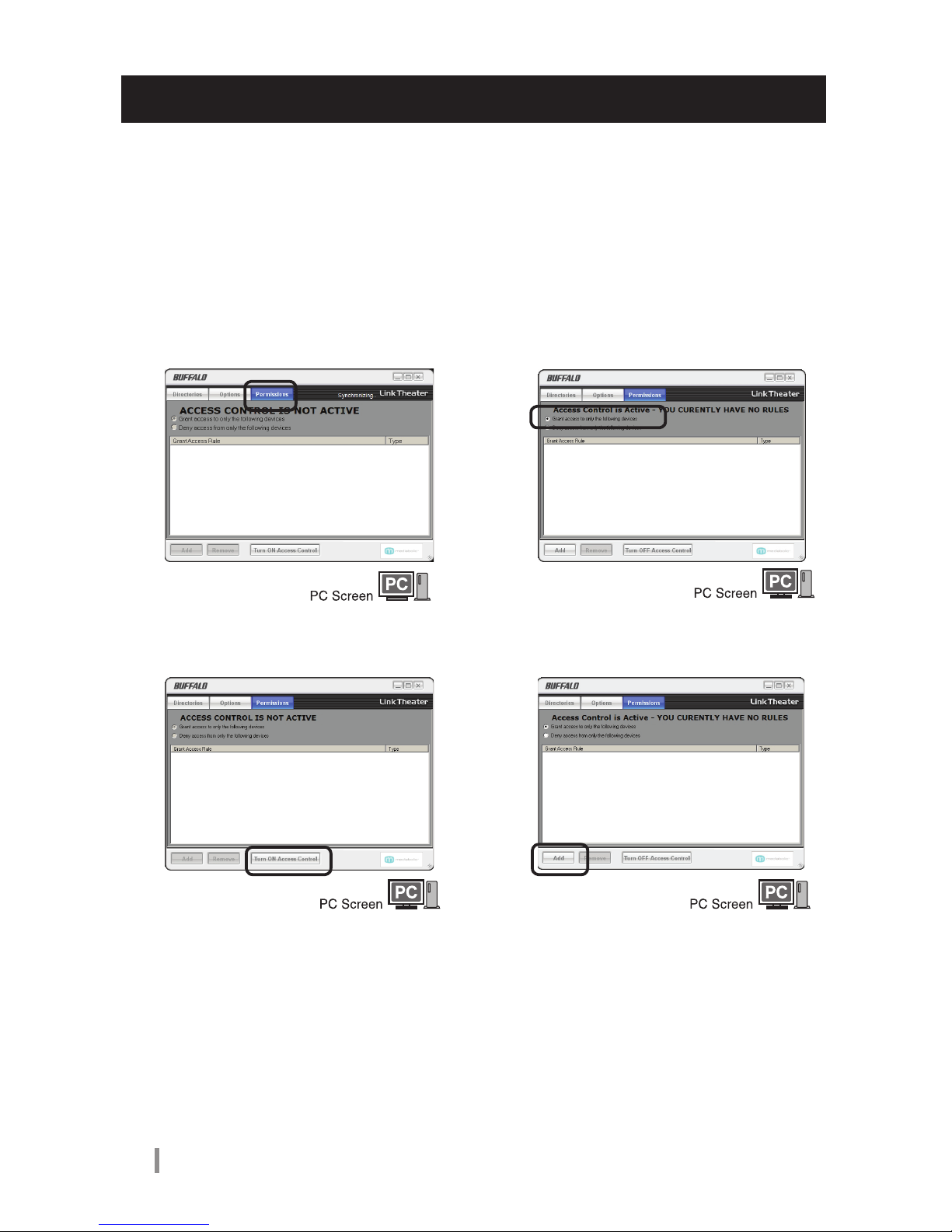
1Click [Start]-[(All) Programs]-
[BUFFALO]-[PC-P1LAN]-
[Congure Media server].
2Click the [Permissions] tab.
3Click [Turn ON Access
Control].
4Click [Only accept access
from the following client
devices].
When you want to prohibit specic
conditions, select [Prohibit access from the
following client devices].
5Click [Add].
7
Mini LinkTheater User’s Manual
Using LinkTheater
Detailed Conguration
Appendix
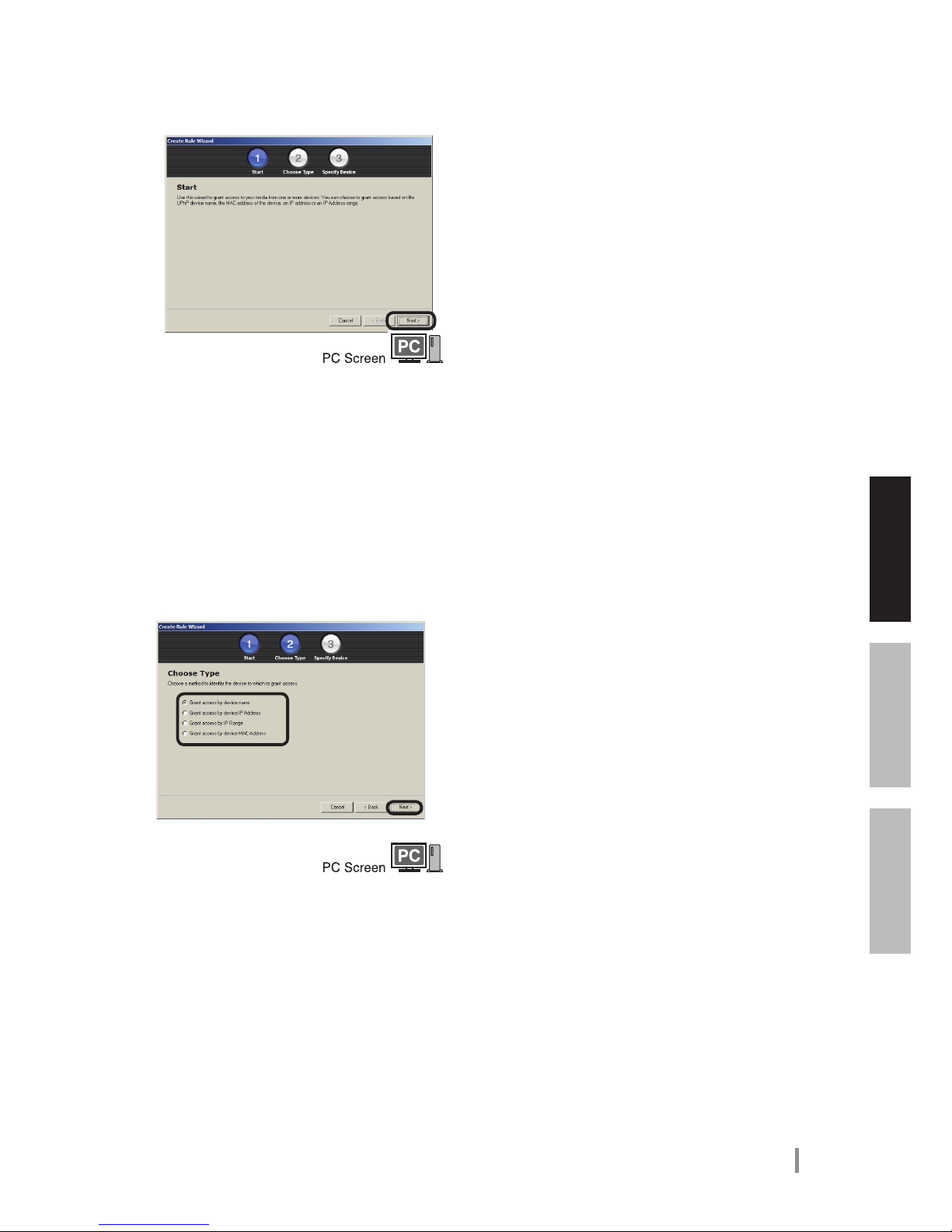
6Click [Next].
7Select the conditions for
access restriction, then click
[Next].
You can select restriction conditions
of host name, IP address,
network address, and MAC
address (get MAC address from
the back of your LinkTheater).
Step through the wizard to complete the access
restriction settings.

8 Mini LinkTheater User’s Manual
Playing back DLNA compatible media server data
About DLNA (Digital Living Network Alliance)
DLNA (Digital Living Network Alliance) has dened product design guidelines [Home Network
Device Interoperability Guidelines] with the aim of standardizing electronic industry technology and
realizing an interconnected environment of digital equipment (computers, household appliances,
mobile devices).
LinkTheater can play media les from DLNA compatible media servers such as the Buffalo LinkStation
HS-DGL Home Server series. Select "HOME Server" (the DLNA compatible media server) from the
LinkTheater Home screen, and press the [Select/Play] button on the remote control.
Your DLNA media server may not have DLNA functionality turned on by default. For LinkTheater to
stream media from a DLNA server, DLNA must be turned on! This is not always the default setting.
Refer to your DLNA media server's manual for more information on enabling DLNA media server
functionality.
9Mini LinkTheater User’s Manual
Using LinkTheater
Detailed Conguration
Appendix
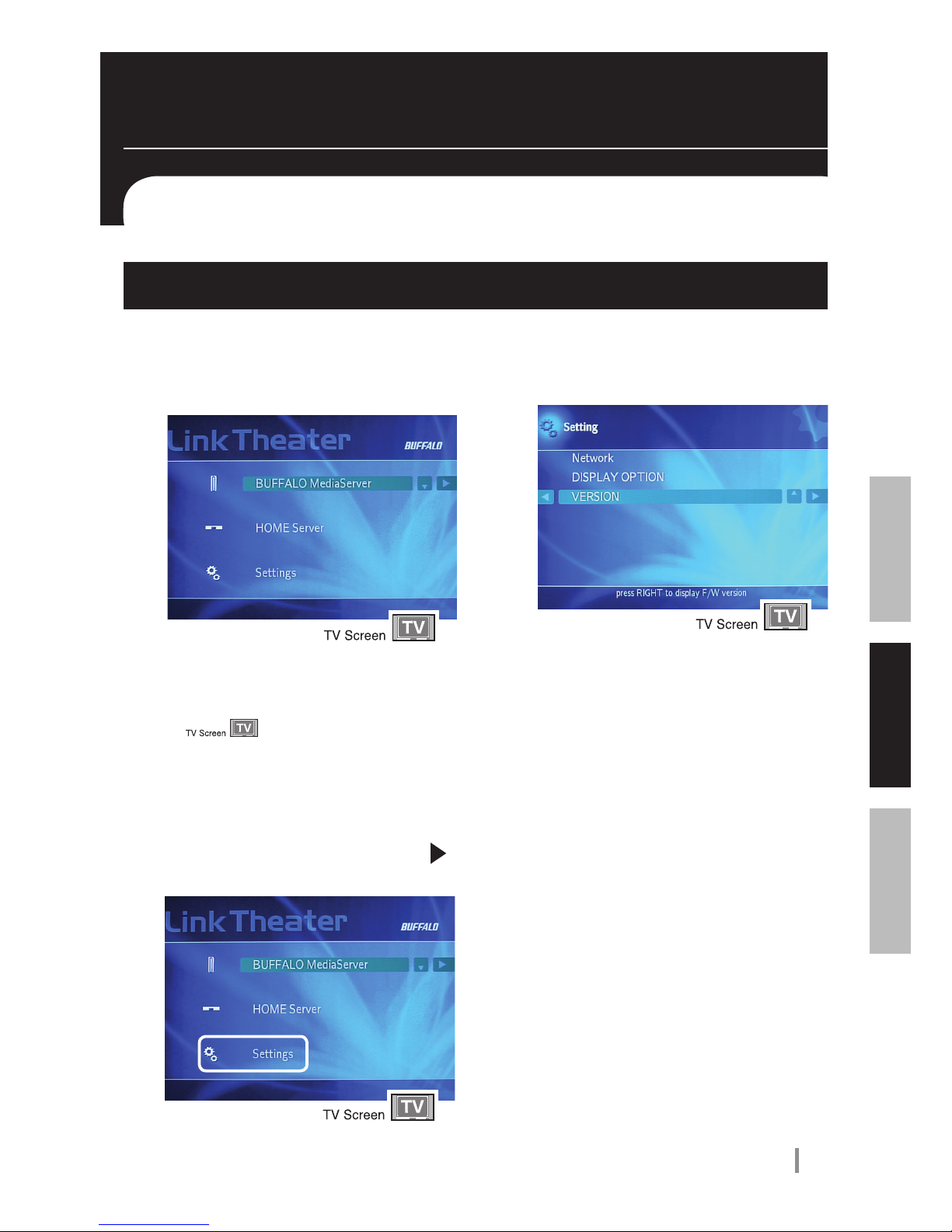
1Press the power button and
start LinkTheater.
2Select [Settings], and press
button.
3You can congure each of
these items.
• (Wired) Network settings
The following settings can be performed in
[Edit Prole].
Obtain automatically (DHCP): If there is a
DHCP server on the network, an IP address
is assigned automatically.
Manual settings: You can also manually
enter the IP address and subnet mask.
The settings are enabled by selecting the
items edited above in [Prole selection],
and pressing the [Select/Play] button on the
remote control.
• Display settings
In [Screensaver], you can set the amount of
time (1~60 minutes) before the screensaver
starts on the television screen when there
are no operations performed.
You can set the amount of time (3 seconds
— 2 minutes) that a photograph is displayed
on the television screen in [Photo display
interval].
• (Firmware) Version
This displayes the rmware version number.
Advanced Settings
Normally, you won't need to change these settings. Here's explanations of each in case you do.
* In order for you to distinguish between
explanations concerning the television screen
or computer screen, explanations about the
television screen are marked with this icon
.
* Screens shown in this manual are
examples. Your display may look slightly
different.
LinkTheater Advanced Settings
.

10 Mini LinkTheater User’s Manual
Shared folder screen
• Add
Registers folders that contains les that you
want to play on the LinkTheater.
• Delete
By selecting a folder and clicking [Delete],
registration of the shared folder is deleted.
• Update
This updates the shared folder and le
display.
• Automatic search
This starts the automatic search wizard. You
can nd folders on the computer that contain
video, audio, and image les by using the
automatic search wizard.
Settings screen
• Enable le sharing on computer startup
This setting enables le sharing when the
computer starts up.
• Display icon in task tray when program
is closed
This setting displays an icon in the task tray
when [Media server settings] is closed.
• Default settings
Restores Media server settings to the initial
settings.
• Do not share les
This setting disables le sharing.
• Share les
This setting enables le sharing.
Media Server Conguration
You can register folders that will be played on LinkTheater and also set access restrictions. Click [Start]-
[(All) Programs]-[BUFFALO]-[PC-P1LAN]-[Congure Media server] to display the settings screen.
Other manuals for LinkTheater mini PC-P1LAN
1
Table of contents
Other Buffalo Media Player manuals

Buffalo
Buffalo LinkTheater LT-H90LAN User manual

Buffalo
Buffalo LinkTheater P4LWAG User manual

Buffalo
Buffalo LinkTheater PC-P3LWG/DVD User manual

Buffalo
Buffalo PC-P3LWG User manual

Buffalo
Buffalo PC-P3LWG User manual

Buffalo
Buffalo LinkTheater PC-4LWAG User manual

Buffalo
Buffalo LinkTheater LT-V100 User manual

Buffalo
Buffalo LinkTheater LT-H90 User manual

Buffalo
Buffalo LinkTheater mini PC-P1LAN User manual