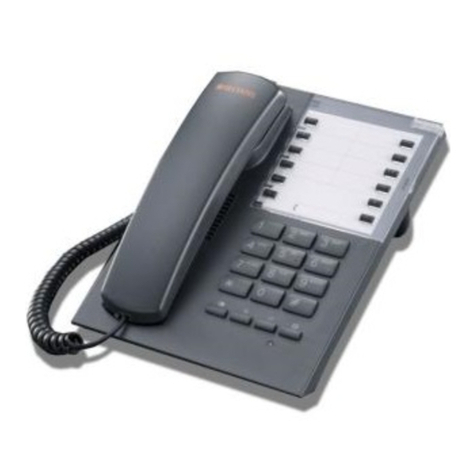
BT Decor 2600 Instruction manual

Designed to block nuisance calls
Quick User Guide
BT Decor 2600 Premium Nuisance Call Blocker
Corded Phone with Answering Machine
You need a Caller Display service from your network provider to use Call Blocking and other Caller Display
enabled features. Charges may apply.

If you need some help, go to bt.com/producthelp or call us on 0800 145 6789*.
Check box contents
Mains power adaptor
(item code 084385)
BT Decor 2600 corded telephone with
handset and telephone line cord attached
2
To switch BT Call Blocking on/off
When BT Call Blocking is set to On, it is On for whichever mode
you’re using (e.g. Announce mode). If you turn Call Blocking Off,
all calls will be allowed through, even if they are already on your
blocked list.
1. In idle mode, press .
2. On/Off is displayed. Press OK and then scroll and select either On or Off
and press OK.
Important
If you need some help, go to bt.com/producthelp
or call us on 0800 145 6789*.
BT Call Blocking

If you need some help, go to bt.com/producthelp or call us on 0800 145 6789*.
Menu map ...................................4
Quick set-up guide .......................6
Getting to know your phone
Finding your way around
your phone .................................12
Handset buttons .........................13
Using the phone
BT Call Blocking ..........................15
Record your Announce message ..16
The Block button ........................17
Accept, block or send a call
to the answer phone ...................18
Change BT Call Blocking modes....18
Switch BT Call Blocking on/off .....19
Add number to Blocked
or Allowed list .............................21
Delete Blocked or Allowed list ......21
Block numbers by area code ........22
Set Outgoing calls control ...........22
Change access PIN setting option 23
Make an external call ................. 24
Receive a call ............................. 24
Mute ......................................... 24
Incoming speech/
Handsfree volume...................... 24
Make a Handsfree call ................ 25
Contacts .................................... 25
Store a contact .......................... 25
Character map ........................... 26
View/dial a contact .................... 26
View and dial from the Calls list ... 27
Save a Calls list entry to
your contacts............................. 27
Time and date ............................ 28
Answer phone ........................... 29
Help ......................................... 30
General information .................. 31
3Contents

Menu map4
Answer Phone
(Page 29)
Outgoing message Answer & record Record message
Play current message
Use default message On
Off Female voice
Male voice
Answer only Record message
Play current message
Use default message On
Off Female voice
Male voice
Record memo
Answer mode Answer & record
Answer only
Answer settings Answer & record Answer delay Time saver
2 - 10 rings
Maximum msg length 1 minute
2 minutes
3 minutes
Message alert On
Off
Answer only Answer delay Time saver
2-10 rings
Remote access Set access PIN to use remote access
and call control
On/Off (displayed once PIN has been set)
Change access PIN (displayed once PIN
has been set)
Enter New PIN
BT Call Blocking
(Page 15)
On/Off On
Off
Blocking mode Announce
Answer phone
Announce message Record name
Play message
Use default message On
Off
Block numbers Add number
Area codes
Delete all
Allow numbers Add number
Delete all
Outgoing
Call Control
(Page 22)
Set access PIN to
use remote access
and call control
Mobile calls Allowed
Barred
International calls Allowed
Barred
Premium rate calls Allowed
Barred
All dialled calls Allowed
Barred
Change access PIN

Menu map 5
Time & Date
(Page 28)
Set time & date
Time format 12 hour
24 hour
BT Calling Features Call diversion Divert all calls Set up diversion
Cancel diversion
Check diversion
Divert when busy Set up diversion
Cancel diversion
Check diversion
Divert if unanswered Set up diversion
Cancel diversion
Check diversion
Cancel Ringback
Call waiting Turn on Call Waiting
Turn off Call Waiting
Check Call Waiting
Call barring Set up barring All outgoing calls
National, Int’l & Mobile calls
International calls
Operator calls/texts
* and # calls
Premium rate calls
Cancel barring All outgoing calls
National, Int’l & Mobile calls
International calls
Operator calls/texts
* and # calls
Premium rate calls
Check barring
Settings Ringer tone Melody 1 - 15
Ringer volume Ringer Off, Level 1 - 5
Keypad tones Tones Off
Tones On
Confirmation tones Tones On
Tones Off
Display contrast Level 1 - 5
Software version
Change system PIN
Reset Reset settings
Delete user data

If you need some help, call us on 0800 145 6789* or go to bt.com/producthelp If you need some help, call us on 0800 145 6789* or go to bt.com/producthelp
Quick set-up guide
1 Plug in
1. First, plug the mains power
adaptor into the handset,
next to the pre-fitted
telephone cable.
2. Plug the other end of the power
adaptor into the wall power
socket and switch socket on.
3. Your new phone comes with
its telephone line cable already
fitted. Plug the other end
of the cable into the phone
wall socket.
4. The BT logo will flash up on the
digital display while your new
phone starts up.
1
2
6

If you need some help, go to bt.com/producthelp or call us on 0800 145 6789*.
Quick set-up guide 7
If you need some help, call us on 0800 145 6789* or go to bt.com/producthelp
Using your BT Decor 2600 on a broadband line?
To avoid problems with your broadband or
noise on your phone line, you might need to
plug it into the wall socket using a microfilter
(not supplied).
If your main phone socket has a single socket,
you do need to use microfilters, like this:
You’ll need a microfilter for every phone socket
where you’ve got equipment plugged in –
up to a maximum of four per line – including
alarm sytems and digital TV boxes.
You can get BT ADSL micro filters from
bt.com/shop
You don’t need to use microfilters
if your main phone socket has two separate
sockets, like these:
If you have a power cut
You will still be able to make and receive calls
but the other functions, such as Call Blocking
and the Answer Phone will not work at this time.
Quick set-up guide 7

If you need some help, call us on 0800 145 6789* or go to bt.com/producthelp
Quick set-up guide
If you need some help, call us on 0800 145 6789* or go to bt.com/producthelp
8
2 Follow the set-up wizard
Setup
OK Back
Set time
and date
Time & date
Next Back
Set time:
HH:HH
1. The set-up wizard will then begin.
Follow the prompts to finish set-up.
To select OK, press the left option button
below the display.
Set the time and date
2. Use the keypad to enter the time. The
default time format setting is 24 hours,
but you can change this to 12 hours under
Time format in the Time & Date menu.
3. Press Next, then enter the date, in the
format DD/MM/YYYY.
4. Press to Save.
Time & date
Save Back
Set date:
DD/MM/YYYY

If you need some help, call us on 0800 145 6789* or go to bt.com/producthelp
Set up
Yes No
Turn on BT Call
Blocking?
BT Call
Blocking On
Call Blocking12:00pm
Answer off
Turn on BT Call Blocking
5. The set-up wizard will ask you to turn
BT Call Blocking on or off. When on, you
can block unwanted calls. For more about
this, see page 15.
6. To switch it on, press the left option
button . To leave it off, select the right
option button . You can turn it on later in
the main menu.
When your answer phone is switched on,
the number of messages you have will show
on the display screen. If it’s switched off,
Answer off will show instead.
Tip: when BT Call Blocking is switched
on, you’ll see it on the top right hand of
the display.
You’ll need a Caller Display service from
your network provider to use all the features
available e.g. BT Call Blocking, Visual Voicemail,
Calls List and other Caller Display enabled
features. Charges may apply.
Quick set-up guide 9

If you need some help, call us on 0800 145 6789* or go to bt.com/producthelp
Quick set-up guide
If you need some help, call us on 0800 145 6789* or go to bt.com/producthelp
10
Adding contacts
7. Select Yes to add contacts now (or press the right
option button No, to skip to the next step).
8. Use the number buttons on the keypad to
enter the name of a new contact. To select
the correct letter, press the number button it
appears on e.g. for Emma, press twice
and do the same thing to complete the rest
of the name. (See the character map on page
26. To enter a space, press , to change
between upper and lower case, press ).
9. When you’ve finished the name you want to
save, press Next. (If you make a mistake, go
back a digit by selecting Clear, ).
10. Then use the keypad to enter the telephone
number and press Save.
11. To add another, select Yes and then repeat
steps 8 to 10.
By adding contacts, you will always know
that their calls will get straight through to
you, without the need to go through BT
Call Blocking. Please make sure you always
add the full telephone number when you
save a contact.
Set up
Yes No
Add some
contacts?
Contact
saved
Other manuals for Decor 2600
2
Table of contents
Other BT Telephone manuals