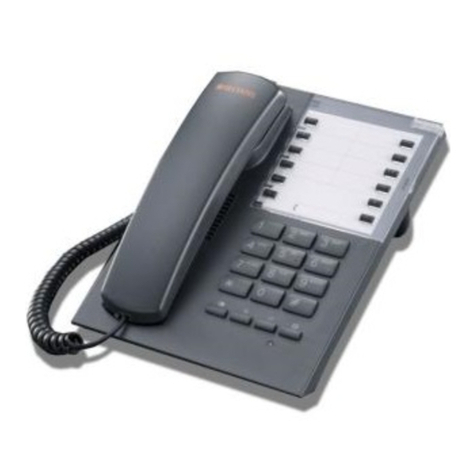
BT Home SmartPhone User manual

BT Home SmartPhone
User Guide
Touch screen home phone with web browsing

2
If you need some help, call us on 0808 100 9889* or go to bt.com/producthelp
Getting started ..................................................................6
Important – please read first .............................................................6
Where to put your phone .................................................................6
Set up your BT Home SmartPhone .......................................7
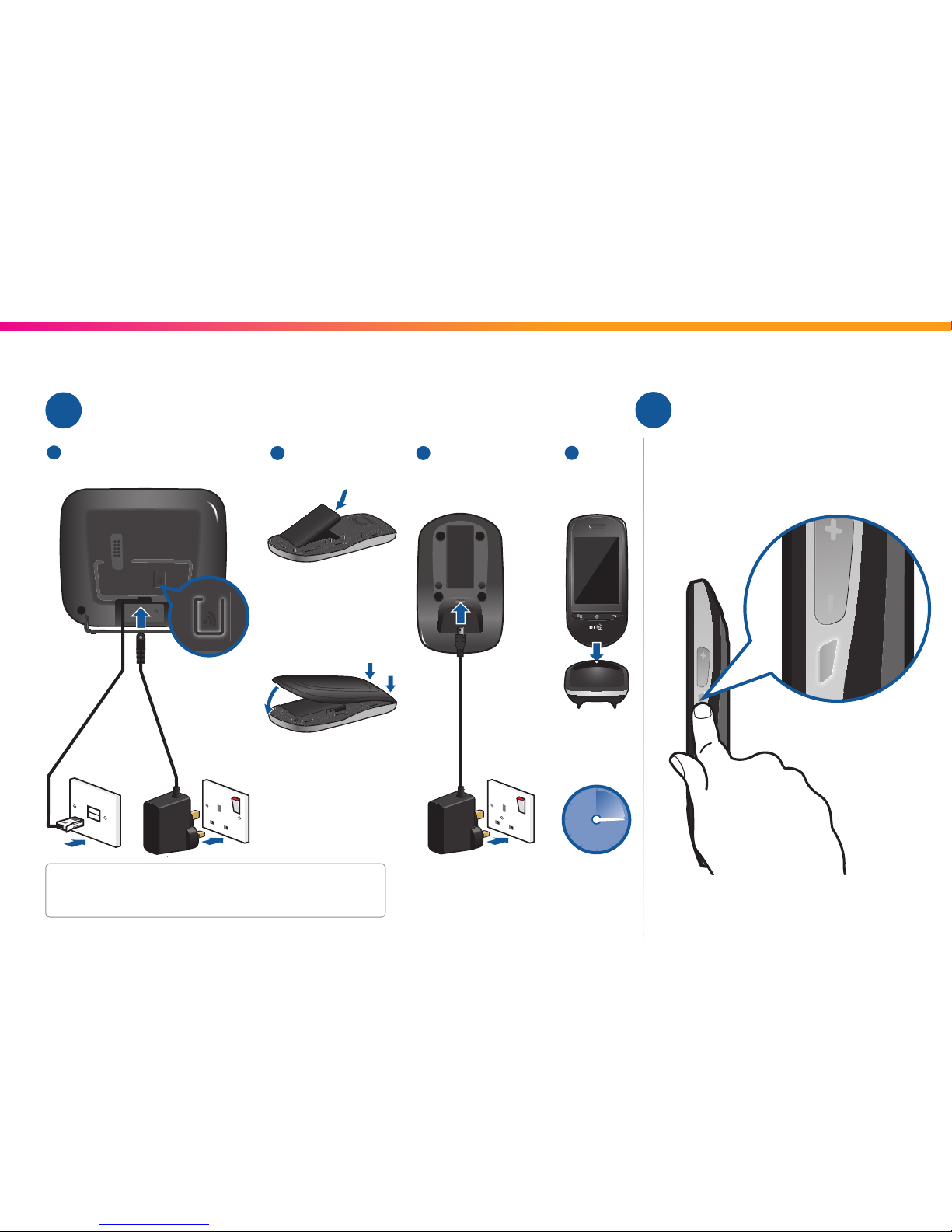
Plugin and charge ............................................................................7
Turn on............................................................................................7
Set up your phone ...........................................................................8
Learn about your home screen .........................................................9
Use your phone ...............................................................................9
Using the answerphone ..................................................................10
Batteries .........................................................................11
Talk and Standby Time ....................................................................11
Battery performance ......................................................................11
Battery low warning.......................................................................11
Understanding your phone’s basics ....................................12
Getting to know the Home screen ...................................................12
Using the touchscreen ....................................................................12
Using your phone’s buttons ............................................................12
Working with menus ......................................................................12
Your phone’s status ........................................................................13
Notifications ..................................................................................14
Using the on-screen keyboard ........................................................14
Using applications (apps)................................................................15
Locking your screen .......................................................................15
Changing or adding to your Home screen ........................................15
Optimising battery life ...................................................................16
Monitoring and controlling what uses the battery ............................16
Managing memory ........................................................................16
Connecting to networks and devices ..................................17
Connecting to wi-fi ........................................................................17
Connecting to a computer ..............................................................17
Connecting your phone to a computer via USB ................................17
Connecting to virtual private networks ............................................18
Installing a certificate from your phone’s SD card .............................19
Making and receiving calls ..............................................................20
Making and ending calls .................................................................20
Answering or rejecting calls ............................................................20
Managing multiple calls .................................................................21
Contents

3
If you need some help, call us on 0808 100 9889* or go to bt.com/producthelp
Separating contact information ......................................................33
Synchronising your Phone with online accounts ..................34
Email ..............................................................................37
Opening Email and the Accounts screen ..........................................37
Reading your messages ..................................................................37
Responding to a message ...............................................................37
Starring messages ..........................................................................37
Working with messages in batches ..................................................37
Compose and send an email message ..............................................37
Working with account folders .........................................................38
Adding a signature to your messages ..............................................38
Browser ..........................................................................39
Opening Browser ...........................................................................39
Open a web page or search the web ................................................39
Downloading files ..........................................................................40
Working with bookmarks ................................................................41
Changing Browser settings .............................................................41
Working with apps and shortcuts .......................................42
Facebook ......................................................................................42
Twitter ..........................................................................................42
Opera Mini ....................................................................................42
Caller Display and Call log ...............................................................22
Working with the Call log ................................................................22
Calling your contacts ......................................................................23
Answer phone ..................................................................24
Managing your messages ...............................................................25
Remote Access ..............................................................................26
If you have forgot to switch on your Answerphone ...........................27
If the memory’s full ........................................................................27
BT Calling Features ...........................................................28
Searching ........................................................................29
Searching your phone and the web .................................................29
Changing Google Search settings ....................................................30
Contacts ..........................................................................31
Opening your contacts ...................................................................31
Adding contacts.............................................................................31
Importing, exporting, and sharing contacts .....................................31
Adding a contact to your favourites ................................................32
Searching for a contact ..................................................................32
Editing contact details ....................................................................32
Changing which contacts are shown ................................................33
Joining contacts ............................................................................33

4
If you need some help, call us on 0808 100 9889* or go to bt.com/producthelp
Music ..............................................................................50
Transferring music files to your phone .............................................50
Opening Music and viewing your music library ................................50
Playing music ................................................................................50
Working with playlists ....................................................................51
Clock ...............................................................................52
Viewing the date, time and other information .................................52
Setting alarms ...............................................................................52
Changing Clock alarm settings ........................................................53
Calculator ........................................................................54
Open and use the Calculator ...........................................................54
Settings ..........................................................................55
Opening Settings ...........................................................................55
Wireless & networks settings ..........................................................55
Call settings ...................................................................................55
Handset and base settings ..............................................................56
BT Services settings........................................................................56
Answer phone settings ...................................................................56
Sound settings ...............................................................................57
Display settings .............................................................................57
Location & security settings ............................................................57
YouTube ........................................................................................42
TuneIn Radio .................................................................................43
Using a Wi-Fi connection ...............................................................43
Calendar ..........................................................................44
Viewing your calendar and events ...................................................44
Working in Day view .......................................................................44
Working in Week view ....................................................................44
Creating an event...........................................................................45
Editing or deleting an event ...........................................................45
Setting an event reminder ..............................................................45
Responding to an event reminder ...................................................45
Synchronising and showing calendars .............................................45
Changing Calendar settings ............................................................45
Camera ............................................................................46
Opening Camera and taking pictures or videos .................................46
Changing Camera settings ..............................................................46
Gallery ............................................................................47
Opening Gallery and viewing your albums .......................................47
Working with albums .....................................................................47
Working with pictures ....................................................................48
Working with videos .......................................................................49

5
If you need some help, call us on 0808 100 9889* or go to bt.com/producthelp
Applications settings ......................................................................58
Accounts & sync settings ................................................................58
Privacy settings .............................................................................58
Storage settings .............................................................................58
Language & keyboard settings ........................................................59
Accessibility settings ......................................................................59
Date & time settings.......................................................................59
About phone settings .....................................................................60
Using additional handsets ................................................61
Help ................................................................................62
FAQs ...............................................................................64
General information .........................................................66
Safety information .........................................................................66
Cleaning ........................................................................................66
Environmental ...............................................................................67
How to recycle your equipment ......................................................67
Guarantee .....................................................................................67
Returning your phone ....................................................................68
Technical information ....................................................................68
Small print .......................................................................69

6
If you need some help, call us on 0808 100 9889* or go to bt.com/producthelp
Important – please read first
• Only use the line cord, power supplies
and battery supplied with your BT Home
SmartPhone.
• Make sure the power supply is connected to
a socket that you know is working.
• Connect your phone to the power supply
and allow the batteries to charge for 16
hours before you connect the line cord to
your telephone socket.
Where to put your phone
• Place the base close to a mains power socket
and a phone socket so the cables will reach.
• Don’t place the phone or base in a bathroom
or other humid area.
• To make sure you get the best range
and reception from your handset, avoid
interference by placing the base unit away
from large metal objects (such as fridge
freezers and microwave ovens) and electrical
appliances (such as computers and TVs).
• Your phone works by sending radio signals
between the handset and base. The strength
of the signal depends on where you position
the base. Putting it as high as possible can
help give you the best signal.
IMPORTANT
• Don’t connect the phone line to a phone
socket until the handset is fully charged.
• You should keep the base station plugged
into the mains power socket all the time.
Answer phone – handy hint
Make sure you set the telephone to Answer &
Record, and the Ring delay to answer before
any voicemail service (BT Answer 1571 or
similar). The default setting is five rings. If you
want to change this, please see page 25.
Getting started
7
If you need some help, call us on 0808 100 9889* or go to bt.com/producthelp
Set up your BT Home SmartPhone
When the screen is off, press the small button
on the side of your SmartPhone to turn it on.
The handset vibrates and the screen turns on.
Plug in and charge
If you need some help, call us on 0808 100 9889* or go to bt.com/producthelp
Turn on1 2
16 hours
Full Charge
134
2
You can also plug the USB charger into the bottom left
of your Home SmartPhone handset to charge it directly.
Insert battery
Clip cover on,
pressing firmly around
edges to fasten
Charger base
Registration button,
if required.
(see page 2)

8
If you need some help, call us on 0808 100 9889* or go to bt.com/producthelp
4 Select your usual
Wi-Fi network name.
Slide your finger up
and down to see
more networks.
5 Touch the Password
box to enter the Wi-Fi
password or key for
that network.
You can select Show
password. If you make
a mistake, touch the
icon to delete.
Touch Done or press .
6 Touch Connect.
When you’re connected
press .
7 Touch Next.
When you set up your Home SmartPhone
for the first time you’ll be taken through
the following steps.
Registration
1 If is shown then your
handset is successfully
registered to the base.
If is shown then your
handset has become
de-registered and you
should follow the on
screen steps to re-register,
making sure you press and hold
the button on the back of the base.
(See page 1 for button location)
2 Press Next.
Select Wi-Fi network
3 Touch Configure on the
Wi-Fi settings window.
Set up your phone3
Set date and time
8 To change the date
and time touch Set.
9 Adjust the date or time
using + or -. Touch OK
to confirm.
10 Touch Finish to return to the Home screen.
If you need to change these settings in the
future, they can be accessed through the
Settings menu.

9
If you need some help, call us on 0808 100 9889* or go to bt.com/producthelp
Use your phone5Learn about your home screen
Wallpaper
Choose from the
settings menu.
Call
Touch to open
number keypad.
Apps / Launcher
Touch to open app screen.
Wi-Fi
Shows Wi-Fi
signal strength.
Internet browser
Touch to open browser.
DECT
Shows DECT
signal strength.
Pages
Touch to
show additional
home screens.
Answer phone
Touch to open
messages window.
Back
Press to close the
keyboard or return to
previous screen or app.
Menu
Press to open app
options and settings.
Home
Press to return to home screen or
press and hold to see recent apps.
4
Download new apps
See for details.
Battery level
How to use the touch screen
Touch once to open a menu,
start an app or confirm something.
Slide left, right, up or down
to scroll lists or screens.
Pinch two fingers together
or spread them apart to
zoom in or out on an image.
Touch and hold icons for
extra options.
Rotate the handset
for landscape view in
certain apps.
Main menu and internet browsing
Press the key to return to the home
screen or wake up your handset.
Touch the icon to browse the internet.
Download new apps
Touch the icon on the home screen,
then touch Opera Mobile Store.
Touch the icon to see a list of your apps.
Scroll down to see more.
Screen tips
Touch to learn more.
Contacts
Touch to access your
contact and calls log,
view favourites and
make calls.
Update
Shows when new
software is available.
Notification panel
Touch and slide down to show
Answer phone messages, missed
calls, updates and calls in progress.
10
If you need some help, call us on 0808 100 9889* or go to bt.com/producthelp
Using the answer phone6
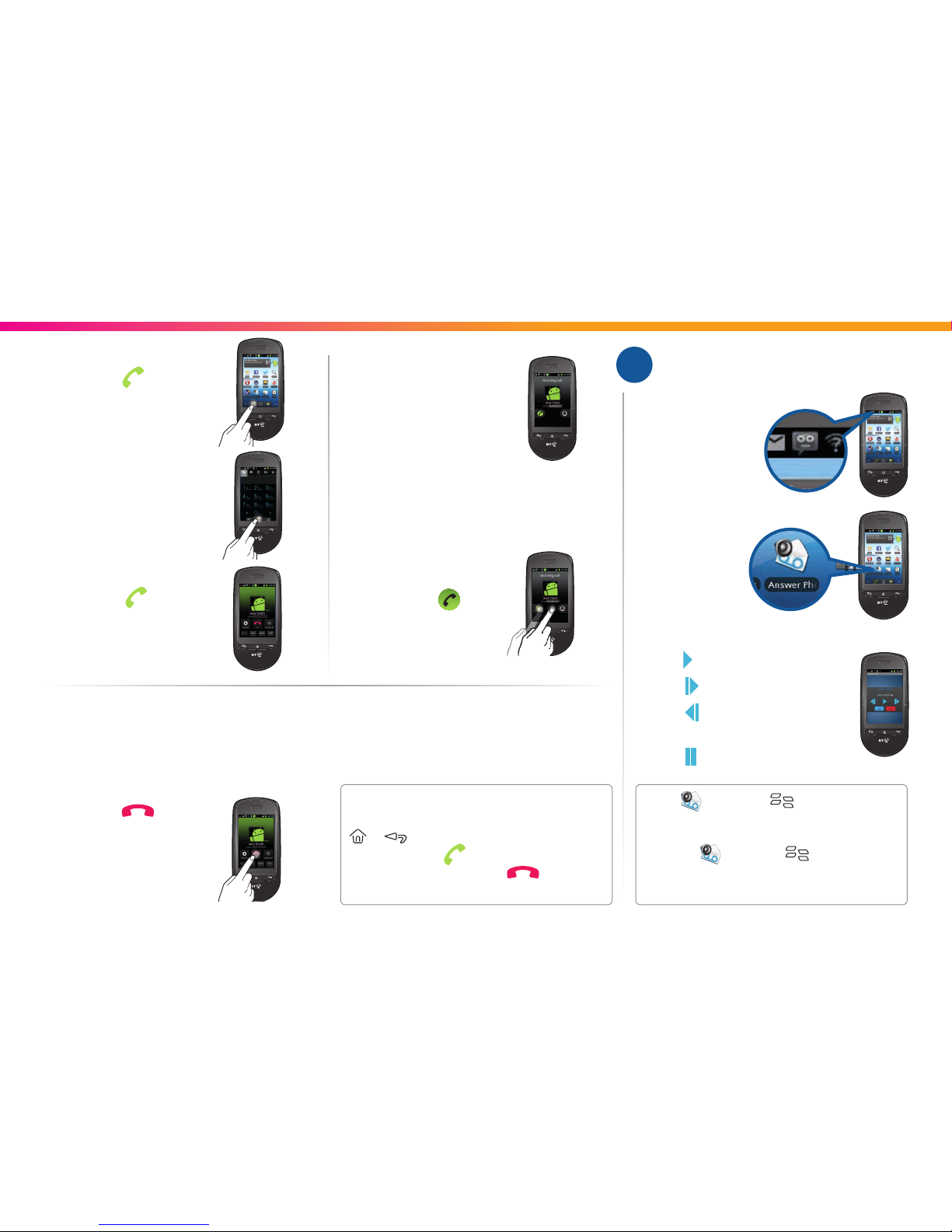
Make a call
1 Touch the icon.
2 Enter number.
You can also dial from
the calls log or
contacts screens.
3 Touch the icon to call.
Take a call
1 The phone rings and
calling screen shows.
2 Pick up the handset from
the charger to answer calls.
If it’s not in the charger,
then slide the icon
to the right.
End a call
1 Touch the icon.
2 The call is ended.
Whilst on a call you can still navigate
between screens and apps by pressing the
or keys. You can return to your call
by touching the icon on the home
screen. You’ll need to press to end
your phone call.
During a call
Touch Mute if you don’t want your caller to hear you, or Speaker for handsfree mode.
A green bar will show when these keys are active.
1 Message icon shows.
2 Touch the Answer Phone icon.
3 The screen shows who’s called.
Press to play the first new message.
Press to play the next message.
Press to play the
previous message.
Press to pause playback.
Touch , then press key, then touch
Outgoing message to play, change or delete
your outgoing message.
Touch the , then press key, then touch
Settings to set up remote access or change
answer delay, recording quality or answer mode.
Other manuals for Home SmartPhone
3
Table of contents
Other BT Telephone manuals