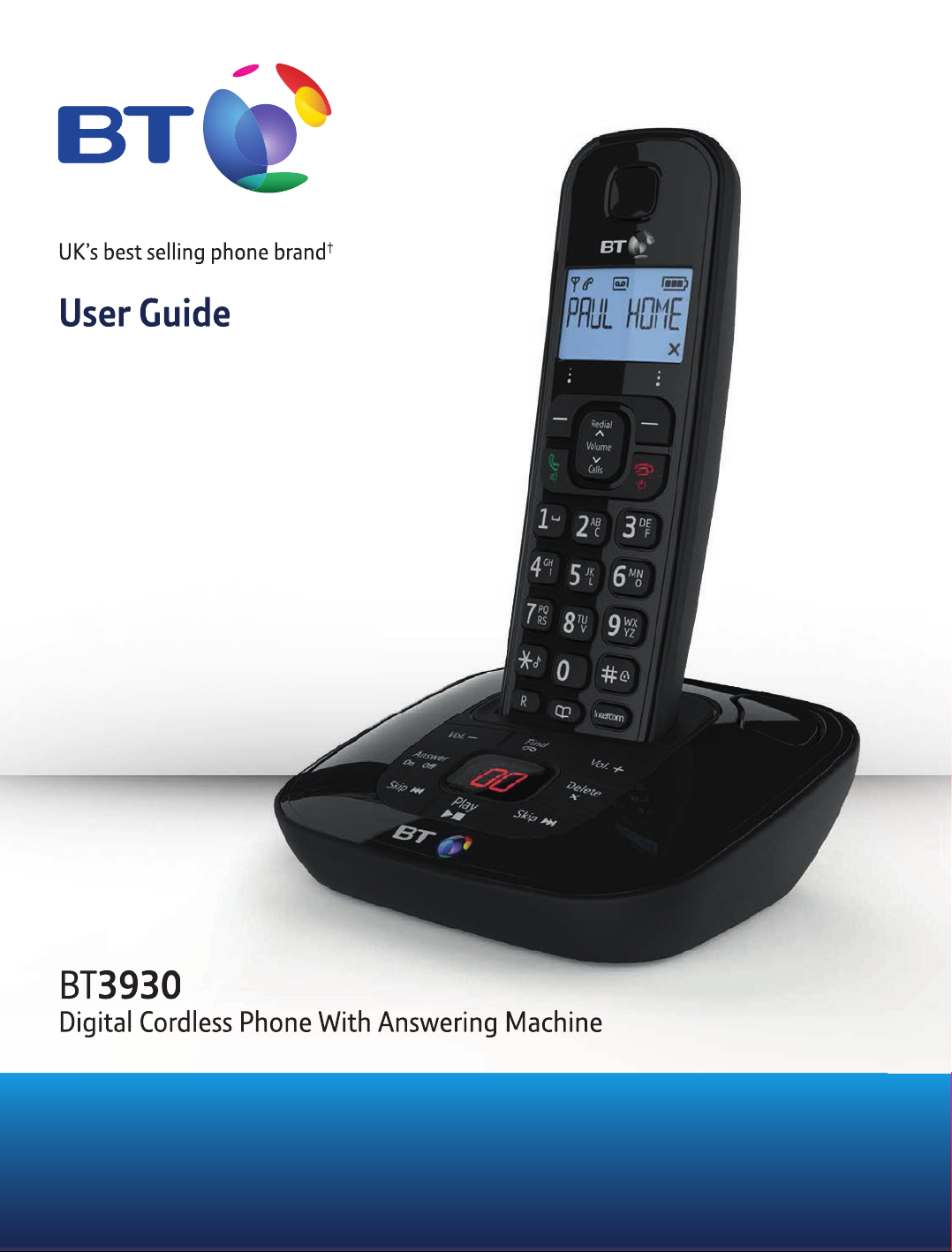
BT BT3930 User manual
UK’s best selling phone brand†
User Guide
UK’s best selling phone brand
†
User Guide
BT
3930
Digital Cordless Phone With Answering Machine
Digital Cordless Phone With Answering Machine

2
If you need some help, call us on 0800 218 2182* or go to bt.com/producthelp
Got everything?
• BT3930 handset
• BT3930 answering machine
base
• 2 x NiMH AAA 500mAh
rechargeable batteries
(already fitted)
• Battery compartment cover
(already fitted)
• Mains power adaptor
(item code 066771)
• Telephone line cord
If you have purchased a
BT3930 multiple pack you will
also have the following for
each handset:
• BT3930 handset
• BT3930 charger with
pre-fitted mains
power adapter
(item code 083050)
• Battery compartment cover
(already fitted)
• 2 x NiMH AAA 500mAh
rechargeable batteries
(already fitted)
BT3930
Digital Cordless Phone
With Answering Machine
This User Guide provides you with all the
information you need to get the most
from your phone.
You must first set up your phone before
you can use it. This doesn’t take long as
it is easy to do. Just follow the simple
instructions on the next few pages.
Need help?
If you have any problems setting up or using your BT3930, please
call our Helpline on Freephone 0800 218 2182*.
Our dedicated advisors are more likely to be able to help you
than the retailer where you made your purchase.
Alternatively, you may find the answer in the ‘Help’ section at the
back of this guide or online at bt.com/producthelp.
Hearing aid?
Please note that the BT3930 works by sending radio signals
between the base and handset. These signals may interfere with
some hearing aids, causing a humming noise.
* Calls made from within the UK mainland network are free.
Mobile and International call costs may vary.

3
If you need some help, call us on 0800 218 2182* or go to bt.com/producthelp
In this guide
Getting started
Location 5
Setting up 5
Set the time format: 24 or 12hr 6
Set the date and time 7
Setting up the charger 8
Getting to know your phone
Handset 9
Handset display icons 10
Base 11
Navigating the menus 12
Menu map 13
Default 14
Default settings table 14
Using the phone
Switch the handset on/off 15
Make a call 15
Preparatory dialling 15
End a call 15
Receiving calls 15
Earpiece volume 16
Secrecy 16
Make a handsfree call 16
Answer a call handsfree 16
Switch to handsfree during a call 16
Redial 16
To copy a redial number to the phonebook 17
To delete a number from the redial list 17
To delete the entire redial list 17
Keypad lock 18
Handset ringer volume on/off 18
Page the handset(s) 18
Making internal calls 18
Receiving internal calls 18
Transferring calls 19
3-Way conference calls 19
Phonebook
Store a number 20
Entering names 20
Writing tips 20
Dial/view a number 21
Edit a phonebook entry 21
Delete a phonebook entry 22
Delete all phonebook entries 22
Handset settings
Handset ringer melody 23
Handset ringer volume 23
Handset tones on/off 24
Handset name 24
Display 25
Alarm 25
When the alarm goes off 25

4
If you need some help, call us on 0800 218 2182* or go to bt.com/producthelp
Auto answer 26
Base settings
Base ringer melody 27
Base ringer volume 27
Change PIN code 28
Delete handset 28
Caller Display and the Call list
Call list 29
View/dial a number 29
To copy a Call list number to the phonebook 29
View Call details 30
Delete a number 30
Delete the entire Call list 30
Answering machine
Operating the answer machine via the base 31
Switch answer machine on/off 31
Playing messages 31
Adjust volume 31
Call screening 32
Operating the answer machine via
the handset 32
Switch answer machine on/off 32
Outgoing messages 32
Answer and Record 33
Answer only 33
Select answer mode 33
Select male or female outgoing
message voice 33
Record your own outgoing message 33
Play/check outgoing message 34
Reinstate pre-recorded outgoing messages 34
Playing messages via the handset 35
Adjust volume for message playback 35
Delete all old messages 35
To record a memo 36
Memory full 36
Recording time 36
Answer delay 37
Remote access 37
Switch remote access on/off 37
Change remote access security PIN code 38
Switch answering machine on 38
Check for messages 38
Remote access commands 39
BT Services
BT Helpdesk 40
BT 118 500 (Directory enquiries) 40
Call Divert 40
Call Waiting 41
Add / Dial / Delete entries 41
Registering additional handsets 42
Help 43
General information
Safety 45
How to recycle your equipment 47
Guarantee 47
Technical information 48
Connecting to a switchboard 49
R&TTE 49

5
If you need some help, call us on 0800 218 2182* or go to bt.com/producthelp
Warning
Do not place your BT3930 in the
bathroom or other humid areas.
Handset range
The BT3930 has a range of 300
metres outdoors when there is a
clear line of sight between the base
and the handset. Any obstruction
between the base and handset will
reduce the range significantly.
With the base indoors and handset
either indoors or outdoors, the range
will normally be up to 50 metres.
Thick stone walls can severely affect
the range.
Signal strength
The symbol on your handset
screen indicates when you are in
range. When you are out of range,
the symbol flashes, and the
screen displays SEARCHING.
You should move closer to the base
if this happens to ensure the full
functionality of your phone.
Important
Do not connect the telephone line
until at least one of the handsets is
fully charged.
The base station must be plugged
into the mains power at all times.
Which socket?
: Power socket
: Telephone line socket
Talk/Standby time
Under ideal conditions, fully charged
handset batteries should give about
10 hours talk time or 100 hours
standby time on a single charge.
Getting started
Location
You need to place your BT3930 base within 2 metres of a mains
power and telephone socket so that the cables will reach.
Make sure it is at least 1 metre away from other electrical
appliances to avoid interference.
Your BT3930 works by sending radio signals between the handset
and base. The strength of the signal depends on where you site
the base. Putting it as high as possible ensures the
best signal.
Setting up
1. Plug the mains power cable with the blue ring on the connector
(item code 066771) into the power socket marked on the
back of the base and secure the cable behind the retaining clip.
Plug the other end into the mains socket and switch on.
2. Remove the protective film from the
handset screen and activate the
batteries by pulling the plastic tab
away from the back of the handset.
Mains power cable
Rechargeable batteries
already fitted
Remove this tab
and charge batteries
for 24 hours before use.
Telephone line cord
(pre-installed)

6
If you need some help, call us on 0800 218 2182* or go to bt.com/producthelp
Battery low warning
If the symbol is flashing, you will
need to recharge your handset before
using it.
If the battery icon is flashing and
scrolling digits the battery is
very low and you will need to charge
it for 24 hours before use to ensure
maximum battery performance.
Battery performance
To keep your batteries in the best
condition, leave the handset off the
base for a few hours at a time (after
the initial 24 hour charge).
New NiMH batteries do not reach
full capacity until they have been in
normal use for several days. Running
the batteries right down at least once
a week will help them last as long
as possible.
IMPORTANT
Only use the power supply and
telephone line cord supplied with
your BT3930 otherwise the telephone
may not work.
Under no circumstances use
non-rechargeable batteries. Only
use NiMH rechargeable batteries
with a capacity of 500mAh. Using
inappropriate batteries will invalidate
your guarantee and may damage
the telephone.
The charge capacity of rechargeable
batteries will reduce with time as
they wear out, so reducing the
talk/standby time of the handset.
Eventually they will need to be
replaced. New batteries can be
obtained from the BT3930 Helpline
0800 218 2182*.
Batteries and handset may become
warm during charging. This is normal.
If you have more than one handset
registered to your base, you only
need to set the date and time on one
handset and the other handsets will
be automatically updated.
3. Place the handset on the base to charge the batteries for
at least 24 hours.
The main handset is pre-registered to the base as Handset 1.
This is shown on the display. When the handset is fully charged
the display shows the symbol.
4. After 24 hours plug the telephone line cord into the telephone
wall socket.
Note: If you ever need to remove the batteries, simply slide open
the battery compartment cover and use the finger recess to take
out the batteries.
Set the time format: 24 or 12hr
1. Press the Left soft key Menu to open the main menu.
2. Press or until the display shows HS SETTINGS and
press soft key. DATE & TIME is displayed, press the
soft key again.
3. TIME FORMAT is displayed. Press the soft key and the
current format is displayed. Press or to change
between 24hr and 12hr. Press the soft key, you will hear
confirmation beeps.
4. Press the button to return to standby.

7
If you need some help, call us on 0800 218 2182* or go to bt.com/producthelp
Set the date and time
1. Press the Left soft key Menu to open the main menu.
2. Press or until the display shows HS SETTINGS and
press the soft key. DATE & TIME is displayed, press the
soft key again.
3. Press or until the display shows SET TIME and
press the soft key.
4. The current time setting is displayed, enter 2 digits for the
hour and 2 for the minute using the 24hr format (eg for
10.54pm, press ) and press the soft key,
you will hear confirmation beeps.
5. Press and SET DATE is displayed. Press the soft key.
6. The current date setting is displayed, enter 2 digits for the day,
2 for the month and 2 for the year using the dd-mm-yy format
(eg for 23rd July 2015 press ) and
press the soft key, you will hear confirmation beeps.
7. Press the button to return to standby.
Your BT3930 is now ready for use.

8
If you need some help, call us on 0800 218 2182* or go to bt.com/producthelp
BT3930 multiple pack owners only
Location
You need to place your BT3930 charger close enough to a mains
power socket so that the cable will reach.
Setting up the charger
1. Plug the power adaptor cable (item code 083050) into the
mains wall socket and switch the power on.
2. Remove the protective film from the handset screen and
activate the batteries by pulling the plastic tab away from the
back of the handset.
3. Place the handset on the charger and charge for at least
24 hours.
Your BT3930 multiple pack is now ready for use.
Mains power cable

9
If you need some help, call us on 0800 218 2182* or go to bt.com/producthelp
Getting to know your phone
Handset Up/Redial list
Press to display the Redial list,
page 16 and to move up through
menu options.
Use to increase the
volume, page 16.
Left soft key/Menu
Use with icons displayed above
the key.
Press to open the
menu, page 12.
Press to select menu options.
Talk
In standby mode, press to make and
receive phone calls, see page 15.
In talk mode, press to switch
handsfree on and off, see page 16.
Down/Calls list
Press to display the Calls list, page
29, and to move down through
menu options.
Use to decrease the
volume, page 16.
Press to replay the message,
page 35.
Press and hold to turn the
ringer on/off, page 18.
Recall
Used when connected
to a switchboard/PBX
page 49, and with some
BT Calling Features.
Right soft key/Secrecy
Use with icons displayed above
the key.
During a call press to mute your
voice so your caller cannot hear
you, page 16.
End call
Press to end the call in progress,
page 15.
Press and hold for 5 seconds to
turn the handset off, page 15.
Press to stop playback,
page 35.
Press to delete the
message, page 35.
Press to skip to the
next message, page 35.
Press and hold to lock/
unlock the keypad,
page 18.
Press and hold to
insert a Pause in the
number to be dialled,
page 20.
Press to make an
internal call, page 18.
Phonebook
Press to open the phonebook,
page 20.
The answer machine handset controls on buttons and
will only work when a message is being played on the handset, page 35.

10
If you need some help, call us on 0800 218 2182* or go to bt.com/producthelp
Handset display icons
These are the symbols you will see on your handset’s display.
Battery
Battery full
Battery 2/3 full
Battery 1/3 full
Low battery, needs charging
Handset
Steady – handset in use
Flashing – incoming call
On – a missed call has been received
Handsfree
On – handsfree speaker in use
Int
Steady – internal calls connected
Flashing – incoming internal call
or on hold
Answer machine
On – answer machine on
Flashing – new message received
Off – answer machine off
Alarm
On – alarm set
Flashing – alarm time reached
Keypad lock
Keypad lock on
Ringer
Handset ringer turned off
Antenna
On – in range
Flashing – edge of range
Left/right
There are characters off the display to the
left/right
Press key to scroll through the number
when in the Calls list
Up/down
Menu options exist above/below those
shown on the display
Clear (Right soft key)
Press to mute/unmute during a call
Clears characters when in entry mode
Stops the alarm
Back (Right soft key)
Return to previous menu
Cancel current action
Menu (Left soft key)
Open the main menu
Press to confirm options
Table of contents
Other BT Cordless Telephone manuals

BT
BT SYNERGY 3005 User manual

BT
BT SYNERGY 600 User manual

BT
BT Converse 2300 User manual

BT
BT BT3950 Nuisance Call Blocker Specification sheet

BT
BT Converse 1200 User manual

BT
BT Freestyle 335 User manual

BT
BT Digital Cordless Telephone User manual

BT
BT FREESTYLE 210 User manual

BT
BT 3205 User manual

BT
BT BT3540 Specification sheet

BT
BT Diverse 6210 User manual

BT
BT FREESTYLE 4500 User manual

BT
BT BT3580 Specification sheet

BT
BT BT3550 User manual

BT
BT Studio Twin User manual

BT
BT ON-AIR 2300 SMS User manual

BT
BT BT8500 Specification sheet

BT
BT Diverse 7100 Plus User manual

BT
BT DIVERSE 4000 EXECUTIVE User manual

BT
BT 4010 Classic User manual