
AVGear AVG-SC42T User manual

AVG-SC42T
Features
▪Automatic Switching
▪HDMI Video resolution up to
4Kx2K@60Hz 4:4:4, and USB-C
resolutions up to 4Kx2K@30Hz
4:4:4
▪HDMI 2.0 and HDCP 2.2 compliant.
▪MIC and LINE inputs can be mixed
to the audio outputs.
▪Supports 3 microphone types,
Condenser, Dynamic and Wireless.
▪Smart EDID management: Preset
EDIDs and customised setting
allowed.
▪Control from the Front Panel, IR
Remote and the GUI.
▪Firmware can be updated.
The AVG-SC42T is a professional 4x2 HDMI 2.0
presentation switcher. It is designed to switch HDMI
or USB-C video signals to the HDMI outputs. With
multiple built in EDID settings, including an EDID
pass-through option, the highest quality digital video
signal will be routed directly to the display.
The AVG-SC42T supports stereo and multichannel
audio on the HDMI or USB-C inputs. It also features
de-embedded analogue audio.

AVG-SC42T
PLEASE READ THIS PRODUCT MANUAL CAREFULLY
BEFORE USING THIS PRODUCT.
This manual is only for operational instruction only,
and not to be used for maintenance. The functions
described in this version are current as at November
2018. Any changes of functions and operational
parameters will be updated in future manual versions.
Please refer to your dealer for the latest product
details.
Version 1.0 21/11/18

AVG-SC42T
SAFETY OPERATION GUIDE
To guarantee the reliable operation of the equipment and safety of the user,
please abide by the following procedures in installation, use and maintenance:
1. The system must be earthed properly. Please do not use two blade plugs
and ensure the alternating power supply ranges from 100v to 240v and from
50Hz to 60Hz.
2. Do not install the switcher in an environment where it will be exposed to
extreme hot or cold temperatures.
3. This unit will generate heat during operation, please ensure that you allow
adequate ventilation to ensure reliable operation.
4. Please disconnect the unit from mains power if it will be left unused for a
long time.
5. Please DO NOT try to open the casing of the equipment, DO NOT attempt to
repair the unit. Opening the unit will void the warranty. There are high
voltage components in the unit and attempting to repair the unit could result
in serious injury.
6. Do not allow the unit to come into contact with any liquid as that could result
in personal injury and product failure.

AVG-SC42T
TABLE OF CONTENTS
Introduction ..............................................................................................................1
Introduction to AVG-SC42T.......................................................................... 1.1
Features ....................................................................................................... 1.2
What’s in the Box..........................................................................................1.3
Panel Description.....................................................................................................2
Front Panel...................................................................................................2.1
Rear Panel....................................................................................................2.2
System Connection..................................................................................................3
Usage Precautions .......................................................................................3.1
System Diagram ...........................................................................................3.2
Operation ..................................................................................................................4
Front Panel Control .....................................................................................4.1
Manual Switching............................................................................ 4.1.1
Auto Switching ................................................................................ 4.1.2
Volume Control ............................................................................... 4.1.3
IR Control ..................................................................................................... 4.2
RS232 Control.............................................................................................. 4.3
RS232 Control Software ................................................................. 4.3.1
RS232 Control Commands ............................................................. 4.3.2
GUI Control...................................................................................................4.4
Menu Items ..................................................................................... 4.4.1
Web Based GUI Update ................................................................. 4.4.2
Specifications...........................................................................................................5
Panel Drawing ..........................................................................................................6
Troubleshooting & Maintenance.............................................................................7

AVG-SC42T
1. Introduction
1.1. Introduction to AVG-SC42T
The AVG-SC42T is a professional 4x2 HDMI 2.0 presentation switcher. It is
designed to switch HDMI or USB-C video signals to the HDMI outputs. With multiple
built in EDID settings, including an EDID pass-through option, the highest quality
digital video signal will be routed directly to the display.
The AVG-SC42T supports stereo and multichannel audio on the HDMI or USB-C
inputs. It also features de-embedded analogue audio.
The switcher features multiple methods of control. When set to Auto, the switcher will
automatically switch to the next available source device. If the active source has
been removed, the switcher will switch to the first detected input. The switcher can
be manually controlled by the front panel buttons, IR, RS232, and the web based
GUI.
It’s a versatile scaler for use in education institutions, meeting rooms, conference
rooms, etc.
1.2. Features
▪Automatic Switching
▪HDMI Video resolution up to 4Kx2K@60Hz 4:4:4, and USB-C resolutions up to
4Kx2K@30Hz 4:4:4
▪HDMI 2.0 and HDCP 2.2 compliant.
▪MIC and LINE inputs can be mixed to the audio outputs.
▪Supports 3 microphone types, Condenser, Dynamic and Wireless.
▪Smart EDID management: Preset EDIDs and customised setting allowed.
▪Control from the Front Panel, IR Remote and the GUI.
▪Firmware upgradeable.

AVG-SC42T
1.3. What’s in the Box
▪1 x AVG-SC42 4x2 4K Presentation Switcher
▪2 x Mounting Ears with 4 screws
▪4 x Rubber feet for the Scaler
▪1 x IR Receiver
▪1 x IR Emitter
▪1 x IR Remote control
▪2 x 3 pin phoenix connectors
▪1 x 5 pin phoenix connector
▪1 x RS232 cable (3 pin phoenix connector to DB9)
▪1 x Power Adapter (24VDC, 2.71A)
▪1 x User Manual
Note: Please confirm if the product and the accessories are all included, if not,
please contact with the dealers.

AVG-SC42T
2. Panel Description
2.1. Front Panel
①IR: Built-in IR sensor to receive IR signal from the IR remote.
②Power LED: The LED illuminates green when the device is in standby or
illuminates red when the device is powered on.
③INPUT:
▪Press buttons 1~4 to select the input source, its corresponding LED will
illuminate green.
▪Press the AUTO button to enable automatic switching mode, its LED will
illuminate green. Press the button again to exit.
④OUTPUT: Press the button to select an output channel.
⑤AUDIO:
▪Press the SELECT button to toggle between MIC, OUT 1 andOUT 2 audio
control, the corresponding LED will illuminate green.
▪: Volume up for the selected audio.
▪: Volume down for the selected audio. Press and hold the button at least
three seconds to mute the selected audio.
Note: Pictures shown in this manual are for reference only, different model and
specifications are subject to real product.

AVG-SC42T
2.2. Rear Panel
①INPUT:
▪Three type-A female HDMI input ports to connect HDMI video sources.
▪One type-C USB input port to connect a MacBook or another device with
SlimPort output video source.
②AUDIO INPUTS:
▪LINE: 3-pin phoenix plug to a connect wireless microphone or line audio
input source.
▪MIC: 3-pin phoenix plug to a connect condenser or dynamic microphone
input.
③OUTPUTS:
▪1-HDMI: Type-A female HDMI output port to connect a video display.
▪2-HDMI: Type-A female HDMI output port to connect a video display.
④CONTROL:
▪IR CONTROL: 3.5mm mini jack to connect an IR receiver to control the
switcher via the included IR remote.
▪FIRMWARE: Type-A USB port for firmware update.
▪RS232: 3-pin phoenix plug to connect RS232 control device (PC) or a device
to be controlled by RS232 commands.
▪TCP/IP: RJ45 connector to connect control device (e.g. PC) to control the
switcher by the web based GUI.
⑤DC 24V: DC barrel port for power adapter connection.
Note: Pictures shown in this manual are for reference only
AVG-SC42T
3. System Connection
3.1. Usage Precautions
1. The system should be installed in a clean environment that has proper
temperature and humidity.
2. All the power switches, plugs, sockets and power cords should be insulated and
safe.
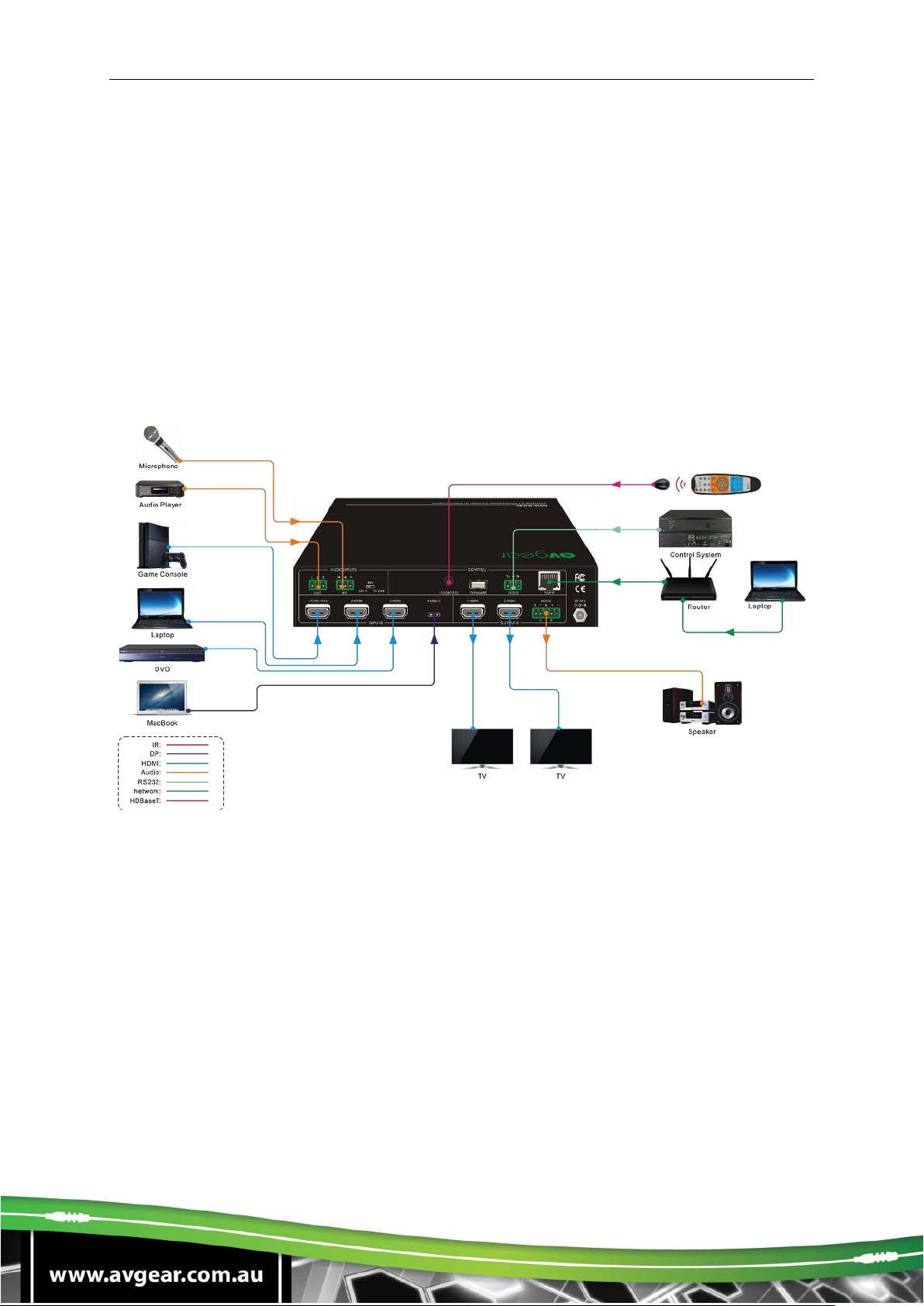
3. All devices should be connected before powering on the Scaler Switcher.
3.2. System Diagram

AVG-SC42T
4. Operation
4.1. Front Panel Control
Front panel buttons can be used for switching operations and volume control.
4.1.1. Manual Switching
When the switcher is in manual switching mode, the Auto Mode LED will be turned
off. To change the input source, press the 1-HDMI,2-HDMI,3-HDMI or 4-USB-C
button, and the corresponding LED will illuminate green. To change the output
source, press 1-HDMI or 2-HDMI button, and its LED will illuminate green.
4.1.2. Auto Switching
Press 1-HDMI or 2-HDMI output button, and then press AUTO button to enable
automatic switching. The Auto mode LED will illuminate.
When in Auto mode, the switcher will switch according to the following rules:
▪New input: Upon detecting a new input, the switcher will automatically select the
new input.
▪Reboot: Once power is restored to the switcher, it will automatically reconnect the
input before the switcher powered off.
▪Source removed: When an active source is removed, the switcher will switch to
the first available active input starting at HDMI input 1.
▪Press the INPUT button (1-HDMI, 2-HDMI, 3-HDMI or 4-USB-C) can forcibly
change the input source. If the corresponding source device is active, it will be
switched as input source. If not, the switcher will switch to the first available
active input starting at HDMI input 1.
4.1.3. Volume Control
▪Press the SELECT button to toggle between MIC, OUT 1and OUT 2 audio
control, the corresponding LED will illuminate green.
▪: Volume up for the selected audio.
▪: Volume down for the selected audio. Press and hold the button for at least
three seconds to mute the selected audio.
This manual suits for next models
1
Table of contents
Other AVGear Switch manuals

AVGear
AVGear AVG-UHS41 DA User manual

AVGear
AVGear AVG-SC51D User manual

AVGear
AVGear AVG-UHS41 DA User manual

AVGear
AVGear AVG-SCU41-MV User manual

AVGear
AVGear AVG-HDE2 User manual

AVGear
AVGear AVG-CSK-HD44 User manual

AVGear
AVGear AVG-SC121D-TN User manual

AVGear
AVGear AVG-SM-2.0 User manual

AVGear
AVGear MHD44 User manual

AVGear
AVGear AVG-DSS61 User manual


